What Is Tracert/Traceroute Command? How to Run It on Windows, Mac, and Linux?
- What Is Tracert?
- What Is Traceroute?
- How Do I Use Tracert/Traceroute?
- How to Read a Tracert/Traceroute Result?
Tracert or Traceroute is one of the key diagnostics of networking. So, how does it work, and how can you run it?
Tracert, also known as Traceroute, is a crucial command in networking that helps experts understand the integrity and speed of a network. It allows them to track the path of data packets over a specific network, providing valuable insights into the network's performance and any potential issues that may be affecting it.
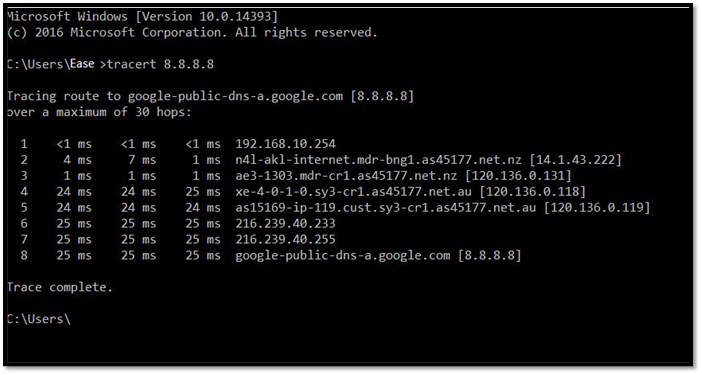
Understanding Tracert commands requires exploring their roots and origins. The traceroute command, a fundamental tool in network troubleshooting, works by sending a series of packets with increasing time-to-live values to a target host, allowing users to see the path a packet takes to reach its destination and identify potential bottlenecks or network issues. To run a traceroute, users can simply type the command in a terminal or command prompt, followed by the IP address or domain name of the target host, and the command will display the route the packets take to reach the destination.
What Is Tracert?
Tracert is a command that displays the paths of network packets, showing the routes data takes from one end to another, allowing users to diagnose network issues and display probable data transition routes.
This process involves sending data between two computers and measuring the network's speed and capabilities, making it a diagnostic command for computer networks in Windows.
The Tracert command on Windows is used to trace the route of internet traffic between a local computer and a remote one, providing detailed information about the path data takes to reach its destination, including the time it takes to complete the round trip. This is different from the Ping command, which only measures the time it takes for data to travel one way from the local computer to the remote one. Tracert produces more detailed and accurate results, making it a useful tool for troubleshooting network connectivity issues.
But, in Windows NT-On computers, the same operation is called PathPing, but the preferred method is still to use the Tracert command.
What Is Traceroute
In Unix-like operating systems, such as macOS and Linux, Traceroute is the same command as Tracert, which is used to trace the route of internet traffic. It is available as a graphical interface in macOS and can be found in the Network Utilities Suite, similar to Windows.
In Linux, the command line tool is still used to trace the network route and send data packets, similar to Tracert in Unix operating systems, allowing for thorough network diagnostics.
The basics of both Traceroute and Tracert are the same, but their working is vastly different in Mac and Linux.
Therefore, the purposes of network scanners are to allow the user to completely scan their local network for issues and identify problems by isolating a specific data packet or network chain.
How Do I Use Tracert/Traceroute?
- How Do I Run a Tracert Command in Windows?
- How Do I Run a Traceroute on a Mac?
- How Do I Run a Traceroute on Linux Machine?
Understanding how to use Tracert or Traceroute effectively requires a thorough grasp of each operating system's specific commands and functionalities. To master this, it's essential to break down the Tracert command according to its operating system, covering Windows, macOS, and Linux, each with its unique parameters and options. This involves learning how to use the command on each platform, including the correct syntax and any specific flags or switches required, to ensure accurate and reliable results. By doing so, users can gain a deeper understanding of network routing and packet transmission, enabling them to troubleshoot and optimize network performance with confidence.
- Windows
- Mac
- Linux
For the Tracert diagnostic, we recommend only experienced Linux users attempt it, as it's the most complicated. Mac users may find it the easiest to run, while Windows users will need a good understanding of the command prompt to use it effectively.
So, let's get started:
How Do I Run a Tracert Command in Windows?
To run a Tracert command on Windows, open the Command Prompt, type "tracert" followed by the website's URL (without the "http://"), and press Enter. This will display the route your internet traffic takes to reach the website, including any intermediate hops and potential issues.
Step 1: Head to the Start Menu or press the Windows button on your keyboard
Step 2: Type CMD and Run as Administrator
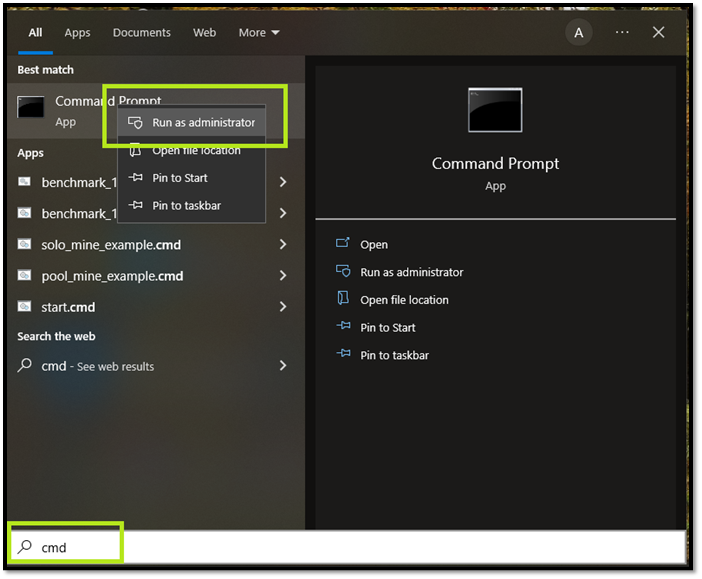
Step3: Let it open the Command Prompt
Step 4: Type Tracert hostname (instead of "hostname," you should type the address of the server you wish to diagnose)

Step 5: Let the test run, which should take about a minute or two
Step 6: Wait for Trace complete to show
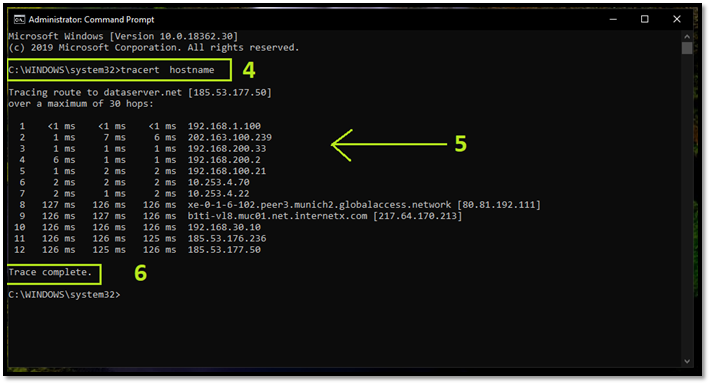
Now that you have the data, you'll have to keep scrolling to be able to read it. However, if you already know how to read it, then you know what each MS indicates.
The Tracert command result shows the time it took for data packets to travel from the source to the destination, measured in milliseconds. This means the time it took for the network to send data packets back and forth. To read the result, follow the type of output specified by the operating system.
How Do I Run a Traceroute on a Mac?
To run a Traceroute on a Mac, simply access the Utilities section, which can be found in the Applications folder. From there, you can select the Network Utility, and then choose the Traceroute option. This will allow you to run a Traceroute test on your Mac device.
Step 1: Go to Finder on your Mac device
Step 2: Tap on Go in the top bar of Finder
Step 3: Find and Tap Utilities at the near-bottom
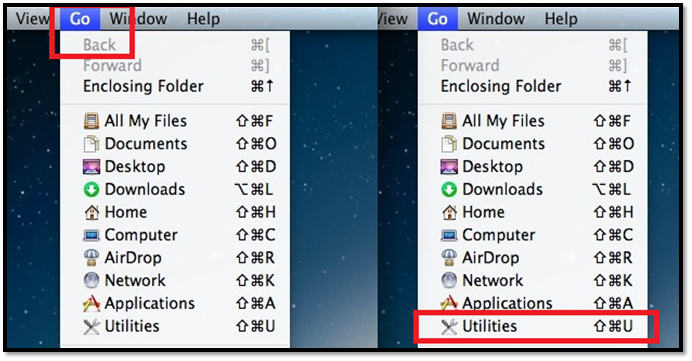
Step 4: Head to Terminal
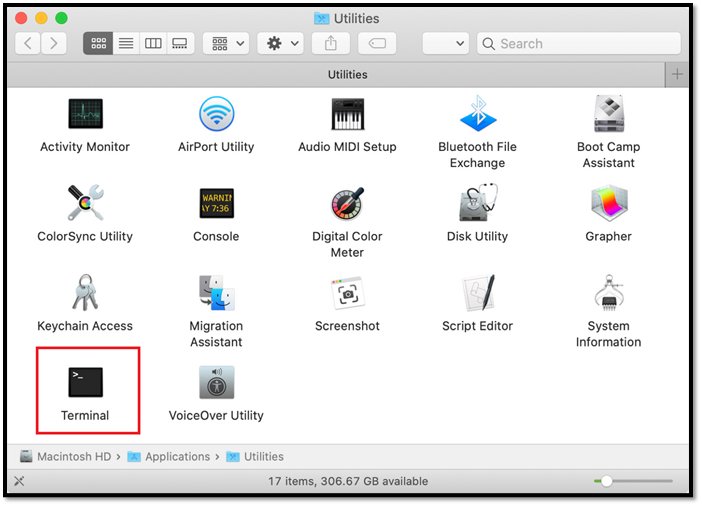
Step 5: Type traceroute in the terminal
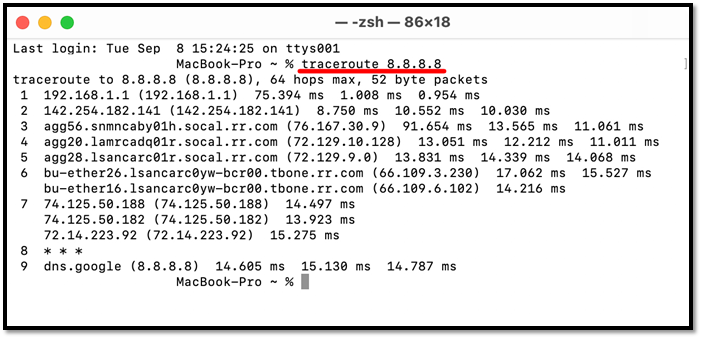
Step 6: Wait for it to finish
As you might already know, you can access Utilities in the Finder app in multiple ways. But, regardless of how you get there, you need to run Terminal, which is the Mac equivalent of Command Prompt. So, make sure you run these commands to do that.
How Do I Run a Traceroute on Linux Machine?
To run Traceroute, open a terminal window and type "traceroute" followed by the destination IP address or hostname you want to trace. For example, if you want to trace the route to Google's homepage, you would type "traceroute google.com" and press enter.
Step 1: Open Command Line in your Linux OS
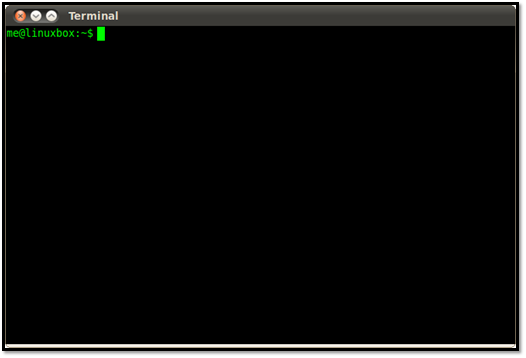
Step 2: Type Traceroute hostname in the command line (replace hostname with actual hostname)
Step 3: Wait for the test to finish
Step 4: Let the final ping detect
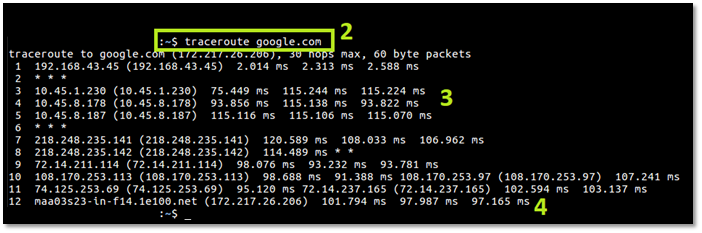
You'll need to figure out the hostname yourself, but for testing the local network, you can visit any website, like we checked Google in the previous steps. To check specific IP addresses, you'll need to be more precise.
To trace the route of a network in Linux, you'll need to use the command line, run the Traceroute command, and know the server IP or website you want to trace. This will allow you to see the path your data takes as it travels from your computer to the server.
How to Read a Tracert/Traceroute Result?
Reading or understanding Tracert or Traceroute results isn't complex. If you've made it this far, you know the numbers generated by the Terminal, Command Prompt, or Command line aren't random, and you can use them to gain insight into network routing and connectivity.
They're reading of various elements. So, to keep it simple for you, remember this:
- If there is one or more asterisk (*)
- RTT (Round Trip Time) measures the latency, or delay, in one packet, and is typically shown in milliseconds (MS) in the command line.
- You're using a system called "Windows 10" on a computer named "Dell Inspiron 15 5000".
- The IP address is the one returned by the designated hostname.
- A Request Time Out (RTO) occurs when a server's ping is broken, resulting in an unstable connection. This can cause delays or failures in communication between the server and the client.
Some connections show a response time of around 1000ms, which is very slow and unstable. However, if the connection is completely unresponsive and doesn't send back anything, it's considered broken, resulting in a "Request Timed Out" error.
Bottom Line
We've provided a comprehensive guide on understanding Tracert and Traceroute commands, covering their two types and how to check them on three main operating systems. By following the steps correctly, you'll be able to read and comprehend these commands, making it easier to navigate through network troubleshooting.
Related Articles
- Ultimate Guide on Network and Sharing Center [Updated 2022]
- What Is Cloud Computing? [Everything You Need to Know]
- What is Taskbar in Windows? And How to Use it?
- Network Switch vs. Router: What's the Difference
- How Do I Find Windows Server 2019 Product Key [3 Methods]
If you're having trouble finding the Windows Server 2019 Product key, you can try using one of three methods: PowerShell, Command Prompt, or registry. However, the easiest approach is to use the Qiling Key Finder, which has a Product Key feature that allows for an instant find. - Find Windows XP Product Key/License with 4 Practical Solutions
Calling out all the Windows XP users who are trying to find or recover their missing product key to follow our guide and find Windows XP product key successfully.
Products
Articles & Tutorials
- Data Recovery
- Data Backup
- File Recovery
- File Backup
- System Backup and Restore
- Disk and Partition Clone
- Technical articles
- Mobile articles
- Disk Master Help
- Windows Data Recovery Tutorials
- Windows Secure Delete Tutorials
- Windows Partition Management Tutorials
- Windows File Backup and Restore Tutorials
- Windows System Backup and Restore Tutorials
- Windows Disk Backup and Restore Tutorials
- Windows Clone Tutorials