What is Taskbar in Windows? And How to Use it?
What is Taskbar in Windows?
The taskbar, a fundamental component of the Windows operating system, is a toolbar located at the bottom of the screen that provides instant access to frequently used features and applications. This post will delve into the world of the taskbar, exploring its customization options on Windows PCs, as well as highlighting some of the most popular taskbar extensions available.
If the taskbar stops responding or disappears, see this related guide to fix the Windows taskbar not working issue.
How to use taskbar?
You can pin and unpin apps to the taskbar, allowing you to easily access and remove them as needed.
The taskbar can show running apps and serve as a quick access center for frequently used applications. You can pin an app to the taskbar by dragging the app icon into the taskbar zone or by adding it through a specific process.
- To search for a specific app on your Windows computer, you can use the Search box located on the taskbar. Simply click on the Search box, type the name of the app you're looking for, and press Enter.
- Right-click the app
- Choose "Pin to taskbar"
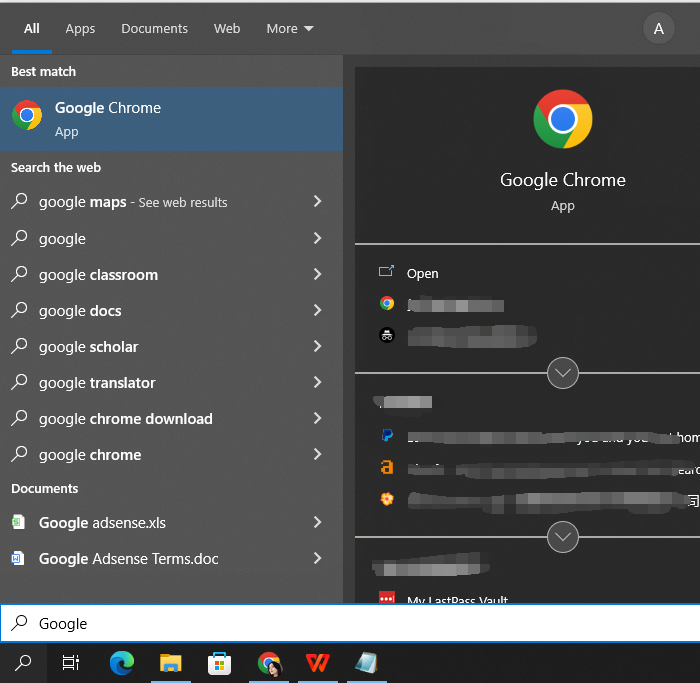
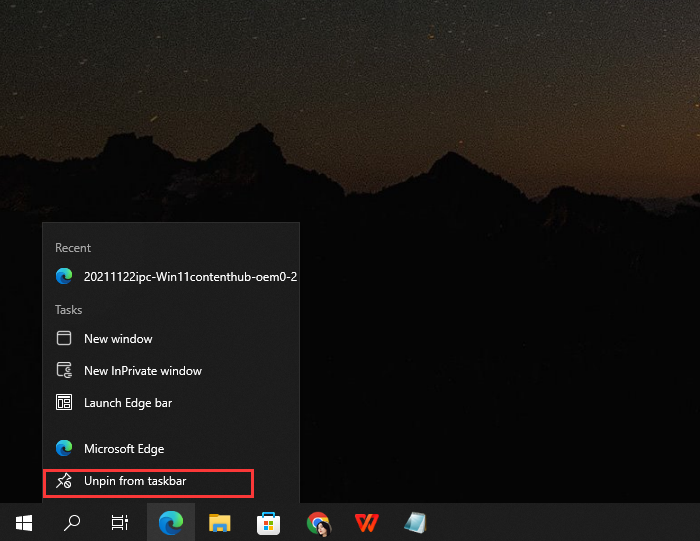
To unpin apps from the taskbar, right-click the app and select "Unpin from taskbar", which will cause the apps to disappear from the taskbar.
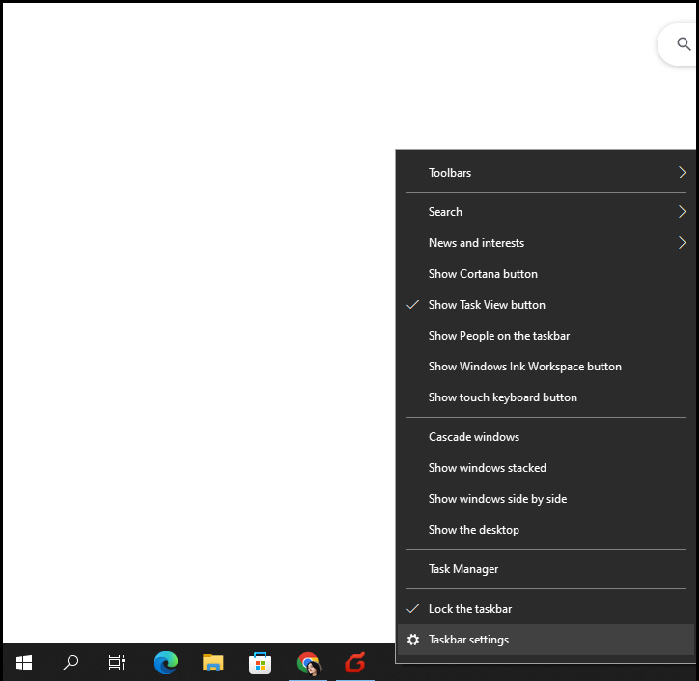
To customize your taskbar settings, you can access various options such as size customization, app icon size adjustment, color change, background replacement, and more. To open taskbar settings, follow these simple steps:
- Move the mouse to an empty space on the taskbar
- Right-click
- Choose "Taskbar settings"
Customizing the taskbar with personal habits or preferences is a straightforward process. Additionally, there are taskbar extensions available that can provide further assistance in tailoring the taskbar to individual needs.
The taskbar plays a crucial role in daily operations, providing quick access to apps. Many users want to personalize it to suit their needs, and there are various ways to customize and extend the taskbar. One popular option is installing taskbar extensions, such as Taskbarx and Startisback, which are small tools that allow users to customize taskbar settings, including changing the style, location, and even moving app icons to the left, as seen in other Windows versions, rather than the middle placement in Windows 11.
Taskbar VS system tray in Windows
The system tray, also known as the notification area, is a designated area on a computer screen where icons representing running applications, system processes, and other notifications are displayed. It's usually located at the bottom right corner of the screen and is separate from the taskbar, which displays a list of open applications and windows. Unlike the taskbar, the system tray typically doesn't show open windows or applications, but rather provides a quick way to access system settings, network connections, and other system-related features. The main difference between the two is that the taskbar is focused on the user's current work, while the system tray is focused on system-level information and notifications.
The system tray, also known as the systray, is a section in the top-right corner of the screen that displays icons for system settings and notifications, such as new email messages, calendar events, and network status, as well as shortcuts to frequently used settings or actions.
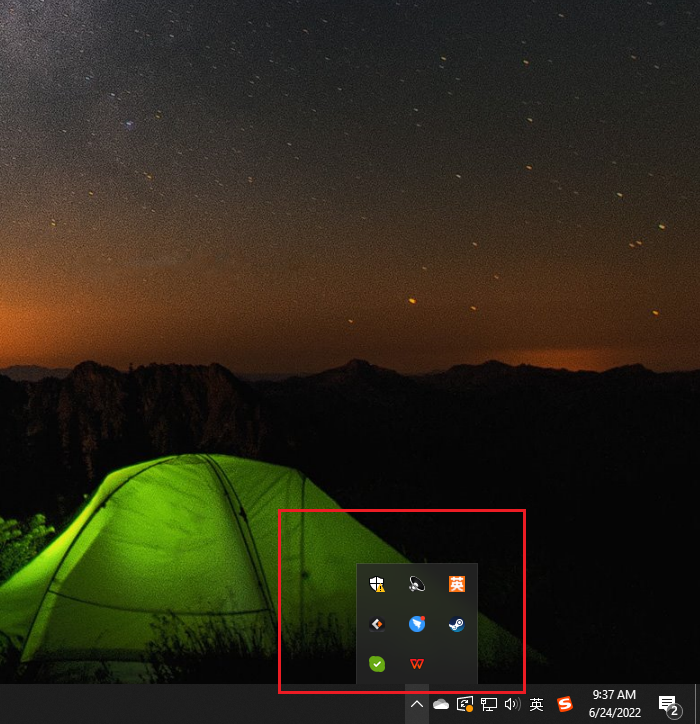
The taskbar is a horizontal bar at the bottom of the screen that helps launch and manage applications, while also providing access to system settings and notifications. In contrast, the system tray is primarily used for accessing system settings and viewing notifications.
The taskbar is a valuable tool that provides quick access to frequently used software, enhancing efficiency and productivity. Its settings can be tailored to suit personal style, either through native options or third-party software. While it serves a different purpose than the system tray, which is located elsewhere, there is some overlap in their functions. By utilizing the taskbar effectively, users can streamline their workflow and stay organized.
Related Articles
- What is Windows PE and How to Use It
- [Solved] What Happens If I Interrupt System Restore Windows 10?
- What Is a File Server? Definition and How It Works.
- A Mini USB - Things You Need to Know
- Accidentally Saved Over a Word Document, Recover Easily
Recover a Word document accidentally saved over. Try previous versions, AutoRecover, backups, and recovery tools to restore lost content. - Acronis Clone Disk Wizard Stuck During Cloning Process - How to Fix
Acronis True Image may hang when cloning due to various reasons, but quick fixes are available to resolve the issue. Additionally, some tips can be provided to prevent the Acronis clone disk Wizard from getting stuck in the future.
Products
Articles & Tutorials
- Data Recovery
- Data Backup
- File Recovery
- File Backup
- System Backup and Restore
- Disk and Partition Clone
- Technical articles
- Mobile articles
- Disk Master Help
- Windows Data Recovery Tutorials
- Windows Secure Delete Tutorials
- Windows Partition Management Tutorials
- Windows File Backup and Restore Tutorials
- Windows System Backup and Restore Tutorials
- Windows Disk Backup and Restore Tutorials
- Windows Clone Tutorials