Fix Windows Taskbar Not Working | For Windows 11/10
The Windows Taskbar is a highly useful feature that provides instant access to used programs, and its updated version in Windows 10/11 ensures an optimal experience. However, if the Taskbar is not working, there are several solutions to fix the issue, which can be referred to for a quick resolution.
| Workable Solutions | Step-by-step Troubleshooting |
|---|---|
| 1. Fix Windows Taskbar Not Working by Creating New Account | Hit the Windows + I keys to open the Settings app and select Accounts...Full steps |
| 2. Fix Windows Taskbar by Restarting Windows Explorer | Open the Task Manager by right-clicking on the Taskbar, and select Task Manager...Full steps |
| 3. Check Updates to Fix Taskbar Not Working | It's a broad piece of advice applicable to several PC errors, but it's solved taskbar disagreement...Full steps |
| 4. Use PowerShell to Fix Taskbar Not Working | Type in Windows Powershell or just type in power in the search bar and select Windows...Full steps |
| More Solutions | Windows 10 taskbar errors you have might be connected with outdated drivers. This...Full steps |
The Windows 10 laptop or computer's Taskbar has a new look, featuring a Cortana search bar, which may be causing the issue you're experiencing.Taskbar not working Windows 10The new version of the software has a slightly different user interface than its older versions, but this is a minor issue compared to the benefits it offers. However, there are several reasons for the changes, including a desire to improve user experience and make the software more intuitive and easier to use, which can help reduce the learning curve and make it a more enjoyable experience. This can also lead to a lower rate of user errors and a more efficient workflow, which can be a significant advantage in a business or professional setting. Windows Taskbar not working. Here are the top 4 reasons:
| ❌Corrupted components | If Windows components get corrupted, you may need to reinstall pre-installed applications to resolve the issue. |
| 💻System glitches | If you're experiencing issues with File Explorer or other parts of your Windows 10 or 11 OS, restarting the process may help resolve the problem. The glitch could be caused by the OS itself, so a simple reboot can often resolve the issue. |
| 🔎System services | Windows requires specific services to function properly. If they stop working, you can start them manually by opening services.msc and initiating them. |
| 🖥️Older display driver | The Taskbar not working is often due to outdated display drivers, which can conflict with the latest Windows version's other drivers. |
To resolve the issue of the Taskbar not working on Windows 11/10, a video guide is provided. The video covers the main steps to fix the problem, which include troubleshooting and resolving the issue.
- 00:15 Press Ctrl+Shift to open the Task Manager window
- To restart Windows Explorer, click on the "More Details" button on the Task Manager, find Windows Explorer in the list, and click on the "Restart" button.
- 01:00 Open Control Panel and select User Accounts
Method 1. Fix Windows Taskbar Not Working by Creating a New Account
If your Windows 10/11 Taskbar is not working, you can try creating a new account to resolve the issue. To do this, go to Settings > Accounts > Family & other users, then click on "Add someone else to this PC" and follow the prompts to create a new user account. Once you've created the new account, sign in to it and see if the Taskbar is working properly.
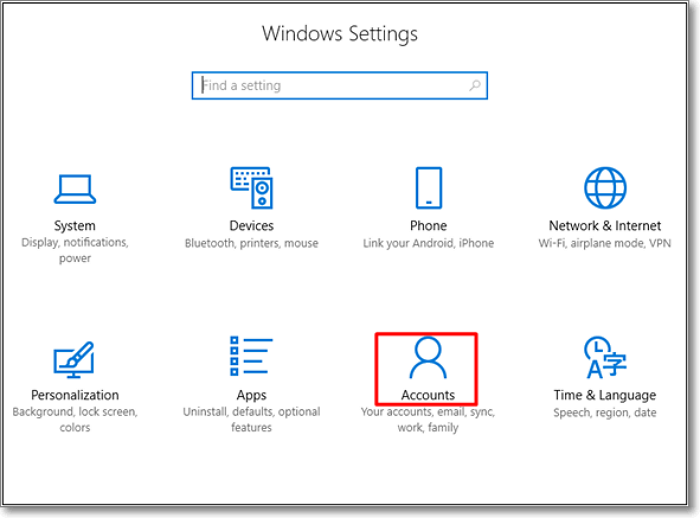
Step 1. To open the Settings app and access the Accounts section, press the Windows key + I keys together on your keyboard. This will instantly open the Settings app, and from there, you can select the Accounts option to manage your user account settings.
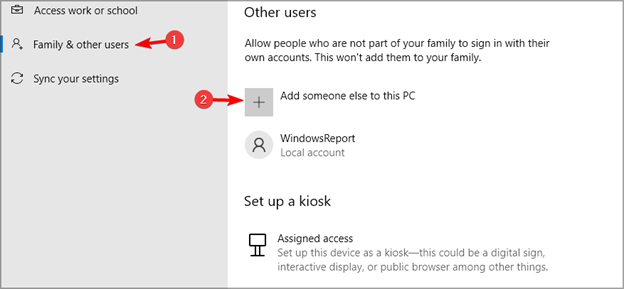
Step 2. Select "Family & other users" in the right pane, then choose "Add someone else to this PC".
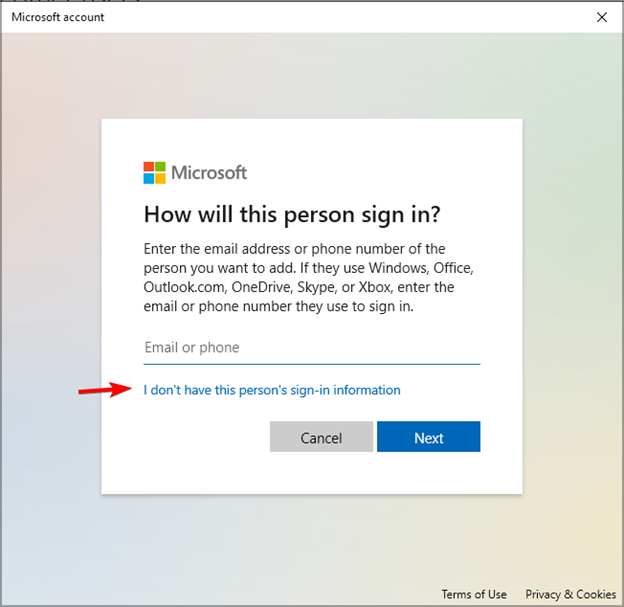
Step 3. Now select "I don't have this person's sign-in information".
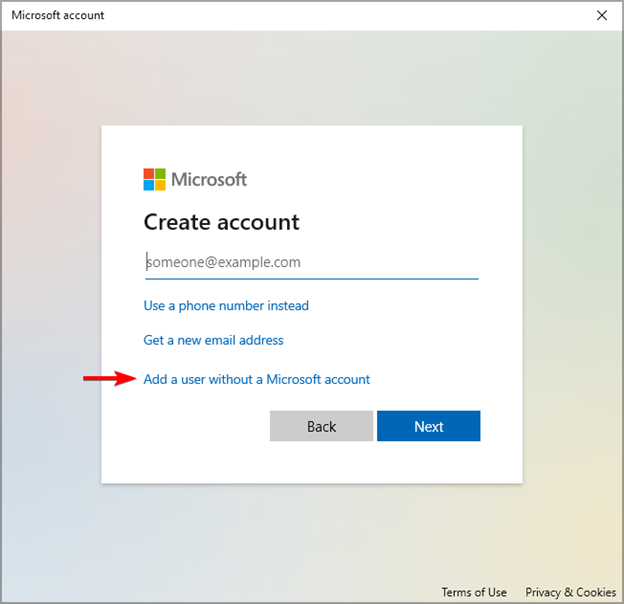
Step 4. To add a user without a Microsoft account, select the "Add a user without a Microsoft account" option.
Step 5. To resolve Taskbar not working Windows 10/11 issue, create a new account, log in to it, and check if the problem is fixed. Simply type a username, password, and hint, then hit the Next button to create the new account. Once created, switch to the new account and see if the Taskbar is functioning properly. This troubleshooting step can help identify if the issue is account-specific.
You can easily fix a taskbar not working Windows 10/11 error by following the steps above. Just remember to follow each step carefully and you'll be back to normal in no time! If these steps are helpful, consider sharing them with your friends on social media.
Method 2. Fix Windows Taskbar by Restarting Windows Explorer
To fix the Windows 11 Taskbar not working error, try restarting Windows Explorer. This can be done by pressing the Windows key + X, selecting Task Manager, and clicking on the "Restart" button next to Windows Explorer. If the issue persists, try restarting your PC. This simple solution can often resolve the problem and get your Taskbar working again.
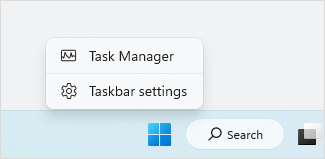
Step 1. To open the Task Manager, right-click on the Taskbar, and select Task Manager from the appeared window.
Step 2. Scroll down to locate Windows File Explorer.
Step 3. To restart Windows Explorer, right-click on the Windows Explorer icon in the taskbar, and select Restart from the context menu.
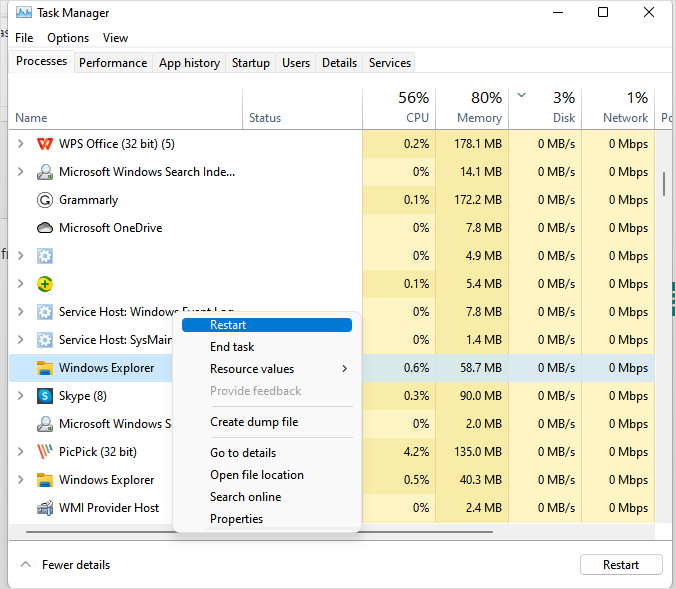
To fix a non-responsive Windows File Explorer, you can also use the Task Manager. Press Ctrl+Shift+Esc to open the Task Manager, then click on the "Processes" tab and look for "explorer.exe" in the list.
To fix File Explorer not responding on Windows 11/10, try restarting it, checking for updates, and running a System File Checker (SFC) scan. If the issue persists, disable any recently installed apps, run a DISM scan, and check for malware.
The file explorer on Windows 11/10 is not responding, but don't panic, as this article provides easy-to-follow methods to fix the issue.
Method 3. Check Updates to Fix Windows 11 Taskbar Not Working
To fix the Windows 10 Taskbar not working, check for updates by navigating to Settings > Update & Security > Windows Update, and install any available updates to resolve taskbar issues.

If you're experiencing issues with Windows updates, there are several potential solutions to try. Firstly, ensure that your internet connection is stable and that you're connected to the correct network.
Fix Windows Update Not Working Windows 11/10
Windows issues like Windows update not working in Windows 10 or 11 may lead to various errors occurring during an update, causing frustration and inconvenience.
Method 4. Use PowerShell to Fix Windows Taskbar Not Working
To access the Powershell Windows feature, you can simply launch the Command Prompt and type "powershell" in the command line. This will open the Powershell Windows feature, allowing you to configure system settings and perform various tasks.
Step 1. To open Windows Powershell, type "Windows Powershell" in the search bar or simply type "power" and select the Windows Powershell app symbol from the search results.
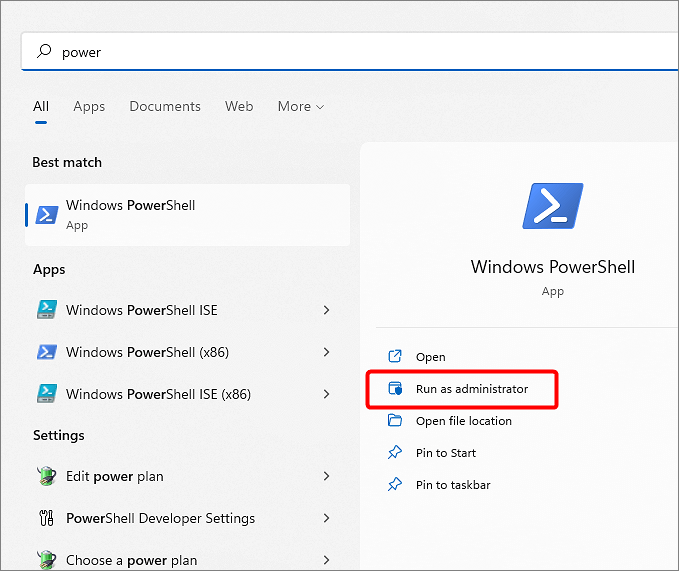
Step 2. Copy the following command in the Powershell window, paste it into Command Prompt, and hit the Enter button:
Get-AppXPackage -AllUsers | Foreach {Add-AppxPackage -DisableDevelopmentMode -Register "$($_.InstallLocation)AppXManifest.xml"}
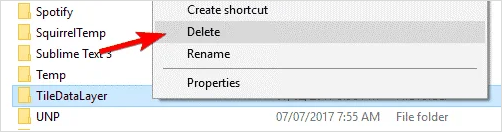
Step 3. To shut down the Powershell window after executing the previous command, and go to the directory below, which is a portion of Windows Explorer: C:/Users/name/AppData/Local/, replace 'name' with your actual username in your Account.
Step 4. To troubleshoot the Taskbar issue, delete the "TileDataLayer" folder from the list of folders. Then, check if the Taskbar is working properly.
Method 5. Update Graphic Drivers to Solve Windows Taskbar
To resolve Windows 10 taskbar errors, you can try updating outdated drivers, which may be causing the issue. This process can also help fix other errors on your PC. To update your graphic drivers, follow these steps:
Several drivers, such as graphics and audio drivers, may need to be updated to resolve taskbar problems. You can use software like "Driver Talent" or other third-party tools to automatically update these drivers.
Automatic driver update tools can identify your specific hardware and Windows 10 version, then download and install the correct graphic driver for your PC.
The solution provided is a good one, please share this with your friends on social media.
Method 6. Fix Taskbar Not Working with Windows Troubleshooter
You can resolve the issue of the Taskbar not working on Windows 11/10 by using the Windows Troubleshooter. To do this, go through the steps below:
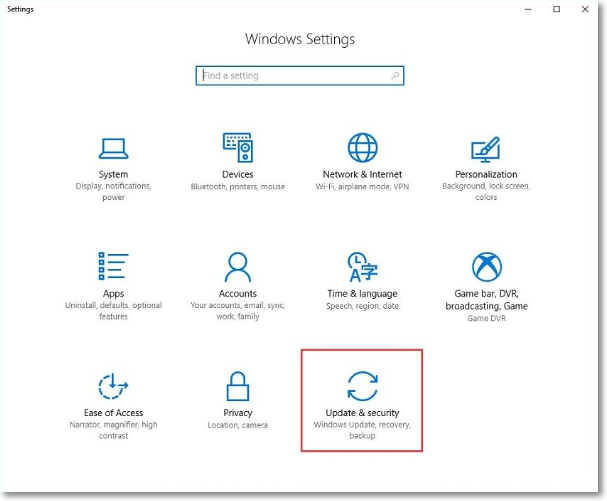
Step 1. To update the Settings app, navigate to it and select the "Update & Security" section.
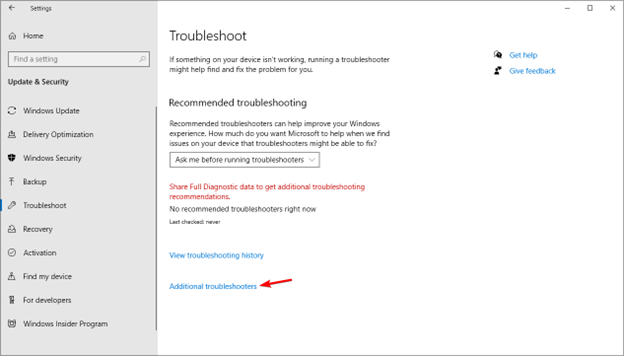
Step 2. Hit the Troubleshoot option, and select "Additional troubleshooter".
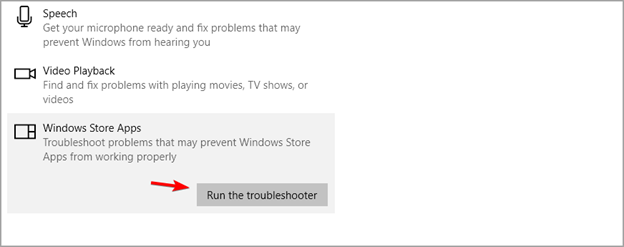
Step 3. Opt for Windows Store Apps, and select "Run the Troubleshooter".
Method 7. Run DISM to Troubleshoot Windows 10/11 Taskbar
After performing an SFC, a DISM scan is suggested for a Disk Image Check. Follow the steps below to run DISM to troubleshoot the Taskbar not working:
Step 1. To open the Command Prompt, press the Windows + R keys to open the Run window, and type 'CMD' in the text box, then press Enter.
Step 2. Once the Command Prompt window appears, type in DISM.exe/Online /Cleanup-image /Restorehealth, and hit the Enter button, conducting a disk image check.
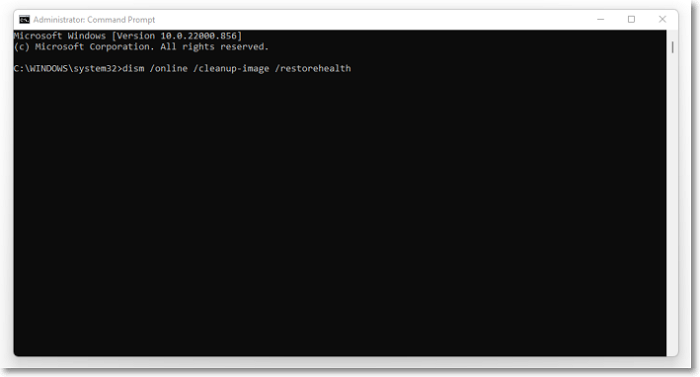
Step 3. Run the DISM tool to scan and repair corrupted system files, which may resolve the Windows 10 taskbar issue. Follow the on-screen instructions to run the tool, and restart your computer afterwards to see if the problem has been resolved.
Method 8. Perform System Restore to Solve Taskbar Not Working Windows 10/11
If you've tried every strategy mentioned above and still can't get the Taskbar working, it might be best to perform a system restore to revert your computer to a previous date when the Taskbar was functioning properly. To do this, follow these steps:
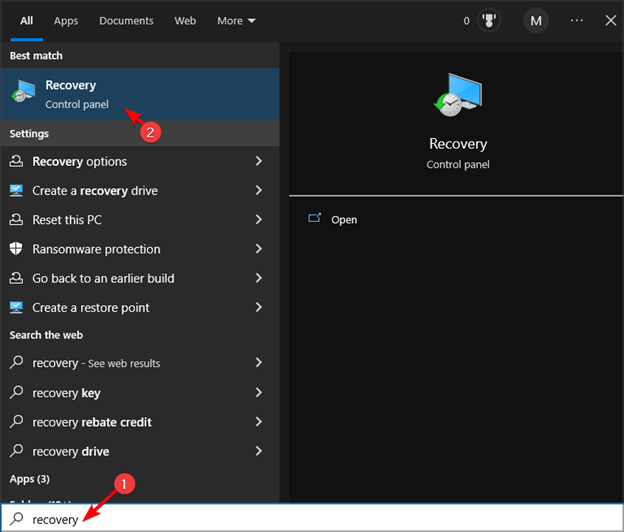
Step 1. In the search bar, type Recovery, and opt for Recovery from the list.
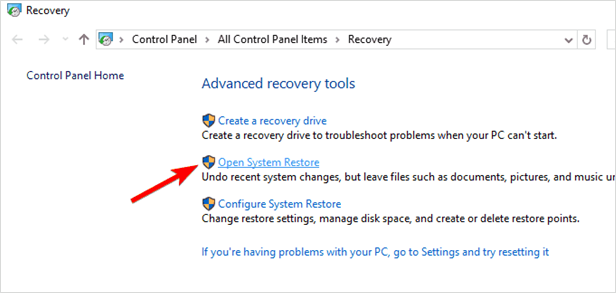
Step 2. Opt for "Open System Restore".
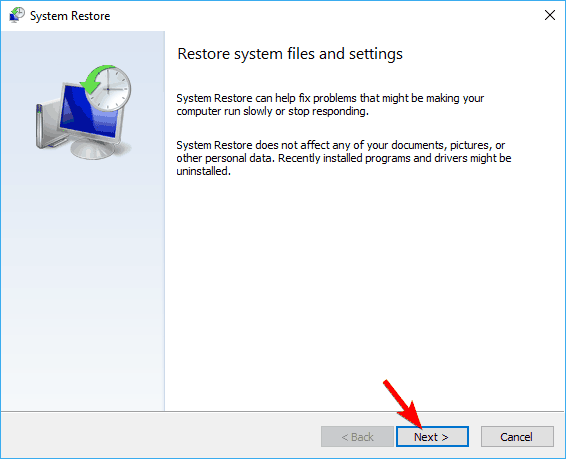
Step 3. Once the System Restore window opens, click the "Next" button to proceed.
Step 4. If it's an option, select Show more restore points.
Step 5. Opt for the chosen restore point, and select "Next".
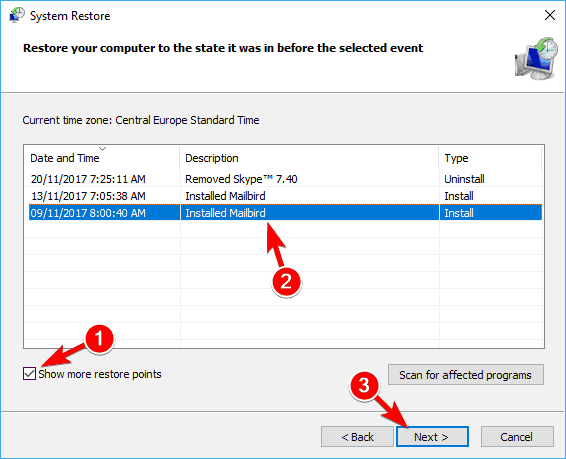
Step 6. To complete the restoration process, follow the on-screen instructions carefully. The process will guide you through the necessary steps to restore your device to its original state.
Recover Lost Data Lost Because of Windows Taskbar Issues
With the fixes mentioned, you can eliminate Windows Taskbar errors. However, if you've lost data due to this issue, it's recommended to recover files using professional data recovery software, Deep Data Recovery.
To quickly recover deleted files from any location on your Windows PC, install this Windows recovery tool to restore eliminated documents. This tool, Qiling, is particularly useful in situations like the Windows Taskbar error, where valuable files are lost. Its highlighted features include:
- Supports different Windows versions and even the latest Windows OS.
- You can recover deleted files of various types, including MP4, MOV, JPEG, PNG, DOCX, PDF, and others, using data recovery software or services. These tools can scan your device or storage media for deleted files and attempt to restore them to their original state.
- Restore files from a vast array of storage devices, including USB drives, solid-state drives (SSD), and hard disk drives (HDD), totaling over 2000 units.
- To recover files after a factory reset on Windows 11, you can use data recovery software like Deep Data Recovery Wizard. This tool can scan your computer's hard drive or external storage devices to locate and recover deleted or lost files, including documents, photos, videos, and more.
Get this professional data recovery tool now! If you found the content helpful, please share it with your friends on social media.
Summary
Hopefully, you'll be back to normal with your Windows 10/11 taskbar. Using one or more of the suggested solutions, you should have resolved any issues, such as the inability to select items in the toolbar. Now, you can utilize the Taskbar's features to their full potential. If you lost data during the fix, installing Qiling data recovery is essential.
Windows Taskbar Not Working FAQs
Go through the FAQs below to understand the topic a better way:
1. How to fix the unclickable Taskbar in Windows 10?
To fix the unclickable Taskbar in Windows 10, ensure that the "Lock the taskbar" option is enabled. This can be done by right-clicking on the Taskbar, selecting "Taskbar settings," and then toggling the switch next to "Lock the taskbar" to the ON position. This should resolve the issue and allow you to interact with the Taskbar as normal.
- Right-click on the Taskbar.
- Select the "Lock the taskbar" option.
2. What causes the Windows Taskbar not to work?
The Windows Taskbar may not work due to corrupted components or system glitches, which can occasionally occur in the operating system. Additionally, if pre-installed apps become corrupted, reinstalling them may resolve the issue.
3. Why is my start bar not working on Windows 11?
To resolve taskbar difficulties, try restarting Windows Explorer in Task Manager, remove any problematic Windows updates, reboot system services, reload Windows built-in applications, and use restore points to create a backup. If the issue persists, consider these steps.
4. Why is my Taskbar staying on top of Windows 10?
If the Taskbar is always at the top, it's likely due to an application being pinned to it. Try removing any pinned items and then repin them to see if the issue resolves.
Related Articles
- macOS Sonoma Runs Slow After Update | 8 Ways to Fix
- How to Fix Error Code 41 Mac When Coping Files on macOS 13/12/11
If you're experiencing a Mac error code 41 while copying files, this article will help you understand what it means, why it occurs, and how to resolve the issue. You'll also find a bonus tip for recovering deleted files on your Mac. - How to Export bookmarks from Firefox to Chrome (2023 Tutorial)
If you're planning to switch from Firefox to Chrome, you can easily transfer your bookmarks to the new browser using one of three simple methods. This way, you won't lose any of your favorite saved links and can continue to access them seamlessly in Chrome. - How to Export Chrome Bookmarks to Safari - 2024 Updated
If you're looking to export Chrome bookmarks to Safari, this guide provides a step-by-step process on how to transfer your Chrome bookmarks to Safari on your Mac, iPhone, or iPad, making it easy to switch or sync your bookmarks across different devices. - Do You Have to Format A New SD Card? Latest Tips!
Do you have to format a new SD card? Check short and fast answers! - 3 Ways | How to Enable and Disable Offline Files in Windows 10
This article provides four practical ways to enable or disable offline files in Windows 10, allowing users to select a method that suits their needs.
Products
Articles & Tutorials
- Data Recovery
- Data Backup
- File Recovery
- File Backup
- System Backup and Restore
- Disk and Partition Clone
- Technical articles
- Mobile articles
- Disk Master Help
- Windows Data Recovery Tutorials
- Windows Secure Delete Tutorials
- Windows Partition Management Tutorials
- Windows File Backup and Restore Tutorials
- Windows System Backup and Restore Tutorials
- Windows Disk Backup and Restore Tutorials
- Windows Clone Tutorials