How to Export Chrome Bookmarks to Safari - 2024 Updated
If you're planning to switch from Google Chrome to Safari as your default browser, you might want to migrate your bookmarks from Chrome to Safari to make it easier to access your frequently visited websites. However, you may encounter issues like Google Chrome Sync Keeps Pausing while using Chrome.
You can export bookmarks from Chrome as HTML file, then import them into Safari. It's a simple process that involves a few clicks.
Unfortunately, it's not possible to directly export or sync bookmarks from one browser to another. However, you can try using browser extensions that allow you to export bookmarks as a file, such as Bookmarks Organizer or Export Bookmarks, and then import them into another browser. Alternatively, you can also use a third-party service like Pocket or Pinboard to sync your bookmarks across different browsers and devices. Would you like me to elaborate on any of these options?
This article provides a step-by-step guide on how to export Chrome bookmarks and import them into Safari on Mac, iPhone, or iPad. We'll show you how to transfer your Chrome bookmarks to Safari, so you can access them from the comfort of your Mac, iPhone, or iPad. Let's get started!
Export Chrome Bookmarks to Safari on Mac
There are two ways to export bookmarks from Safari on a macOS computer. You can either use the "Export Bookmarks" option from the Safari menu, or you can use a third-party tool to export your bookmarks.
1) Import Chrome Bookmarks to Safari on Mac
There is a direct way to import Chrome bookmarks to Safari on Mac, allowing for a seamless transfer of all bookmarks without losing any data.
Step 1. To import bookmarks from Google Chrome to Safari, open the Safari browser and click the File tab, then select "Import From" and choose Google Chrome from the list of available browsers.
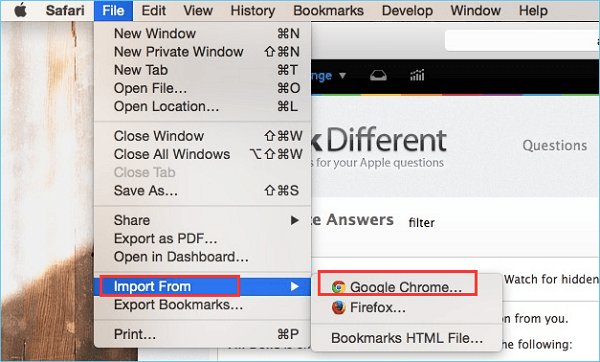
Step 2. Select the bookmarks you need to import.
Step 3. Click Import to start the process.
When you're done, you can view all your bookmarks in your Safari browser.
2) Export Chrome Bookmarks to Safari with HTML File on Mac
Another way to migrate bookmarks is through export and import, which requires two actions. This method saves Chrome bookmarks in HTML format.
Export bookmarks from Chrome:
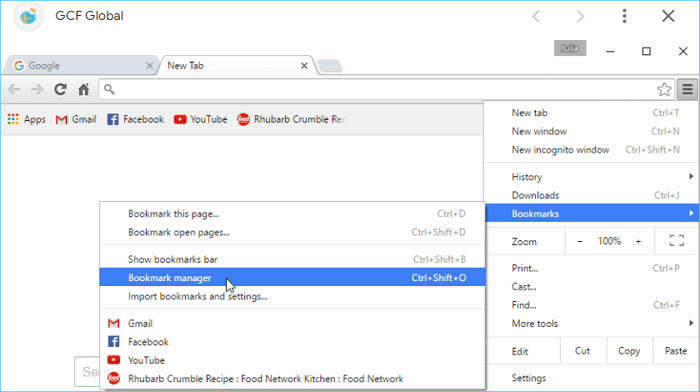
Step 1. Open the Chrome browser, click the three-vertical dots, select Bookmarks, then Bookmark manager, or press Ctrl+Shift+O to open it.
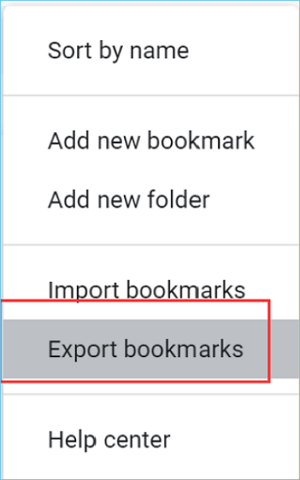
Step 2. To export bookmarks, click the three dots icon on the top-right corner of the browser window and select the "Export bookmarks" option.
Step 3. To save the HTML file, navigate to the desired location on your computer, such as the desktop or documents folder. Then, create a new folder or select an existing one where you want to save the file.
Step 4. Click the Save button.

Import bookmarks into Safari:
Step 1. Launch the Safari browser on your Mac.
Step 2. To import bookmarks from an HTML file, click on the "File" tab at the top of the browser window, then select "Import From" from the drop-down menu. From the subsequent options, choose "Bookmarks HTML File".
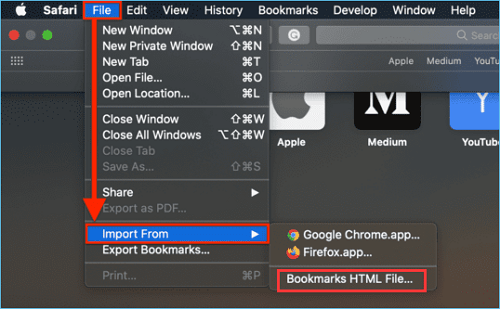
Step 3. Select the bookmark file you exported previously, and click Import.
You may be interested in the following Chrome articles:
2. Import Chrome Bookmarks to Safari on iPhone/iPad
If you're using iOS or iPad, there's no direct way to import or export bookmarks from Chrome to Safari on your mobile devices, but if you have a Mac along with your iPhone or iPad, things will be easy.
The browser's sync feature enables automatic syncing of bookmarks across various devices.
- Kind Tip
-
- You need to ensure you are using the same Apple ID on Mac and iPhone/iPad.
- Before syncing, you need to export bookmarks from Chrome to Safari browser on Mac.
Follow the steps below to sync Chrome bookmarks on iPhone/iPad:
Step 1. Open the "Settings" app on your mobile device.
Step 2. Click the Profile, and choose the iCloud option.
Step 3. To find the Safari browser, roll to the left on your home screen, locate the icon, and enable the iCloud button beside it.
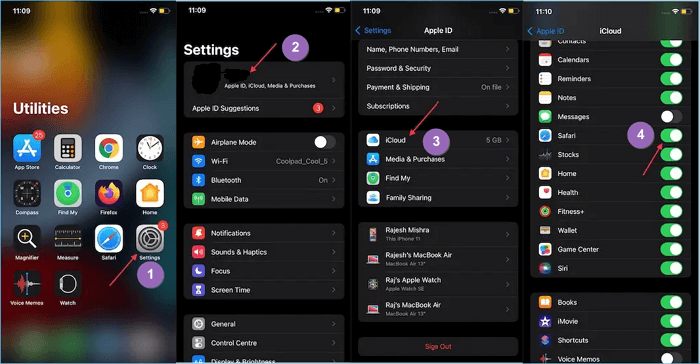
Now, you can open the Chrome application on your mobile device to check if all the bookmarks are synced successfully.
To transfer Safari bookmarks from one iPhone to another, you can use the iCloud syncing feature or the AirDrop method. If you have both devices signed in to the same iCloud account, your Safari bookmarks will automatically sync across devices.
Sum Up
If you're switching from Google Chrome to Safari, don't forget to export your Chrome bookmarks before making the switch! We've outlined three easy ways to do this on both Mac and iPhone/iPad, making the transition to Safari simple. With these methods, you can ensure that all your favorite bookmarks are safely transferred to your new browser, making it a seamless experience.
Export Chrome Bookmarks to Safari FAQs
1. How to migrate bookmarks from Google Chrome to Safari on iPhone?
To migrate bookmarks from Google Chrome to Safari on iPhone, export bookmarks from Chrome to Safari on Mac using the same Apple ID, and then sync bookmarks on iPhone.
2. How do I import bookmarks from Chrome to Safari on iPad?
To import bookmarks from Chrome to Safari on iPhone, you can export bookmarks from Chrome on your Mac and then sync them automatically. This process essentially transfers your Chrome bookmarks to Safari on your iPhone.
3. How do I automatically sync Chrome bookmarks with Safari?
If Chrome is your default browser, you can import your bookmarks directly into Safari when you first open the browser. A notification will appear, asking if you'd like to keep your imported bookmarks.
Related Articles
- Why Can't I Format My External Hard Drive on PS4? [Ultimate Answer and Tutorial]
- [Fixed] Right Click Not Responding or Working on Windows 10
- Fixed: How to Recover Files When Windows 10 Desktop Icons Are Missing
- How to Fix Screenshot Not Working Mac Ventura [Multiple Plans]
- Windows Update Troubleshooter Not Working in Windows 10/11 [Fixed Quickly]
Windows Update Troubleshooter is one of the most intriguing utilities in a Windows PC. But, when that stops working, users face extra issues. This article will explain why it happens and also tell you six possible fixes that you can apply if your Windows Update Troubleshooter isn't working. - New 16TB External Hard Drive Released: Perfect for Storing Large Data Files
A 16 TB External Hard Drive can hold a huge amount of documents, various forms of media, software, and applications. This article will introduce the 5 best 16 TB External Hard Drive and talk about the perks of each one.
Products
Articles & Tutorials
- Data Recovery
- Data Backup
- File Recovery
- File Backup
- System Backup and Restore
- Disk and Partition Clone
- Technical articles
- Mobile articles
- Disk Master Help
- Windows Data Recovery Tutorials
- Windows Secure Delete Tutorials
- Windows Partition Management Tutorials
- Windows File Backup and Restore Tutorials
- Windows System Backup and Restore Tutorials
- Windows Disk Backup and Restore Tutorials
- Windows Clone Tutorials