How to Export bookmarks from Firefox to Chrome (2023 Tutorial)
Chrome and Firefox are two of the most popular browsers, but they have a significant difference in market share, with Chrome holding a substantial lead of just above 65%, compared to Firefox's 4%. This disparity is a major reason why many users eventually switch to Chrome.

If you're switching browsers, you might be wondering how to export bookmarks from Firefox to Chrome. Fortunately, there are a few ways to do this, and we'll explore them in this article. We'll get started right away!
A Quick Navigation
| Workable Solutions | Step-by-step Troubleshooting |
|---|---|
| 1. Sync Bookmarks Within the Browser | Click on the drop-down menu in Firefox...Full steps |
| 2. Import Bookmarks In Chrome From Firefox | Open the Menu from the corner (A), head ...Full steps |
| 3. Export/ Import Bookmarks from Firefox in HTML format | Head into Firefox, open Bookmarks mana...Full steps |
Chrome is the most popular browser today, with many users switching from Firefox to it. However, one drawback of switching browsers is losing all your bookmarks, which can be a concern for many users. Fortunately, this doesn't have to be the case.
Exporting bookmarks from one browser to another can be done in a few specific ways, and the process is the same whether you want to move bookmarks from Firefox to Chrome. So, let's explore how to export bookmarks from Firefox to Chrome.
It's common to switch computer devices, and if you're planning to export Chrome bookmarks to Safari, you can refer to a post that provides a step-by-step guide on how to do so.
How to Export Bookmarks from Firefox to Chrome - 3 Ways
There are multiple ways to export Firefox bookmarks to Chrome, and we'll explore three tried-and-tested methods in this section. One approach is to use a direct export method, which we'll start with.
Solution 1. Sync Bookmarks Within Browser
To sync Firefox bookmarks with your Google account, follow these steps:
Step 1. Click on the drop-down menu in Firefox.
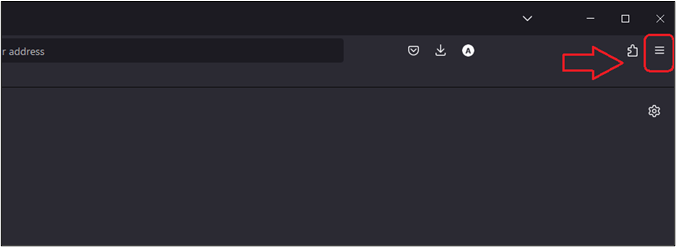
Step 2. To access your Firefox account settings, you need to click on the Firefox account settings, then sign into your Gmail account, and finally click on the Firefox account settings again.
Step 3. To sync your Google account, click on the Sync Now button and wait for the sync process to complete.

To repeat the process in Google Chrome using the same Gmail account, follow these steps:
Step 1. Open Chrome, sign into your Gmail, and click on the account picture once done, then click on Turn on Sync.
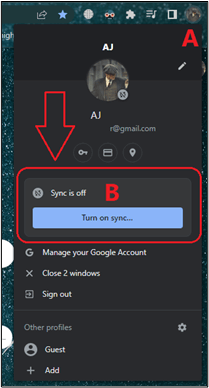
Step 2. Wait for the Sync to finish, then see the synced bookmarks in your browser.
Solution 2. Import Bookmarks In Chrome From Firefox
To import bookmarks from Firefox to Chrome using Chrome's settings, follow these steps:
Step 1. Open the Menu from the corner, head into Bookmarks, and then click on Import bookmarks and settings.
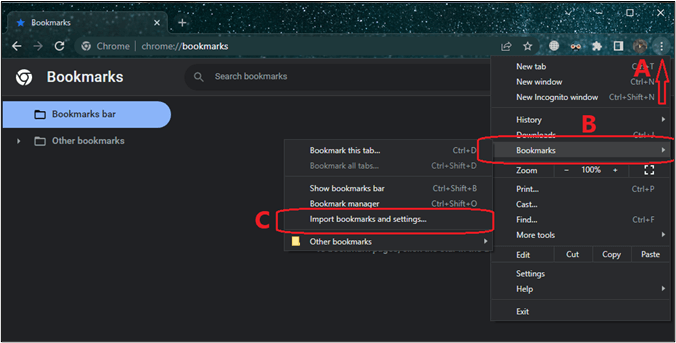
Step 2. In the Import bookmarks and settings dialogue box, choose Mozilla Firefox.
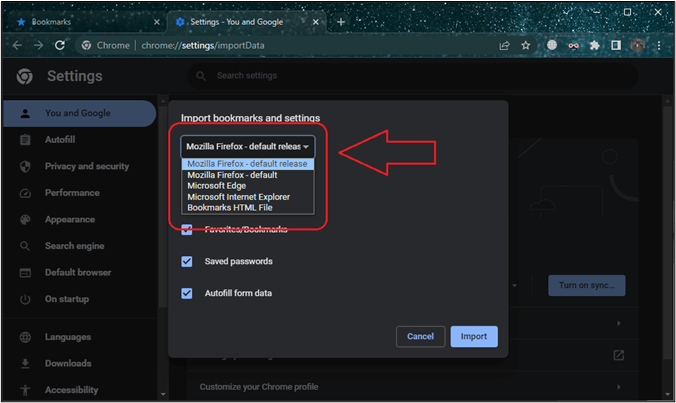
Step 3. Check the Favorites/Bookmarks option
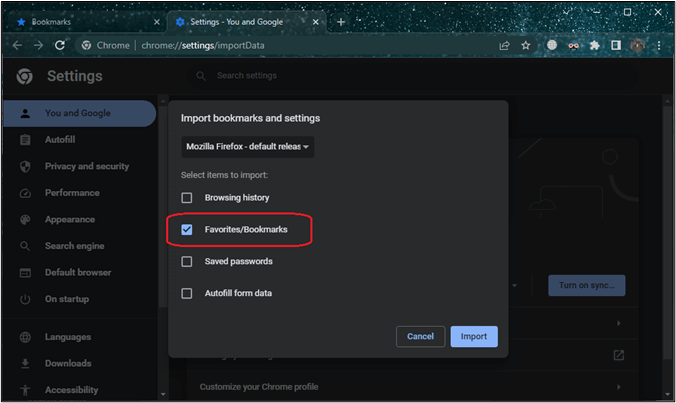
Step 4. To import bookmarks from another browser, click on the three dots in the top right corner of the Chrome browser, select "More tools", then "Import bookmarks and settings". Then, select the browser you want to import bookmarks from and click "Import".
Solution 3. Export/ Import Bookmarks from Firefox in HTML format
In this section, we'll export and import Chrome bookmarks into HTML format, then import them back into Chrome, a process as easy as backing up Firefox bookmarks and restoring them to Chrome, without requiring a sign-in or sign-up.
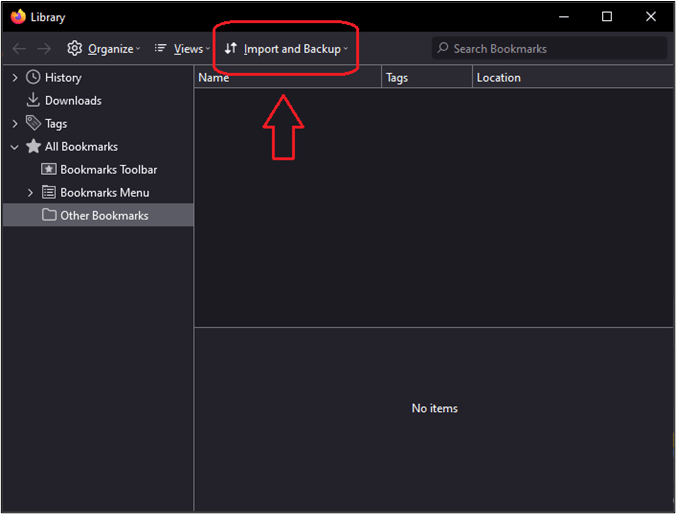
Step 1. To import bookmarks into Firefox, open the Bookmarks manager/Library, click on the "Import and Backup" option at the top, and proceed with the import process.
Step 2. Click on Export Bookmarks to HTML.
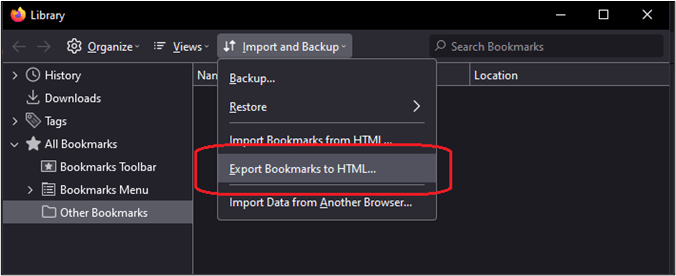
Step 3. To save the HTML file, select your desktop or any other location you prefer. Wait for the file to be saved, and you're done.
To import bookmarks in Chrome, go to the Chrome menu, select "Bookmarks", then "Import bookmarks and settings" and select the HTML file you exported earlier. Chrome will then import all the bookmarks from the HTML file into your Chrome browser.
StepOpen Chrome and head into settings
Step 1. Find Bookmarks, then click on Import bookmarks and settings
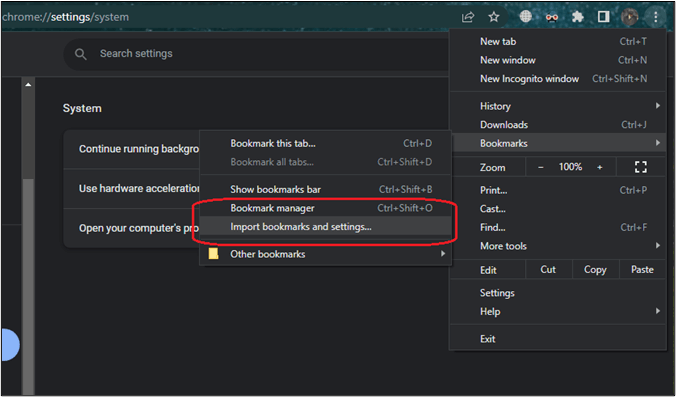
Step 2. To export bookmarks as an HTML file, go to the import bookmark and settings option and select Bookmarks HTML File.
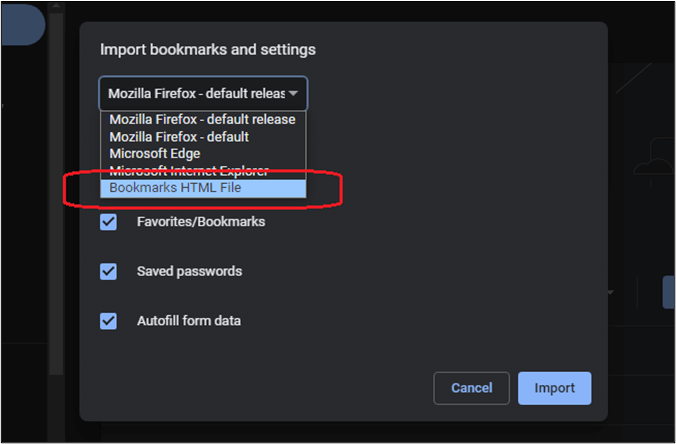
Step 3. To import bookmarks, click on the Bookmarks menu and then select Import and Export. In the Import and Export Bookmarks File window, click on Next.
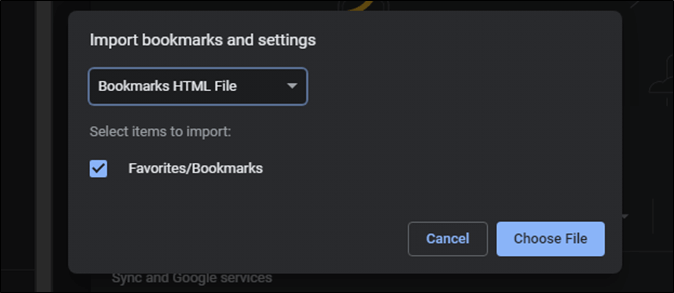
Chrome will take a minute to merge the imported bookmarks, and once it's done, you should be able to see them in the bookmarks option.
[Bonus Tip] Automatically Backup Chrome Bookmarks to Keep Them Safe
To ensure access to frequently visited pages, create a backup of your Google Chrome bookmarks to prevent data loss in case of a computer crash. You can use a professional backup tool like Qiling Disk Master to perform an automatically scheduled backup plan, which also allows for incremental and differential backup. For specific steps, refer to this guide "How to Backup Chrome Bookmarks and Passwords".
Qiling Disk Master is an all-in-one backup and restore solution that protects data security in all aspects and allows cloning HDD to HDD/SSD without reinstalling the operating system. It's worth trying.
Sum Up
You can export Firefox bookmarks to an HTML file and import them into Chrome, or use available bookmark export options and extensions. If you are moving bookmarks to another computer, exporting to HTML is usually the most practical method.
FAQs on Export bookmarks from Firefox to Chrome
1. Can I export bookmarks from Firefox?
To export every bookmark in your Firefox browser, go to the Bookmark Library, select the Import and backup option, and click on Export bookmarks to HTML.
2. How do I transfer all my bookmarks from Firefox?
You can export bookmarks to HTML and import them in Chrome, or sync them using your Gmail account to access them across multiple browsers.
3. Can I Import data from Firefox to Chrome?
You can import your Firefox bookmarks and settings into Chrome by opening Chrome, going to Import bookmarks and settings, selecting Mozilla Firefox, and checking the boxes to import all data.
4. How do I Import JSON bookmarks into Chrome?
The first thing you're going to do is install Chrome portable version. Once you do, head into the directory where you installed it.
"App/DefaultData/profile/Default""
To migrate bookmarks from the Chrome portable version to the main Google Chrome browser, place the JSON bookmarks file from the portable version in the correct location. After running the portable version, go to the Bookmarks setting and export the bookmarks as HTML. Finally, import the exported HTML file into your main Google Chrome browser.
Related Articles
- How to Fix 'It Looks Like You Don't Have Permission to Save Changes to This File' on Windows 11/10
- [Fixed] The Object Invoked Has Disconnected from its Clients
- Five Things You Need to Do Before Windows 10 Update
- PC Turns On, but No Display or Power to Keyword [Fixed]
- Windows Backup 0 Bytes | Get the Answer here!
If your Windows backup file is showing 0 bytes, you're likely frustrated and unsure how to proceed. This issue can be caused by various factors, and fortunately, there are solutions to salvage your backup file. - How to Fix Windows Backup Error 0x8078002a Issue With 2 Ways
If you get Windows Backup Error 0x8078002a when trying to run the Windows Backup program. The article provides you with details on what the error means, potential causes, and two ways to resolve the issue. Follow to fix the error with ease now.
Products
Articles & Tutorials
- Data Recovery
- Data Backup
- File Recovery
- File Backup
- System Backup and Restore
- Disk and Partition Clone
- Technical articles
- Mobile articles
- Disk Master Help
- Windows Data Recovery Tutorials
- Windows Secure Delete Tutorials
- Windows Partition Management Tutorials
- Windows File Backup and Restore Tutorials
- Windows System Backup and Restore Tutorials
- Windows Disk Backup and Restore Tutorials
- Windows Clone Tutorials