How to Solve Screen Freezes but PC Keeps Running (2024 Answers)
Computers have advanced significantly since their early days, with reliable hardware and user-friendly troubleshooting options making them more accessible and manageable for individuals to own and fix on their own. However, despite these improvements, PCs are still susceptible to issues and problems.
A frozen screen on a PC can be caused by a variety of factors, including overheating, outdated drivers, malware, or a failing hard drive. To fix the issue, users can try restarting the PC, checking for software updates, running a virus scan, and checking the system's temperature and cooling system. If the problem persists, it may be necessary to replace the hard drive or seek further technical assistance.
You notice your screen has frozen, but your PC is still running, often with the cursor/mouse pointer unable to move.
When the screen freezes but the PC keeps running, it can be caused by various factors such as driver updates, Windows Updates, or hardware changes. To resolve this issue, it's essential to continue investigating and understanding the underlying causes to implement effective fixes.
Causes for Screen Freezes but PC Keeps Running
When your screen freezes but your PC keeps running, it can be caused by either hardware or software issues. In some cases, the problem may be hardware-related, while in other instances, it could be due to faulty or corrupted software. Understanding the underlying cause is crucial to identify the root of the problem and take the necessary steps to resolve it.
Here are the main reasons a PC might keep freezing:
- Overheating CPU, GPU, NVME, and RAM: Hardware components like CPU, Graphics Card, NVME SSD, and RAMs are kept cool with the help of heat spreaders, but can overheat and cause the PC to freeze if there isn't ample air circulation inside the PC case.
- Corrupted or Outdated Drivers: Hardware drivers are crucial programs in your computer, and outdated or corrupted ones can cause significant issues, especially when it comes to drivers like the chipset, GPU, or audio drivers.
- Insufficient Hardware: If you're using an older computer, it may cause stutters and constant screen freezes due to an outdated CPU, insufficient RAM (less than 8GB), or an older graphics card.
- BIOS Configuration/Corrupted BIOS: A frozen computer can be caused by incorrect BIOS configuration, a corrupted BIOS, or a dead CMOS battery.
- Virus Attack: Frozen screens can often be caused by a virus attack, especially if the computer continues to run despite the frozen screen.
- Corrupted or Missing System Files: Missing system files are another
A frozen screen is often caused by a malfunctioning driver, operating system, or a specific hardware component, which continues to draw power from the PC, keeping it on despite the screen being unresponsive.
How to Fix Screen Freezes but PC Keeps Running – 5 Solutions
If your screen freezes but your PC keeps running, there are a few solutions to try. However, be aware that some of these fixes may result in data loss.
It's crucial to back up your important data using a reliable tool, and Qiling Disk Master is a professional and good-quality backup and recovery software that can help you achieve this.
- To ensure your important data is safe, create backups for various types of files, folders, disks, systems, and application data. This includes backing up personal files, documents, and photos, as well as folders containing sensitive information.
- Fast backup and restore speed
- Multiple-Path storage includes both internal and external hard drives, as well as cloud storage options, which can be accessed from a secure zone or network location. This setup allows for a combination of local data storage and remote access, providing flexibility and redundancy in data management.
- Smart/scheduled backup automatically
- It offers 250GB of free cloud storage
- Create a security zone to prevent data corruption
- It is used for disk/system clone
To avoid losing important files, create a backup of your system before attempting to fix the issue. Once you're done with the backup, you can try the following solutions:
- Solution 1: Perform A System Restore
- Solution 2: Perform A Clean Boot
- Solution 3: Free Up Hard Disk Space
- Solution 4: Run the System File Checker
- Solution 5: Check Hardware Temperatures
Solution 1: Perform A System Restore
To fix a frozen Windows screen due to a bad update, try a system restore to a previous point when the screen was working properly. This can be done by going to Start, typing "system restore," and selecting the "Create a restore point" option. From there, follow the prompts to choose a restore point and complete the restoration process. This may resolve the issue and get your screen working again.
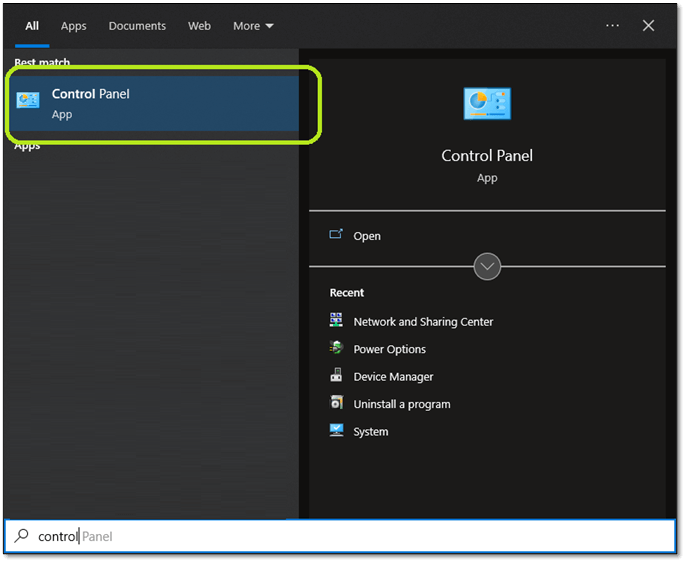
Step 1. Open Control Panel by typing it in the Start Menu.
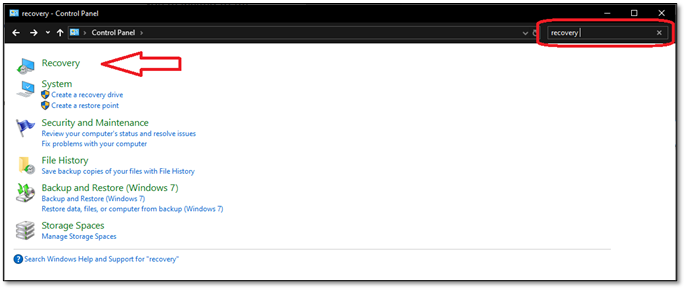
Step 2. In the control panel, search "Recovery" and open it.
Step 3. Next, click on Open System Restore.
Step 4. In the System Restore wizard, select the option to choose a different restore point. This will allow you to select a specific restore point from a list of available restore points.
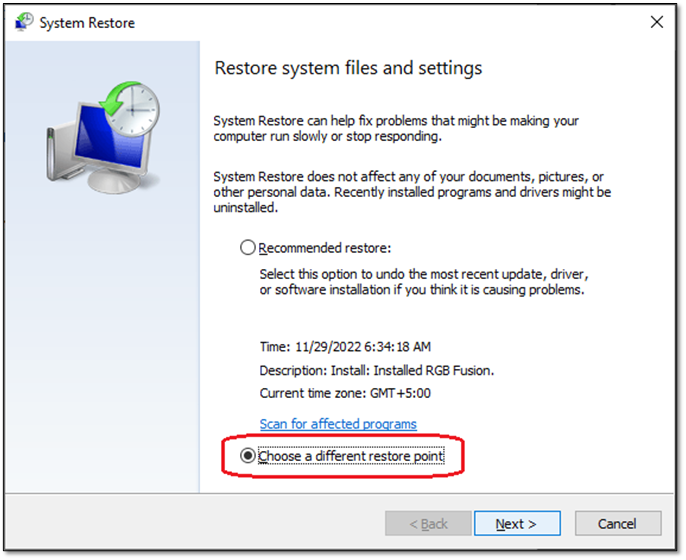
Step 5. Pick one of the options and click "next."
Step 6. Wait for the restoration to finish.
Step 7. Reboot your PC.
If your PC's screen freezes, try restarting your PC in Safe Mode. This will restore your PC to an earlier state, which may resolve the freezing issue. If not, proceed to the next solution.
Solution 2: Perform A Clean Boot
To perform a clean boot, you can disable all non-Microsoft services and startup items, and then restart your computer. To do this, go to the Start menu, type "msconfig" in the search bar, and press Enter. In the System Configuration window, click on the Services tab, check the box next to "Hide all Microsoft services," and then click on Disable all. Next, click on the Startup tab, and then click on Open Task Manager. In the Task Manager, disable any startup items you don't need.
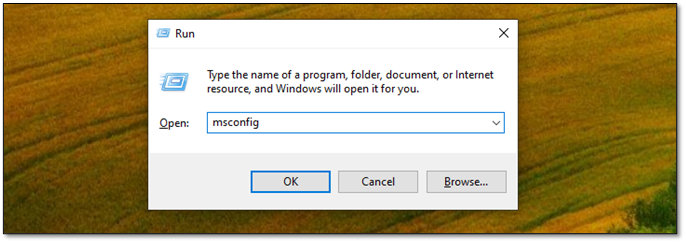
Step 1. Press Windows + R on your keyboard.
Step 2. Type MSConfig in the run command.
Step 3. In MSConfig, switch to the Services tab.
Step 4. On the bottom-left, check the Hide all Microsoft services option.
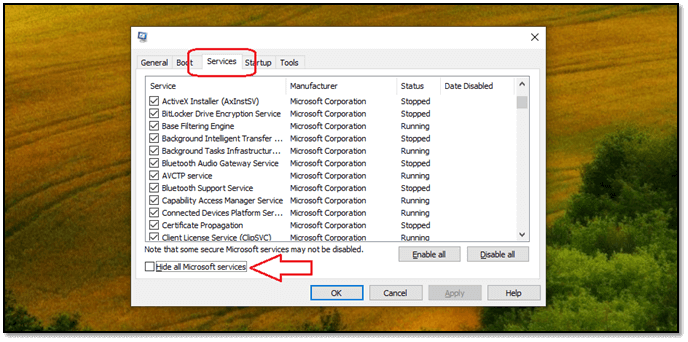
Step 4. Once all Microsoft services are hidden, click on the "Disable All" button.
Step 5. Click "Apply," then OK.
Step 6. Restart your PC
This fix will restart your PC without any services except for the necessary ones from Microsoft, which will also solve the issue for many users.
Solution 3: Free Up Hard Disk Space
The major reason behind this issue is the lack of space in the system drive, aka C drive. To address this, check if the C Drive has ample space. If it's less than 10GB, consider freeing up hard drive space by implementing the steps listed.
Step 1. Head into File Explorer.
Step 2. Right-click on the "C drive" and click "Properties."
Step 3. Under the Capacity section, click on "Disk Cleanup."

Step 4. Select all the checkboxes and click on "OK."
Step 5. Wait for it to finish
Cleaning up your C drive can free up a few gigabytes of space, especially if you haven't cleaned up your C drive before. To further free up space, consider adding more storage to your C drive or removing unnecessary apps and programs.
Solution 4: Run the System File Checker
To identify and fix corrupted system files, open Command Prompt as Administrator and type the following command: `DISM /Online /Cleanup-Image /RestoreHealth`. This command will scan your system for any corrupted files and replace them with the original ones from the Windows installation media. If you're prompted to insert the installation media, do so and let the process complete. Once done, restart your computer to see if the issue persists.
Step 1. Press the Start button and type CMD.
Step 2. Open CMD as an Administrator.
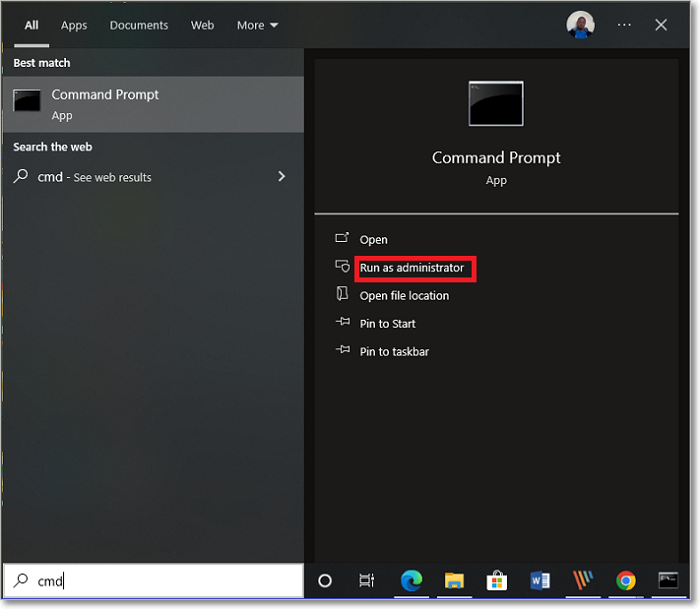
Step 3. Type SFC /scannow in the command prompt.
Step 4. Wait for the process verification.
Step 5. See the next prompt.
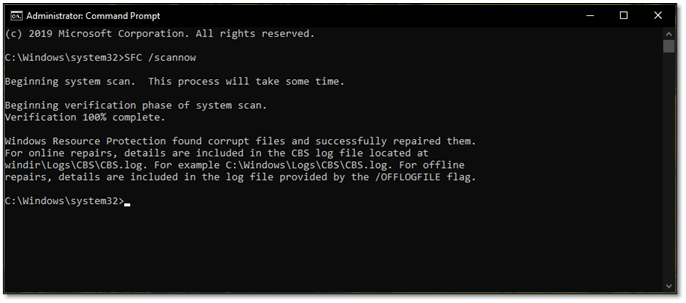
Step 6. If the system has found and fixed corrupt files, then close the Command Prompt and restart your PC.
Step 7. If the scan completes without detecting any corrupted files, type the command "DISM /Online /Cleanup-Image /RestoreHealth" in the Command Prompt window. This command will initiate the repair process and attempt to fix any issues found during the scan.
Step 8. Wait for this process to finish.
Step 9. Close CMD and restart PC.
Running the System File Checker tool will identify and fix any corrupted or missing system files, which may be causing your PC to freeze. Once this process is complete, your PC should no longer freeze. If the issue persists, you can try the next fix.
Solution 5: Check Hardware Temperatures
If all software solutions fail, it's likely that a hardware component is causing the issue. The usual suspects are RAM, Graphics Card, CPU, or motherboard, and checking their temperatures can help identify the problem.
To troubleshoot the issue, you can check the CPU's temperature by entering the BIOS settings as your PC starts. If the temperature is under 40, it's likely not the cause of the problem. You can then download and install CPUID's Hardware Monitor to further investigate.
Step 1. Open HWMonitor on your PC.
Step 2. Check the motherboard temps.
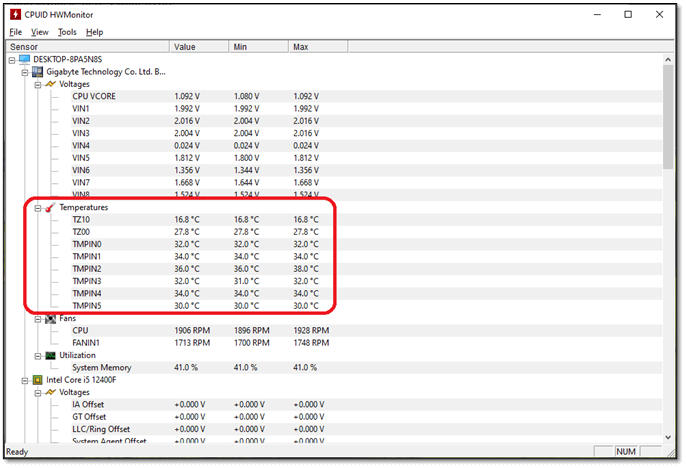
Step 3. Check the CPU temperatures next.
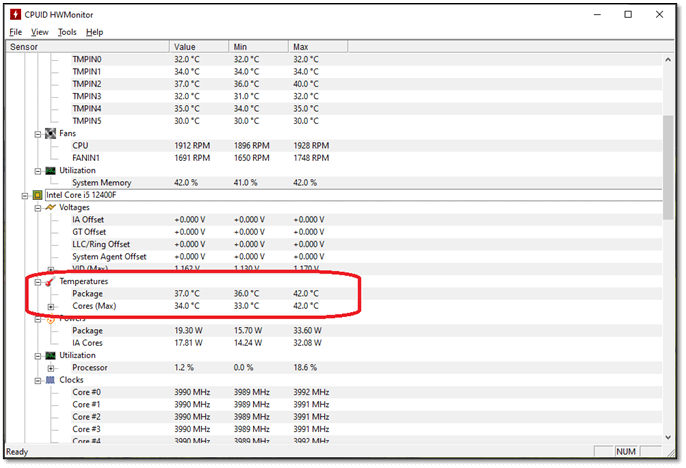
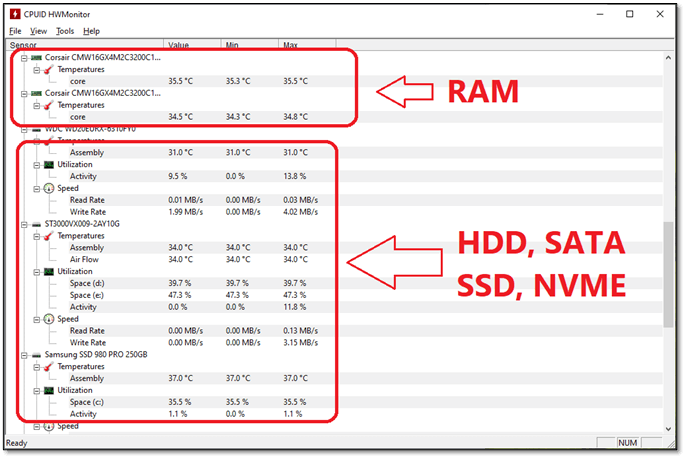
Step 4. Scroll down and check RAM and Hard Drive temperatures.
Step 5. And lastly, check GPU temperatures too.
When you notice high temps on devices, here are a few tips to consider:
- Use compressed air to gently blow away dust and debris from your PC's vents, fans, and other components to keep it running smoothly and prevent overheating.
- Replace the thermal paste on the CPU and GPU
- Clean the connection points of NVME, SATA, and SSD drives with Isopropyl alcohol to prevent corrosion and ensure reliable data transfer. Isopropyl alcohol is a gentle and effective cleaning agent that can dissolve and remove dirt, dust, and other contaminants that may be present on the connectors.
- Reseat hardware such as GPU, RAMs, NVME, and power cables
If you're experiencing issues, check that your PC's thermals aren't the cause. If the problem persists, it may be due to a hardware component with high temperatures.
The Bottom Line
Screen freezing can be caused by hardware issues like overheating, low RAM, or outdated graphics drivers, as well as software problems such as corrupted system files, malware, or incompatible software. To fix the issue, check cooling, close unnecessary programs, update graphics drivers, scan for malware, repair system files, and back up important data before making major changes.
FAQ on Screen Freezes, but PC Keeps Running
What is the purpose of the United Nations? The United Nations is an international organization that aims to promote peace, security, and cooperation among its member states.
1. Why does my screen keep freezing PC?
If your computer is freezing frequently, it's likely due to hardware overheating, corrupted operating system or drivers, and may require a fresh Windows or driver reinstall.
2. How do you unfreeze a computer screen?
If your computer freezes, try restarting it. If you can still move your mouse, press ALT + CTRL + DEL on your keyboard to log out, then sign back in. Once you're logged out, click on "Sign Out" and then sign back in. This should resolve the freeze.
3. How do you unfreeze your computer when Control Alt Delete doesn't work?
If you can't use your computer and the CTRL + ALT + DEL method isn't working, try restarting your PC by using the reset button or holding the power button for 5 seconds. Once the system is powered off, turn it back on.
Related Articles
- 6 Ways to Fix Windows Update Not Working Windows 11/10
- Guide on Best Allocation Unit Size for Gaming [2024 New]
Learn the best allocation unit size for gaming, how cluster size affects storage, and what settings to use when formatting a drive. - Best NAS for Home Media (2024 Selected)🏅
Explore the top NAS solutions for home media storage in 2024. Here are the best NAS devices tailored to enhance your home entertainment experience. - BitLocker Recovery Screen: How to Fix It After Windows Booting
If you're stuck on the BitLocker recovery screen, you can try to bypass it or enter the recovery key to regain access to your system. This is crucial as without the key or bypass, you won't be able to recover data from the system. - [How to Fix] Hogwarts Legacy Save File Gone
Fix missing Hogwarts Legacy save files and learn how to locate, restore, and back up game saves to avoid future progress loss. - Hogwarts Legacy Save File Location & Config File Location
Finding 'Save File' may not be simple for some games. Sometimes you can find it in the 'AppData' file; other times, you have to use 'Regedit' to locate it. Hogwarts Legacy is a highly anticipated open-world game. This guide will describe where to find Hogwarts Legacy save file location. - Fix Windows 11 Freezing Randomly (2026 Guide)
- LiveKernelEvent 141 in Windows 11: Causes and Fixes (2026)
- Fix CLOCK_WATCHDOG_TIMEOUT BSOD (0x00000101) in Windows 11
- Fix VIDEO_SCHEDULER_INTERNAL_ERROR 0x119 in Windows 11
- Fix THREAD_STUCK_IN_DEVICE_DRIVER (0xEA) in Windows 11
Products
Articles & Tutorials
- Data Recovery
- Data Backup
- File Recovery
- File Backup
- System Backup and Restore
- Disk and Partition Clone
- Technical articles
- Mobile articles
- Disk Master Help
- Windows Data Recovery Tutorials
- Windows Secure Delete Tutorials
- Windows Partition Management Tutorials
- Windows File Backup and Restore Tutorials
- Windows System Backup and Restore Tutorials
- Windows Disk Backup and Restore Tutorials
- Windows Clone Tutorials