Four Ways | How to Prevent Data Corruption in Windows Computer
What Is Data Corruption? Symptoms & Causes of Data Corruption
Data corruption refers to errors in computer data that can cause unintended changes to the original data, potentially leading to minor data loss to a system crash.

When data corruption occurs, your computer or devices may experience various symptoms, including but not limited to, freezing or crashing, errors when running applications, corrupted files or data, and even complete system failure. Additionally, you may notice unusual behavior, such as unexpected shutdowns, slow performance, or unexplained errors. These symptoms can be caused by a variety of factors, including hardware failures, software bugs, power outages, or even human error.
- The disk hangs or performs slowly.
- File error comes with "invalid file format".
- Files and folders are displaced or lost.
- The computer regularly crashes or hangs for no apparent reason.
- The disk may be busy due to various reasons such as disk caching, disk I/O operations, or even a disk-intensive application running in the background, even if it doesn't seem like much is happening on the surface. This can cause the disk to appear busy, even when the system seems idle.
Data corruption on Windows computers can be caused by a variety of factors, including viruses and malware that can alter or delete data, hardware failures such as hard drive crashes or faulty RAM, software glitches and bugs that can cause data inconsistencies, power outages or electrical surges that can damage data storage devices, and human errors such as accidental deletion or overwriting of files. These factors can lead to data loss and corruption, making it essential to have regular backups and use robust data protection measures to prevent and recover from data corruption.
- Malware attacks and computer viruses can corrupt your data.
- A failing hard drive can lead to data corruption.
- Data corruption may result from improperly saving files.
- The data can become corrupt if storage devices are not properly unplugged from the computer.
- Disk sectors can become corrupted, leading to issues with files and folders.
3 Strategies to Prevent Data Corruption in Windows Computers
Data corruption has become one of the most common causes of permanent data loss. Therefore, it's essential to know how to prevent it. Here are three ways to help us avoid data corruption on our computers.
- Correctly Remove External Hard Drives from your Computer
- Use Antivirus Software on Windows Computer and Always Update It
- Keep an Eye on Hard Drive's Health
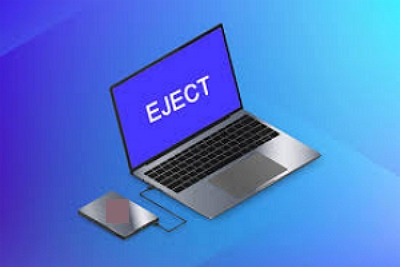
Correctly Remove External Hard Drives from your Computer
When using an external storage device, it's best to eject it from your computer before unplugging it, to prevent file corruption and data loss, as background programs may still be accessing files.
Use Antivirus Software on Windows Computer and Always Update It
Viruses and malware are constantly evolving and pose a significant threat to data corruption. They can alter files, rendering them unreadable by computers or applications, highlighting the importance of using antivirus software. To protect your data, it's essential to have a reputable security suite, including a top-rated antivirus software, firewall, and other multi-layered protections. Additionally, being cautious when using emails can also help prevent email-borne viruses from infecting your data.
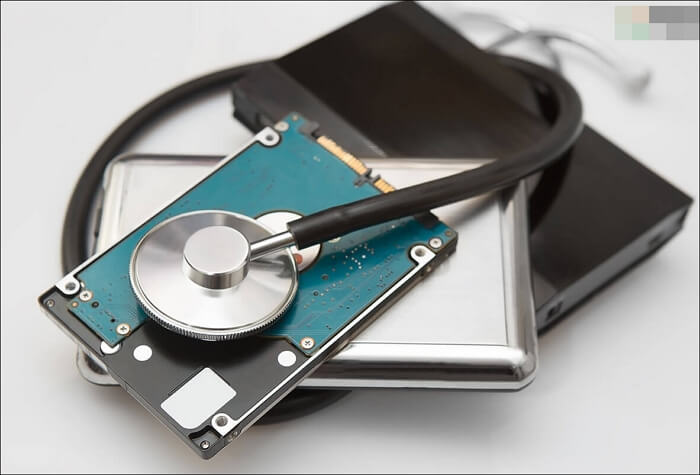
Keep an Eye on Hard Drive's Health
Regularly checking your hard disk health for errors and bad sectors is a good practice, but it's equally important to monitor your hard disk regularly to avoid being caught off guard by a hard disk failure without warning. You can use S.M.A.R.T (Self-Monitoring, Analysis, and Reporting Technology) to monitor your hard drive's health and receive alerts if it fails, or use the scan disk tool if you're using a Windows operating system.
A more Comprehensive and Effective Solution for Preventing Data Corruption
To avoid the hassle of manual troubleshooting, users can utilize third-party backup software like Qiling Backup, which enables them to create file or system backups and safeguard their data security with ease.
Qiling Backup Home is a professional and easy-to-use backup software that allows automatic backup of files, systems, disks, partitions, and more. It offers various backup types, including full, differential, incremental, and scheduled backups, and saves them to multiple locations. Additionally, it can clone hard drives and create recovery partitions, and provides 250GB of free cloud storage for data protection and storage needs.
Guide: How to create a file backup with professional backup software.
To make a file backup on your computer, you can follow these steps: First, identify the files you want to back up, such as important documents, photos, or videos. Next, choose a backup location, such as an external hard drive, cloud storage service, or USB drive.
Step 1. To begin the backup process, click the File backup button.

Step 2. The screen displays lists of both local and network files on the left-hand side, allowing users to expand directories and select files to back up.

Step 3. Follow the guidance on the screen and choose the place where you want to store the back up.

Step 4. To ensure your backup is secure, encrypt it and set a schedule by clicking on "Options" within the "Backup Options" menu.

You can also choose to start the backup at a certain time in Backup Scheme by clicking Options, which offers many other customizable options to explore.

Step 5. You can store the backup file on your computer, in Qiling's cloud service, or on a network-attached storage device (NAS).

Step 6. Qiling Backup allows customers to store backup copies of their files on either a third-party cloud drive or the company's own cloud storage.
To back up data on a third-party cloud drive, select Local Drive and scroll down to add Cloud Device, then fill in your account information.
Step 7. Click on Proceed to start a backup. When the backup process is completed, it will be displayed as a card on the list view of the screen. Clicking on the card will allow you to view more details about the backup job.

The Best Practice for Safeguarding Data Security
Data corruption is a common computer error that can occur to anyone. To prevent losing critical system and application data, it's essential to take preventive measures. You can safeguard your data by using methods such as regular backups, disk cleanups, and virus scans to avoid data corruption.
We recommend using the Qiling Backup method to prevent data corruption. It allows you to easily back up all your files and save them to the Cloud and other locations, providing an extra layer of protection against data loss. Just give it a try!
FAQs
1. How do I check for corrupted data?
To check for corrupt data on your device, go to System Settings from the HOME menu, scroll down and select Data Management, then choose Manage Software, select the software you want to check, and finally select Check for Corrupt Data.
2. What does a corrupted file look like?
A corrupted file may appear scrambled and unreadable, but it doesn't necessarily mean the core program is corrupted, and other files of the same type may still work fine.
3. Why are my downloaded files corrupted?
Your downloaded files may become corrupted due to conflicts between IDM and other applications, such as FireWall/Antivirus/Internet security software that manage network downloads or disk writing processes.
4. How do I fix corrupted files in Windows 10?
Here are the steps to repair Windows 10 corrupted files: Run the Command Prompt as Administrator, type the DISM /Online /Cleanup-Image /RestoreHealth command, and hit ENTER, then wait for the repair process to be 100%.
Related Articles
- [Full Guide] How to Restore Windows 7 from System Image Backup
- How to Backup SanDisk SD Card for Windows 11/10/8/7
- Full Guide: How to Backup Hard Drive to Google Drive in 2 Ways
- 2022 Best Samsung Backup Software for PC/Phone (Free Download)
- How to Restore NTFS System Partition on Hard Drive in Windows 7/8/10?
Learn how to restore NTFS (system/boot) partition table on (external) hard drive or USB flash drive without losing data after formatting Toshiba/Dell laptop in Windows 7/8/10. - How to Use Norton Ghost in Windows 10/8/7?
Want to create an image, restore image, or clone hard drive via Norton Ghost? This guide will tell you how to use Norton Ghost step by step. It also provides you with an easy alternative.
Products
Articles & Tutorials
- Data Recovery
- Data Backup
- File Recovery
- File Backup
- System Backup and Restore
- Disk and Partition Clone
- Technical articles
- Mobile articles
- Disk Master Help
- Windows Data Recovery Tutorials
- Windows Secure Delete Tutorials
- Windows Partition Management Tutorials
- Windows File Backup and Restore Tutorials
- Windows System Backup and Restore Tutorials
- Windows Disk Backup and Restore Tutorials
- Windows Clone Tutorials