4 Ways to Select Multiple Files on Mac? [Quick Tips]
To select multiple files on a Mac, you can hold down the Command (⌘) key while clicking on the files you want to select. This will allow you to select multiple files without having to open a new window or use the mouse. You can also use the shift key to select a range of files by clicking on the first file and then holding down the shift key while clicking on the last file. This will select all the files in between. Additionally, you can also use the Control (⌃) key to select multiple files without affecting the existing selection. Just click on the first file, hold down the Control key, and then click on the other files you want to select. This will add the new files to the existing selection without replacing it.
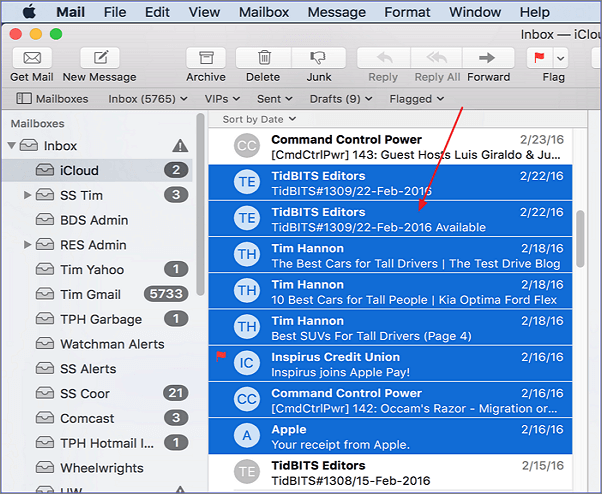
Whether your answer is no or yes, this article will guide you in selecting files on a given folder location, whether adjacent or nonadjacent, and provide quick tips to get you started.
How to Select Multiple Files on Mac
Your Mac offers various ways to select files and folders, making it easy to work on the ones you need. You can choose adjacent files, nonadjacent files, the first and last files, or even all the files in a specific drive location, giving you flexibility in your work. We'll explore these methods further in the following discussion.
Fix 1. How to Select Multiple Adjacent and Nonadjacent Files
On a Mac, you can select both adjacent and nonadjacent files using keyboard shortcuts. Adjacent files are those that follow each other in sequence, while nonadjacent files are those within the same folder or drive location but don't follow each other in sequence. To select adjacent files, hold down the Shift key while selecting the first and last files. To select nonadjacent files, hold down the Command key while selecting multiple files.
To select multiple adjacent files, you can hold down the Shift key on your keyboard while clicking on the first file you want to select, then click on the last file you want to select. This will select all files between the first and last file you clicked on.
Step 1. To select files in Finder on a Mac, open the application and navigate to the location of the files you want to select. You can use the sidebar to browse through folders and subfolders, or use the search bar to find specific files.
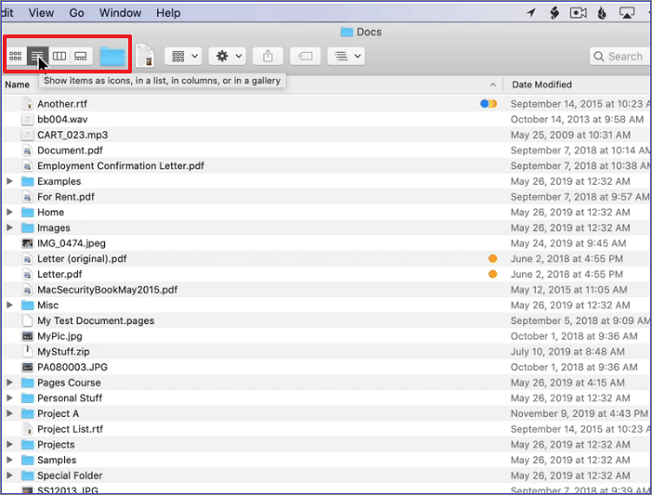
Step 2. To change the view type in the Finder on Mac, click on the square icon at the top right corner of the Finder window and select either "as List", "as Columns", or "as Gallery" from the dropdown menu. This will change the way files and folders are displayed in the window.
Step 3. Click on the first file from the list of files you want to select.
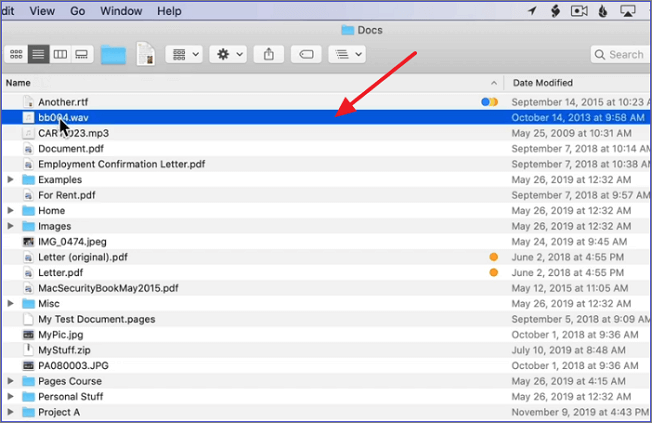
Step 4. Press and hold the Shift key while clicking on the last file in the list, and all the files in between will be automatically selected.
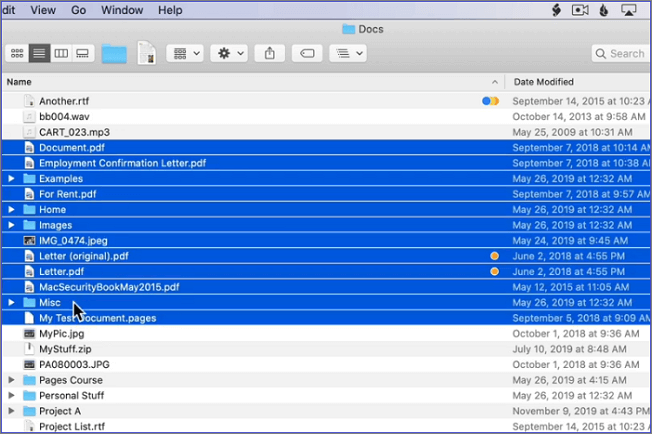
To select nonadjacent files on a Mac, you can hold down the Command (⌘) key while clicking on the files you want to select. This will allow you to select multiple files that are not next to each other in the list.
Step 1. Open Finder and access the folder location for your files.
Step 2. Click on the first file you want to select.
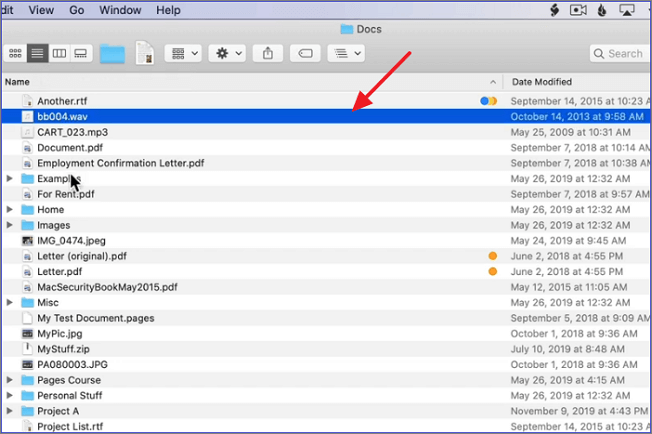
Step 3. Next, press and hold the Command key
Step 4. To select multiple nonadjacent files, hold down the Command key while clicking on each file you want to add to the selection. Continue this process until all the desired files are selected.
Fix 2. How to Select All Files on Mac
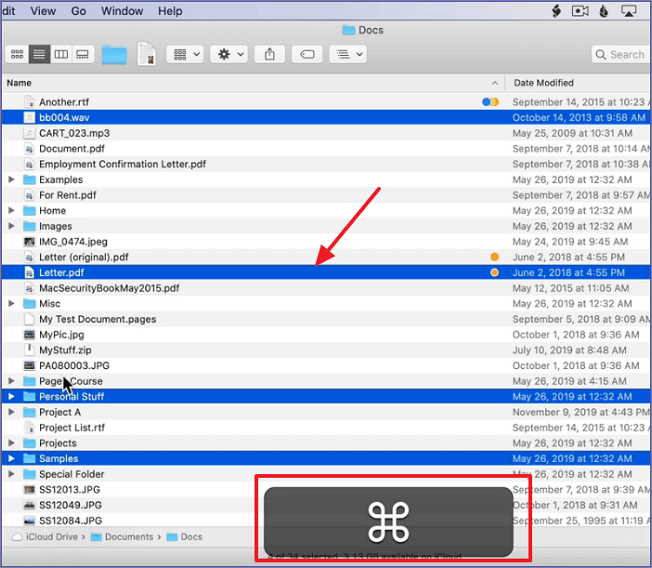
To quickly select all the files in a given folder location, simply open the location, press Command+A on your keyboard, and all the files will be selected at once, regardless of the number. This is a convenient and efficient way to select files.
Fix 3. How to Select the First and the Last File
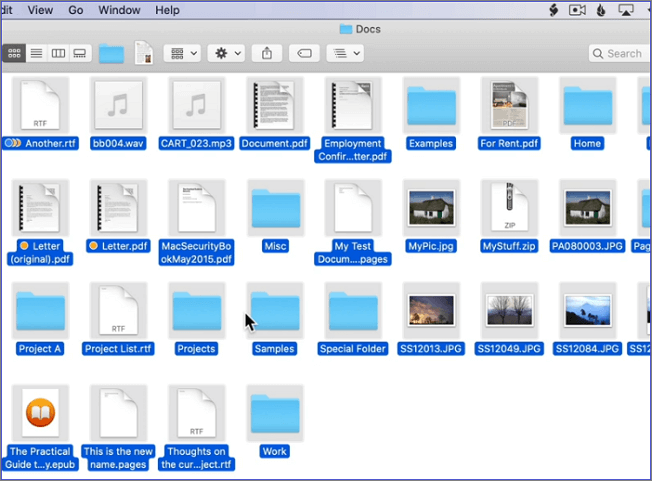
To quickly select all files in a list, click the top file, hold the Shift key, and click the last file. This will select all files in between.
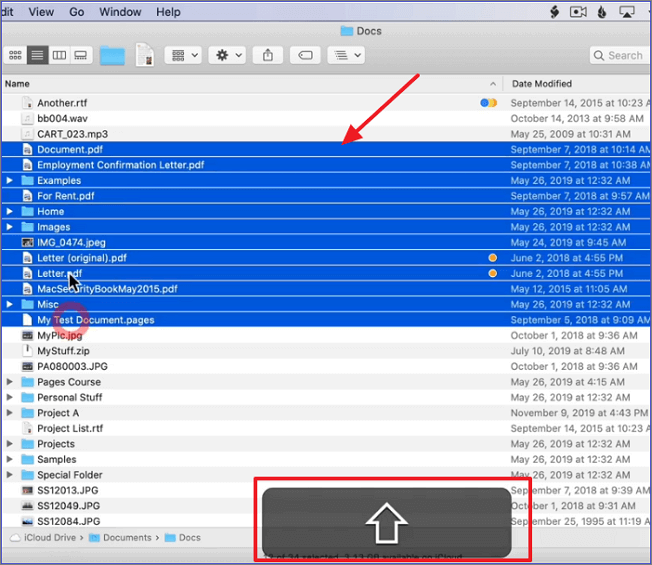
The system will automatically select all files in between the first and last file, including them, and highlight them.
Bonus Tip: Use Your Mouse to Drag the Files You want to Select
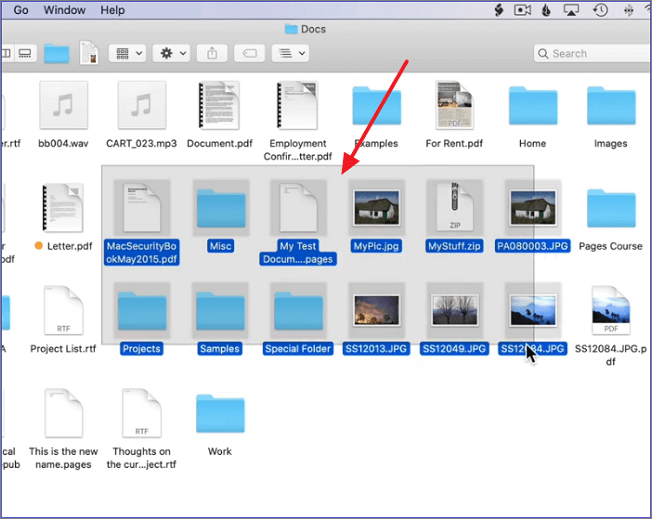
To select multiple files on a Mac using your mouse, simply hold down the Command (⌘) key while clicking on the files you want to select. This will allow you to select multiple files at once, and you can even hold down the shift key to select multiple files in a row. Alternatively, you can also select multiple files by dragging your mouse over the files you want to select, while holding down the Command (⠪) key.
Step 1. Open the folder location for your files.
Step 2. Click on a blank space with your mouse.
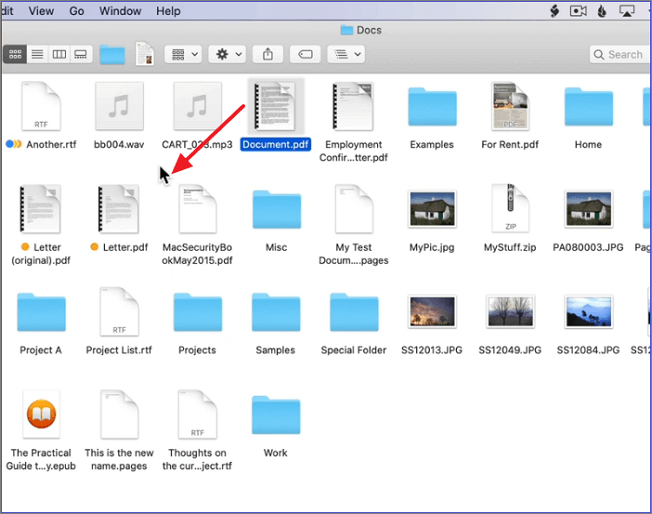
Step 3. To select multiple files, simply drag the mouse over the files you want to choose, and the Finder app will automatically select all files dragged over using the mouse.
Conclusion
To select multiple files on a Mac, use the Shift key to select adjacent files by clicking on the first file and then holding down the Shift key while clicking on the last file. Alternatively, use the Command key to select nonadjacent files by clicking on each file individually while holding down the Command key. You can also select all files in a folder by pressing Command+A.
To select multiple files in a list, click on the first file, hold the Shift key, and then click on the last file. Alternatively, on a Mac, you can select multiple files by clicking on a blank area and dragging the mouse over the desired files.
Frequently Asked Questions (FAQs)
When selecting multiple files on a Mac, users often have questions about the process. One common query is how to select multiple files at once, which can be done by holding down the Command (⌘) key while clicking on files.
1. How Do I Move Multiple Files on a Mac?
To move multiple files to a new folder, select all the files by pressing Command+A. Then, right-click on the selected files and choose "New Folder with Selection" from the context menu. The system will automatically move all the files to the newly created folder.
2. Why Can't I Drag Multiple Files on Mac?
The "drag and drop" functionality on a Mac may fail due to various reasons such as a weak connection between the mouse and the computer, dirt on the trackpad, system updates, or new application installations. To resolve these issues, one can try reconnecting the mouse, cleaning the trackpad's surface, or reverting the Mac to a previous system update.
3. How Do I Copy and Paste Multiple Files at Once?
You can achieve this through the following steps:
- Open the folder location for the files and press Command+A to select them.
- Press Command+C to copy the files.
- Open the location to "paste" the files and hit Command+Option+V. All the files will get pasted to the new location.
Related Articles
- How to Solve SD Card Deleting Files by Itself in Every Possible Way
- Fix Windows 10 Computer Keeps Freezing Randomly
- How to Restore Missing Downloaded Files Steam
- How to Fix Windows 10 Update with Error Code 0x800F0922 Issue
- Windows 11 Size: How Much Space Does Windows 11 Take Up?
How much space does Windows 11 take? A clean install uses about 27GB, while upgrades may use more. Learn how to free up disk space and recover lost files. - Windows Credential Manager Free Download and View Password
Learn how to view saved passwords in Windows Credential Manager, manage web and Windows credentials, and recover stored login information safely.
Products
Articles & Tutorials
- Data Recovery
- Data Backup
- File Recovery
- File Backup
- System Backup and Restore
- Disk and Partition Clone
- Technical articles
- Mobile articles
- Disk Master Help
- Windows Data Recovery Tutorials
- Windows Secure Delete Tutorials
- Windows Partition Management Tutorials
- Windows File Backup and Restore Tutorials
- Windows System Backup and Restore Tutorials
- Windows Disk Backup and Restore Tutorials
- Windows Clone Tutorials