2023 Tips| Could Not Complete Your Request Because of a Program Error Photoshop
| Workable Solutions | Step-by-step Troubleshooting |
|---|---|
| 1. Change the File Extension | Using Adobe Photoshop's Export feature, adjust the file type to .jpeg or .png...Full steps |
| 2. Unlock Photoshop Library Folder | Go to your personal directory after starting the Finder. You may find it by typing /Library/...Full steps |
| 3. Disable the Generator | Activate Adobe Photoshop. Preferences can be selected by clicking the Edit drop-down...Full steps |
| 4. Disable Graphics Processor | Hit the Edit function after opening Photoshop's recent version. Select Preferences...Full steps |
| 5. Reset Photoshop Preferences | Click the Windows and R keys to launch the Run box. Type %appdata% and press Enter...Full steps |
Could Not Complete Your Request Because of a Program Error
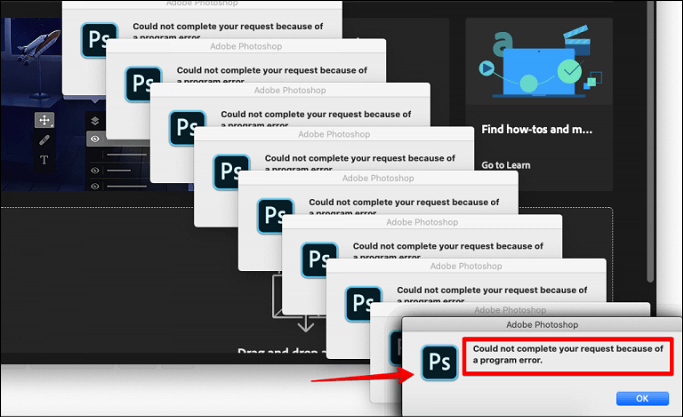
When using Photoshop, you may encounter the error "Photoshop could not complete your request because of a program error" unexpectedly while trying to save or open a PSD file. This error is often accompanied by one of the following glitches.
- Could not complete your request because of a program error Photoshop
- Due to a programming mistake, the file "yourfilename.psd" could not be saved
To correct the "couldn't accomplish your request because of a program issue Photoshop" error, start by identifying the potential causes, which may include corrupted preferences, outdated or incompatible plugins, or issues with the program's cache. You can try resetting Photoshop's preferences, disabling or removing any recently installed plugins, or clearing the cache to resolve the issue. If the problem persists, consider reinstalling Photoshop or seeking further assistance from Adobe support.
- Image file extension
- Photoshop preferences
- Generator plugin
- Secured library folder
To resolve the issue of Photoshop not completing your request due to a program error, try the following methods: Close and restart Photoshop, check for any updates, and ensure that your system meets the minimum requirements. If the issue persists, try resetting Photoshop's preferences, disabling any recently installed plugins, or running Photoshop as an administrator.
Bonus Tip: Export/Restore Photoshop Images in Advance
Data loss is a common issue these days. To avoid it, consider exporting and retrieving Photoshop files to a safe location, ensuring that your work is not lost or compromised. This simple step can help prevent data theft and give you peace of mind.
Deep Data Recovery is a professional data recovery software for Windows 11/10/8/7 that can retrieve unlimited files and folders with a 99.7% success record, making it a reliable tool for recovering lost data.
Qiling PSD Data Recovery Software
- This software can recover deleted files, including videos, images, audio files, documents, and archives, with minimal effort.
- This software recovers deleted files from various storage devices, including SD cards, memory cards, USB flash drives, PCs, and external hard drives.
- Deep Data Recovery Wizard is a powerful tool that can recover files from a damaged hard drive, a formatted hard drive, and even a crashed hard drive, making it a reliable solution for data recovery needs.
Fix Could Not Complete Your Request Because of a Program Error
If you're experiencing the error "Could not complete your request because of a program error Photoshop", it's likely due to incompatible system hardware or corrupted Photoshop preference files. To resolve this issue, simply delete the preference files and restart Photoshop.
To fix the error, we can consider different methods, which include using a different version of the software, checking for any updates or patches, and ensuring that the system meets the minimum requirements for the software to run smoothly. Additionally, we can try running the software in compatibility mode, or reinstalling it to see if that resolves the issue.
Method 1. Change the File Extension of the PSD Fils
Altering the image file's extension is the initial test to perform before moving on to more technical aspects, especially when the error notice appears for a particular picture file. If other image data loads without issue, consider changing the PSD or faulty image file's extension to .jpeg or .png, as these are universal image categories.
These are the two leading ways to alter the file extension:
If you're having trouble opening a file, try modifying it first. You can make any changes you want. Then, use Adobe Photoshop's Export feature to change the file type to .jpeg or .png. If that doesn't work, try saving the file instead.
You can quickly and easily retrieve lost, damaged, or corrupted PSD files on Windows platforms (Windows 10/8/7, etc.) using a robust PSD repair tool. This software can rescue all missing Adobe Photoshop files, including CC 2019/2018/2017/2016, as well as other file types like photos, videos, audio recordings, and documents.
If you still see the error "Photoshop couldn't finish your request due to a software issue" after trying the previous step, try opening the damaged picture file again.
Method 2. Unlock the Photoshop Library Folder
To resolve the error notice, you may need to unlock the Library folder. This can be done by following these steps:
Step 1. To find your personal directory, start the Finder and type /Library/ into the search bar. This will take you to your personal directory.
Step 2. To display the drop-down option, right-click the Library folder or click it while holding down the Ctrl key.
Step 3. Select the Get Info button.
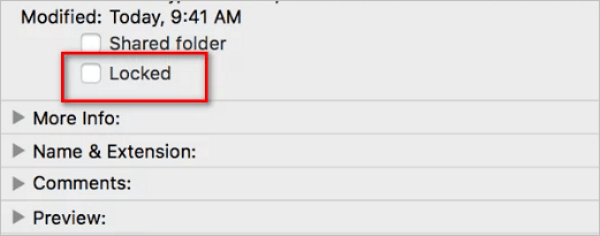
Step 4. Underneath the folder information, deselect "Locked".
Method 3. Disable the Generator to Fix Could Not Complete Your Request
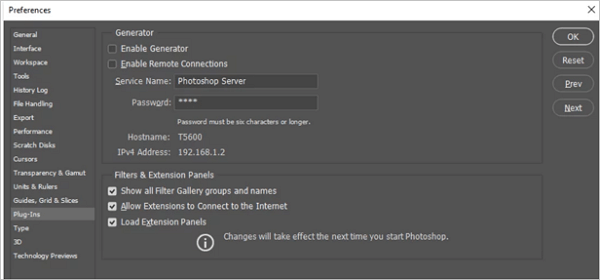
Disable the generator plugin in the Preferences box, as it may be causing the issue. This involves going to Edit > Preferences > Plugins, then selecting the "Photoshop" tab, and finally clicking on the "Load" button to disable the generator plugin. This step may resolve the problem for some users.
Step 1. Activate Adobe Photoshop.
Step 2. Preferences can be selected by clicking the Edit drop-down option.
Step 3. The "Enable Generator" checkbox can be removed by switching to the Plug-ins tab.
Step 4. Click "OK" after finishing that.
Step 5. If the problem still exists, relaunch Photoshop.
Method 4. Fix Could Not Complete Your Request by Disabling Graphics Processor
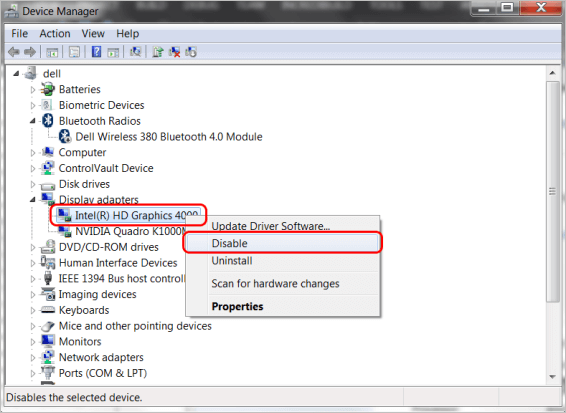
The "Photoshop could not finish your request due to a software error" problem can also be resolved by deactivating the graphic processor. To achieve it, follow these instructions.
Step 1. Hit the Edit function after opening Photoshop's recent version.
Step 2. Select Preferences from the menu that is presented.
Step 3. Click OK after disabling the Use Graphics Processor option in the Preferences panel.
Method 5. Reset Photoshop Preferences to Fix Could Not Complete Your Request
If you're experiencing the "Photoshop couldn't finish your request" issue due to preferences, you can try resetting Photoshop's preferences to resolve the issue. To do this, simply hold down the Shift key while starting Photoshop.
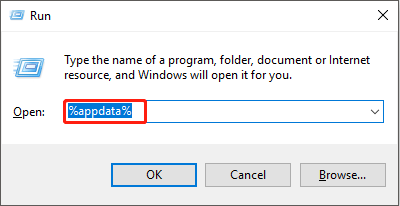
Step 1. To access the Run box, click the Windows and R keys. Then, type %appdata% and press Enter to navigate to the AppData folder, which contains user-specific application data.
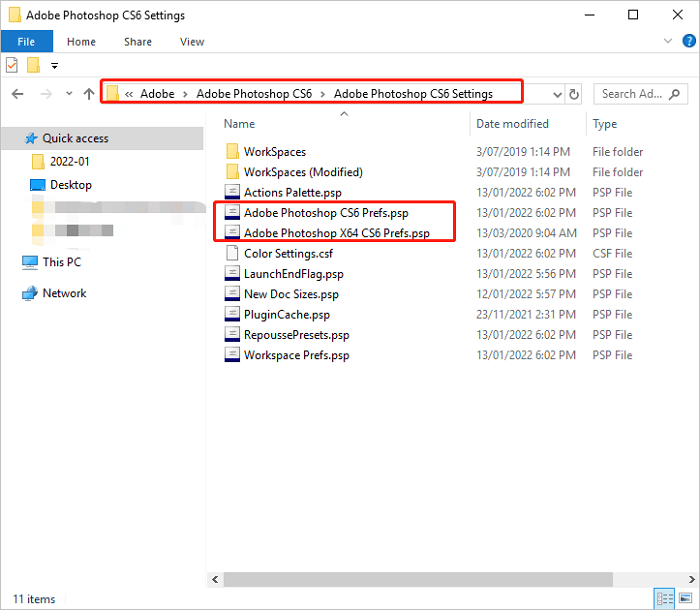
Step 2. To find your way to the destination, follow the route outlined in the expanded panel. The panel provides the necessary information to navigate to the location.
Step 3. Find the files Adobe Photoshop CS6 Prefs.psp and Adobe Photoshop X64 Prefs.psp, and transfer them to the PC.
Step 4. Launch Photoshop now to see that its Settings have been reset.
To quickly reset Photoshop preferences for Windows, hold down the Alt, Ctrl, and Shift keys and double-click the Photoshop application. A pop-up box will appear, prompting you to confirm the action; click Yes to proceed.
Conclusion
Although the problem message "Photoshop could not finish your request because of a software fault" seems perplexing, the methods offered in this article will assist you in fixing it. If this error causes serious concern, you should choose a fix from the list of possibilities.
Before continuing, you should check out any apparent causes. Moreover, data loss may ensue anytime, which can be eliminated with the help of professional software, Qiling data recovery software. So, install this now!
Could Not Complete Your Request Photoshop FAQs
Follow the below-mentioned questions and answers to get a better understanding of this article:
1. How to fix unexpected end-of-file photoshop errors?
A file in Photoshop ended unexpectedly, likely due to disk data damage or incorrect file extension, and most likely cannot be recovered due to a server error.
If you're having trouble saving Photoshop files (.psd) due to the end-of-file problem, you can try changing the file extension to a different format, such as .psd1 or .
2. How do I recover a corrupt file?
You can recover files from a corrupted hard drive using a top-notch file repair software like Deep Data Recovery, which can mend and restore lost or corrupted documents, including videos, photos, and other file formats.
3. Why won't my Photoshop let me export?
The most common reasons for not being able to export a Photoshop file are an unsupported file format, too many layers, file size, or the presence of an alpha channel.
4. How to fix Photoshop could not complete your request because of a program error?
To resolve a Photoshop program error, you can disable the generator. This can be done by following a series of steps, which include disabling the generator.
- Search for the Edit option, and select Preferences.
- Visit the Plug-ins and untick the Enable Generator icon on the upper side.
- Hit the OK button, which may resolve the error, but if it doesn't, proceed with the next steps.
Related Articles
- How to Delete File PowerShell [with Precise Command Lines]
- What Is Volume Shadow Copy and How to Use It Correctly on Windows 11/10
- (All Methods to Fix) Computer Keeps Booting to BIOS
- How to Fix Atomic Heart Not Saving Issue on PC, PS4/5, Xbox [7 Tested Methods]
- What Is Wuauserv and How to Fix Wuauserv High CPU Usage? [Updated 2023]
This article introduces you to the Wuauserv or the Windows Update Service utility. If you are a user-facing high CPU usage due to these services, the article is a perfect overview of the fixes that can be used to resolve the problem. - What Should I Do with My Old SSD in 2023 [New Guide]
What should I do with my old SSD? If you get same questions, this article can help. It introduces four ways to help you reuse your old SSD.
Products
Articles & Tutorials
- Data Recovery
- Data Backup
- File Recovery
- File Backup
- System Backup and Restore
- Disk and Partition Clone
- Technical articles
- Mobile articles
- Disk Master Help
- Windows Data Recovery Tutorials
- Windows Secure Delete Tutorials
- Windows Partition Management Tutorials
- Windows File Backup and Restore Tutorials
- Windows System Backup and Restore Tutorials
- Windows Disk Backup and Restore Tutorials
- Windows Clone Tutorials