How to Delete Search Engines on Google Chrome on Windows, Mac, Android, and iPhone
Deciding to remove search engines from Chrome can be a quick and simple process, especially when you prefer a different search engine or notice suspicious activity related to your current one. To remove search engines from Chrome, you can follow the steps outlined in this article, which provide effective solutions to this issue. Whether you're looking to switch to a different search engine or simply want to get rid of one that's causing problems, these steps will guide you through the process and have you back to browsing in no time.
| Workable Solutions | Step-by-step Troubleshooting |
|---|---|
| 1. Delete search engines in Google Chrome on Windows | Select the three dots icon at the upper-right corner of your screen on your Windows PC...Full steps |
| 2. Delete search engines in Google Chrome on Mac | Search and click on the three dots at the top-right corner of your screen on your Mac...Full steps |
| 3. Delete search engines in Google Chrome on Android | Click on the 'three dots' at the top-right corner and select 'Settings' on the options menu...Full steps |
| 4. Delete search engines in Google Chrome on iPhone | Locate and Click the three dots in the lower-right corner and click on the 'Settings' option...Full steps |
If you're using Google Chrome and want to delete the browser history or remove a search engine, you can do so easily. Perhaps you've noticed suspicious activity, such as your search engine redirecting to a different engine you didn't choose, and you want to remove it. Fortunately, you don't need technical support to fix this, and you can simply remove the unwanted search engine from your Chrome browser by following a few simple steps.
How to Delete search engines in Google Chrome on Windows
If you're using a Windows PC, deleting search engines is a straightforward process. If you've accidentally deleted Chrome history, you can recover it. To delete search engines, you can follow the steps provided, which will guide you through the process.
Step 1. Go to your Google Chrome window on your Windows PC.
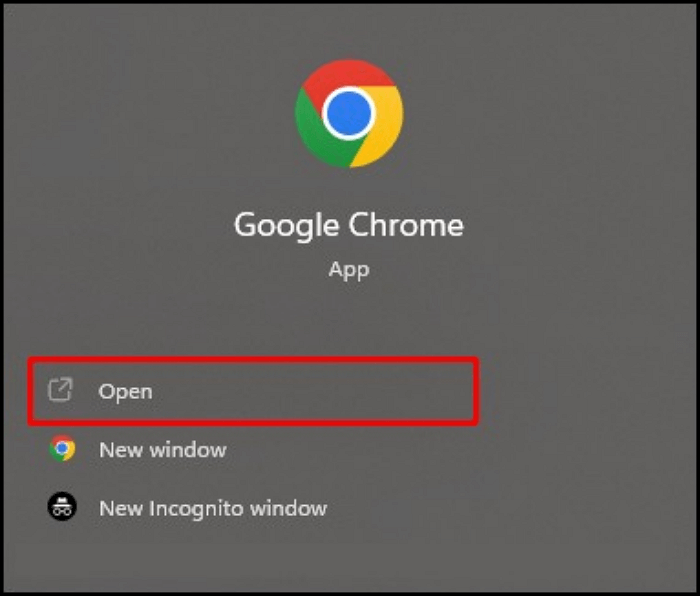
Step 2. You can also type "help" in the chat window to get a list of available commands. You can type any question or topic you'd like to discuss.
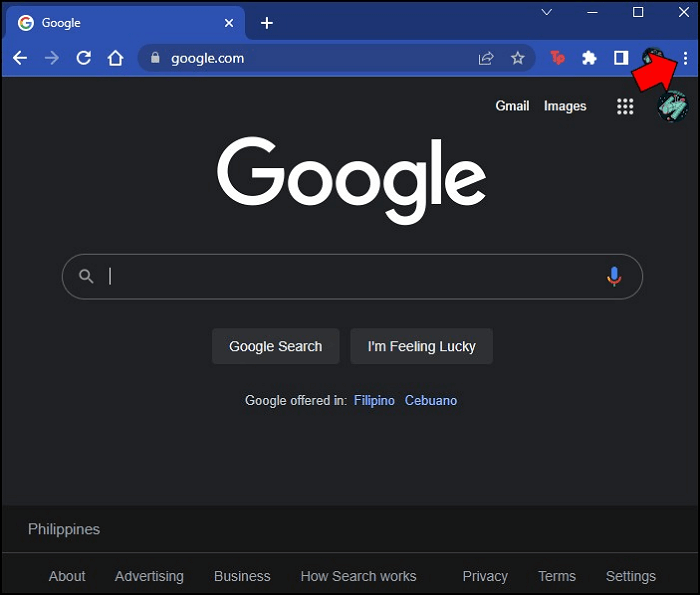
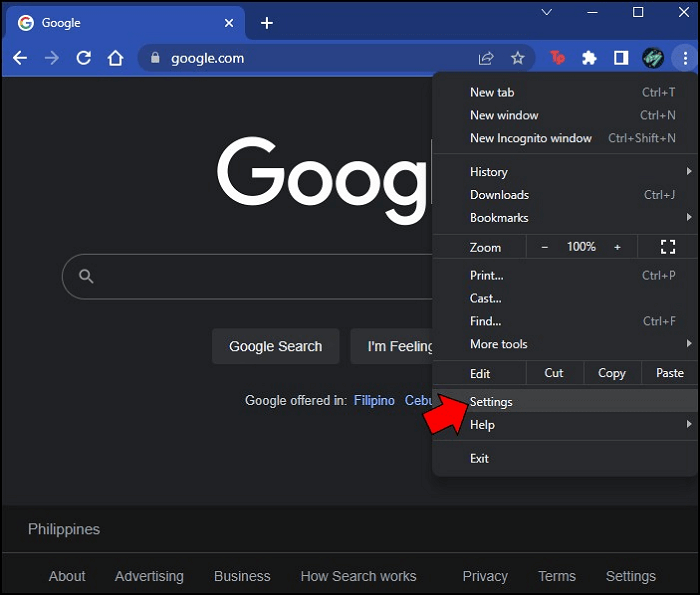
Step 3. Locate 'Settings' on the drop-down options
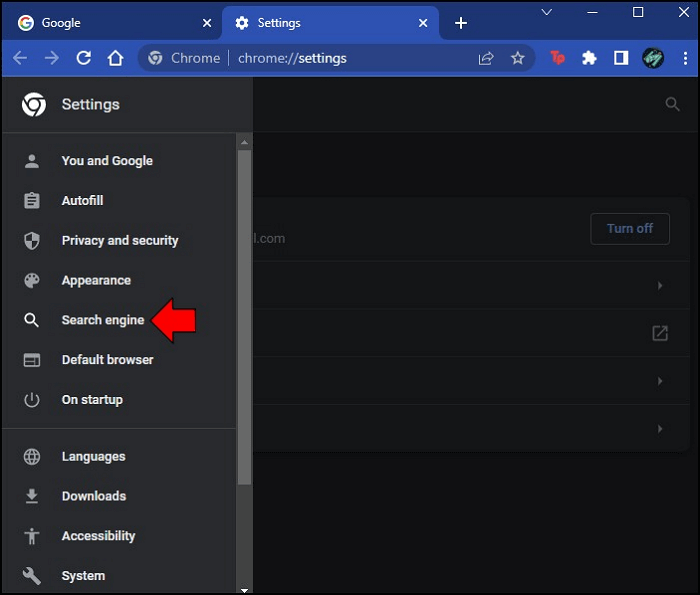
Step 4. Select 'Search Engine' under Settings.
Step 5. To find the 'Manage search engines and site search' option, look at the upper-center portion of your screen and select it.
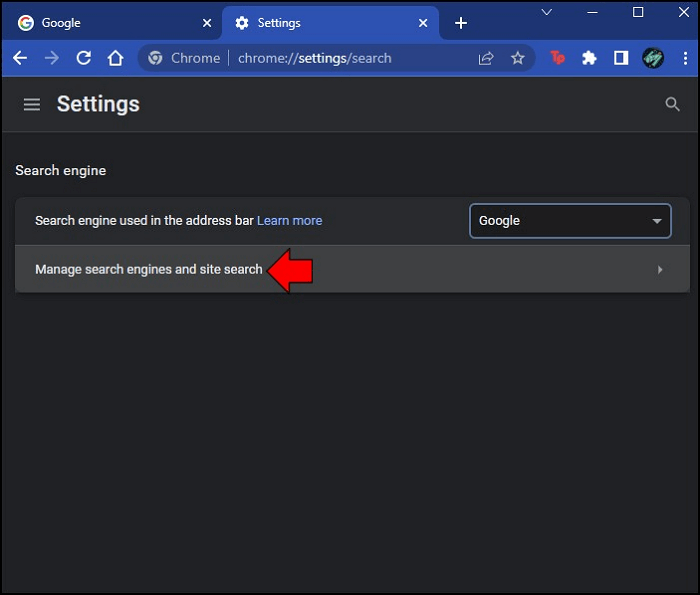
Step 6. Search engines are software programs that search for and retrieve information from the internet. They allow users to search for specific keywords, phrases, or topics, and return a list of relevant results.
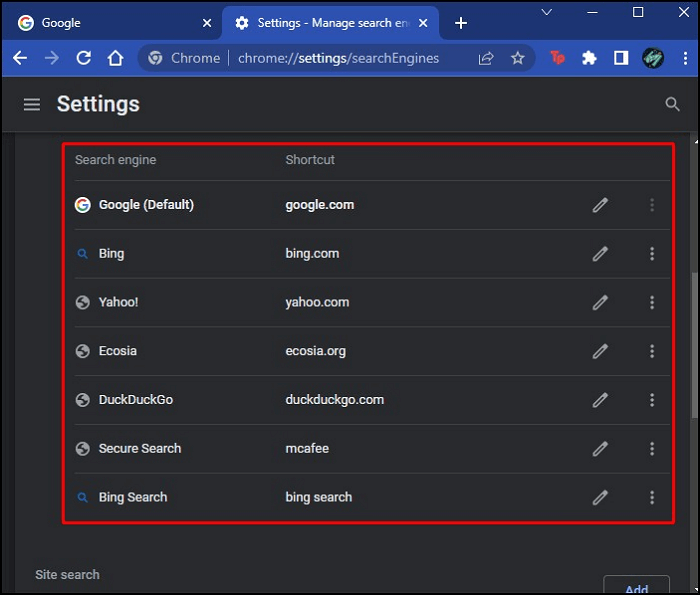
Step 7. Select the search engines you wish to delete, and click the three dots on the right side of them. Click "Remove" to confirm the deletion.
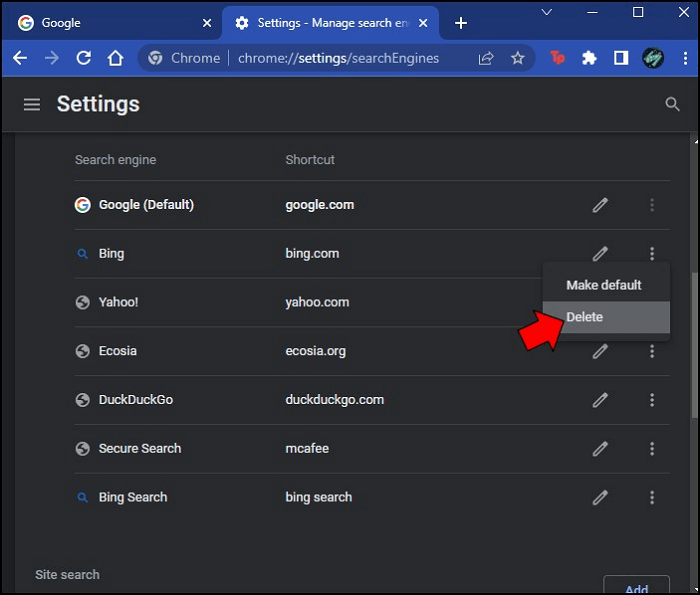
Step 8. Select 'Delete' from the 'drop-down options.
If this article is helpful, share it on social media to help others.
How to Delete search engines in Google Chrome on Mac
Deleting search engines on Google Chrome on a Mac is also straightforward. After setting up Google Chrome, you can export Chrome Bookmarks to Safari with just a few clicks on your settings. They include the following: 1. Go to Google Chrome, 2. Click on the three vertical dots in the top right corner, 3.
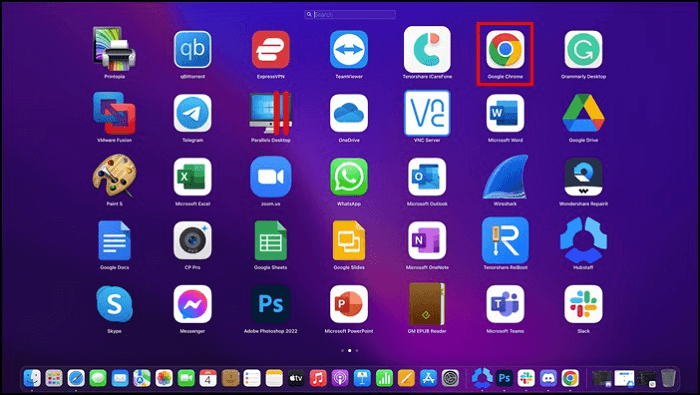
Step 1. Open Chrome browser on your Mac.
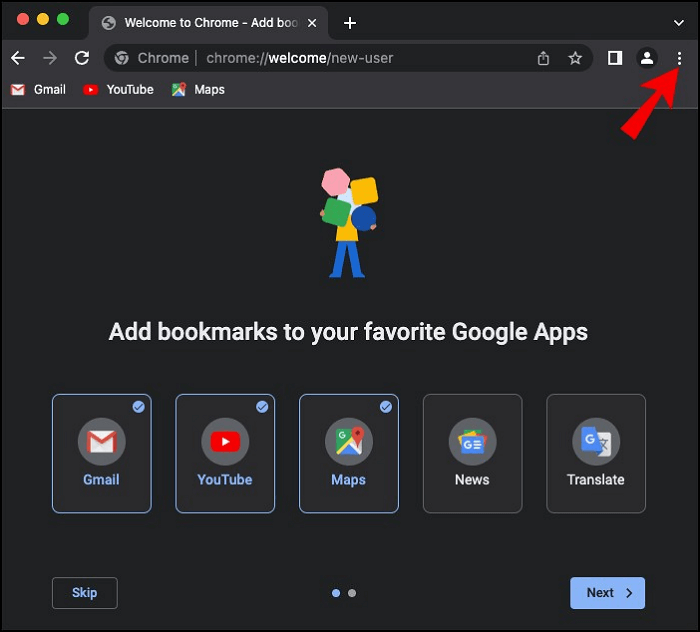
Step 2. Click on the three dots at the top-right corner of your screen to open the menu, then select "Settings" from the dropdown menu.
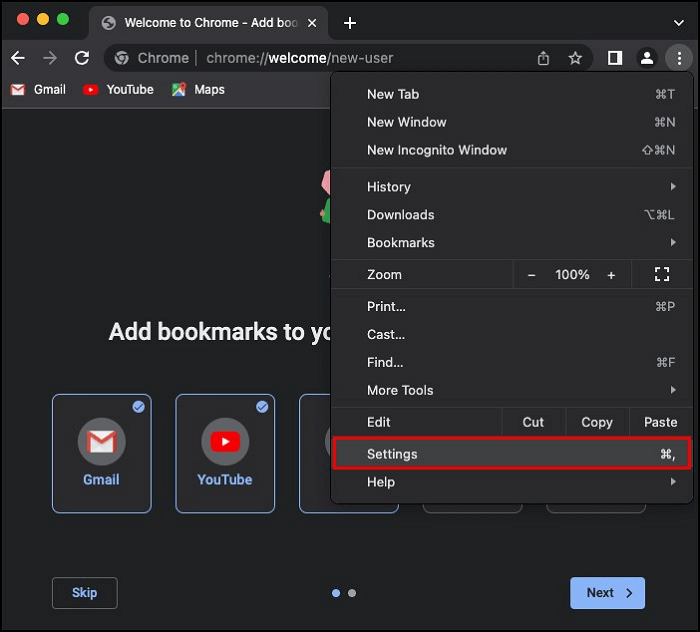
Step 3. Find and select 'Settings'.
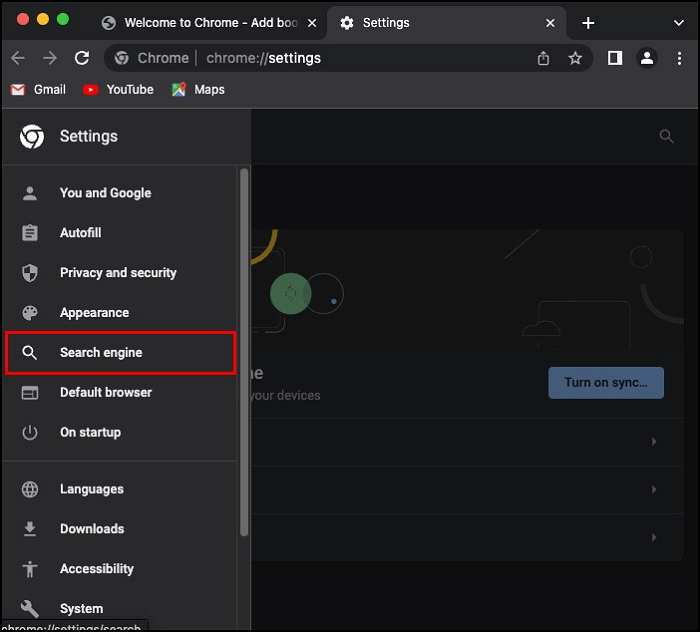
Step 4. On the left side menu, click on the Search Engine option.
Step 5. To modify your search engine settings, click on the 'Manage search engines and site search' option located at the upper-center part of your screen.
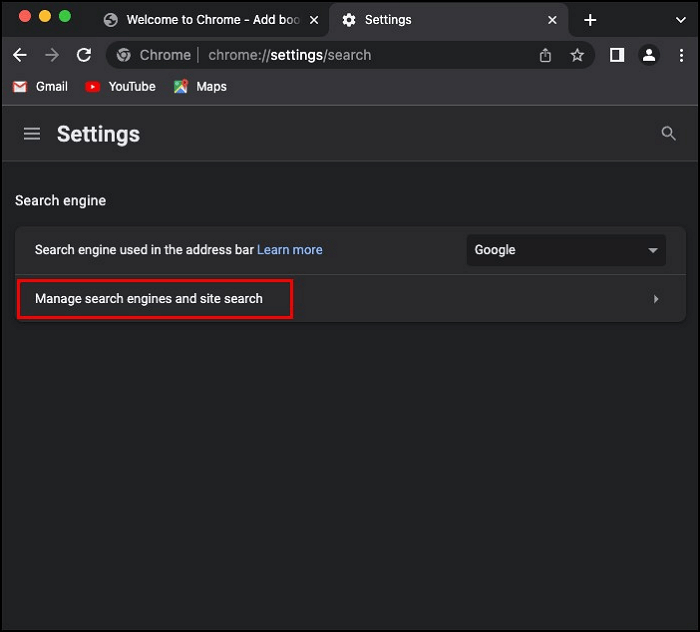
Step 6. Click on 'Search engines' to view all the search engines.
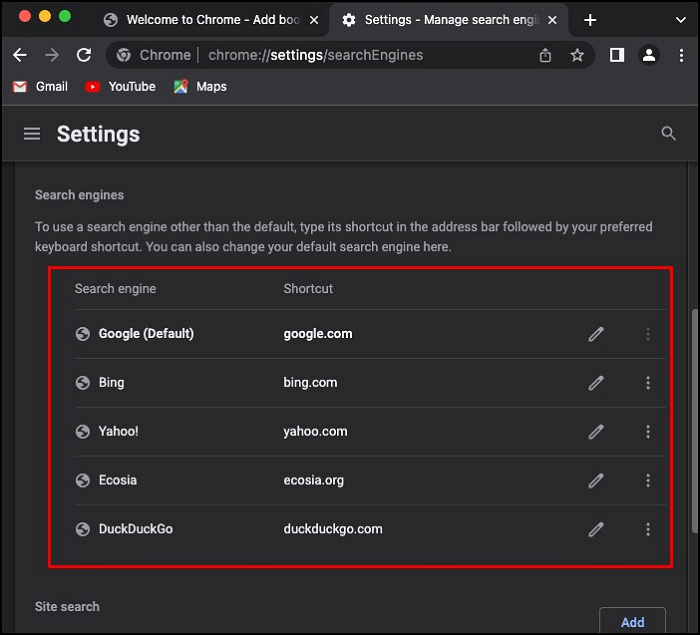
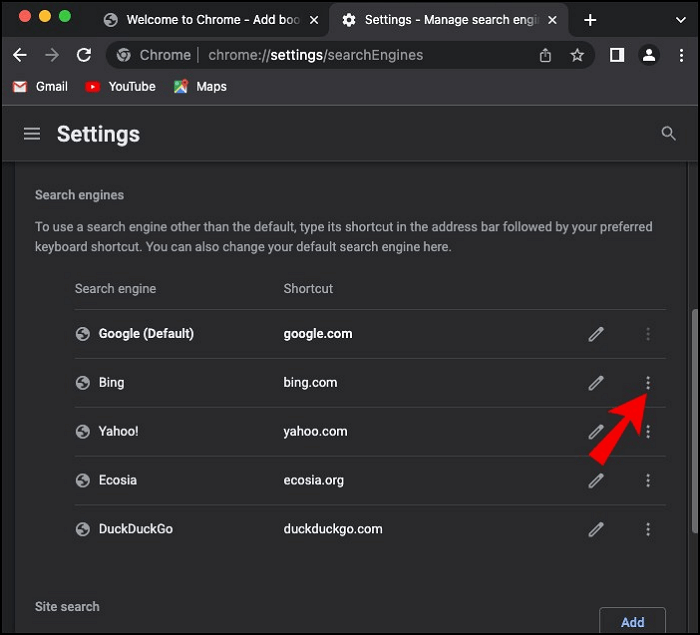
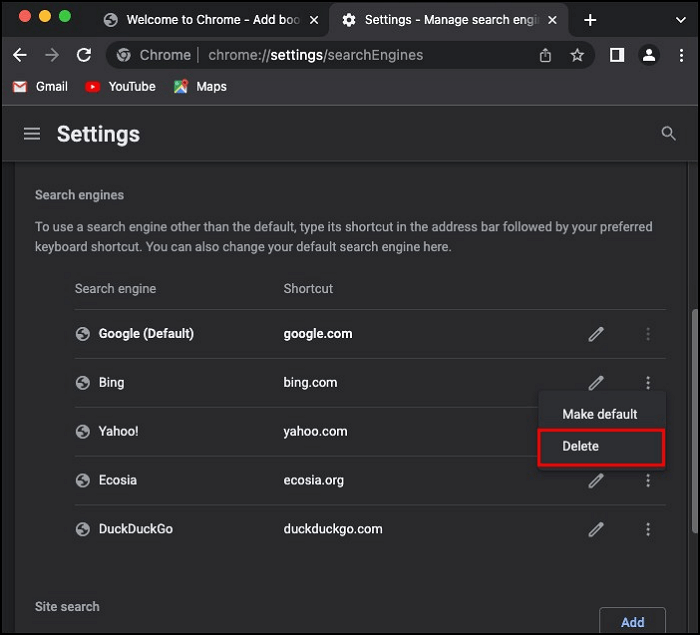
Step 7. To delete a search engine, click on the three dots icon next to it and select the option to delete. This will remove the search engine from your browser.
Step 8. Select 'delete' from the drop-down menu.
How to Delete search engines in Google Chrome on Android
Some features, like removing search engines, may not be available on all devices, such as Android, which doesn't support this feature. However, you can still select a default search engine on Android devices using a specific set of steps.
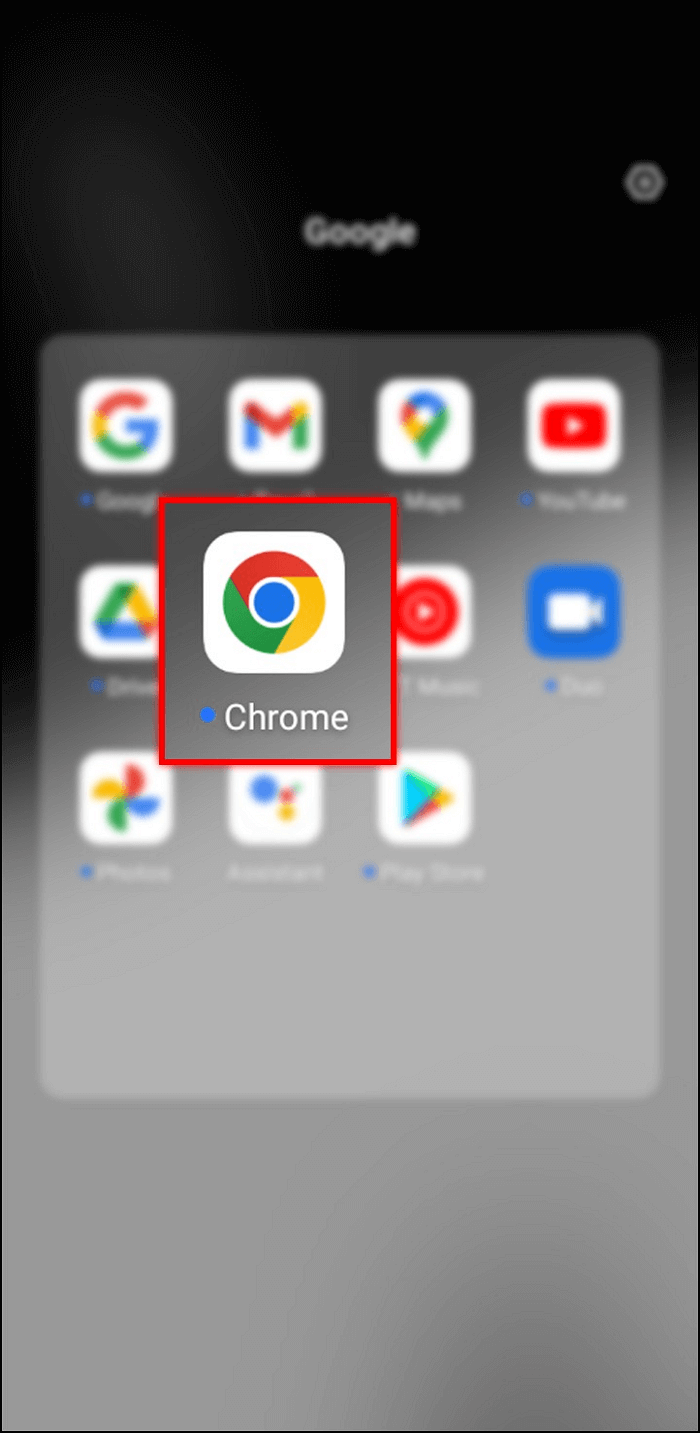
Step 1. Open the Chrome browser on your phone.
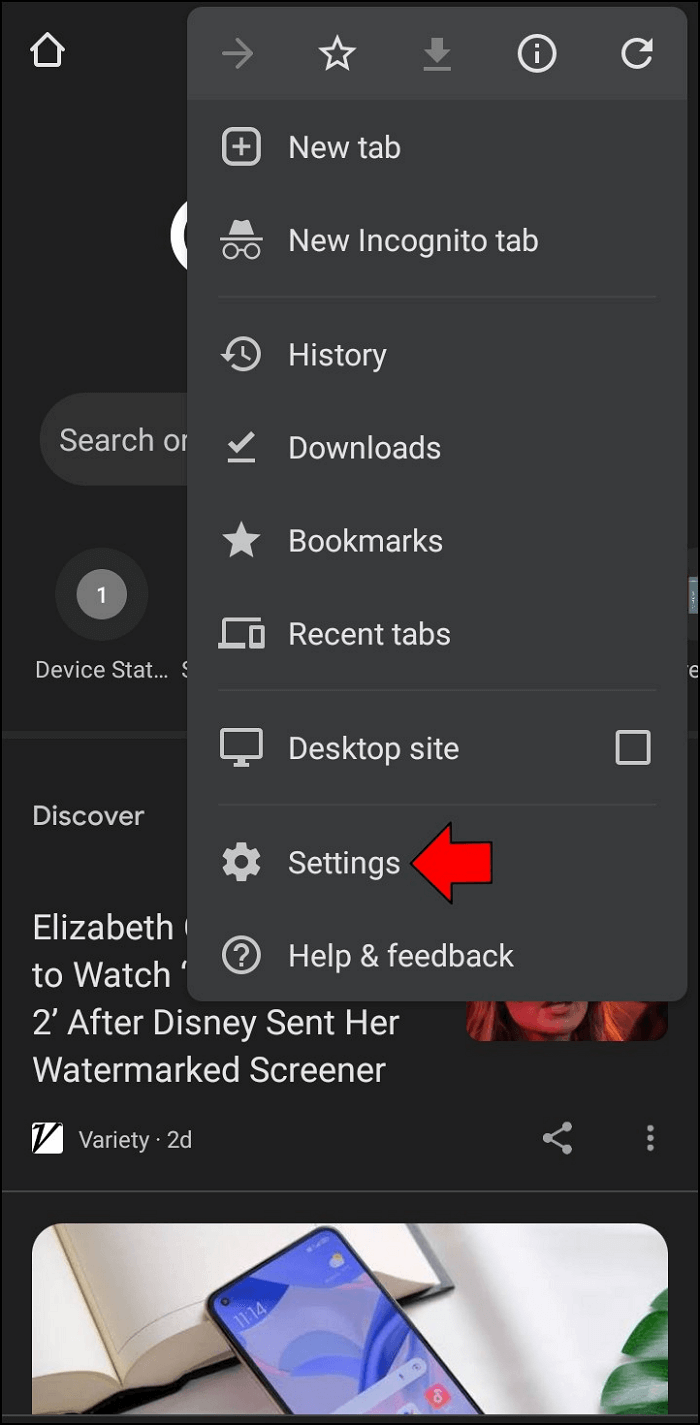
Step 2. Click on the 'three dots' at the top-right.
Step 3. Select 'Settings' on the options menu.
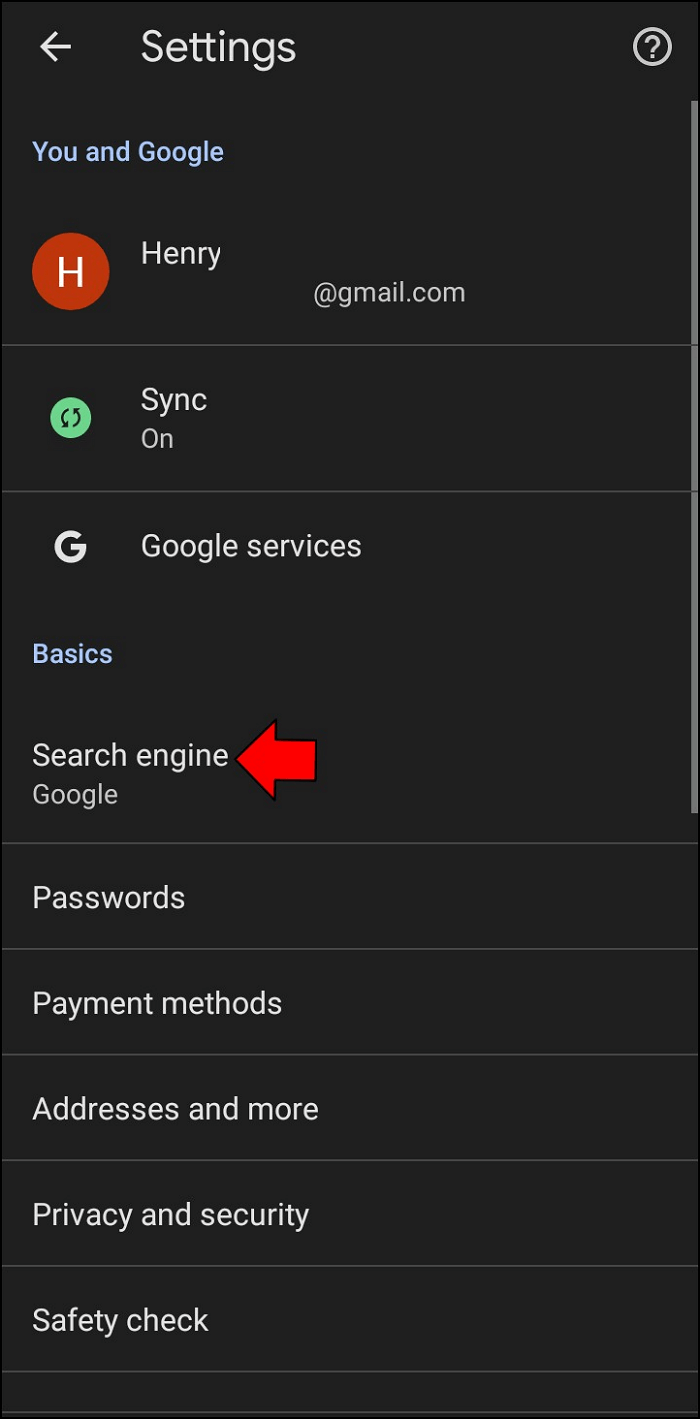
Step 4. Select 'Search Engine'.
Step 5. To set your default search engine, click on your preferred search engine from the list of available options. This will set your default search engine for all future searches.

How to Delete Search Engines in Google Chrome on iPhone
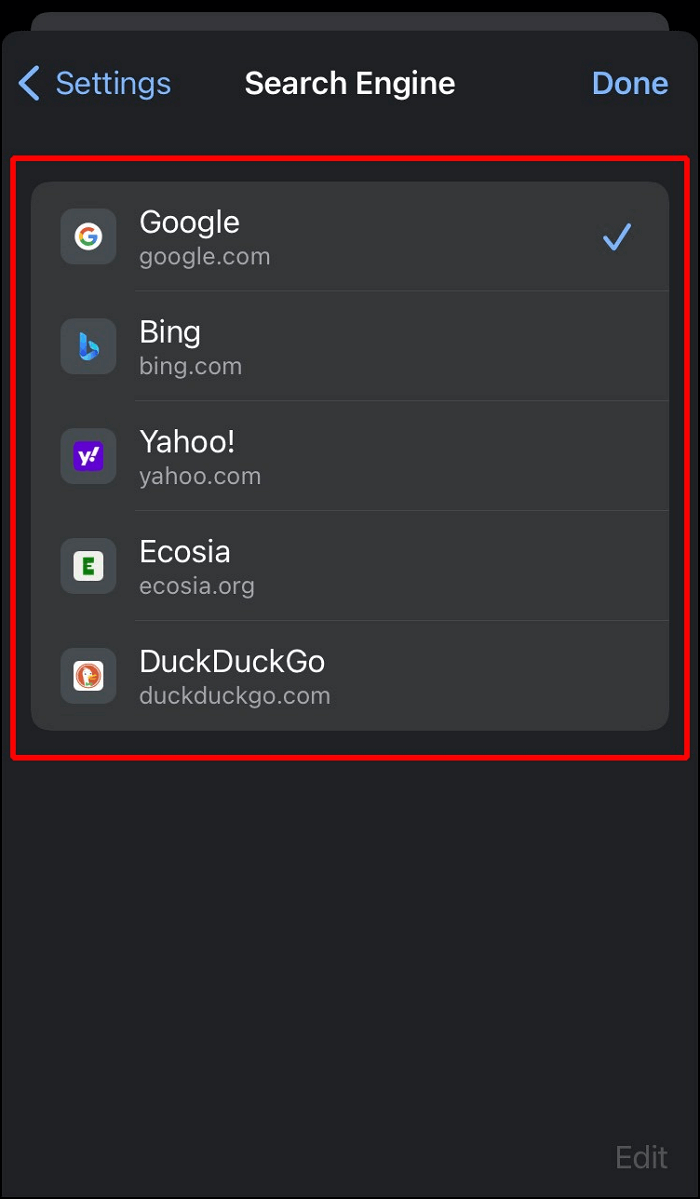
Since iPhones don't allow deleting search engines, you can instead select a preferred search engine to set as default. To do this, follow these steps:
Step 1. Launch Chrome on your iPhone.

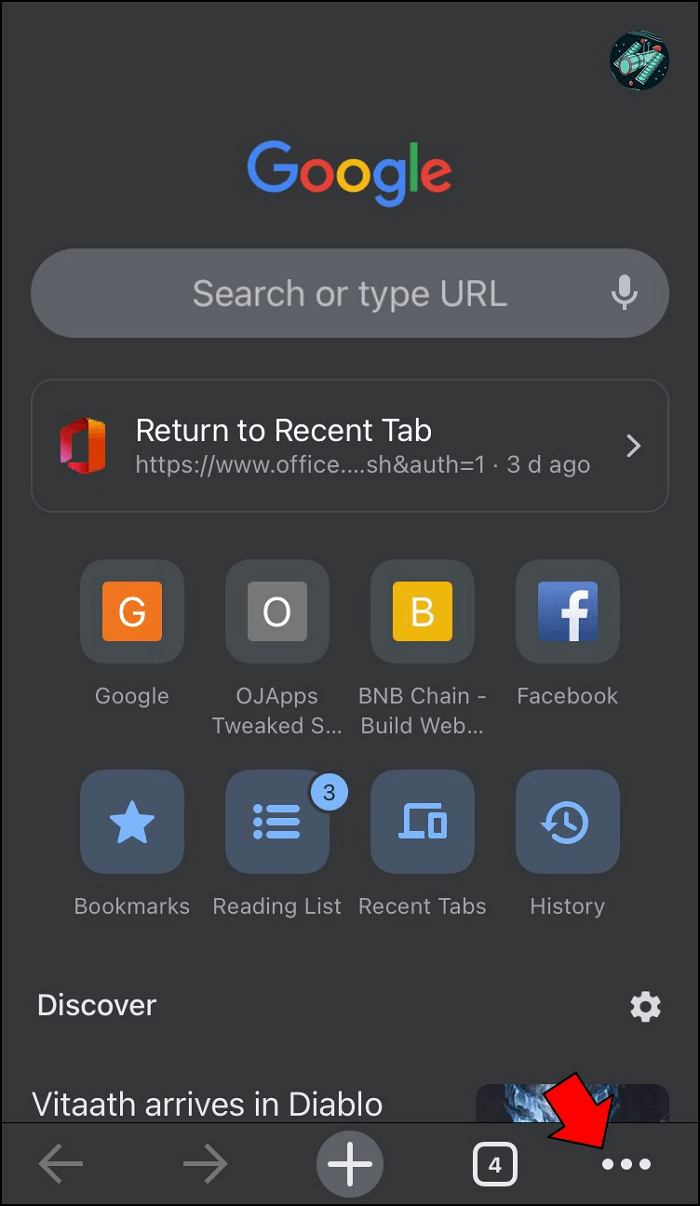
Step 2. Locate and Click the three dots in the lower-right corner.
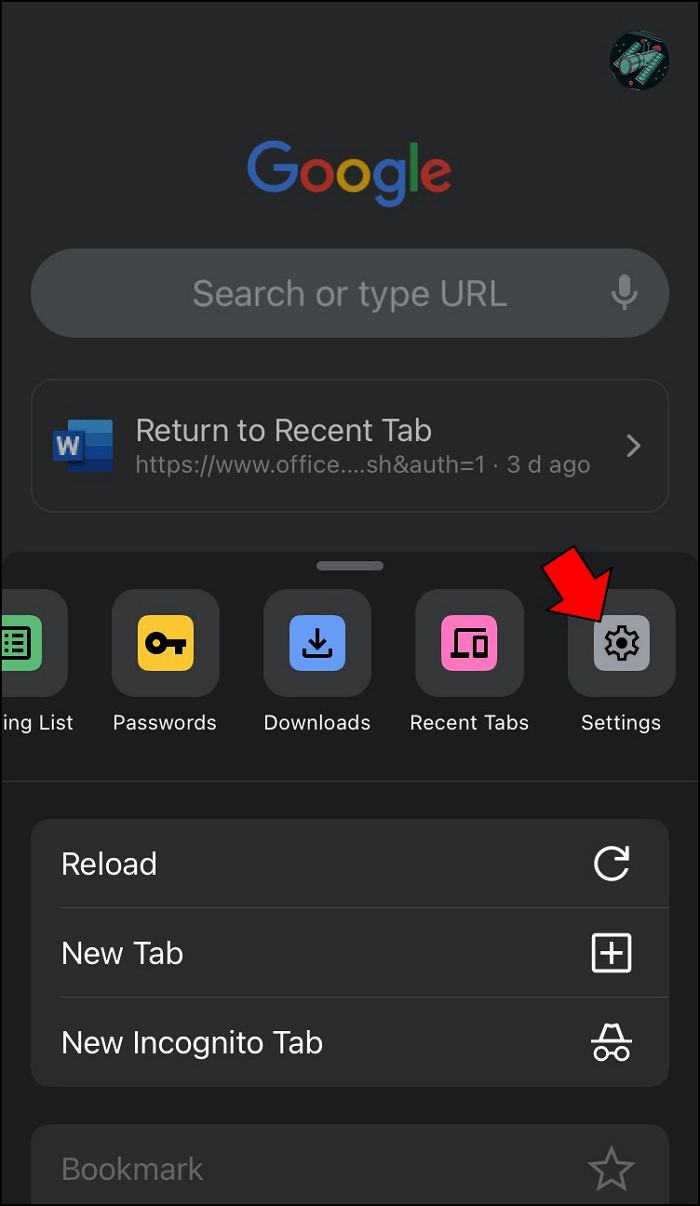
Step 3. Click on the 'Settings' option.
Step 4. Click on 'Search Engine'.
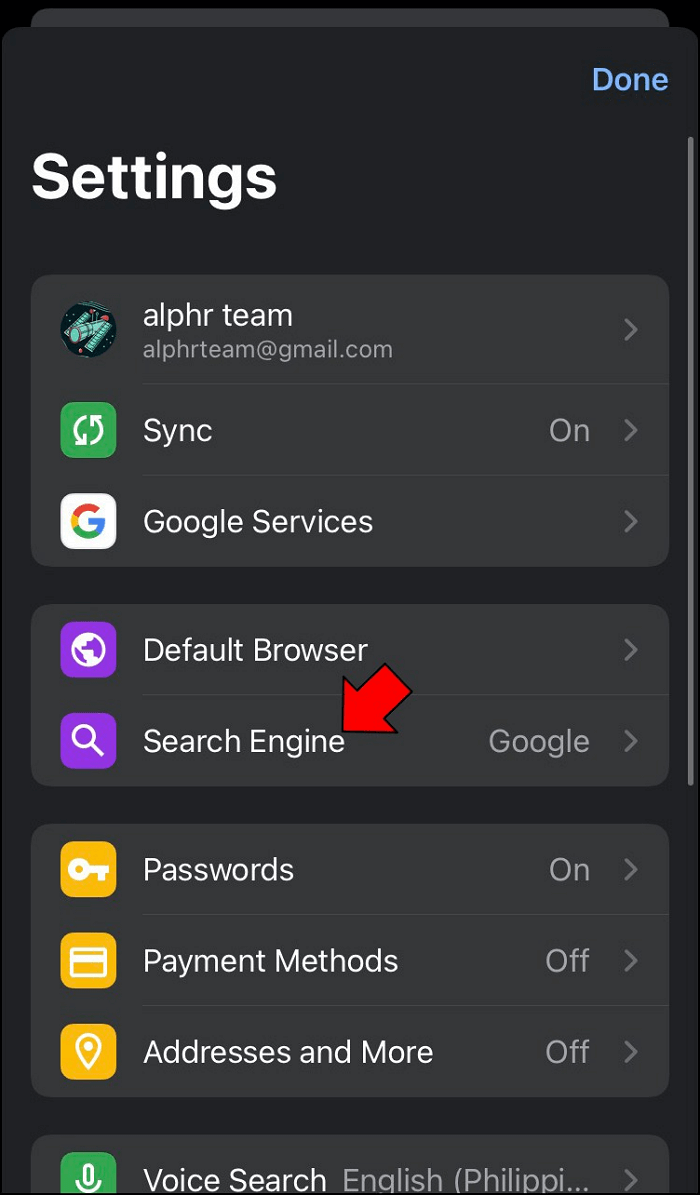
Step 5. On the list of search engines, pick any search engine of your choice and close the window.
Conclusion
Removing search engines from Chrome can be a hassle, but being able to do so whenever you want makes the process bearable. Depending on your device, you can choose one of the steps to remove search engines from Chrome, and you don't need to have any advanced IT skills to do so.
The process of setting up a device may vary, but it's generally straightforward and easy to navigate. This article provides detailed explanations for each step, so you can follow along and complete the setup process with ease. Just be sure to follow the instructions carefully, and you'll be up and running in no time.
Related Articles
- How to Cancel Windows 10 Updates Once Started
- What Is an Active Partition in 2023, Everything You Need to Know
- Why Won't My Mac Turn On and How to Solve It
- Solved: PS3 System Storage Not Enough, Not Found or Corrupted
- Fix Windows Taskbar Not Working | For Windows 11/10
If your Windows Taskbar is not working, you can refer to this article to identify the potential causes and solutions in Windows 10/11. However, be aware that resolving the issue might result in data loss, so consider installing Deep Data Recovery to prevent such losses. - 6 Proven Ways to Fix Windows Update Download Error 0x80248007
Fix Windows Update download error 0x80248007. Reset update components, check services, and repair Windows update files.
Products
Articles & Tutorials
- Data Recovery
- Data Backup
- File Recovery
- File Backup
- System Backup and Restore
- Disk and Partition Clone
- Technical articles
- Mobile articles
- Disk Master Help
- Windows Data Recovery Tutorials
- Windows Secure Delete Tutorials
- Windows Partition Management Tutorials
- Windows File Backup and Restore Tutorials
- Windows System Backup and Restore Tutorials
- Windows Disk Backup and Restore Tutorials
- Windows Clone Tutorials