6 Proven Ways to Fix Windows Update Download Error 0x80248007
Windows updates improve the operating system's stability and performance, but occasionally cause errors.
The Windows Update download error 0x80248007 is a common issue that occurs when users attempt to download updates from Windows Update. The error can be caused by a variety of factors, including corrupted system files, incorrect registry entries, or issues with the Windows Update service. To resolve the error, users can try restarting their computer, checking for corrupted system files, running a registry cleaner, or disabling and re-enabling the Windows Update service. Additionally, users can also try running the Windows Update Troubleshooter or checking for any pending updates in the Windows Update settings. If none of these steps resolve the issue, users may need to seek further assistance from a Microsoft support representative.
What Is Windows Update Download Error 0x80248007
The Windows Update feature in Settings is experiencing issues due to missing files or an inability to locate the Microsoft Software License Terms, preventing the update of the OS or drivers.
Microsoft's update process is being hindered by an error, resulting in the system notifying users to try again later. This issue has been acknowledged by Microsoft, but it persists. Despite this, there's no cause for significant concern as errors are an inevitable part of life. To address this problem, we'll explore potential solutions.
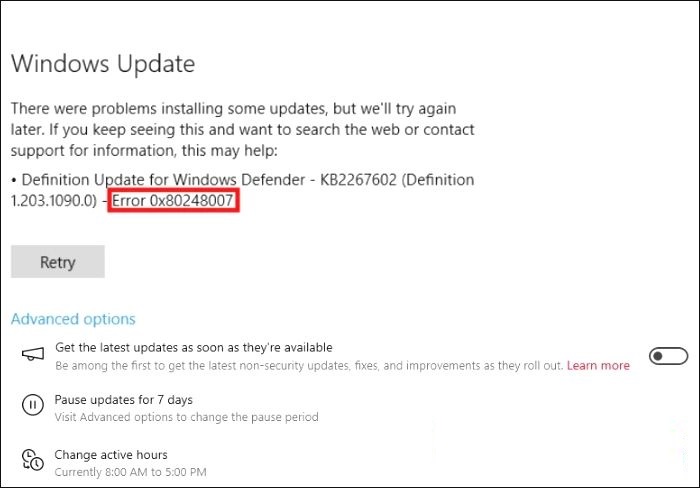
What Causes Windows Update Download Error 0x80248007
Error code 0x80248007 can occur due to various reasons, and the first step to resolving the issue is identifying its cause. The problem may arise from corrupted system files, incorrect registry entries, or outdated or corrupted Windows Update components. Additionally, issues with the Windows Update service, such as a malfunctioning Windows Update Agent, can also trigger this error code.
- 🧩Missing Windows Update components: You may encounter an update error if the files or folders required for the update are corrupted or missing.
- 🌐Network problems: To ensure the system can scan and install updates, a reliable internet connection is required. This allows the system to communicate with the update servers and download the necessary patches and fixes.
- 👨🔧Problems with Windows update services: An update may fail to complete if the Windows Update service has been blocked or disabled.
- 🎗️Interference from anti-virus software: Some third-party software may interfere with normal Windows updates, so it's a good idea to temporarily turn them off.
- 💾Insufficient disk space: an update requires enough disk space before successful installation.
- 💻Windows Registry problems: The Windows registry stores key/value pairs for the Windows Update service, and if this key is missing or corrupted, Windows may fail to update.
Want to know how to solve the error?Read on to learn how to fix these problems and proceed with the Windows update.
📒Further Reading: Windows Update Not Working | Windows Update Error 0x80080005
Bonus Tip: Backup Your Windows Before Any Update
Windows updates can be unpredictable at times, making it wise to back up your data for safety reasons. Qiling Disk Master is a reliable solution for efficiently saving your files, supporting all Windows versions and allowing backups to local storage, NAS, external drive, network, or the cloud.
Qiling Backup allows users to secure backup data with a unique password and retrieve backups when needed. It also supports incremental, differential, and scheduled backups.
The main backup features of this software include:
- System/file/disk/APP backup and restore with a few clicks.
- Password protection and backup compression options help balance security and storage use.
- You can create a system image to restore your computer to its previous state at any time. This allows you to easily revert back to a working configuration if something goes wrong or you need to troubleshoot an issue.
- Multi-path backup storage, including hard drive, cloud, NAS, etc.
- This tool supports various backup features, including scheduled backup, differential backup, and incremental backup.
- Sync file real time between folders and two different devices.
- To create an emergency bootable disk, you can use a tool like Hiren's BootCD or a USB drive with a bootable operating system like Windows 10 or Linux. This will allow you to access your computer's files and perform tasks even if the operating system is unbootable.
Download Qiling Disk Master, use it to create a system image backup, and then update Windows.
Qiling Disk Master
It's a good idea to back up your Windows system before any Windows update to ensure your files and settings are safe in case something goes wrong during the update process.
6 Proven Ways to Fix Windows Update Download Error 0x80248007
Windows update problems are common, but various solutions exist to address them. Encountering the update download error 0x80248007 shouldn't worry you much, as we have the right solutions here. Six fixes are available to resolve this issue, and we'll discuss them shortly.
- 1. Restart Your PC.
- 2. Check Your Date and Time.
- 3. Restart the Windows Update Service.
- 4. Restart the Windows Installer Service.
- 5. Run SFC/DISM Scan.
- 6. Run Windows Update Troubleshooter.
Let's look at how to apply each solution.
Solution 1. Restart Your PC
Performing a simple reboot is the first solution to a Windows update error, as it can help fix any minor bugs, and then check the update again.
Step 1. To maximize productivity, save all the tasks you're currently working on and close any open programs or applications. This will help prevent any unsaved work from being lost and free up system resources, allowing you to focus on new tasks or projects.
Step 2. To turn off your Windows computer, click on the Start Menu and choose the "Power" icon.
Step 3. Click on the "Restart" option to reboot your system.
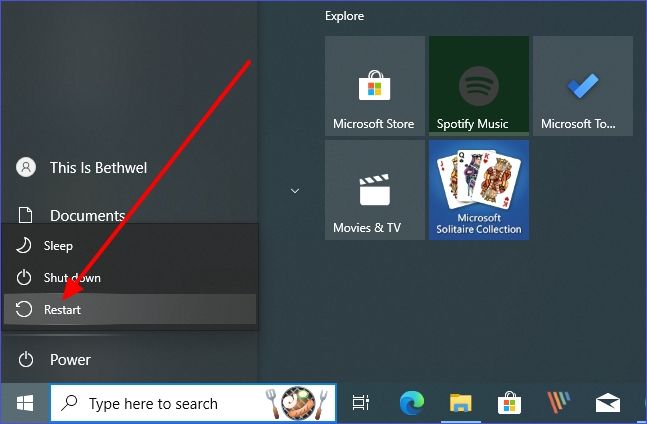
Step 4. Once your device powers on, you can resume the update process.
Is the post helpful? Share it on your social platforms and helps your followers to solve the Windows update downlaod error effectively.
Solution 2. Check Your Date and Time
To avoid issues with Windows updates, it's recommended to set the system to automatically update the date and time. This ensures that Windows receives the correct updates and functions properly.
Step 1. Open Settings and click on "Time & Language."
Step 2. To set the date and time on your device, navigate to the settings menu and select the "Date & Time" option. From there, toggle the switch next to "Set time automatically" to enable or disable the automatic time setting feature.
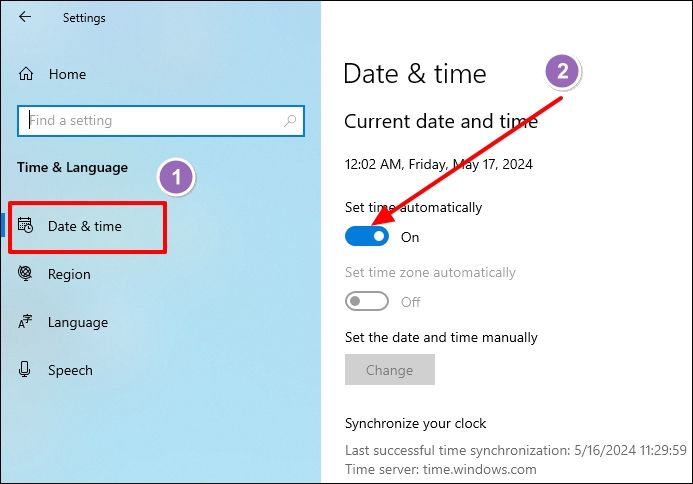
Step 3. Exit Settings and check if the update download problem has disappeared.
Solution 3. Restart Windows Update Service
To resolve the issue, simply restart your computer. This will allow the Windows Update service to run and complete the update process, potentially resolving the error 0x80248007.
Step 1. Type "services.msc" in the Run dialog box and hit Enter.
Step 2. When the "Services" window opens, navigate to the "Windows Update" service.
Step 3. Right-click on the Windows Update service, select "Restart" to restart it.
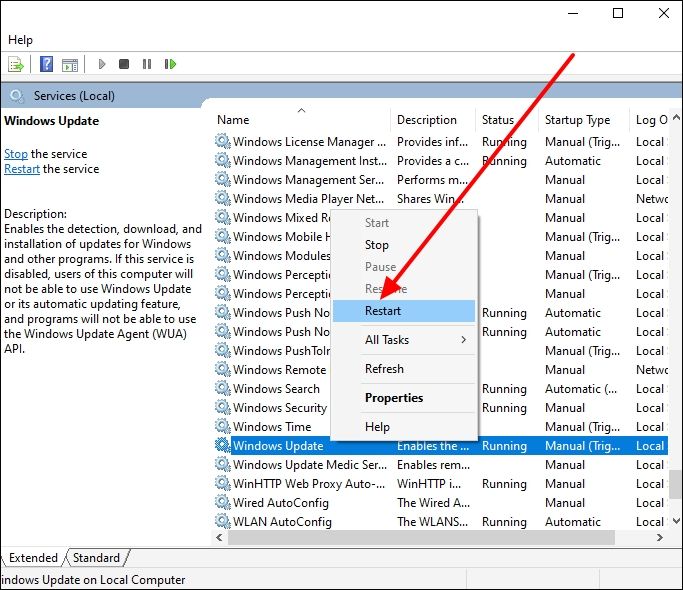
🧩Extend reading: How to Stop Windows 11 Updates Safely
Step 4. Exit the window and check if error 0x80248007 has disappeared.
Solution 4. Restart the Windows Installer Service
Windows Installer service helps install program updates during Windows Update, and restarting the service can resolve download errors.
Step 1. Type "Services" on the Search bar and hit Enter.
Step 2. Navigate to "Windows Installer" when the Services window opens.
Step 3. Right-click on the service. Next, select "Restart."
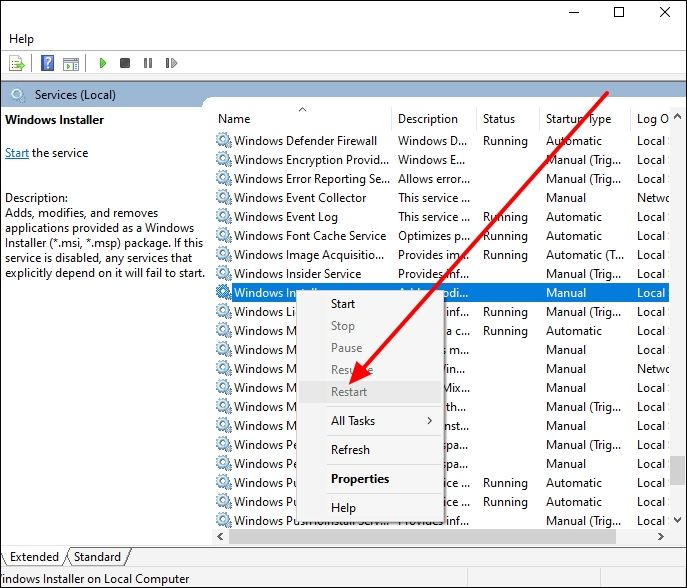
Step 4. After completing the steps, exit the Services window and verify if the update download issue has been resolved.
Solution 5. Run SFC/DISM Scan
An SFC scan helps to scan your computer for corrupted system files and restore them. The DISM scan then repairs the restored files so that they work correctly. You can run the two scans as follows.
Step 1. Open Command Prompt as an admin.
Step 2. Paste the following SFC scan command and hit Enter.
sfc /scannow
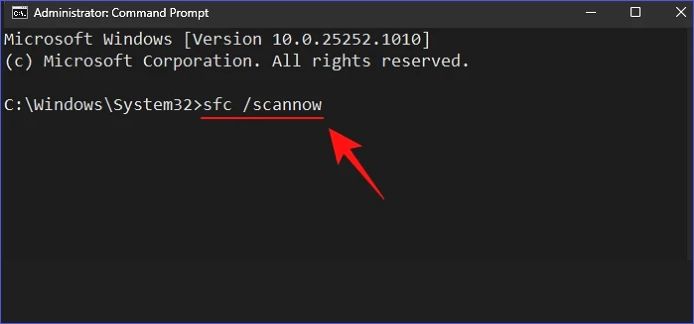
Step 3. Next, type the following DISM command:
DISM /Online /Cleanup-Image /ScanHealth
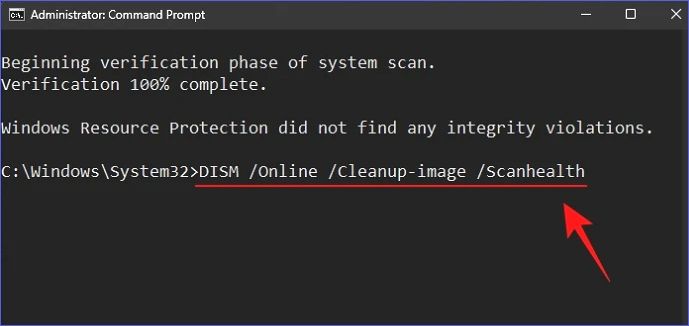
Step 4. To resolve the update download error 0x80248007, run the command "net stop wuauserv" and then "net start wuauserv" in the Command Prompt. After the second command finishes running, exit the Command Prompt and restart your PC. This should resolve the update download error 0x80248007, allowing you to proceed with the Windows update process.
Solution 6. Run Windows Update Troubleshooter
This fix helps identify problems preventing the update and suggests possible solutions by checking the following steps:
Step 1. Open Settings and click on "Update & Security."
Step 2. Browse to the left panel and click on "Troubleshoot."
Step 3. Next, click on "Additional troubleshooters."
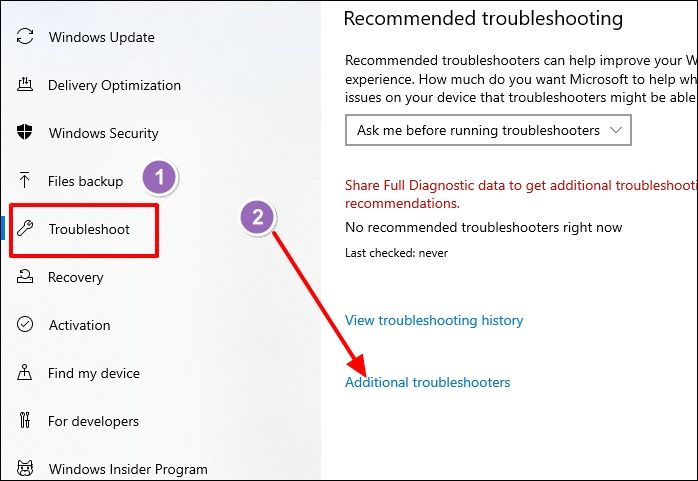
Step 4. Click on "Windows Update." Next, select "Run the troubleshooter."
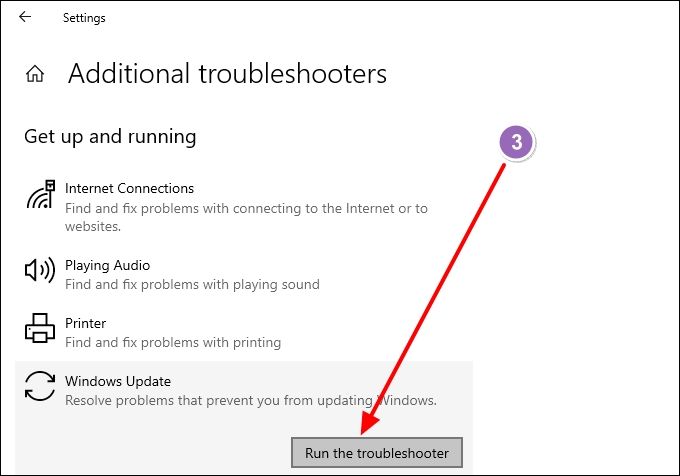
Step 5. The Troubleshooter will scan your system, identify potential problems, and highlight them. Fix these highlighted issues and then resume the Windows Update download process.
Share this helpful post on your social platforms to assist your followers in resolving the Windows update download error effectively.
Wrapping Up
To fix the Windows Update download error 0x80248007, try restarting your device, running SFC and DISM scans, restarting the update service, or using the update troubleshooter.
To avoid losing PC data, back it up with Qiling Disk Master before updating Windows. This helps keep your files safe if something goes wrong during the update.
Qiling Disk Master
It's a good idea to back up your Windows before any Windows update to ensure your data is safe and you can restore your system if something goes wrong.
FAQs About Windows Update Error 0x80248007
1. How to Get Rid of Update Error 0x80070026 on Windows 10?
You can apply these fixes:
- Run Windows Update Troubleshooter.
- Run SFC and DISM scans.
- Disable anti-virus software temporarily.
- Delete files from the Temporary folder.
2. How Do I Clear the Windows Update Cache?
You can do that using Command Prompt as follows:
Step 1. Open CMD as an administrator.
Step 2. Type the following series of commands and hit Enter after each:
Net stop wuauserv
C
cd%Windir%\SoftwareDistribution
Del /f /s /q Download
3. What Is Windows Update Download Error 0x8007007e?
Software conflicts, third-A Windows update error can occur due to various reasons, including corrupted system files, party app interferences, or system file corruption. This error prevents the system from downloading and successfully installing a Windows update.
Related Articles
- Linux Tips| E212 Can't Open File for Writing in Vim (3 Ways)
- How to Split Your Screen on a Windows 10/11? [Step by Step]
- Can't Format External Hard Drive? 6 Ways to Help
- How to Factory Reset HP Laptop Without Password
Are you unable to login to your HP Laptop? Do you need to get back your data? Then follow this easy guide to factory reset your HP laptop without password. If nothing else works, you can always recover data using professional software. - How to Factory Reset Windows 10 [Beginner's Guide]
This article details factory resetting and teaches you how to factory reset Windows 10 in two ways. You can reset Windows 10 in a normal way or without logging in. And backing up is necessary before a factory reset. - How to Use Fdisk Format Partition in Linux [2023 Ultimate Guide]
this guide focuses on fdisk format partition in Linux. It provides detailed information about fdisk. And you will know the operations to use fdisk to format partitions.
Products
Articles & Tutorials
- Data Recovery
- Data Backup
- File Recovery
- File Backup
- System Backup and Restore
- Disk and Partition Clone
- Technical articles
- Mobile articles
- Disk Master Help
- Windows Data Recovery Tutorials
- Windows Secure Delete Tutorials
- Windows Partition Management Tutorials
- Windows File Backup and Restore Tutorials
- Windows System Backup and Restore Tutorials
- Windows Disk Backup and Restore Tutorials
- Windows Clone Tutorials