How to Recover Permanently Deleted Files from Dropbox
Can you recover permanently deleted files from Dropbox?
Dropbox is a file storing, syncing, and backup app that creates a folder on your PC. You can drag files into it to sync or backup, but any deleted files will also be deleted from the Dropbox server.
You can recover permanently deleted files from Dropbox, as they are not entirely deleted but just hidden. This means it is possible to recover lost files from Dropbox after they were deleted, and I can guide you through the process in two steps. Follow the steps below.
| Workable Solutions | Step-by-step Troubleshooting |
|---|---|
| Recover from Dropbox Trash | Click the trash can icon near the search box at the top of the file browser. Select the deleted file or folder you want to recover by clicking the empty space to the right of its name. Click the Restore button...Full steps |
| Recover from Temporary Files | Launch Deep Data Recovery and select the local drive, which is in sync with the cloud drive to scan. Wait until the scanning completes. After choosing the files, click "Recover" and choose a location...Full steps |
Google Drive and Dropbox users who have accidentally deleted files may be interested in learning how to recover permanently deleted files from their accounts. The process involves contacting the administrator and support team to assist with data recovery.
Way 1. Recover from Dropbox trash
Dropbox keeps deleted files in Trash for 30 days, or longer with Dropbox Business or Dropbox Pro with Extended Version History. To recover deleted files, access the Dropbox website and navigate to the Trash section. From there, you can restore the desired files or folders by clicking the "Restore" button. If you've permanently deleted files, they will be permanently deleted after 30 days, so it's essential to check the Trash regularly to recover any important files.
Step 1. To delete a file in the File Explorer, click the trash can icon near the search box at the top of the File Explorer.
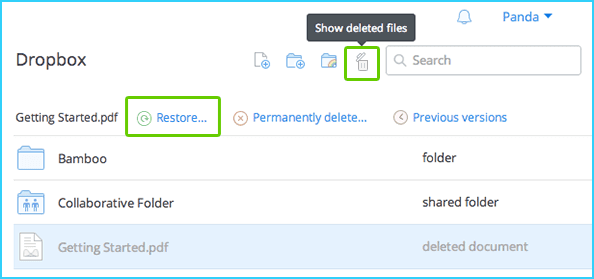
Step 2. Deleted files and folders will be listed in gray, allowing you to select the ones you want to recover. To do this, click on the empty space to the right of the file or folder name. You can select multiple items at once by holding down the Shift (PC) or Command (Mac) key while clicking.
Step 3. To recover permanently deleted files or folders on Dropbox, click the Restore button.
Way 2. Recover from Dropbox temporary files
If you've deleted Dropbox files after 30 days, the usual method won't work. However, you can still try to recover permanently deleted files or folders on Dropbox by scanning your local synchronized Dropbox folder with a file recovery software like Qiling.
To recover permanently deleted files/folders from your Dropbox cache on PC, follow this guide. First, locate the Dropbox cache folder on your computer, usually found in the "C:\Users\YourUsername\AppData\Local\Dropbox\cache" directory. Then, open the cache folder and navigate to the "data" subfolder, where deleted files are stored.
- Important
- Why is Qiling data recovery utility able to recover deleted files from cloud?Your local files are synced with the cloud, so when you delete something from the cloud, it also deletes the local version, but Deep Data Recovery can scan the local drive to find the deleted files.
Step 1. Select file types and click "Fast Scan" to start
Launch Deep Data Recovery, select the file types you want to recover, and click "Fast Scan" to begin the recovery process.

Note: You can choose different search modes based on where and why the data was lost.
Step 2. Select a local drive
Select the local drive where the files were synced to the cloud drive and click "Scan" to begin the process.

Step 3. Check for scan results
When the scan is complete, you can start looking for the files that were deleted from both the selected drive and the cloud drive by filtering the results by category and previewing the contents of specific files.

Step 4. Recover desired files
To recover lost files, select the desired files, click "Recover", and choose a different location than the original local drive to save the recovered data.
You May Also Like:
If you've ever accidentally deleted important files from your computer's hard drive or desktop, don't worry - recovering them is often easier than you think. Here's a step-by-step guide on how to restore your deleted files on a Windows PC.
How to Recover Deleted Files from Recycle Bin?
If you're looking to recover deleted files from the Recycle Bin, follow these steps to do so immediately.

Related Articles
- Fix An External Hard Drive That's Not Working/Responding/Showing Up
- Fix Saved Game Corrupted Error on Xbox 360
- Recover Deleted Recordings/Shows on DirecTV
- 4 WD My Passport Repair Tools: Fix Cannot Access My Passport External Hard Drive
- How to Recover Hidden Files from Pen Drive and Open It
If you're struggling to recover hidden files from a pen drive on your Mac or Windows 10/8/7/XP, this step-by-step guide is here to help. By following the instructions in this guide, you'll learn how to access and open the hidden files on your pen drive. - How to Recover Hidden Folder in Windows 7
If you're having trouble recovering a hidden folder in Windows 7, this guide can help you. With a few simple steps, you can easily unhide the folder and retrieve the files you need.
Products
Articles & Tutorials
- Data Recovery
- Data Backup
- File Recovery
- File Backup
- System Backup and Restore
- Disk and Partition Clone
- Technical articles
- Mobile articles
- Disk Master Help
- Windows Data Recovery Tutorials
- Windows Secure Delete Tutorials
- Windows Partition Management Tutorials
- Windows File Backup and Restore Tutorials
- Windows System Backup and Restore Tutorials
- Windows Disk Backup and Restore Tutorials
- Windows Clone Tutorials