How to Recover Hidden Files from USB Flash Drive and Open It
Quick Navigation:
- Part 1: How to Show Hidden Files in Pen Drive using CMD
- Part 2: How to Open Hidden Files in Pen Drive via Unhide Tool
- Guide for How to Recover Hidden Files in Pen Drive
Pen drives are essential for storing and transferring files between devices, making them a common tool for digital needs. However, sometimes files get hidden unintentionally, and users may struggle to access them. This article aims to provide a solution by explaining how to show hidden files in a pen drive, including methods for recovering hidden files from a pen drive, which can be applied to both Windows PC and Mac. By following the steps outlined in this article, users can effectively solve their problem and regain access to their hidden files.
Part 1: How to Show Hidden Files in Pen Drive using CMD
- 1. You need to put the pen drive into your computer.
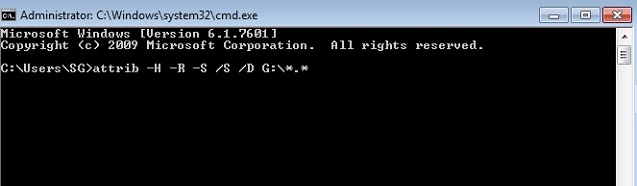
- 2. To open Command Prompt, you need to go to the "Start" menu and search for "CMD" to open it in your PC.
- 3. When you click on "cmd.exe", you'll enter the command line, where you can instruct your computer to display hidden files on your pen drive.
- 4. Type the command `-h -r -s /s /d G:\*.*` in the command line and press the "Enter" button on your keyboard, replacing "G:" with the drive letter for your pen drive.
- 5. To check if you can see the hidden files in your pen drive, try the first method. If it doesn't work, follow method 2, which should be effective for everyone.
Part 2: How to Open Hidden Files in Pen Drive via Unhide Tool
If you're unable to open hidden files in your pen drive, don't panic! If the first method didn't work, try using the eep Data Recovery software, a 100% safe and effective tool that can scan for hidden files in your pen drive and recover them to a new directory. This tool can also recover lost files from hard drives, external hard disks, RAW drives, SD cards, and other storage devices, making it a reliable solution for recovering hidden files in your pen drive.Deep Data Recovery software, a 100% safe and effective tool that can scan for hidden files in your pen drive and recover them to a new directory. This tool can also recover lost files from hard drives, external hard disks, RAW drives, SD cards, and other storage devices, making it a reliable solution for recovering hidden files in your pen drive.
Your Safe & Effective Pen Drive Hidden Files Recovery Tool
- This software is virus-free and has two modes to recover hidden files from a pen drive and open hidden files in a pen drive, making it a useful tool for managing and accessing files on a portable storage device.
- This software can recover hidden documents, photos, videos, archives, audio, and other files from a pen drive, and is compatible with both Windows and Mac operating systems.
- The software not only helps you show hidden files on a pen drive, but also has the ability to undelete and unformat pen drive files.
You can click on this download link to get the Pen Drive Hidden Files Recovery Tool now!
Guide for How to Recover Hidden Files in Pen Drive
Download and install the pen drive hidden files recovery program on your PC, then plug in your pen drive. Let's start to recover files from your pen drive on Mac or Windows.
Step 1: Launch the software and you will be directed to its first interface. From there, select the hidden file type you want to recover from your pen drive, choosing the file types you want to open and unselecting any others. Click the "USB/SD Scan" button to view the hidden files on your pen drive.

Note: You can choose different search modes based on where and why the data was lost.
Step 2: To recover hidden files from your pen drive, first, you will find a list of available drivers on your computer. Then, select the pen drive containing your hidden files and click on the "Scan" button to initiate the scanning process.

Step 3: The recover hidden files pen drive program will automatically scan your drive and display all the data that you selected to recover before. From here, you need to check the data types you want to recover from the left side menu, choose the files you want to recover, and then click on the "Recover" button from the top right corner of your screen to start the pen drive hidden file recovering process.

Once you've initiated the recovery process, you'll need to wait for a short time for the process to complete, which will depend on the size of the files you're recovering. Once done, all your hidden files from the pen drive will be restored on your computer.
This article provides a step-by-step guide on how to easily recover hidden files from a pen drive. The methods outlined are tested and proven to be effective, ensuring the safety of your data. If you're looking for a hassle-free solution, consider using the Deep Data Recovery software, which is specifically designed for pen drive recovery and can guarantee a successful result. With its smooth and efficient process, you can quickly recover your hidden files from the pen drive.
Related Articles
- 3 Ways for How to Retrieve Hidden Files in Flash Drive
- HP Pen Drive Online Recovery – Recover Data from HP Pen Drive
- How to Recover Deleted/Lost Audio Files from SD Card
Does anyone know how to recover audio files from SD card? Actually, a 4-step guide can answer the question of how to recover deleted/lost music files from SD card after deleted, formatted memory card or more. - How to Recover Deleted Audio Files from Memory Card
With the help of audio recovery software for memory card, you can solve the problem of how to recover deleted audio files from memory card on Windows or Mac easily. - Recycle Bin Windows 10 - Full Guide [with Pictures]
The Windows Recycle Bin keeps temporarily deleted files or folders from your hard disk. If you want to restore files from Recycle Bin, you first need to find the Recycle Bin folder. Where is the Recycle Bin in Windows 10? How do I open the Recycle Bin? This ultimate guide covers the full guide about Windows 11/Windows 10 Recycle Bin. - 7 Ways to Fix Slow Google Chrome Slow on Windows 11
Upgrading to Windows 11 can sometimes result in Google Chrome becoming slow and lagging, making it difficult to open. However, there are several ways to fix this issue, and this tutorial will provide the top 7 solutions to get Chrome running smoothly again in Windows 11.
Products
Articles & Tutorials
- Data Recovery
- Data Backup
- File Recovery
- File Backup
- System Backup and Restore
- Disk and Partition Clone
- Technical articles
- Mobile articles
- Disk Master Help
- Windows Data Recovery Tutorials
- Windows Secure Delete Tutorials
- Windows Partition Management Tutorials
- Windows File Backup and Restore Tutorials
- Windows System Backup and Restore Tutorials
- Windows Disk Backup and Restore Tutorials
- Windows Clone Tutorials