7 Ways to Fix Google Chrome Slow on Windows 11
If you're experiencing slow performance with Google Chrome on Windows 11, there are several potential solutions to try. First, ensure that your browser is updated to the latest version, as newer versions often include performance improvements.
| Workable Solutions | Step-by-step Troubleshooting |
|---|---|
| Fix 1. Restart Your Computer or Browser | Restart your computer or Google Chrome at first to see if this fixes the slow issue...Full steps |
| Fix 2. Close Unnecessary Tabs | You may come across the Chrome slow issue if you've opened too many tabs on Chrome...Full steps |
| Fix 3. Clear Browsing Cache and Cookies | Chrome lagging or slow problems can also be caused by the cache and history data on Chrome...Full steps |
| Fix 4. Disable Unused Chrome Extensions | Try to disable the apps and extensions you don't need in Chrome to see if this issue appears...Full steps |
| More Useful Methods | Disable hardware acceleration in Chrome, update Chrome to the Latest Version, and more...Full steps |
User case: Slow Google browsing on Windows 11
You installed Windows 11 on its release day, October 5, and have been experiencing slow loading issues with Google Chrome, particularly on sites like Google Maps and YouTube, compared to Windows 10. This issue might be due to various factors such as compatibility problems, system resource conflicts, or optimization issues with the new Windows 11 operating system. To resolve this, you could try updating Google Chrome to the latest version, disabling any unnecessary browser extensions, checking for Windows 11 updates, and ensuring your system meets the recommended specifications for running Windows 11. Additionally, you might want to consider clearing browser cache, restarting your browser, or even reinstalling Chrome to see if that improves performance. If the issue persists, you could also try reaching out to Google Chrome support or Microsoft support for further assistance.
Windows 11 offers improved interface, features, gaming, and Microsoft Store, and can be downloaded if your computer meets the minimum device specifications.
Windows 11's new operating system has both pros and cons, with one notable issue being that the Chrome browser becomes slower than usual on the platform. If you're experiencing the "Windows 11 Chrome slow" problem, you're not alone - this article provides helpful methods to fix slow and lagging web browsing on Windows 11.
Fix 1. Restart Your Computer or Browser
If Google Chrome is not working properly, try restarting your computer and Chrome to see if that resolves the issue. If not, try updating Chrome, clearing the browser cache, or resetting Chrome to its default settings. If none of these solutions work, you can try reinstalling Chrome or seeking help from the Google support team.
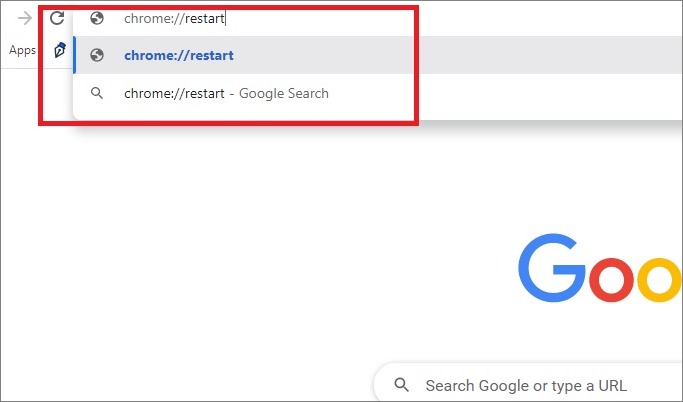
To quickly restart your Chrome browser, type chrome://restart in the address bar.
Fix 2. Close Unused Tabs
Google Chrome's exclusive resource usage is particularly notable when many tabs are open, as each tab opens its own process on your computer, consuming RAM resources and potentially leading to Chrome's slow performance.
To see how many resources Chrome is using, press Ctrl+Alt+Delete at the same time to open the Task Manager, then look for Google Chrome under the Apps section to see its running consumption.
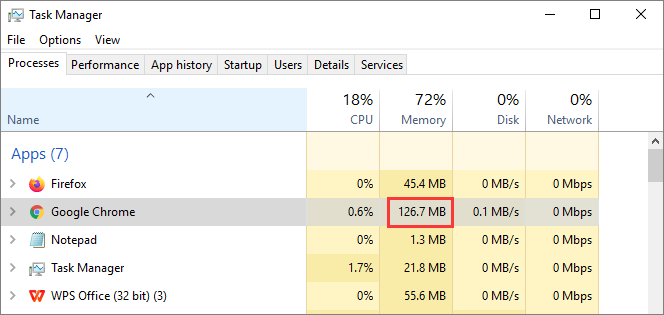
To improve Chrome's performance in Windows 11, try closing unnecessary tabs. This simple step can help reduce the browser's resource consumption and potentially make it run faster.
Fix 3. Clear Browsing Cache and Cookies
If you use your Chrome browser for too long, a lot of cached data and cookies will accumulate, which can slow your browser down. To resolve the issue, you can clear the browsing data and cache.
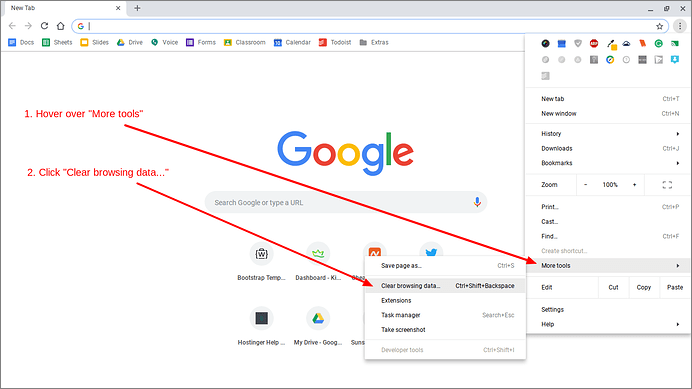
Step 1. Click the three dots at the right-top corner of your Chrome browser.
Step 2. To clear your browsing data, click on the three dots at the top right corner of the Chrome browser window, select "More tools" from the context menu, and then choose "Clear browsing data..." from the list of options.
Step 3. Select the "Cache" and "Cookies" boxes and click "Clear data".
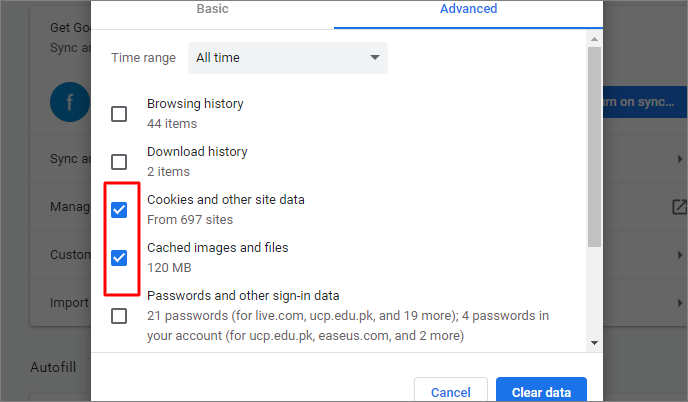
After clearing browsing data, restart Chrome and check if it's still slow.
Bonus Tip: Recover Deleted or Lost Chrome Bookmarks, Histories, and Favorites
If you accidentally delete or clean important bookmarks, histories, or favorites from your Chrome browser, you can restore them from a local file folder on your PC that backs up all of your browsing histories and bookmarks in Chrome.
Go to the following location to find the local files, and click to add to your Chrome again.
C:\Users\(username)\AppData\Local\Google\Chrome\User Data\Default\local storage(or Bookmarks)
If your Chrome bookmarks or histories were deleted and there are no available backups, you can try using Windows 11 data recovery software to retrieve the lost data.
Deep Data Recovery is a tool that can recover deleted files from various storage devices, including hard drives, solid state drives, USB drives, SD cards, and external hard drives. It can be downloaded for free and used to restore deleted Chrome bookmarks and histories on a PC.
Step 1. Select file types
Launch Deep Data Recovery, select the file types you want to recover, and click "Fast Scan" to initiate the recovery process.

Note: You can choose different search modes based on where and why the data was lost.
Step 2. Select a location and start scanning
To recover deleted files, hover over the partition/drive where the files were stored, then click "Scan" to initiate the file search process. This will help locate lost files.

Step 3. Select the files you want to recover
Once the scanning process is complete, select the deleted files you wish to recover. You can filter the results by file type using the filter option. Alternatively, you can search for specific files using the "Search files or folders" box, which can be a quick way to locate the desired file if you remember its name.

Step 4. Preview and recover deleted files
Preview the recoverable files, select the ones you want to restore, and click "Recover" to save them at a new location, avoiding the original disk where the data was lost.
Fix 4. Disable Chrome Extensions You Don't Need
If Google Chrome has started lagging and is slow to open in Windows 11, try disabling extensions you don't need to see if the issue persists.
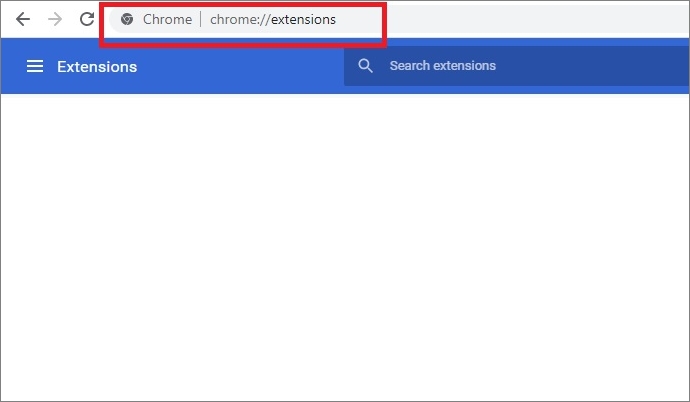
Step 1. To access the Chrome extensions page, open Chrome and type chrome://extensions in the address bar, then press Enter.
Step 2. To disable Adblock Plus, simply slide the button to the left, turning it off. This will allow ads to be displayed on the webpage.
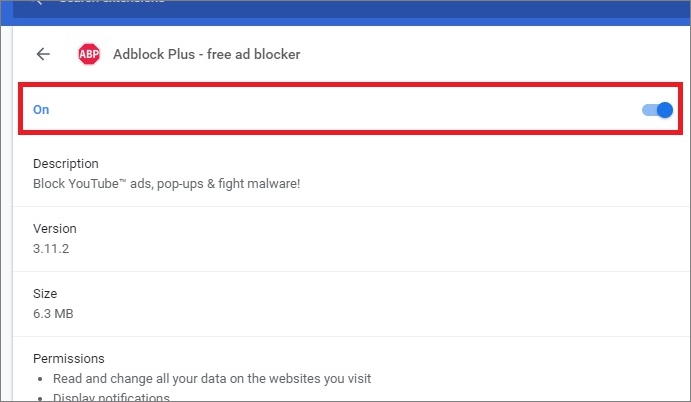
To troubleshoot slow Google Chrome on Windows 11, try disabling unnecessary extensions and see if Chrome's speed improves. If not, proceed with other methods.
Fix 5. Disable Hardware Acceleration in Chrome
Hardware acceleration is a technique that offloads heavy computing tasks from the CPU to specialized hardware like GPUs, speeding up processes like image processing, but can also cause issues like Chrome slowdowns.
To fix Google Chrome lagging and slow, try disabling hardware acceleration. To do this, open Google Chrome, click on the three vertical dots in the top right corner, select "Settings", scroll down to the "Advanced" section, and toggle off the switch next to "Use hardware acceleration when available". This should resolve the issue.
Step 1. Click the Menu button On the upper right corner and select "Settings".
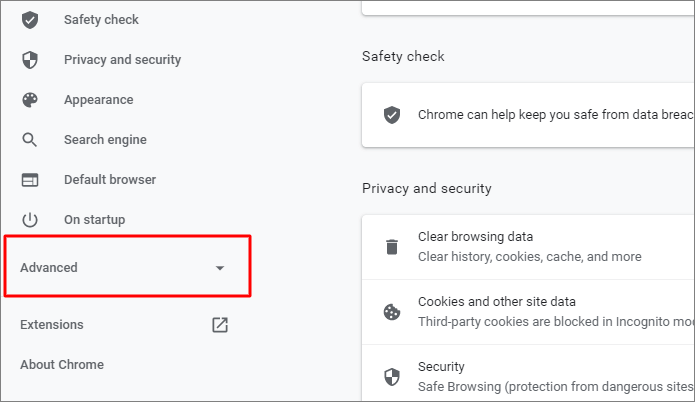
Step 2. Scroll down to the bottom of the page and click on the "Advanced" option to show more settings.
Step 3. From the System section, click to close "hardware acceleration when available".
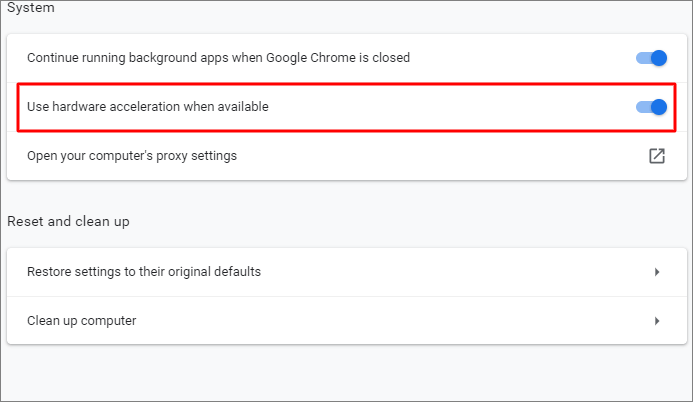
Step 4. Restart your Chrome browser and see if it is still slow to open.
Fix 6. Update Chrome to the Latest Version
Windows 11 Chrome slow problem may occur when your browser is outdated, no longer supporting some plug-ins or features. To avoid this, ensure your Chrome browser is updated to the latest version, which receives regular monthly updates with the latest Chromium builds.
To get this issue fixed, follow the steps below:
Step 1. Open your Google Chrome browser and click on the three dots in the upper right corner.
Step 2. Click "About Chrome".
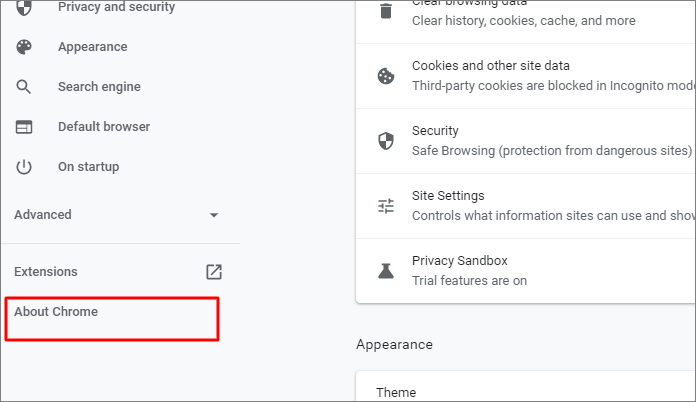
Step 3. Check if your browser is up to date and install the latest version if necessary.
Fix 7. Remove Harmful Software Using Chrome Clean Up Feature
Viruses or malware can cause Chrome issues and slow it down, but Chrome can help detect and remove harmful applications, potentially resolving the slow issue on Windows 11.
Step 1. Click on the three dots. And then click "Settings".
Step 2. Go to "Advanced > Reset and clean up".
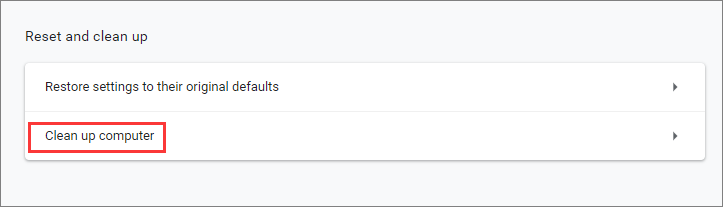
Step 3. Click "Clean up computer" and click "Find" from the "Find and remove harmful software" section.
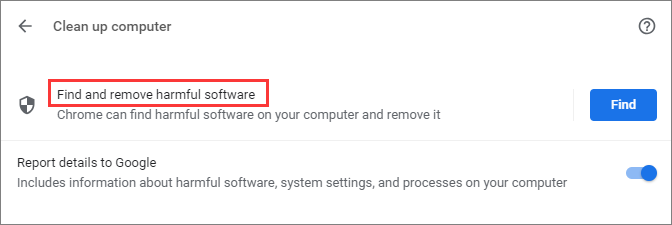
Wait for the process to complete, restart your computer and Chrome, and check if the issue persists.
Concluding Thoughts
To fix Google Chrome slow in Windows 11, start by restarting your computer or Chrome, then try disabling extensions and hardware acceleration, clearing browsing histories and caches, and updating Chrome. If these methods don't work, you can also try running a virus scan, checking for Chrome updates, and resetting Chrome settings. Additionally, disabling other resource-intensive programs and closing unnecessary tabs can also help improve Chrome's performance.
If you lose important data while trying to fix the issue, use data recovery software to retrieve the data first.
Related Articles
- How to Delete a Page in Word 2019, 2016, 2013, 2010
- How to Recover Norton Deleted Files (2 Ways)
- Free Shortcut Virus Remover Software/Tool
- How to Repair Damaged Outlook .pst Files
- Here is How to Fix DllRegisterServer Was Not Found
If you're encountering the DllRegisterServer Was Not Found error when trying to register a DLL on Windows, use this guide. - Fix External Hard Drive Not Showing Full Capacity on Windows & Mac
If your external hard drive shows the wrong capacity, it may display less space than it actually has. There are various reasons why this might be happening, and this article can help you identify the causes and find solutions to restore the full size of your drive on both Windows and Mac.
Products
Articles & Tutorials
- Data Recovery
- Data Backup
- File Recovery
- File Backup
- System Backup and Restore
- Disk and Partition Clone
- Technical articles
- Mobile articles
- Disk Master Help
- Windows Data Recovery Tutorials
- Windows Secure Delete Tutorials
- Windows Partition Management Tutorials
- Windows File Backup and Restore Tutorials
- Windows System Backup and Restore Tutorials
- Windows Disk Backup and Restore Tutorials
- Windows Clone Tutorials