[Real Fixes] Photos Disappeared from iPhone After Update
Summary
If your iPhone 6/7/8/X/XS/XR photos disappeared after the iOS update, you can try the solutions provided in this guide to restore your missing photos.
"Hi, I have updated to iOS 11.3 on my 64GB iPhone 6s without any issues. But since doing so, my photos disappeared from my iPhone all of a sudden! Is there any way for me to solve this problem and get my missing photos back?
If you've experienced the frustration of finding your photos missing after updating to iOS 12/13, this guide is here to help. We've broken down the solution into two parts: Part 1 offers feasible solutions to fix the "photos disappeared from iPhone after update" issue, while Part 2 provides a direct way to recover deleted photos. If you're short on time, you can skip to Part 2 to get your missing photos back.
- Part 1. How Fix Photos Disappeared from iPhone After iOS 13/12/11 Update
- Part 2. Recover Missing Photos with Qiling MobiSaver
Part 1. How to Fix Photos Disappeared from iPhone After iOS 13/12/11 Update
If you're experiencing the error and feeling stuck, take a deep breath and read this guide carefully.
Solution 1. Restart Your iPhone/iPad
When faced with iPhone errors, the first step is to restart your phone, which closes active and unidentified error programs, and can be done by following steps specific to your iPhone model.
For iPhone 8 and earlier: To turn off your iPhone, press and hold the Side (or Top) button until the slider appears, then drag the slider to turn off your iPhone. Once it's off, press and hold the Side (or Top) button again until you see the Apple logo to turn it back on.
For iPhone XTo turn off your iPhone, press and hold the Side button and either of the Volume Up/Down buttons. Release them when the Power slider appears, then drag the slider to confirm your choice.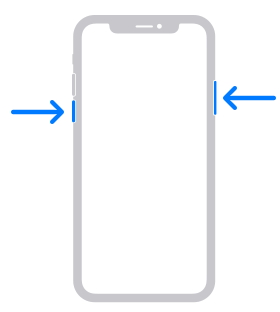
Solution 2. Check the Recently Deleted Folder
To confirm, go to Photos > Albums > Recently Deleted to check if the images are still there.
If you find any photos in the "Trash" or "Recently Deleted" folders, move them back to the "All Photos" folder by selecting them and clicking "Recover". Confirm the recovery after that.

Solution 3. Check iCloud Photos Settings
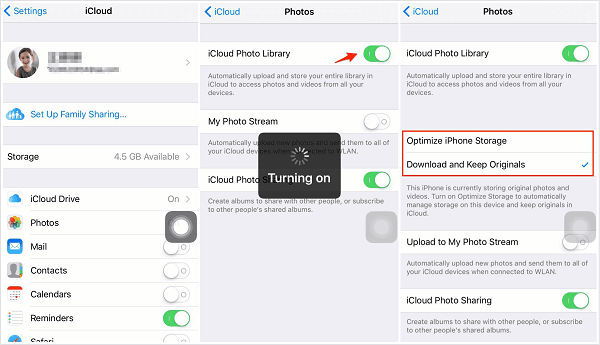
To ensure that iCloud Photos Library is enabled on your iPhone correctly, go to Settings, then tap on your Apple ID name at the top, followed by "iCloud" and then toggle the switch next to "Photos" to the green position. This will enable iCloud Photos Library.
To enable iCloud Photo Library, go to Settings, select your name, then choose iCloud. From there, tap Photos and make sure the iCloud Photo Library toggle is turned on.
Solution 4. Log Out and Log In iCloud Account
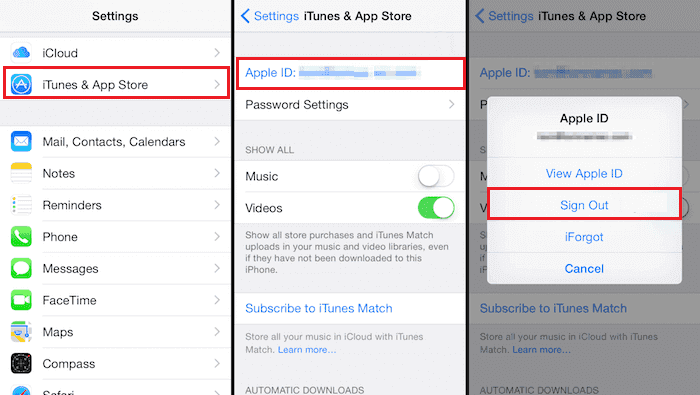
If your iCloud photos were lost after an iOS 11 update, check if you're logged into your iCloud account. If you are, try logging out and then logging back in to see if it resolves the issue.
Solution 5. Enable your cellular data
To access your iCloud photos via cellular data, go to iCloud Photo settings, tap on "Cellular Data", and ensure that it's turned on.
Solution 6. Manage iCloud storage
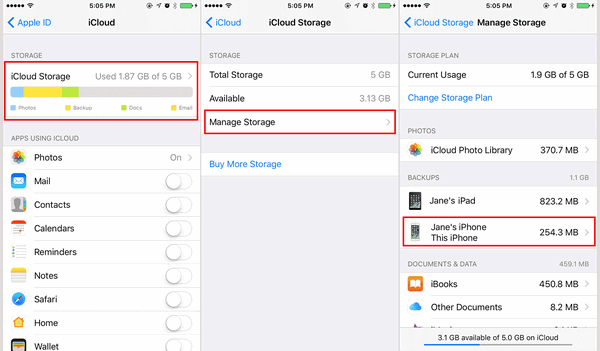
If you're experiencing issues with your iPhone not syncing with your Mac, it may be due to a lack of iCloud storage. To resolve this, go to your iPhone's iCloud settings, then tap on "Manage Storage" to check how much free space is left. This should help resolve the issue.
Part 2. Recover Missing Photos with Qiling MobiSaver
Qiling MobiSaver is the world's first iPhone photo recovery software that can recover lost information like photos, songs, videos, calendar schedules, notes, and more from various Apple devices. It provides easy and quick data recovery solutions to recover lost files.
Method 1. Recover Photo Directly from iPhone
Step 1. Connect iPhone to Your PC
Launch Qiling MobiSaver, choose "Recover from iOS Device" on the left, and click "Start" to initiate the recovery process.
Step 2. Scan for Lost iPhone Photos
Qiling MobiSaver will automatically scan your iPhone and find both present and lost photos for you.
Step 3.Preview and Restore Photos
To recover photos, select the "Photos" option on the left, view and choose the desired photos, and then select either "Recover to PC" or "Recover to Device" to initiate the recovery process.
Method 2. Recover photos from iTunes Backup file
If you have iTunes backup files for your iPhone, you can recover data from them using Qiling MobiSaver's "Recover from iTunes Backup" mode, which is a relatively straightforward process.
Step 1. Run Qiling MobiSaver
To recover data from an iPhone or iPad, first download Qiling MobiSaver, then connect your device to your computer, start Qiling MobiSaver, select "Recover from iTunes Backup", and finally choose an iTunes backup to recover data from.
Step 2. Unlock iTunes
If the iTunes backup is encrypted, enter the password to unlock it and then click "Continue". Qiling MobiSaver will then automatically scan the backup file to find the lost data.
Step 3. Preview and Recover Data from iTunes
After scanning, preview the contents of your lost photos, videos, contacts, messages, notes, and SNS data. Choose the desired files and click "Recover" to save them on your computer.
Conclusion
To fix the issue of photos disappearing from iPhone after an iOS 13/12/11 update, you can try various solutions such as checking the Photos app, looking for the photos in the Recently Deleted album, and using the "Recover from iCloud" feature. If these methods don't work, you can also try using third-party software like Qiling MobiSaver to recover your lost photos.
Related Articles
- Fix the Album Artwork Not Showing on iPhone Issue
- How to Restore iPhone from iCloud Without Resetting
- How to Tell if You Are Blocked on Kik
- [Solved] iPhone Keeps Deleting My Messages Without Asking
- How to Recover Unsaved & Deleted Word Documents
How to recover unsaved or deleted Word document in Windows 10, 11 or Mac? Please continue to see below and learn 10 easy ways for your Word document. - What Is I/O Device Error and How to Fix It on Windows
On this page, you will get to know what is I/O error and how to fix I/O device error on your Windows computer. Continue reading for further information about it.
Products
Articles & Tutorials
- Data Recovery
- Data Backup
- File Recovery
- File Backup
- System Backup and Restore
- Disk and Partition Clone
- Technical articles
- Mobile articles
- Disk Master Help
- Windows Data Recovery Tutorials
- Windows Secure Delete Tutorials
- Windows Partition Management Tutorials
- Windows File Backup and Restore Tutorials
- Windows System Backup and Restore Tutorials
- Windows Disk Backup and Restore Tutorials
- Windows Clone Tutorials