[Solved] iPhone Keeps Deleting My Messages Without Asking
Summary
If your iPhone is deleting messages by itself without asking, there are several reasons why this might be happening. One possible cause is that your iPhone's storage is running low, which can trigger the deletion of messages to free up space.
Why is my iPhone deleting messages?
The "iPhone deleting messages by itself" issue can be caused by various reasons, such as a faulty or outdated operating system, a corrupted messaging app, or a storage issue. Knowing the underlying cause can help prevent data loss and ensure that messages are not deleted unexpectedly.
Reason 1. Incorrect Settings
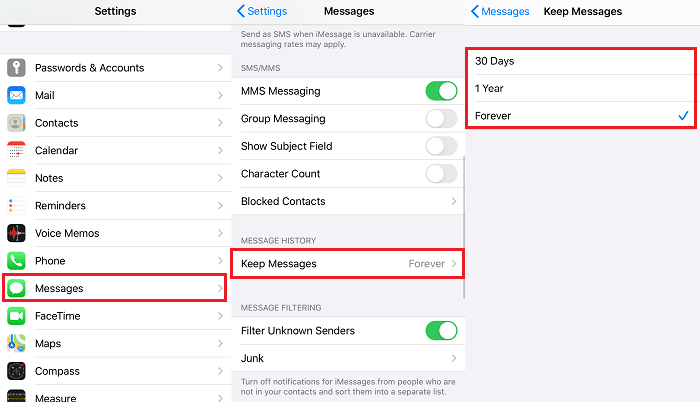
To check if your iPhone is set to keep text messages, go to Settings > Messages > Keep Messages, where you can see the time frame you've selected: Forever, 1 year, or 30 days. If it's not set to Forever, you can change it to keep your messages indefinitely.
Reason 2. iOS Update Failure
iOS updates often bring bug fixes, but they can also introduce new issues. To mitigate this, Apple advises users to back up their iPhone before updating, as a failed update can lead to problems such as missing contacts, in addition to lost messages.
Reason 3. Short of Storage Space
Running out of storage space on your iPhone can be a factor, so check your Settings > General > iPhone Storage to see if there's enough space. If not, consider freeing up more space on your device or purchasing extra storage.
3 Solutions to Fix "iPhone Keeps Deleting Messages" Issue
If your iPhone is deleting text messages, there are three methods to retrieve them. You can restore from iTunes or iCloud if you've made a backup, or use a messages recovery tool like Qiling MobiMover to selectively restore messages.
Solution 1. The Quickest Way to Recover Deleted Messages from iPhone [Recommend]
The deleted files on an iPhone are still stored on the internal memory in an invisible format until they're overwritten by new data. They can only be accessed and recovered using specialized iOS recovery tools, such as Qiling MobiSaver.
Qiling MobiMover is a reliable and easy-to-use recovery tool that can help you retrieve deleted messages, with or without backup, offering several advantages in message recovery.
- Recover lost data caused by human errors.
- Retrieve contacts, messages, call history, photos, videos, notes, music, etc.
- Recover data directly from iPhone, iTunes, and iCloud backup files.
- Selectively preview data before restoring.
- This product is fully compatible with the latest iPhone models, including iPhone X, 8 (Plus), 7 (Plus), 6s, 5s, 5c, and 5, as well as the latest iOS 13 and 14 operating systems.
To restore deleted text messages, you can follow these easy steps. For example, if you want to restore from your iOS device, you can choose that option, or you can select "Recover from iTunes" or "Recover from iCloud" depending on your needs.
Step 1. Choose the Recovery Mode
Connect your iPhone to your PC, launch Qiling MobiSaver, click "Recover from iOS Device" and then click "Start".
Step 2. Scan iPhone for Lost Messages
Qiling MobiSaver will automatically scan your iPhone and find lost messages and message attachments for you.
Step 3. Preview and Restore Lost Messages
Tick "Messages" and "Message Attachments" to select the messages and attachments you want to recover. Then, choose where you'd like to restore them by clicking "Recover to PC" or "Recover to Device".
Solution 2. Free Recover Lost Messages from iCloud Backup
If you have created backups for your text messages and contacts into iCloud, you can then follow the steps below to restore lost messages. It is worth noting that this is a blind fill restoring, which will erase your current messages.
Step 1. To disable iCloud Contacts and Text Messages on your iOS device, go to Settings, select iCloud, and toggle off the switches next to Contacts and Text Messages. This will stop syncing these data types with the cloud.
Step 2. To keep the popup messages from appearing on your iPhone, go to Settings, then tap on "Notifications" and select the app you want to keep on your home screen. From there, tap on "Notification Settings" and toggle the switch next to "Allow Notifications" to the "Off" position.
Step 3. Turn on the Text Messages and tap Merge.
Step 4. Wait patiently, and all lost messages will be restored to your iOS device again.
Solution 3. Get Deleted Text Messages from iTunes Backup
Restoring text messages from iTunes will erase the existing data on the iPhone. If you don't want to lose important files, consider using Qiling MobiSaver instead, which allows you to retrieve deleted text messages without erasing the existing data.
Step 1. To access your iPhone, iPad, or iPod backups, open iTunes on your PC or Mac that you used to back up your device.
Step 2. To connect an iOS device to a computer, insert a USB cable into the device and the other end into the computer. Then, follow the on-screen instructions to enter your device passcode or trust the computer. This will allow the computer to recognize and communicate with the iOS device.
Step 3. Connect your iOS device to your computer and open iTunes. Select your device from the top left menu in iTunes.
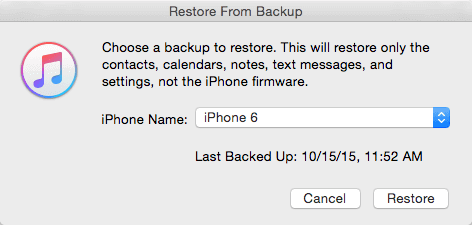
Step 4. To restore your iPhone, go to iTunes, select Restore Backup, and then choose the most relevant backup based on its date and size.
Step 5. Click Restore and wait for the restore to be finished.
- NoticeTo recover deleted messages from an iPhone, you should check if the messages are still stored in the iTunes backup you made before they were deleted. If they are, you can restore your iPhone from that backup, which will recover the deleted messages.
The Bottom Line
With the methods provided, you should be able to recover your lost messages. To avoid future data loss, it's recommended to regularly export iPhone data to Windows 10 or back up your iPhone data to iCloud and iTunes, allowing you to retrieve lost files from iCloud backup or iTunes backup if needed.
Related Articles
- How to Retrieve Deleted Call Log on iPhone
- Free Download: iPhone Data Recovery Software Full Version
- 3 Ways to Recover Deleted Instagram Photos on iPhone
- How to Fix iCloud Backup Greyed Out (iOS 15 Supported)
- How to Delete Windows.old Folder
The Windows.old folder is a temporary folder that contains files and settings from a previous Windows installation. While it's generally safe to delete the Windows.old folder, some users may be hesitant to do so. Here are three ways to delete Windows. - How to Duplicate Hard Drive in Windows 10
Duplicating a hard drive in Windows 10 is a straightforward process that can be completed with the help of QILING Disk Master Professional. This guide will walk you through the steps to create a complete copy of your disk, ensuring that all your files, settings, and applications are preserved.
Products
Articles & Tutorials
- Data Recovery
- Data Backup
- File Recovery
- File Backup
- System Backup and Restore
- Disk and Partition Clone
- Technical articles
- Mobile articles
- Disk Master Help
- Windows Data Recovery Tutorials
- Windows Secure Delete Tutorials
- Windows Partition Management Tutorials
- Windows File Backup and Restore Tutorials
- Windows System Backup and Restore Tutorials
- Windows Disk Backup and Restore Tutorials
- Windows Clone Tutorials