How to Delete Windows.old Folder
Quick Navigation:
- Part 1. What is Windows.old?
- How to delete Windows.old folder manually
- Part 2: Why Windows.old folder cannot be deleted manually
- 1. The windows.old folder may have been removed by Windows
- 2. You do not have the system rights to delete the folder
- Part 3: How to Deleted Windows.old in Other Ways
- How to delete Windows.old folder with CMD
- How to delete Windows.old folder using Disk Cleanup
- Part 4 Tips: Backup Windows.old to an external hard drive
The Windows.old folder is a temporary folder that contains files and settings from a previous Windows installation. It's created when you upgrade or reinstall Windows and is used to preserve your files and settings from the previous version. However, once you've completed the upgrade or installation, the Windows.old folder is no longer needed and can be safely deleted.
Part 1. What is Windows.old?
When you upgrade from an old version of Windows to a new version, such as from Windows 7/8/8.1 to Windows 10, the Windows.old folder is created. This folder contains files and settings from the previous Windows installation. The Windows.old folder is stored in a folder identified as windows.old in the system file or local disk C.
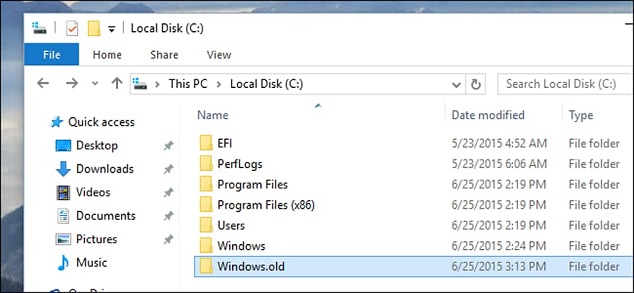
When you upgrade from an old version of Windows to a new version, Windows creates a folder to store the previous operating system. This folder, known as Windows.old, contains various files and settings from the previous Windows installation.
The Windows.old folder is a temporary folder created by Windows during the upgrade process. It contains system files, user account settings, and other files from the previous version of Windows. This folder can take up a significant amount of space on your local drive, making it a good candidate for deletion.
There are different ways of deleting the Windows.old folder. You can do it manually, using Disk Cleanup, or by writing a set of commands using CMD. Let's have a look at how you can safely delete the Windows.old folder.
How to delete Windows.old folder manually
To manually delete the Windows.old folder, follow these steps:
- Step 1: Double click on the My Computer shortcut from your computer. Click on Local Disc C to view the folders in this location. Scroll down to the folder identified as Windows.old and select it.
- Step 2: Select and click the "Delete" key from your computer.
- Step 3: There is a pop up that appears asking you for administrative rights to proceed with the delete. Click on continue to proceed.
- Step 4: Your computer will then calculate the size of the folder. There will be another pop up with an access denied message. You need to have "SYSTEM" rights to proceed.
Part 2: Why Windows.old folder cannot be deleted manually
Reasons why you cannot delete the Windows.old folder manually are:
1. The Windows.old folder may have been removed by Windows
Windows may automatically delete the Windows.old folder after a certain period of time, typically 10 days after the upgrade. If the folder is no longer present, it has likely already been removed by the system.
2. You do not have the system rights to delete the folder
To delete the Windows.old folder, you need to have the necessary rights to access and modify the folder. Follow these steps to gain the required permissions:
- Step 1: Right-click Windows.old folder and scroll down to properties. From the properties tab, click on security then advanced. Click OK to open.
- Step 2: From the owner section, click on change then OK.
- Step 3: Next is the select user or Group Window. In the object name section, type "administrators" then click on check names. Once the name has been approved, click OK to close the window. Click on apply in the advanced security settings for windows.old folder.
- Step 4: Click on the security and click the edit button. Under permissions, click to select the allow full control, then click apply. Finally, click OK to close permissions for the Windows.old folder window.
- Step 5: Go back to Local Disc C and right-click windows.old folder to delete it.
If you do not want to follow the long process, use CMD or disk cleanup to delete Windows.old folder. Let's have a detailed look at how you can use these methods.
Part 3: How to Delete Windows.old in Other Ways
How to delete Windows.old folder with CMD
The Command Prompt (CMD) is a powerful tool that allows you to interact with your computer using a set of commands. You can use the CMD to delete the Windows.old folder, which is a folder that contains the previous version of Windows. Here's a step-by-step guide to delete the Windows.old folder using the CMD:
- Step 1: Click on the search area on your computer and type Command Prompt. You can also use keyboard shortcuts by pressing the Windows and R keys (win+R). In the dialog box that appears, type in cmd and press Enter.
- Step 2: Run CMD as the administrator. To do this, press the ctrl+shift+enter keys on your keyboard. Or, while on the search bar, right-click on Command prompt and select run as administrator.
- Step 3: Copy the following command and paste it in the command prompt to delete Windows.old folder. RD /S /Q %SystemDrive%\windows.old and press Enter. (RD is an abbreviation of remove directory)
Restart your computer to refresh and save changes. That's it when using Command Prompt or CMD. The Windows.old folder is automatically removed. If this method does not work for you, try using Disk Cleanup.
How to delete Windows.old folder using Disk Cleanup
Windows Disk Cleanup is a built-in tool that helps you free up space on your computer by deleting unnecessary files. Here's a step-by-step guide to using it:
- Step 1: Double click on the My PC shortcut on your desktop or press Windows + E keys (Win+E) on your keyboard.
- Step 2: Right-click on drive C and click on Properties to open. This feature is at the bottom of the dialog box.
- Step 3: From the General tab, click on disk cleanup. Disk Cleanup will calculate the space in your computer before a dialog box pops up. Click on clean up system files and then press OK.
- Step 4: From the disk cleanup tab, check/ click to select the Previous Windows Installation box. Finally, click the OK button.
- Step 5: As a safety measure, disk cleanup will ask you to confirm the process. Click delete files and restart your computer once the clean up is done.
And there you have it. That is how you can delete the Windows.old folder from your computer using Disk Cleanup. Let's have a look at how you can store a backup copy of the Windows.old folder using an external drive.
Part 4 Tips: Backup Windows.old to an external hard drive
Backing up the Windows.old folder is crucial for several reasons:
1. You can use it to restore previous files. The Windows.old folder acts like a backup plan to restore previous files, folders, and user profiles.
2. If the new version of Windows is not successfully installed, you can use the Windows.old folder to re-install the previous Windows version. This process is also referred to as downgrading.
In addition to using a hard drive or USB drive to store your backup, you can also use software to maximize data security. One of the software's to use is QILING Disk Master Professional.
The free drive clone software increases the backup security of your files, partitions, disks, and the operating system in general. In case of system failure, you can quickly and easily restore your files or an operating system from the backup.
With QILING Disk Master Professional, you can back up everything that matters to you. In case of a system failure or Windows crash, you can run the backup to restore everything automatically. Don't worry -- if you don't back it up, you can still use Deep Data Recovery to retrieve the lost files.
Related Articles
- How to Delete Files Permanently Using Command-Line
- How to Permanently Delete Files from SSD
- Top 10 File Deleter to Permanently Deleted Files in Windows 10
- External Hard Drive Lifespan: How to Prolong It [5 Ways]
How long can an external hard drive last? This page gives a detailed explanation of the external hard drive lifespan and a full guide on how to prolong the external hard drive lifespan. - Different Ways to Fix Dragon Age Inquisition Crashing On Launch In Windows 10
Look for easy and effective ways to fix the Dragon Age Inquisition Crashing On Launch in Windows 10? This article can help you out with the 8 best solutions to kill the culprit and continue playing the game again. - How to Fix WindowServer High CPU on Mac [macOS Ventura/Monterey/Big Sur]
In this article, you can find five solutions to the WindowServer Mac high CPU issue. You can also learn what WindowServer on Mac is, which always takes a high CPU usage and how to recover deleted files on Mac. - League of Legends Replays & Highlights, Where to Find and How to Recover
If you're having trouble finding saved League of Legends replays and highlights or if they're crashed, corrupted, deleted, or not working, this tutorial provides detailed guides to help you locate them and repair or restore the game files.
Products
Articles & Tutorials
- Data Recovery
- Data Backup
- File Recovery
- File Backup
- System Backup and Restore
- Disk and Partition Clone
- Technical articles
- Mobile articles
- Disk Master Help
- Windows Data Recovery Tutorials
- Windows Secure Delete Tutorials
- Windows Partition Management Tutorials
- Windows File Backup and Restore Tutorials
- Windows System Backup and Restore Tutorials
- Windows Disk Backup and Restore Tutorials
- Windows Clone Tutorials