How to Retrieve Deleted Call Log on iPhone
Summary
The loss of iPhone call history can be caused by accidental deletion, among other reasons. To recover deleted call history on an iPhone, you can apply one of the three tips available to get it done.
Can You Recover Deleted Call History on iPhone
If you've deleted call history on your iPhone and now need to recover it, you're not alone. Whether you're looking to see deleted calls on iPhone or find deleted calls on iPhone, your goal is likely the same: to retrieve the deleted call history from your iOS device. Like many other data loss situations, accidental deletion of call history can be frustrating, and you may find yourself needing to get it back.
Then here comes the question, "Can you recover deleted call history on iPhone?"
Data recovery is possible depending on how the data was lost. Factory resets or physical damage can make it difficult to retrieve data, but deleted files are often easily recovered. Whether you want to recover deleted photos, videos, or call history, reliable data recovery solutions can help you retrieve your lost data.
Method 1.Recover Deleted Call History withSoftware
If you're looking to recover iPhone call history without a backup, your best option is to use an iPhone recovery software tool like Qiling MobiSaver. This tool allows you to recover your iPhone call history and other deleted data, even if you don't have a backup. With Qiling MobiSaver installed on your PC or Mac, you can easily scan your iPhone and retrieve your lost call history and other data.
- Recover data from an iPhone, iPad, iPod touch, or from an iTunes or iCloud backup.
- This assistant can access and retrieve various types of content, including photos, videos, messages, call logs, contacts, and more, allowing users to access and manage their digital life in a comprehensive way.
- Data recovery software can help retrieve lost data due to accidental deletion, virus attacks, or other reasons, allowing users to recover their important files and information. This software uses algorithms to scan the device, identify the deleted data, and recover it in its original format.
The main difference between using an iPhone data recovery tool and relying on iTunes/iCloud to retrieve deleted call logs from a backup is the level of control you have over the data you recover. With a third-party tool, you can selectively recover the specific content you need, whereas using iTunes or iCloud requires restoring all data and settings from the backup, which can lead to further data loss.
To recover deleted iPhone call history, you are highly recommended to use Qiling MobiSaver, which is specifically designed to perform iPhone call history recovery.
To recover deleted call history on iPhone:
Step 1. Connect iPhone to Your PC
Launch Qiling MobiSaver, click "Recover from iOS Device" on the left, and click "Start" to initiate the recovery process.
Step 2. Scan iPhone for Call History
Qiling MobiSaver will automatically scan your iPhone/iPad/iPod to find all call history for you, and wait for the scan to complete.
Step 3. Preview and Restore Call History
To recover a call history, go to the "Call History" section, select the specific history you want to recover, and then choose to recover it to either your PC or device.
You can easily recover deleted call history on your iPhone with just a few clicks. The process is quick and straightforward, taking only a few seconds to complete.
Method 2. Retrieve Deleted Call Log on iPhone via an iTunes Backup
If you've recently backed up your iPhone, iPad, or iPod touch using iTunes, you can restore your device from the backup to recover your deleted call history. The backup includes almost everything on your device, so restoring from it should bring back the lost call history.
To recover deleted call history on an iPhone using iTunes, start by connecting the iPhone to a computer and opening iTunes. Then, select the iPhone from the top left corner of the iTunes window and click on "Restore iPhone" while holding the Shift key on a PC or the Option key on a Mac. This will prompt a window to open where you can select a backup to restore from.
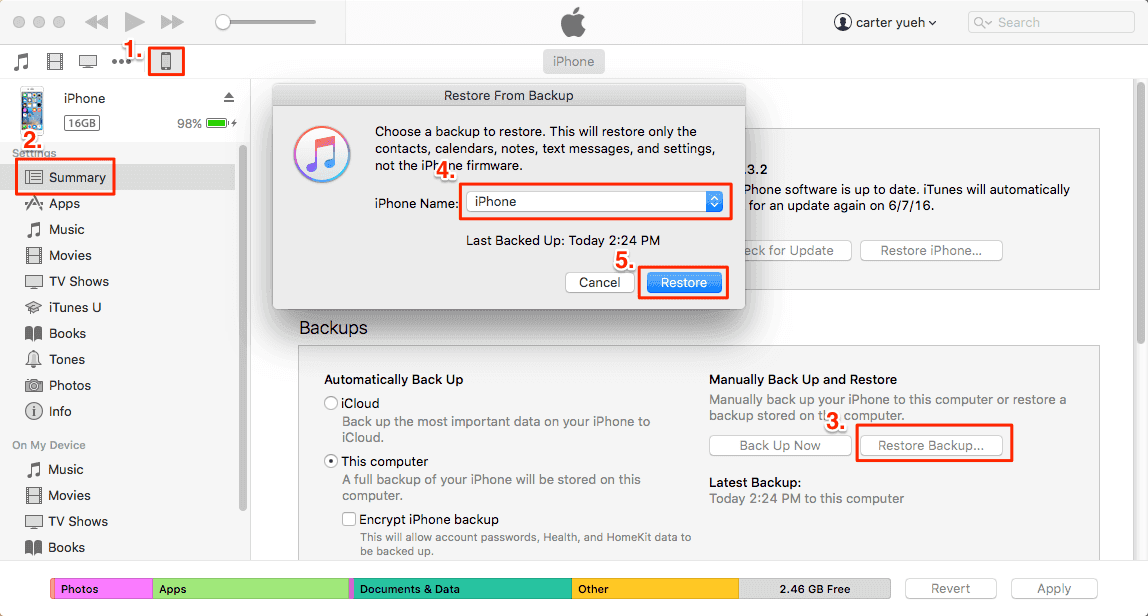
Step 1. Launch iTunes and connect your iPhone to your computer.
Step 2. To access the menu in iTunes, click on your device icon in the upper-left corner of iTunes.
Step 3. Select "Restore Backup..." in the Backup section on the right panel. This will allow you to restore a previously created backup of your data.
Step 4. Choose the backup you'd like to restore the iPhone from.
Step 5. Click "Restore" and wait for the restoring process to finish.
Method 3. See Deleted Calls on iPhone via an iCloud Backup
To restore iPhone data from iCloud, you need to erase everything from your iPhone first and then restore it from an iCloud backup, making sure to back up the iPhone in advance.
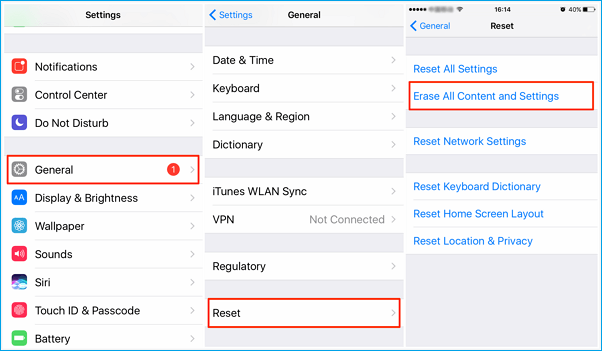
Step 1. Open Settings on your iPhone
Step 2. Go to the "General" menu, select "Reset", then choose "Erase all Content and Settings" and confirm the action.
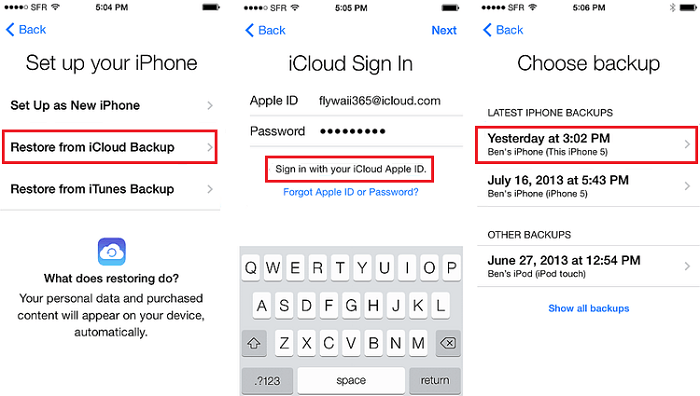
Step 3. Follow the on-screen instructions to set up your iPhone until you reach the Apps & Data screen.
Step 4. Tap "Restore from iCloud Backup."
Step 5. Go to your iCloud account, sign in with your Apple ID and password, and then navigate to the "iCloud Backup" section. From there, you should be able to select the backup file you want to restore from and follow the on-screen instructions to complete the restore process.
The Bottom Line
Using an iPhone data recovery software tool allows you to recover deleted call history without losing any additional data. In contrast, using iTunes or iCloud to recover deleted call logs requires restoring everything from a backup, which means any content not included in the backup will be lost. To quickly retrieve deleted call logs, consider using a software tool that meets your specific needs.
Related Articles
- Fix iPhone Photos Disappeared from Camera Roll
- Why Is the iOS 15 Not Showing Up? Fix It Now!
- Resolved: Restore Lost/Disappeared Contacts after iOS 12 Update on iPhone X/8
- iPhone 8 Data Recovery: Recover Data from iPhone 8/X/8 Plus
- How to Recover Deleted Files from NTFS Partition/Drive/External Hard Drive/Formatted NTFS Drive
Here are the steps to recover deleted files from an NTFS partition, NTFS external hard drive, or restore files from a damaged/corrupted/formatted NTFS disk/partition. - How to Remove Write Protection from USB in Windows 11/10/8/7
This article provides a step-by-step guide on how to remove write protection from a USB flash drive in Windows 11, 10, 7, and 8 without losing any data.
Products
Articles & Tutorials
- Data Recovery
- Data Backup
- File Recovery
- File Backup
- System Backup and Restore
- Disk and Partition Clone
- Technical articles
- Mobile articles
- Disk Master Help
- Windows Data Recovery Tutorials
- Windows Secure Delete Tutorials
- Windows Partition Management Tutorials
- Windows File Backup and Restore Tutorials
- Windows System Backup and Restore Tutorials
- Windows Disk Backup and Restore Tutorials
- Windows Clone Tutorials