Resolved: Restore Lost/Disappeared Contacts after iOS 12 Update on iPhone X/8
Summary
If your iPhone contacts disappeared or were lost after an iOS 12 or iOS 13 update on an iPhone 11, iPhone X, iPhone 8/7, etc., don't worry. You can try the methods provided by Qiling software and iOS geek websites to restore your missing contacts due to the iOS 12/13 update.
"If you lost contacts on your iPhone X after updating to iOS 12, you can try restoring them from an iCloud or iTunes backup, or by using the 'Contacts' app's built-in feature to recover them. You can also try checking the 'Recents' tab in the 'Phone' app for any contacts that may have been synced from your iCloud account. If none of these methods work, you can contact Apple support for further assistance."
Following the 2018 WWDC developer conference, Apple confirmed that iOS 12 would be the next iPhone system after iOS 11.4, and the beta version of iOS 12 is now available for most iPhone users to try and test.
According to Apple, it seems that iOS 12 is set to update by default automatically. Thus, as a result, some iPhone or iPad users may face diverse data loss issues on iPhone such as missing photos, disappearing contacts and losing messages, etc.
If anyone of you has this case, relax and try Apple solutions and Qiling method to get your lost contacts back right now:
The Apple solutions were gathered from the Apple geek website and modified by Qiling software.
If you prefer a more straightforward method, restoring lost contacts from iPhone, iTunes, or iCloud in 3 simple steps with the Qiling solution will be a smart choice.
Apple solutions for retrieving lost contacts due to iOS 12 update
Apple solutions apply to iPhone or iPad users who have created backups in iTunes or iCloud, allowing them to recover lost data.
If you didn't create a contact backup in iTunes or iCloud, don't worry - powerful iOS data recovery software like Qiling can still help you out.
If you're unable to see your missing contact numbers on your iPhone, try restarting your iPhone. If that doesn't work, go to Settings > [your name] > Contacts and make sure Contacts is turned on.
Method 1. Restore lost contacts due to iOS 12/13 update from iTunes backup
1. To update iTunes and connect your iPhone, start by opening iTunes on your computer and clicking on "Help" in the top menu bar. From the drop-down menu, select "Check for Updates.
2. Run iTunes and click your iPhone icon, click Summary.
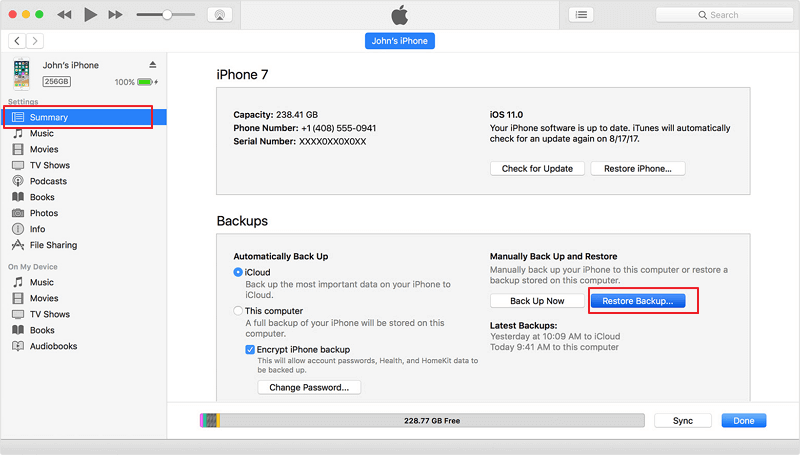
3. To restore your contacts, go to iTunes and select "Restore Backup" from the options. This will allow you to view the size of each backup and choose the most recent one that contains your lost contacts.
4. Click Restore and wait for the process to complete.
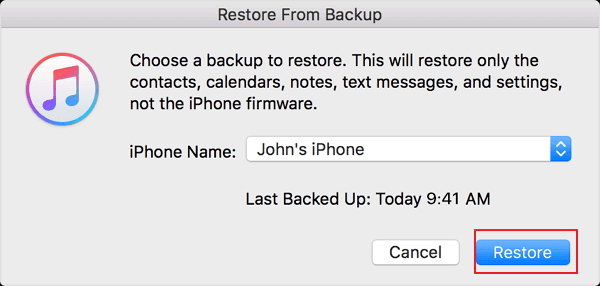
After your iPhone restarts, keep it connected to your computer and it will sync data with iTunes on your PC. Once this sync is complete, you can safely disconnect your iPhone and access your lost contacts again.
Method 2. Restore contacts after iOS 12/13 update from iCloud backup
To prevent further data loss issues, we suggest that you take steps to safeguard your data. This includes backing up your files regularly, using reliable storage devices, and ensuring that your computer and software are up-to-date with the latest security patches.transfer iPhone files to PC You can transfer data from your old iPhone to your new one for free using free iPhone data transfer software. This software allows you to easily move contacts, photos, messages, and other data from your old iPhone to your new one, making the transition to your new device a seamless one.
To restore lost contacts on your iPhone, start by opening the Settings app and tapping on "Passwords & Accounts." Select "iCloud" and toggle the "Contacts" switch to the "On" position.
1. To reset your iPhone, turn it on and go to the "Settings" app, tap on "General", and select "Reset".
2. Go to Settings > General > Reset > Erase all content and settings > Set up your iPhone.
3. To restore your iPhone from an iCloud backup, tap on the "Restore from iCloud Backup" option and sign in to iCloud with your Apple ID.
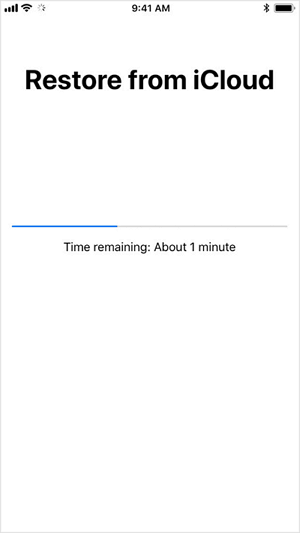
4. Choose the recent backup of your contacts and click "Restore".
I will wait for the process to finish. My lost contact numbers with all recent backups will be restored back to my iPhone.
Method 3. Restore disappeared contacts after iOSupdate from iPhone
If you want a straightforward way to get your lost contacts back to your iPhone, a solution can help you restore disappeared or lost contacts from your iPhone without erasing iPhone data.
To recover your iPhone data, you can use the Qiling MobiSaver software, which allows you to directly apply the best iPhone data recovery and restore your iTunes or iCloud backups within three simple steps.
To restore lost contacts or other data on your iPhone due to iOS 12/13 update, Qiling MobiSaver won't ask you to erase or clean up iOS device data.
Step 1. Connect iPhone to Your PC
Launch Qiling MobiSaver, select "Recover from iOS Device" on the left, and click "Start".
Step 2. Scan iPhone to Find Lost Contacts
Qiling MobiSaver will automatically scan your iPhone and find your lost contacts.
Step 3. Preview and Restore Contacts
To recover contacts, select "Contacts" on the left, choose the desired contacts list, and then click "Recover to PC" or "Recover to Device" to save the list.
Related Articles
- How to Put iPad in Recovery Mode [2022 Update]
- How to Recover Photos from iPhone in 4 Ways
- How to Recover iPhone Data After Restore Without Backup
- [Solved] iPhone Keeps Freezing After Update iOS 12/11.3/11
- Data Recovery Software for Windows 10/Mac/iPhone/Android
Data recovery software can help you recover deleted files and folders on your Windows or Mac computer, mobile device, or storage media, making it easy to restore lost data and alleviate frustration and stress. - Download 2022 Best SQL Server MDF Viewer (for Free)
Qiling software offers the best MDF viewer software - MS SQL Recovery to help you download and apply to check, and view the MDF or NDF files for free. You can also use this software to open corrupted MDF/NDF files with detailed information and repair the file without installing a new MS SQL Server.
Products
Articles & Tutorials
- Data Recovery
- Data Backup
- File Recovery
- File Backup
- System Backup and Restore
- Disk and Partition Clone
- Technical articles
- Mobile articles
- Disk Master Help
- Windows Data Recovery Tutorials
- Windows Secure Delete Tutorials
- Windows Partition Management Tutorials
- Windows File Backup and Restore Tutorials
- Windows System Backup and Restore Tutorials
- Windows Disk Backup and Restore Tutorials
- Windows Clone Tutorials