How to Recover Photos from iPhone in 4 Ways
Summary
If you've accidentally deleted photos from your iPhone, you'll need to act quickly to recover them. Fortunately, there are steps you can take to retrieve your deleted photos, whether you use iPhone photo recovery software or not.
Recovering photos from an iPhone can be a straightforward or challenging process, depending on the circumstances. If you're trying to retrieve deleted photos, this guide provides a detailed solution that can help you recover them with ease, so be sure to check it out and apply the best approach for your situation.
1st Choice for iPhone Photo Recovery - The Recently Deleted Folder
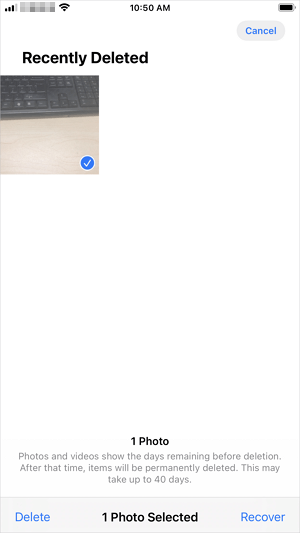
If you haven't emptied the Recently Deleted folder on your iPhone, you can easily recover deleted photos within 40 days by restoring them from the folder to your photo library.
To recover deleted iPhone photos from Recently Deleted:
Step 1. Go to the Photos app on your iPhone.
Step 2. Tap "Albums" and scroll down to choose "Recently Deleted."
Step 3. To restore your photos and videos, tap "Select" and choose the ones you want to recover.
Step 4. To recover your lost photos, go to the Photos app, tap the "Recover" option, and then select "Recover Photos" from the menu. This will restore the deleted photos to your photo library.
2nd Choice for iPhone Photo Recovery - Photo Recovery Software
If you've permanently deleted pictures from your iPhone, you can use a tool like Qiling MobiSaver to help recover them. This software can scan your iPhone's storage or an iTunes/iCloud backup to find and retrieve lost photos from your device.
If you want to recover deleted iPhone photos, using a dedicated data recovery tool is a better option than restoring everything from an iTunes or iCloud backup. This is because such tools allow you to selectively recover specific files, like photos, from the backup, giving you more control over what you want to retrieve. Additionally, if you don't have a backup available, a data recovery tool can still be worth trying.
To recover permanently deleted photos from iPhone:
Step 1. Connect iPhone to Your PC
Launch Qiling MobiSaver, choose "Recover from iOS Device" on the left, and click "Start" to begin the recovery process.
Step 2. Scan for Lost iPhone Photos
Qiling MobiSaver will automatically scan your iPhone and find both present and lost photos for you.
Step 3. Preview and Restore Photos
To recover photos, first tick the "Photos" option on the left-hand side, allowing you to view and select the desired photos from your phone. Then, choose either "Recover to PC" to save the recovered photos to your computer or "Recover to Device" to save them directly to your phone.
If you have a backup that contains the deleted photos, choose to recover files from the backup instead. This will give you a higher chance of successfully recovering the data.
3rd Choice for Photo Recovery on iPhone - iTunes/iCloud
You can recover deleted photos by restoring from an iTunes or iCloud backup, but be aware that this will replace all data and settings on your device, potentially causing further data loss.
To recover iPhone data from an iTunes or iCloud backup, follow Apple's guide on how to restore your iPhone from a backup. This guide provides step-by-step instructions on how to retrieve your data from a backup.
4th Choice for Photo Recovery on iPhone - Cloud Services
If you've backed up your iPhone photos to a cloud service like Dropbox or Google Photos, you can recover deleted photos from the cloud storage, unlike iCloud Photos which removes photos from the cloud once deleted from the iPhone.
If you've backed up your iPhone photos to a third-party cloud service, you can recover deleted photos directly from the backup. The service provider usually has online guides on how to do this, which you can find by searching the internet. For example, if you've backed up to Google Photos, you can follow their guide to recover your photos.
The Bottom Line
To ensure a higher success rate, having a backup of your precious data is crucial. This can be achieved by backing up your iPhone, iPad, or iPod touch regularly using a reliable software like Qiling MobiMover, which not only facilitates device backup but also allows data transfer to or from an iDevice. This software is particularly useful for frequent file transfers on your iPhone, iPad, or iPod.
Related Articles
- [Fixed] Snapchat locked, How to Unlock Snapchat Account on iPhone?
- How to Recover Deleted iCloud Backup
- How to Recover Deleted Kik Messages or Chat History on iPhone
- Where Do AirDrop Files (Including Photos) Go on iPhone/Mac [Solved]
- Word Cannot Complete the Save Due to a File Permission Error Mac/Windows 10
Microsoft Word is unable to save files due to file permission errors, which can be resolved through various methods, and it also provides information on recovering unsaved and deleted Word documents. - XLS VS XLSX | What's the Real Difference of .xls VS .xlsx [Full Guide]
What is XLS VS XLSX? What are the differences between .xls VS .xlsx? Can you convert XLS to XLSX or convert XLSX to XLS? You can find all answers here. What's more, you can learn how to recover deleted and repair corrupted XLS and XLSX files with Qiling data recovery software.
Products
Articles & Tutorials
- Data Recovery
- Data Backup
- File Recovery
- File Backup
- System Backup and Restore
- Disk and Partition Clone
- Technical articles
- Mobile articles
- Disk Master Help
- Windows Data Recovery Tutorials
- Windows Secure Delete Tutorials
- Windows Partition Management Tutorials
- Windows File Backup and Restore Tutorials
- Windows System Backup and Restore Tutorials
- Windows Disk Backup and Restore Tutorials
- Windows Clone Tutorials