How to Recover Deleted iCloud Backup
Summary
If you accidentally delete your iCloud backup, there are still some solutions to recover it. Fortunately, it's possible to retrieve deleted iCloud backup, giving you a second chance to recover your important data.
| Workable Solutions | Step-by-step Troubleshooting |
|---|---|
| 1. Recover Files from iCloud Drive | Enter icloud.com on a computer and log in with your iCloud account > Select "Settings."...Full steps |
| 2. Recover Files Deleted from Apps | Open iCloud.com and sign in with your iCloud account > Select Settings...Full steps |
| 3. Recover iOS data with a Tool | Launch Qiling MobiSaver on your PC and connect your iPhone with it > Choose "Recover from iOS...Full steps |
Can You Recover Deleted iCloud Backup?
If you delete an entire iCloud backup, the data is unrecoverable, but if you delete individual files or folders from iCloud, you may be able to recover them.
If you're in a situation where you might get into trouble if you're caught using your device, such as in a library or during a test, you should stop using your device immediately. If you're in a situation where using your device could cause harm to yourself or others, such as while driving or operating heavy machinery, you should also stop using your device.
If you've known your present situation, let's see how to recover a deleted iCloud backup. You can try restoring your device from a backup that was created before the deletion, or you can contact Apple Support for further assistance.
How to Recover Deleted iCloud Backup
You can recover data that's been deleted from iCloud Drive. There are three ways to do this.
Way 1. Recover Deleted Files fromiCloud Drive
iCloud Drive allows you to recover deleted data within 30 days. If data is deleted within this timeframe, you can follow these steps to recover it.
Step 1. Go to icloud.com on a computer and log in with your iCloud account.
Step 2. Select "Settings."
Step 3. In the bottom-right corner of the screen, click "Recently Deleted."
Step 4. Click "Recover All" to recover all deleted files at once, or select specific files you want to restore individually.
Step 5. Click "Recover."
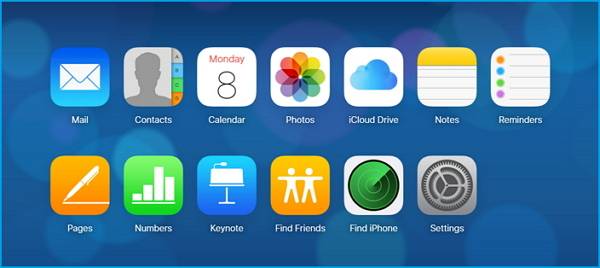
Way 2. Recover Files Deleted from Apps
You can recover deleted documents, contacts, and calendars within 30 days using iCloud.com's data restore feature, but you must have previously enabled backup options for Contacts, Calendars, and Reminders, as well as Bookmarks on your iPhone.
Step 1. Open iCloud.com and sign in with your iCloud account.
Step 2. Select Settings.
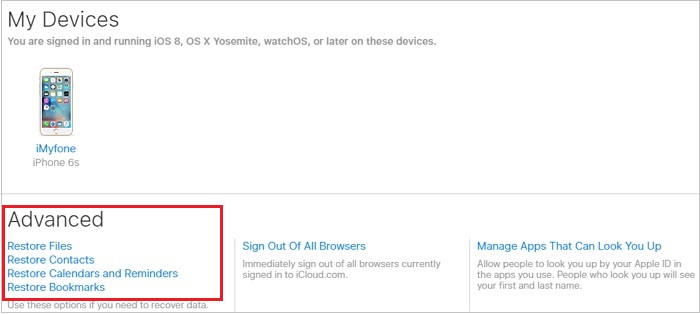
Step 3. Scroll down to find Restore Files.
Step 4. Locate the file you wish to restore, and place a checkmark beside the file. Then, click on the "Restore" button to recover the file to its original location.
Step 5. Click Restore File(s).
Way 3. Recover data from iCloud with an iOS Data Recovery Tool
If neither of the above methods works to recover iCloud files, you can try using a third-party iPhone recovery tool as a last resort. These tools can recover deleted or lost data, even if it's no longer in your iCloud Drive. They're designed to automatically scan and recover your iPhone data, making it possible to retrieve files you thought were gone.
Qiling MobiSaver is a recommended tool that offers three recovery modes: recovering from an iOS device, recovering from an iTunes backup, and recovering from an iCloud backup. Since the iCloud backup was deleted, the recovery should be done from the iOS device.
The program is now available for download. You can start the restoration process on your computer.
Step 1. Choose "Recover from iCloud"
Connect your iPhone to your PC, launch Qiling MobiSaver, choose "Recover from iCloud", and click "Start".
Step 2. Turn Off "Find My iPhone"
Turn off "Find My iPhone" on your iPhone/iPad/iPod to continue.
Step 3. Type Code in the Confirmation Box
To confirm, you need to type "123456" in the confirmation box and then click the "Continue" button.
Note: This step will completely erase all data and reset all settings. Make sure you have backed up any important information before proceeding.
Step 4. Reset iPhone
To reset your iPhone, move through the setup process until you reach the reset screen. From there, select "Restore from iCloud Backup" and enter the Apple ID and password for the account containing the backup you want to restore. Click "Next" to proceed.
Step 5. Select the Files
To recover data, select the type of data you want to recover, such as all files, and click the "Select All" button below.
Step 6. Analyze the iPhone
The software will analyze your phone, which may take a few minutes, and please refrain from disconnecting or using your device during this time.
Step 7. Scan Lost Data and Recover
Qiling MobiSaver will automatically scan your iCloud backup file to find the lost data, which may take a few minutes, and then you can select the data you want to recover and click the "Recover" button.
The Bottom Line
That's all about our solutions to recover files from iCloud backup. We hope this guide can help you a lot and don't forget to share it with others who need it.
Related Articles
- How to Restore Old & Deleted Voice Memos on iPhone
- iPhone Photos Gray Box | How to Fix Grey Boxes Photos on iPhone/Android
- iOS 12/13 Supported | How to Backup iPhone in Recovery Mode
- How to Restore iPhone from iCloud Without Resetting
- [2022 Tutorial] How to Recover Formatted SD Card on Windows & Mac
If you've accidentally formatted your SD card and lost all your saved files, First, stop using the card to prevent any further data loss. - Ultimate Guide on SD Card Recovery in 2022
SD cards are widely used due to their high data transmission speed and hot-swappable features, but this also leads to data loss issues.
Products
Articles & Tutorials
- Data Recovery
- Data Backup
- File Recovery
- File Backup
- System Backup and Restore
- Disk and Partition Clone
- Technical articles
- Mobile articles
- Disk Master Help
- Windows Data Recovery Tutorials
- Windows Secure Delete Tutorials
- Windows Partition Management Tutorials
- Windows File Backup and Restore Tutorials
- Windows System Backup and Restore Tutorials
- Windows Disk Backup and Restore Tutorials
- Windows Clone Tutorials