Where Do AirDrop Files (Including Photos) Go on iPhone/Mac [Solved]
Summary
When both the sender and receiver have AirDrop enabled, they can transfer files, which is convenient. AirDrop files go to the "Downloads" folder on a Mac and the "Files" app on an iPhone, where they can be found. If lost, files or photos can be retrieved from the "Recently Deleted" folder on a Mac or the "Files" app's "Recently Deleted" section on an iPhone.
AirDrop is a feature in iPhones that allows users to share files with other iPhone users, and it's also available on Macs and iPads. Once shared, the files go to the recipient's device, where they can be accessed. This feature is part of Apple's propriety wireless services.

When using AirDrop to share photos or files between Macs or iPhones, many people wonder where the shared files go after the transfer is complete. The files don't simply vanish, but rather, they are saved in a specific folder on the recipient's device. On a Mac, the shared files are saved in the "Downloads" folder, while on an iPhone, they are saved in the "Downloads" folder within the "Files" app. This means that once you've shared a file using AirDrop, you can find it in the "Downloads" folder on the recipient's device, making it easy to access and save the shared files.
What Is Airdrop on iPhone/Mac (Overview)
AirDrop is a feature that allows users to share files wirelessly with other Apple devices, sharing photos, videos, and other files without using email or SMS.
A few key things about AirDrop are:
- AirDrop is a feature that enables the transfer of files wirelessly between Apple devices, making it a convenient option for users.
- The service uses Bluetooth, Wi-The technology uses Bluetooth, Wi-Fi, and near-field communication to establish a peer-to-peer ad hoc network between two devices, allowing them to communicate directly with each other without the need for a central hub or internet connection.
- AirDrop is available on iPhones, iPads, iPad Pros, iPad Air 2, iPad mini 3 and later, MacBook Pros with Retina display from 2012 onwards, and iMacs from 2012 onwards.
- AirDrop allows for the transfer of files, like photos and videos, between devices.
- With iOS 8 or later, any app on either device can use AirDrop to share content with other apps on the same device.
How to Turn on AirDrop on iPhone
Transferring files or photos using AirDrop is now a breeze. You can easily turn on AirDrop on your iPhone with just a few simple clicks.
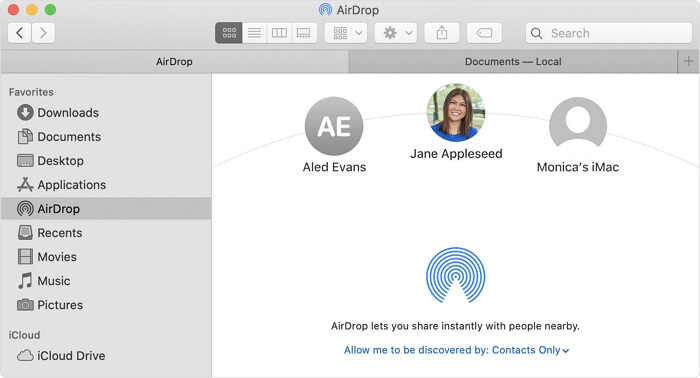
The mystery of AirDrop's file storage has left many wondering: where do photos or files sent via AirDrop actually go? Is there a designated folder, or are they lost forever? To uncover the truth, let's keep investigating.
Where Do AirDrop Photos Go on iPhone/Mac
Finding an iPhone or Mac's AirDrop photos location isn't difficult, but it can be challenging for those unfamiliar with Apple's methods. Fortunately, we'll explore ways to locate AirDrop photo locations on both Mac and iPhone, making it easier for users to navigate this feature.
To find the location for Airdrop on iPhone and Mac separately, it's essential to understand that their Airdrop operations work differently. On an iPhone, you can find Airdrop in the Settings app, under General, then AirDrop. On a Mac, you'll find Airdrop in the Finder, under Go, then AirDrop. Understanding these differences is crucial for effective use.
For iPhone:
Once you receive photos on your iPhone, you can easily find them on your device. After receiving photos through Airdrop, you can find them in the Photos app, specifically in the "Shared" album, which is located on the "For You" tab. Alternatively, you can also find them in the "Camera Roll" album.
Step 1. Receive Photos through Airdrop.

Step 2.To check the iPhone's storage, go to the home screen, tap on "Photos", and look at the bottom-left of your screen.

Newly received photos will appear in a marked red square, allowing you to easily check for them.
For Mac:
Finding the place for your Airdrop photos on Mac is as easy as possible. Therefore, fire up your Mac and follow the steps that we tell you:
Step 1.Open the Finder app by double-clicking it.
Step 2.Go to "Downloads" from the sidebar.
Step 3.Find "Airdrop" and click on it.

To find the location of your Airdrop photos, you can check the Photos app on your iPhone or Mac, where you can view and access the shared photos. On iPhone, you can also access the photo and its metadata, but on Mac, you can access the actual photo file. This allows you to view and manage your Airdropped photos on both devices.
Where Do AirDrop Files Go on iPhone/Mac
To locate Airdrop files on a Mac, go to the "Downloads" folder, then select "AirDrop" from the list of folders. On an iPhone, go to the "Files" app, then navigate to the "On My iPhone" section and select "AirDrop" from the list of folders. This should display all the files shared with you via Airdrop.
To find and delete problematic apps on your iPhone or Mac, follow these steps:
For iPhone:
Step 1.Receive your file from AirDrop.
Step 2.Choose the app to open it with.

Step 3.Find the file in the dedicated folder.
On a Mac, finding desired files is easier than on an iPhone, which is one of the major drawbacks of AirDrop. As a result, using a secondary app to open your file is the best option on an iPhone to locate its location.
For Mac:
Step 1.Open Finder on your Mac.
Step 2.Head to "Downloads" and check for files.

Step 3.If you're unable to find the downloaded file in the Downloads folder, check the sidebar for the dedicated "Airdrop folder" where the file is likely to be located.

Step 4.Find your files.
To locate a file on your iPhone, go to the Files app, then tap "Browse" at the bottom of the screen. Tap "iCloud Drive" and then "All Files" to see a list of all your files, including those from other apps and services. You can also tap "On My iPhone" to see files stored directly on your device.
Retrieve Lost iPhone Photos or Files with Software
You can skip the hassle of retrieving files sent to an iPhone by using a professional tool like Qiling MobiSaver, a software designed to help you recover your files sent to an iPhone.
If you're looking for a reliable solution to find your lost AirDrop files, consider using a professional iPhone data recovery program like [Tool Name]. This software is available on both Mac and Windows and offers a range of features, including the ability to recover lost files sent through AirDrop. Its effectiveness makes it a great option for getting back your lost files.
- Retrieve data directly from iOS devices.
- To restore data from an iTunes or iCloud backup without signing into iTunes or iCloud, you can use a third-party tool called iBackupExtractor. This software allows you to access and extract data from iTunes and iCloud backups without needing to sign into the respective accounts.
- Recover contacts, messages, photos, videos, and Airdrop's lost files.
- MobiSaver is a great tool that can quickly recover deleted messages from popular messaging apps like WhatsApp, Kik, and LINE.
iMyMac's D-Back is an ideal program to recover lost AirDrop data, as well as other app data like WhatsApp, Kik, and Line. It can help you retrieve chats, messages, call histories, and even attachments from these apps, making it a convenient solution to finding the location of AirDrop files without the hassle of previous methods.
Steps to Retrieve Lost iPhone Photos or Files with Qiling MobiSaver
If you've lost iPhone photos and files, such as through AirDrop, don't worry, we can help you recover them. To do so, follow our procedure, which involves the steps below.
Step 1. Connect iPhone to Your PC
Launch Qiling MobiSaver, click "Recover from iOS device" on the left, and then click "Start".
Step 2.Scan for Lost iPhone Data
Qiling MobiSaver will automatically scan your iPhone/iPad/iPod, finding both existing and previously lost data, and the process will be complete once the scan is finished.
Step 3.Click the "Recover" Button
You can select the lost data you want to recover, such as photos, videos, contacts, SMS, notes, voice mails, and other files, and save them to a new location.
Summary
To find Airdrop files and photos, you'll need a tool to help you recover them easily, as it's not a straightforward process. We recommend using Qiling MobiSaver Pro, which can seamlessly find your files without any hassle.
AirDrop FAQs
If the article doesn't answer your questions, our FAQs might provide the additional information you're looking for. We've got more answers to your queries, so feel free to check them out!
Why won't my AirDrop show up on my Mac?
To receive AirDrop requests, ensure your device and settings are up to date, and follow Apple's tutorial on allowing AirDrop in Mac's Finder.
How do I AirDrop from iPhone to MacBook?
To AirDrop a file from your iPhone to your Mac, open the file you want to share, tap the share icon, and select your Mac from the list of available devices. Ensure both your iPhone and Mac are connected to the internet and your Mac is discoverable. Then, tap "Share" to send the file. This will allow you to easily share files between your iPhone and Mac.
How do I receive airdrops?
On an iPhone, you'll receive a prompt saying that a user would like to share a photo/file via AirDrop, prompting you to press Accept to receive it.
Related Articles
- How to Recover Data from Bricked iPhone
- Find Recycle Bin on iPhone 13/12/11 and Restore All Lost Files [Resolved]
- Top 3 Ways to Recover Permanently Deleted Voicemail iPhone
- iOS 12/13 Supported | How to Backup iPhone in Recovery Mode
- How to Fix Microsoft SQL Server Error 5123
When trying to log in to Microsoft SQL Server, you may encounter error 5123 due to permission issues or inability to attach a database. To resolve this issue, you can try a manual method or use SQL Server recovery software/tools to fix the problem. - How to Fix System_Service_Exception in Windows 10/11 Without Data Loss
The system_service_exception error occurs when a system service crashes, causing a thread exception. To fix this issue in Windows 10 or Windows 11, you can try using Deep Data Recovery to restore lost data without data loss, or use other methods to resolve the issue.
Products
Articles & Tutorials
- Data Recovery
- Data Backup
- File Recovery
- File Backup
- System Backup and Restore
- Disk and Partition Clone
- Technical articles
- Mobile articles
- Disk Master Help
- Windows Data Recovery Tutorials
- Windows Secure Delete Tutorials
- Windows Partition Management Tutorials
- Windows File Backup and Restore Tutorials
- Windows System Backup and Restore Tutorials
- Windows Disk Backup and Restore Tutorials
- Windows Clone Tutorials