How to Fix Microsoft SQL Server Error 5123
The solutions on this page can be applied to resolve 5123 error with access denied or database attach failure in MS SQL Server, including 2014, 2012, 2008 R2, and 2005 versions.
When trying to attach a database in SQL Server, an error message is encountered, stating "Microsoft SQL Server, Error: 5123". This error typically indicates that the database file is not found or is corrupted, and may require further investigation to resolve.
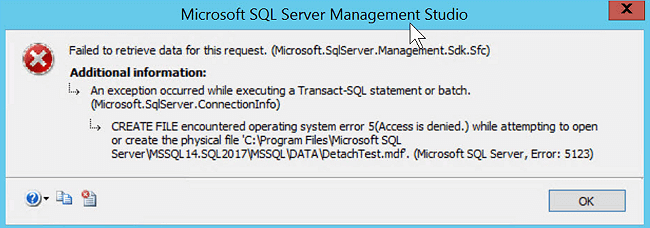
SQL Server database access is unavailable due to various reasons, including incorrect database connection details, insufficient permissions, or SQL Server service not running. To resolve SQL error 5123, verify the database connection settings, ensure adequate permissions, and confirm the SQL Server service is running and properly configured. If the issue persists, consult the SQL Server documentation or seek professional assistance for further troubleshooting and resolution.
- "Database attach failures occurred when attempting to attach and detach database data files using multiple logins."
- The error "Access Denied" occurs when trying to attach a database that is located in a different directory and doesn't have sufficient privileges to access the program's folder directory or run the program. This means the database doesn't have the necessary permissions to access the program's location, preventing it from being attached.
Although many experienced administrators know how to resolve the 5123 error in SQL Server, it's still beneficial to know better and more effective methods to fix and repair more SQL Server database problems, such as the 5123 error, on your own.
Manual workaround to fix MS SQL Server 5123 error
To resolve Microsoft SQL Server error 5123, follow these manual steps: First, check if the SQL Server service is running and if the SQL Server Agent service is also running. If not, start both services.
- Step 1: Run SQL Server and right-click on the MDF or NDF file that you wish to attach.
- Step 2: To verify the permission of the .mdf or .ndf file, select "Properties" to check its permissions.
- Step 3: To grant login permission, click the "Add" button, which will allow you to gain full control during the login process.
If you're unable to install or update a program, you can try running it as an administrator to gain permission. Alternatively, you can grant permission to a new user instead of running it as administrator.
Recommended tools to resolve SQL Server 5123 error
If you're using MS SQL Server Management Studio (SSMS) or T-SQL to configure and manage SQL Server, you can use these tools to resolve the 5123 error.
To recover deleted data from SQL Server, you can try using the built-in "Restore Database" feature, which allows you to restore a database from a backup. If you don't have a backup, you can also try using the "Transaction Log Explorer" to find the deleted data.
Use SSMS to fix SQL 5123 error
- Step 1: Log in to SSMS: use valid domain credentials and Windows Authentication to log in.
- Step 2: Click on "Object Explorer", select "Database".
- Step 3: To attach a database in SQL Server, right-click on the database you want to attach and select the "Attach" option from the context menu.
- Step 4: Click "Add" when a new attach database dialog box appears.
- Step 5: To confirm that the SQL Server database is running smoothly, select the database you want to check. Ensure that the MDF and LDF files, which are crucial for database operations, are functioning correctly. Once you've verified this, click "OK" to complete the process.
To resolve the issue where you can't see attached database files in MS SQL Server, you can try running the following command in the SQL Server Management Studio: EXEC sp_dropprocedure 'sp_MSforeachdb'; EXEC sp_MSforeachdb @command1='PRINT ''?' + CHAR(13) + CHAR(10) + DB_NAME();' + CHAR(13) + CHAR(10) + DB_NAME();' + CHAR(13) + CHAR(10) + DB_NAME();' + CHAR(13) + CHAR(10) + DB_NAME();' + CHAR(13) + CHAR(10) + DB_NAME();' + CHAR(13) + CHAR(10) + DB_NAME();' + CHAR(13) + CHAR(10) + DB_NAME();' + CHAR(13) + CHAR(10) + DB_NAME();' + CHAR(13) + CHAR(10) + DB_NAME();' + CHAR(13) + CHAR(10) + DB_NAME();' + CHAR(13) + CHAR(10) + DB_NAME();' + CHAR(13) + CHAR(10) + DB_NAME();' + CHAR(13) + CHAR(10) + DB_NAME();' + CHAR(13) + CHAR(10) + DB_NAME();' + CHAR(13) + CHAR(10) + DB_NAME();' + CHAR(13) + CHAR(10) + DB_NAME();' + CHAR(13) + CHAR(10) + DB_NAME();' + CHAR(13) + CHAR(10) + DB_NAME();' + CHAR(13) + CHAR(10) + DB_NAME();' + CHAR(13) + CHAR(10) + DB_NAME();' + CHAR(13) + CHAR(10) + DB_NAME();' + CHAR(13) + CHAR(10) + DB_NAME();' + CHAR(13) + CHAR(10) + DB_NAME();' + CHAR(13) + CHAR(10) + DB_NAME();' + CHAR(13) + CHAR(10) + DB_NAME();' + CHAR(13) + CHAR(10) + DB_NAME();' + CHAR(13) + CHAR(10) + DB_NAME();' + CHAR(13) + CHAR(10) + DB_NAME();' + CHAR(13) + CHAR(10) + DB_NAME();' + CHAR(13) + CHAR(10)
If the program reminds you that the MDF file is corrupted, you can relax and use the Qiling MS SQL recovery tool to repair the corrupted MDF file immediately.
Use T-SQL to resolve MS SQL 5123 error
SQL Server's sp_attach_db stored procedure simplifies the process of attaching multiple databases in SQL Server. With this stored procedure, you can easily attach all desired databases, making it a convenient option for managing multiple databases in your SQL Server environment.
Here are the detail process of attaching SQL Server databse:
- sp_attach_db
- [@dbname=] 'dbname'
- ,[@filename1=] 'filename_n' [,…16 ]
- The `--dbname` option in MySQL is used to specify the name of the database to be attached to the server. This option is used with the `mysql` command to connect to a specific database.
- The physical name, including path, of a database file is referred to as 'filename_n'.

Use SQL Server recovery tool to solve MS SQL error 5123
If the above methods do not work efficiently to resolve the 5123 attach database error in SQL, you can consider using a reliable SQL Server recovery tool for assistance. This tool can help repair corrupted MDF and NDF files in SQL Server and address other complex database corruption issues, making it easier for users to operate SQL Server repair with its user-friendly interface.
Note: Qiling SQL Server Recovery can usually fix the issue, but if it fails, you can seek help from Microsoft's customer support team.
Step 1. Run Qiling MS SQL Recovery.
Step 2. To repair an MDF or NDF file, select the file and click "Repair" after navigating to its location using the "Browse" or "Search" option.
Step 3. After the recovery process is completed, you will need to select the specific database objects you want to recover. Once you have made your selection, click the "Export" button to proceed.
Step 4. Export the database to the database or export the selected items as SQL scripts, requiring information such as destination database selection.
We recommend keeping Qiling SQL Server Recovery handy to solve SQL database problems, including this error. It can also be used to rectify other SQL database issues.
- Resolve SQL Database corruption with 823/824/825 error
- Recover deleted SQL records
- Repair MDF/NDF file
- Recover ROW and PAGE compressed data
- Free to preview the repaired database before activation
- To save the repaired file in MS SQL (MDF), HTML, XLS, and CSV formats, you can use the following steps:
- The current licensing system only allows a single license key to be used on one system, limiting the number of devices that can be licensed. However, it would be beneficial to allow the transfer of a license to another system, enabling the use of a single key on up to three systems.
Related Articles
- MS SQL Database Restore with Recovery and Norecovery Options
- How to Restore Database in SQL Server 2014 from .Bak File
- How to Fix SQL Server Database Stuck in Restoring State
- SQL Error 5171: MDF Is Not A Primary Database File
- Movie File Recovery | Recover Deleted Movie Files
Stop using your computer hard drive or external hard drive, USB once your lost movie files by deletion, formatting, or other reasons. The 2023 best movie file recovery software offered by Qiling is available here for you to download and apply to recover your lost movies in 3 simple steps. - [Full Guidance] How to Recover Data from HDD
Having no idea on how to recover data from HDD? In this post, we will explore the steps you can take to retrieve your precious files/data from a malfunctioning HDD.
Products
Articles & Tutorials
- Data Recovery
- Data Backup
- File Recovery
- File Backup
- System Backup and Restore
- Disk and Partition Clone
- Technical articles
- Mobile articles
- Disk Master Help
- Windows Data Recovery Tutorials
- Windows Secure Delete Tutorials
- Windows Partition Management Tutorials
- Windows File Backup and Restore Tutorials
- Windows System Backup and Restore Tutorials
- Windows Disk Backup and Restore Tutorials
- Windows Clone Tutorials