MS SQL Database Restore with Recovery and Norecovery Options
Differences Between RECOVERY and NORECOVERY Options
During database restoration, two command parts are used: Recovery and Norecovery. Both options require a SQL database backup, making them essential components in the database recovery process.
The Recovery option is used when there is a single backup and a direct recovery is desired. This process involves both undo and redo parts, and does not allow excess backup restoration. As a result, the database is put in an operational state.
NORECOVERY rolls the process forward so that the next action is executed, making it the proper choice when different types of backups (differential, transactional, etc.) are involved.
How to Restore MS SQL Database with Recovery and Norecovery Options
Recovery and Norecovery options are two manual SQL recovery methods suitable for minor SQL corruption issues. Before starting these commands, it's essential to have a database backup in place, as these methods may not be able to recover data in case of severe corruption.
To back up MS SQL
Step 1: To back up a database in SQL Server Management Studio, right-click the database, select "Tasks" and then "Back Up" from the context menu.
Step 2: To back up your database, you can specify where you want to store the backup, allowing you to take a backup according to your needs. This enables you to secure your database and ensure its integrity.
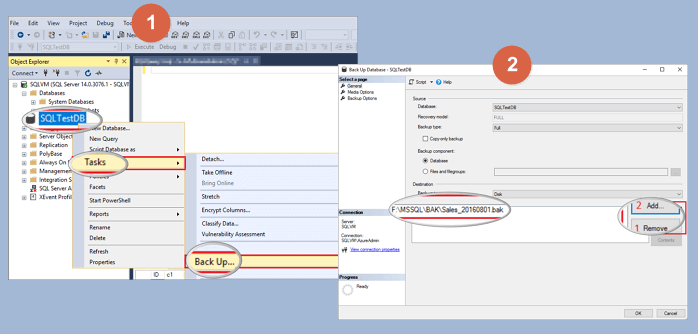
With the differences between backup and restore understood, let's dive into the details of restoring an MS SQL database. The process begins by selecting the backup file, which can be in a compressed (.
Restore With Recovery Option
To recover a database in SQL Server Management Studio, right-click on "Databases" and select the "Restore Database" option from the context menu. This will allow you to restore the database to its previous state.
You can use SQL Server Management Studio to restore your database.
RESTORE DATABASE F FROM DISK = 'c:\sql\F.bak' WITH FILE = 1, NOUNLOAD, STATS = 5, RECOVERY GO
To configure a database in F, you need to specify the database name and the recovery model. The recovery model determines how transactions are handled and how data is protected in case of a failure. The full recovery model provides the highest level of protection, while the simple recovery model provides the lowest.
Restore With NORECOVERY
The NORECOVERY option in backup restoration is useful when there are multiple backup restorations, allowing additional backups to be performed by enabling the "restoring state" in a database.
To restore a SQL Server database with the Norecovery option using SQL Server Management Studio, follow these steps:
Click on "Options". Choose "Restore With Norecovery" and click "OK".
Also, you use the command:
RESTORE DATABASE F FROM DISK = N'c:\sql\F.bak' WITH NORECOVERY Go
RESTORE LOG F FROM DISK = N'C:\Program Files\Microsoft SQL Server\MSSQL14.MSSQLSERVER\MSSQL\Backup\F_LogBackup_2019-8-4_12-24-25.bak' WITH RECOVERY Go
Norecovery command is used to perform additional backups later, allowing the database to be restored but kept in a restoring state.
Qiling for MS SQL Database Recovery (Easier)
If your SQL server database is damaged, you can restore your data without using the backup. You can also restore lost data without a backup by using other options.
Qiling SQL Recovery software enables you to repair a damaged database and resolve various SQL database repair issues, while also recovering database components such as tables, triggers, indexes, keys, rules, and stored procedures, as well as deleted records from SQL databases, supporting MS SQL Server versions 2017 and older.
Step 1. Download and run Qiling MS SQL Recovery.

Note: You can choose different search modes based on where and why the data was lost.
Step 2. To repair a damaged MDF file, click the two dots (Browse button) to select the target file or click "Search" to find and select the file from a list, and then click "Repair" to initiate the repair process.

Step 3. When the recovery process is complete, a confirmation window appears, listing all the deleted tables and records that were recovered, under the original table names in the left pane.

Step 4. To export a recovered database, click the "Export" button in the bottom right corner of the screen, and then select the desired export method, either to a database or SQL scripts. You will need to enter the Server/Instance Name and connect to the server, and choose whether to create a new database or export to an existing one.
Related Articles
- Easy Ways to Fix Recovery Pending State in SQL Server 2014/2016/2017
- [Fixed] SQL Error 945 | Database Cannot Be Opened due to Inaccessible Files
- How to Fix Microsoft SQL Server Error 5123
- How to Use DBCC CHECKDB Repair Options to Repair Database
- How to Recover Shift Deleted Word Documents in Windows 11/10
You can recover Shift deleted Word files in Windows 11/10 using either Deep Data Recovery or by restoring the auto backup files, which can help you retrieve the deleted Word document. - How to Recover Temporary Word Files in Windows 11/10/7
The location of temporary files in Windows 11/10/7 can be found in the %temp% folder, which is typically located in the C:\Users\YourUsername\AppData\Local\Temp directory.
Products
Articles & Tutorials
- Data Recovery
- Data Backup
- File Recovery
- File Backup
- System Backup and Restore
- Disk and Partition Clone
- Technical articles
- Mobile articles
- Disk Master Help
- Windows Data Recovery Tutorials
- Windows Secure Delete Tutorials
- Windows Partition Management Tutorials
- Windows File Backup and Restore Tutorials
- Windows System Backup and Restore Tutorials
- Windows Disk Backup and Restore Tutorials
- Windows Clone Tutorials