SQL Error 5171: MDF Is Not A Primary Database File
Page Content: Fix MDF Is Not A Primary Database File
The 5171 error in MS SQL Server occurs when the SQL Server service fails to start due to a problem with the SQL Server registry hive. This error is often caused by a corrupted registry or incorrect registry settings.
| Workable Solutions | Step-by-step Troubleshooting |
|---|---|
| 1. Repair with SQL Repair Tool |
Step 1. Stop MS SQL Server service Step 2. Run Qiling SQL repair tool Step 3. Choose the database objects...Full steps |
| 2. Manually Resolve SQL Error |
Step 1. Run Microsoft SQL Server Management Studio Step 2. Modify MDF file information with ALTER DATABASE MODIFY FILE command...Full steps |
SQL Server Error 5171: MDF Is Not A Primary Database File
If you receive this error message, it means that you are experiencing Database error 5171 on SQL Server, which is typically caused by a database snapshot being dropped or deleted, resulting in a database snapshot resource still being present on the server. This error can occur when a database snapshot is dropped, but the system resources associated with it are not released, leading to this error.
The error "ABC.mdf is not a primary database file. (Microsoft SQL Server, Error: 5171)" indicates that the file ABC.mdf is not the primary database file for the SQL Server instance, which is required for the server to function properly.
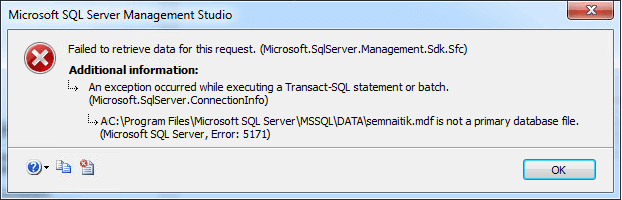
Error 5171 is a common issue that SQL Server administrators face when trying to log in or restore a database, and can also occur when creating the 'tempdb' database or attaching an MDF file.
To resolve the error, check the causes and then figure out the right solution based on the root of the issue.
- MDF files corrupted or not recognized
- Invalid registry entries
- Virus infection
- Power failure
- Drivers damaged
If the 5171 error is caused by the MDF database file, you can try two solutions to resolve the issue. First, you can modify the registry entries, clean up the virus, and restart SQL, check the power connection, and update drivers. If the problem persists, you can also try to recover or rebuild the MDF database file, which may involve using a database recovery tool or rebuilding the database from scratch. These steps may help resolve the 5171 error and get your system back up and running smoothly.
Solution 1. Repair MDF File with Qiling SQL Recovery
When a Microsoft Database File (MDF) is corrupted or records are lost in the file, you'll encounter an error in SQL due to the saved data being inaccessible.
To resolve the issue of a corrupted MDF file, use a reliable SQL recovery tool to repair the file. When searching for such a tool, choose one from an experienced company that is risk-free, 100% clean, and has a strong support team.
Qiling recently released its SQL recovery software to help SQL Server administrators, leveraging its experience in data recovery.
Qiling SQL Recovery Software
- Data recovery is one of the most effective ways to recover lost or corrupted data, making it a popular choice among individuals and organizations.
- It offers a variety of advantages, including the ability to recover data from both crashed and damaged databases, and provides a user-friendly interface for easy navigation and data recovery.
- Additionally, it offers a user-friendly interface and is compatible with all major operating systems.
With the tool, you can quickly repair a corrupted database, restore an MDF file, and even recover deleted records in SQL. To repair a corrupted MDF file, simply follow these steps:
Step 1. Stop MS SQL Server service
Press "Windows + R" and enter services.msc.
Find and double-click "SQL Server (instant name)".
In the Properties window, click "Stop" to stop the SQL Server and then click "Apply" to confirm.
Step 2. Run Qiling SQL repair tool, select file types and click "Fast Scan" to initiate the repair process.

Step 3. To repair a corrupted MDF/NDF file, select the file, click "Repair", and the tool will begin analyzing it.
If you know the exact location of the file, click "Browse" to locate the database. This will allow you to navigate to the correct folder and select the database file.
If you're unsure about the location of the file, click on "Search" to search for the .mdf or .ndf file in your system. This will help you locate the file even if you're not sure where it's stored.

Step 4. When the script has finished, you will see all the database objects listed in the left pane of the window. Choose the database objects you'd like to repair and click "Export".

Step 5. To export database data, select either "Export to database" or "Export as SQL scripts". If choosing "Export to database", further specify server information, log in to your account, and select a destination database, either a new one or an existing one.
Step 6. Before you click "OK", now you need to restart the SQL Server.
Press "Windows + R" and enter services.msc.
Find and double-click "SQL Server (instant name)".
In the Properties windows, click "Start" to restart the SQL Server service and click "Apply" to confirm.
Step 7. The files have been repaired and are ready to be saved to your desired SQL database. Click "OK" to confirm and save the files.
After repairing the MDF file, save the changes and restart SQL Server. Once restarted, log in with your password and you should be able to access the MDF data and run SQL Server normally again.
Solution 2. Manually Resolve SQL Server Error 5171
To resolve the error, you can try running Microsoft SQL Server Management Studio (SSMS) as an administrator. To do this, right-click on the SSMS shortcut or executable file, select "Run as administrator," and follow the prompts to grant the necessary permissions.
Step 1. Ensure Microsoft SQL Server Management Studio is running and the database is online to proceed.
- To put the database back online, you can run the command: ALTER DATABASE mydb SET ONLINE. This command will set the database to an online state, making it accessible for queries and other operations.
Step 2. Modify MDF file information with ALTER DATABASE MODIFY FILE command.
- To back up the SQL Server database, go to Object Explorer, right-click on the database you want to back up, and select Tasks > Back Up. Then, follow the wizard to choose the backup type, file name, and location.
Step 3. Right-click on the currently running SQL Server and select "Stop".
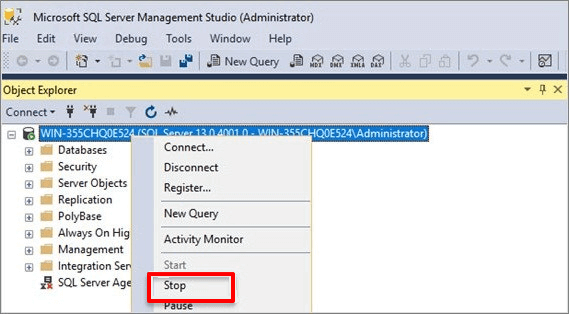
Step 4. Copy the MDF and LDF files to a different directory.
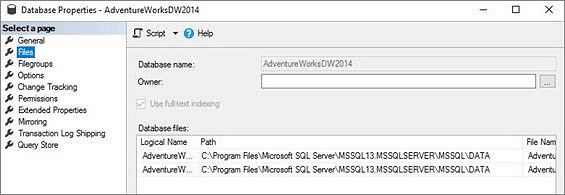
Step 5. After that, restart the SQL Server and attach both MDF and LDF files.
Tips to Protect SQL SQL Database
After resolving the SQL database 5171 error, it's also important to learn some useful tips to protect your SQL Server database. To do so, you can refer to the tips provided, which will help you with the process.
1. Avoid improper upgrade of SQL Server
Upgrading SQL Server too frequently can be unnecessary, especially if the current version is running smoothly. If you've already upgraded and are experiencing issues like error 5171, try running the sp_attach_db command to resolve the problem. This approach can save you from unnecessary upgrades and potential complications.
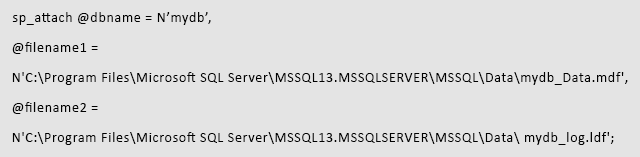
2. Back up SQL Server database regularly
Qiling Backup Advanced Server is an automated SQL Server backup software that makes it easy to create a full backup of your large SQL Server database.
3. Repair corrupted SQL Server database immediately
Once the SQL Server database becomes corrupted, utilize Qiling SQL Recovery to promptly repair the database file and recover all valuable data. This enables swift recovery and minimizes data loss.
Conclusion
SQL Server Database Error 5171 can be a frustrating issue, but there are steps you can take to resolve it. Using SQL recovery software like Qiling MS SQL Recovery or fixing the error manually are common solutions. Consulting with a database expert may also be helpful. To get your data back quickly and efficiently, it's essential to stay calm, do your research, and take action as soon as possible. With the right tools and strategies, SQL Server Database Error 5171 should not prevent you from accessing your important data again.
Consult with Qiling Data Recovery Experts for a one-on-one manual recovery service. After a free diagnosis, we can offer various services, including manual recovery, to help you retrieve your lost data.
- Repair a corrupted RAID structure, bootable Windows OS, and virtual disk file (.vmdk, .vhd, .vhdx, etc.).
- Recover/repair lost partition and re-partitioned drive.
- Unformat hard drive and repair raw drive(Bitlocker encrypted drive)
- Fix disks that become GPT protected partitions
Related Articles
- SQL Recovery Program Download: Repair SQL Server Database
- SQL Database Recovery Pending Access Denied
- How to Recover Deleted SQL Server Database without Backup
- Easy Ways to Fix Recovery Pending State in SQL Server 2014/2016/2017
- Use Disk Doctor Freeware to Recover Lost Data
Free Disk Doctor data recovery software can recover data from crashed or corrupted hard drives, as well as retrieve lost data after deletion, format, system crash, or virus attack on Windows 10/8/7 systems. - 6 Best Free Disk Drill Alternatives for Mac Data Recovery in recent years
If you're looking for alternatives to Disk Drill, there are six free options available to help you recover deleted, formatted, or lost files from various storage devices, including hard drives, memory cards, USB drives, and digital cameras, on your Mac.
Products
Articles & Tutorials
- Data Recovery
- Data Backup
- File Recovery
- File Backup
- System Backup and Restore
- Disk and Partition Clone
- Technical articles
- Mobile articles
- Disk Master Help
- Windows Data Recovery Tutorials
- Windows Secure Delete Tutorials
- Windows Partition Management Tutorials
- Windows File Backup and Restore Tutorials
- Windows System Backup and Restore Tutorials
- Windows Disk Backup and Restore Tutorials
- Windows Clone Tutorials