Put iPad in Recovery Mode and Fix iPad Issues
Summary
To put an iPad in recovery mode, you'll need to connect it to a computer, open iTunes, and press and hold the Sleep/Wake button and the Home button simultaneously for 10 seconds. If the iPad doesn't turn on, try charging it for 30 minutes before attempting again. Once in recovery mode, you can use Qiling MobiSaver to recover your iPad's data. This process can help you retrieve your iPad's data, even if it's unresponsive.
| Workable Solutions | Step-by-step Troubleshooting |
|---|---|
| Back up iPad before Recovery Mode | Update PC > reopen iTunes > connect your iPad to the computer with USB...Full steps |
| Put an iPad in Recovery Mode |
Situation 1. iPad with a Home Button...Full steps Situation 2. iPad without a Home Button...Full steps |
| Get iPad Out of Recovery Mode | Connect iPad to computer >launch iTunes > restore iPad from a backup...Full steps |
| iPad Stuck in Recovery Mode |
Fix 1. Force Restart iPad...Full steps Fix 2. Restore iPad from iTunes...Full steps Fix 3. Recover iPad with Qiling MobiSaver...Full steps |
Software and hardware faults may affect any iPhone, old or new, and recovery mode can help if your device has frozen, become unresponsive, or ceased operating during a software update.
Recovery mode is the last option to reset and reinstall iOS via iTunes, but it may result in losing all phone data, so make frequent backups via iTunes or iCloud. This article explains how to put iPad in Recovery mode and recover lost data.
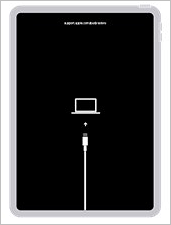
What Is Recovery Mode for iPad
The iPad recovery mode screen is a failsafe in iBoot that allows reinstalling the iPad with a fresh operating system, typically when the current OS is inoperable or an update is done via iTunes.
Recovery mode is a feature that can help you resolve issues with your iPad's software, such as unsuccessful updates or a frozen device. However, it may result in some data loss during the process. If you're experiencing problems, recovery mode could be a solution, but be aware of the potential consequences.
The Qiling MobiSaver is a tool that helps recover lost files, messages, contacts, photos, music, and videos from your device.
Data Loss Concerns with iPad in Recovery Mode
If you need to restore your iPad, be aware that using recovery mode will erase all data, posing a risk of data loss.
If you enter iPad recovery mode, it's usually possible to exit without losing data. However, if things go wrong, you can delete and restore your iPad to get out of recovery mode. It's a good idea to back up your iPad before entering recovery mode.
Step 1.To update your PC, go to iTunes > Help > Check for Updates on a Mac, or download an update from the Microsoft Store on a Windows PC.
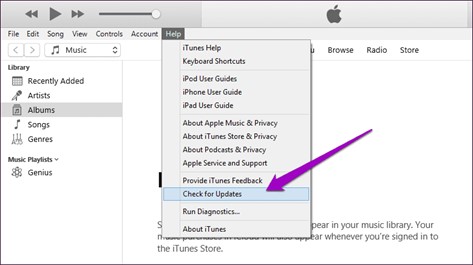
Step 2.After upgrading, reopen iTunes. If you're running macOS Catalina or later, instead, launch a new Finder window.
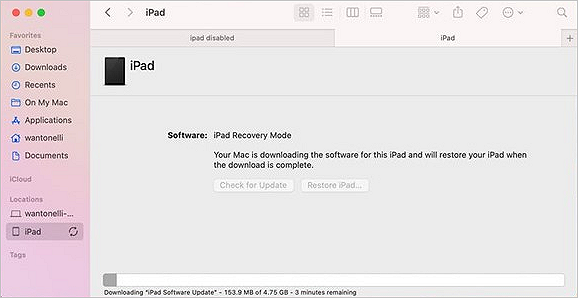
Step 3.If your iPad has a Home button, connect it to your computer via USB, and then follow the steps below to restore your iPad:
1. To get your iPad out of recovery mode, hold the iPad's Home button and the Top or Side button at the same time. Keep holding both buttons until the Apple logo appears on the screen, indicating that your iPad is booting up normally. This will restart your iPad and get it out of recovery mode.
2.If your iPad doesn't have a Home button, push and release Volume Up, then Volume Down, then Top. Hold Top until the iPad enters recovery mode.
Note: When your iPad enters recovery mode, a white computer symbol on a black backdrop appears on the screen.
How to Put an iPad in Recovery Mode
To put an iPad into recovery mode, press and hold the Sleep/Wake button and the Home button simultaneously for at least 10 seconds, until the Apple logo appears. Release the buttons when the logo appears, and then press and hold the Sleep/Wake button again until the iPad's screen goes black. Press and hold the Sleep/Wake button and the Home button simultaneously again for at least 10 seconds, until the iPad's screen displays the recovery mode screen. Release the buttons when the recovery mode screen appears.
Situation 1. Use the Home Button to Put iPad in Recovery Mode
Step 1. Run iTunes on your PC once you've connected your iPad.
Step 2. When you're finished using your iPad, disconnect it from the computer and hold down the Home button.

When you see the "Connect to iTunes" screen, release the home button. Your device is now being restored to factory settings. To exit this mode, press the Home and Sleep buttons for a long time until the screen turns off and the Apple device displays again.
Situation 2. Put iPad in Recovery Mode Without a Home Button
If your device falls into the models that don't have a home button, then:
Step 1. To wake up an iPad without a home button, quickly press and release the volume-up button, then the volume-down button. This will activate the screen and allow you to access your device.
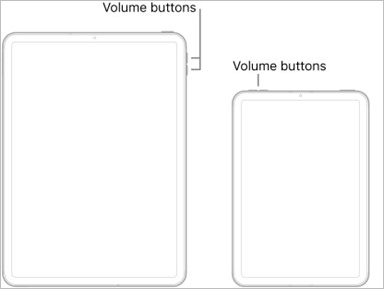
Step 2. Hold down the top button on your iPad until it enters recovery mode, then release it.
How to Get iPad Out of Recovery Mode
If your iPad was in recovery mode after attempting to upgrade it, you can try to fix it by following these steps: 1) Connect your iPad to a computer and open iTunes. 2) Put your iPad in recovery mode by pressing and holding the Sleep/Wake button and the Home button at the same time for at least 10 seconds, until the Apple logo appears. 3) Select your iPad in iTunes and click "Restore iPad" to restore it to its factory settings. 4) If the issue persists, try restoring your iPad in recovery mode using a different computer or by using a different USB cable.
Step 1. Connect your iPad to your Mac computer while in recovery mode.
Step 2. Connect your Mac to the internet and launch iTunes.
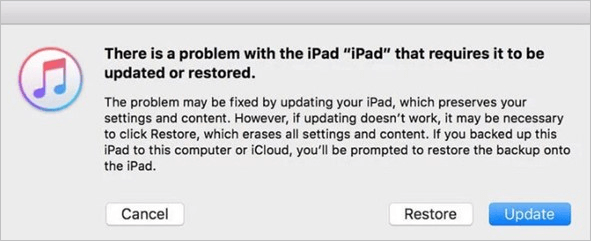
Step 3. To restore your iPad from a backup using iTunes, follow these steps: Connect your iPad to your computer and open iTunes. Select your iPad from the top left corner of the iTunes window.
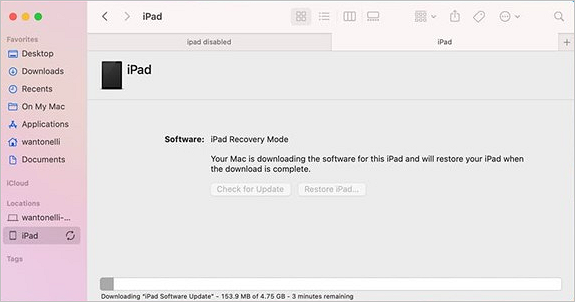
Step 4. Ensure that your iPad is disconnected from your computer.
Step 5. Turn your iPad off.
What If iPad Stuck in Recovery Mode
Here are some solutions for iPad users who get stuck in recovery mode: A combination of iTunes and a USB cable can be used to restore the iPad, or the iPad can be put into recovery mode and then DFU mode to resolve the issue. If the iPad is still unresponsive, a factory reset can be performed. If the problem persists, the iPad may need to be taken to an Apple Store or authorized service provider for further assistance. Additionally, users can try using the iPad's built-in recovery mode to restore the device.
Fix 1. Force Restart iPad
To force restart your iPad, press and hold the sleep/wake button and the volume down button simultaneously for at least 10 seconds, until the Apple logo appears. This will restart your iPad and may resolve the recovery mode issue. If the problem persists, you may need to try other troubleshooting steps or contact Apple support for further assistance.
Step 1. To force restart your iPad, you should hold down both the Sleep/Wake button and the Home button at the same time for around 10 seconds. This will cause the iPad to restart.
Step 2. Press and hold the sleep/wake button and the home button at the same time for 10 seconds. The screen will go black and then come back on with the Apple logo.

Fix 2. Restore iPad from iTunes
If your iPad is stuck in recovery mode and iTunes won't detect it, you can try restoring it using iTunes. To do this, connect your iPad to your computer, open iTunes, select your iPad from the top left corner, and click "Restore iPad." This will erase all data on your iPad, so make sure to back it up before proceeding. If your iPad is still not detected, you may need to try a different USB port or cable.
Step 1. You can launch iTunes by double-clicking on the iTunes icon. Ensure that your iPad is connected to the computer via a USB cable.
Step 2. To restore your iPad, select it from the list shown on iTunes and choose the "Restore" option.

Note: The technique to jailbreak an iPad involves using a software tool to bypass the device's security restrictions, allowing users to install unauthorized apps and customize their device. This process typically involves connecting the iPad to a computer, downloading and installing the jailbreak software, and following on-screen instructions to complete the process.
Fix 3. Recover iPad with Qiling MobiSaver
Unfortunately, some of your data may have been lost during the iOS reloading process. Fortunately, there is a reliable data recovery software for Apple devices called Qiling MobiSaver.
You can recover lost voicemails on your iPhone with or without a backup using Qiling MobiSaver, an iOS data recovery tool. This app can also help you restore lost messages, contacts, camera rolls, photos, and other types of data, and supports iPhone 3GS and later generations.
Qiling MobiSaver offers an easy and efficient data recovery process, allowing users to recover lost files, including text messages, photos, notes, and WhatsApp chats, among others, without the need for complicated procedures.
The main functions of Qiling MobiSaver:
- Easily recover data from iOS devices, iCloud backups, and iTunes backups, allowing users to restore their lost or deleted files with minimal effort.
- Make it easy for non-For tech-savvy individuals, restoring data at home can be a breeze, even if they're not experts. With a few simple steps, they can recover lost files, photos, or documents without needing to rely on external help.
- Any iPhone, iPad, or iPod Touch model can have its data recovered.
- Recover data from sudden deletion, system failure, and jailbreak failure.
You can follow the steps below to recover your iPad with Qiling MobiSaver.
Step 1.Choose the Recovery Mode
Connect your iPhone to your PC, launch Qiling MobiSaver, and select the recovery mode as "Recover from iOS Device" to start the process.
Step 2.Scan iPhone and Find Lost Data
Qiling MobiSaver will automatically scan your iPhone and find both present and lost data for you.
Step 3.Preview and Restore iPhone Data
You can recover lost data from your iPhone, including photos, videos, contacts, SMS, notes, voice mails, and other files, regardless of the model (iPhone 13/12/11/X/XR/XS/8/7/6/5/4). Once you've selected the data you want to recover, click "Recover" and save it to a new location.
Conclusion
We've explored iPad recovery mode, covering how to enter it and what to do if it gets stuck. Additionally, we've discussed using Qiling MobiSaver to forcibly restart the device, restore it via iTunes, and recover data from a damaged phone.
Qiling MobiSaver may help you recover all of your iPad's data quickly and comfortably, eliminating the worry of losing vital data files.
Related Articles
- How to Put iPhone in Recovery Mode [2022 Update]
- How to Unlock A Disabled iPhone Without iTunes
- How to Backup iPad Without Passcode
- Fix iPhone 7/ 7 Plus Stuck in Recovery Mode without Losing Data
- Ultimate Guide to Partition Recovery on Windows 11/10/8/7 (2023)
Follow the latest guide to partition recovery on Windows 11/10/8/7 and you'll easily restore deleted or lost partitions and volumes that were accidentally deleted or lost. - Four Steps to Recover Deleted Ext3 Partitions in Windows 11, 10
If you're looking for a hassle-free way to recover deleted Ext3 partitions, consider using Ext3 recovery software, which can recover Ext3/Ext4 partitions in just four easy steps.
Products
Articles & Tutorials
- Data Recovery
- Data Backup
- File Recovery
- File Backup
- System Backup and Restore
- Disk and Partition Clone
- Technical articles
- Mobile articles
- Disk Master Help
- Windows Data Recovery Tutorials
- Windows Secure Delete Tutorials
- Windows Partition Management Tutorials
- Windows File Backup and Restore Tutorials
- Windows System Backup and Restore Tutorials
- Windows Disk Backup and Restore Tutorials
- Windows Clone Tutorials