Put iPhone in Recovery Mode and Fix iPhone Issues
Summary
If you're unsure about how to put your iPhone in recovery mode, don't worry - we've got you covered. To put your iPhone in recovery mode, simply connect it to your computer, open iTunes, and press and hold the Sleep/Wake button while simultaneously pressing and holding the Volume Down button. Once you've done this, you can follow our guide to recover your iPhone using Qiling MobiSaver, an effective tool for restoring your device to its former state.
Apple's iPhones are a popular device, but accessing their recovery mode can be tricky. Unlike Android devices, iPhones have a more limited range of customization options, making it harder for users to access features like recovery mode. This is due to Apple's focus on security and control, which can make it difficult for non-experts to tweak or modify their device. However, for those who need to put their iPhone in recovery mode, there are still ways to do so, although it may require some technical know-how.
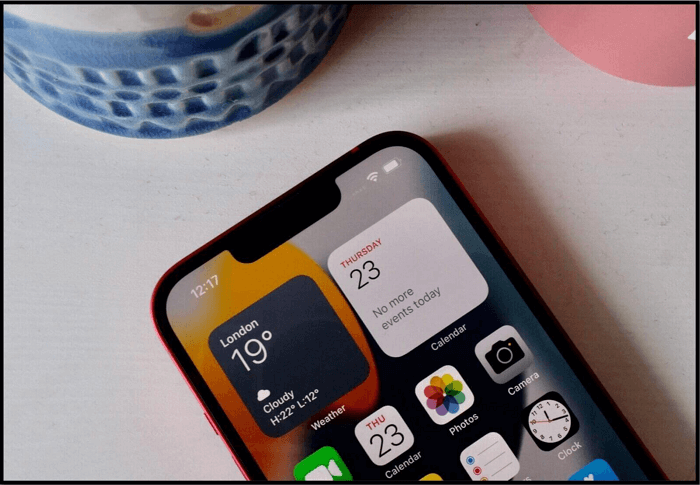
To put an iPhone in recovery mode, press and hold the Sleep/Wake button and the Volume Down button simultaneously for 10 seconds. This will boot the iPhone into recovery mode, allowing you to restore or update the device. Recovery mode is useful when trying to resolve issues with the iPhone's operating system, such as a stuck update or a corrupted installation. It provides a safe and controlled environment for troubleshooting and resolving these types of problems.
What Is iPhone Recovery Mode
If your iPhone isn't turning on, a particular application isn't working, or you're experiencing a critical error, it's likely due to a software or OS issue, which can be resolved by restarting your device, force restarting, or performing a DFU restore. If the problem persists, you may need to consider more advanced troubleshooting methods, such as checking for software updates, resetting the device, or seeking professional assistance.
The iPhone recovery mode is a solution that can fix various issues with your device, allowing you to reset your iPhone or connect it to a computer to troubleshoot errors. This mode can be used in different scenarios, such as when your iPhone is stuck on the Apple logo, won't turn on, or is experiencing other problems. By entering recovery mode, you can attempt to reset your device or connect it to a computer in hopes of resolving any errors, making it a useful tool for troubleshooting and fixing iPhone issues.
When to Use Recovery Mode
Using recovery mode on your iPhone has its benefits, but it should only be accessed when absolutely necessary. Before resorting to recovery mode, try simpler solutions like reinstalling an app that's not working properly. However, if you're experiencing more severe issues, such as needing to restore your device, update its software, or fix problems that prevent it from booting up properly, then recovery mode is the way to go.
- If your iPhone is stuck on the Apple logo for an extended period, try the following: 1) Force restart: Press and hold the Sleep/Wake button and the Volume Down button simultaneously for at least 10 seconds. 2) Charge your iPhone: Plug it into a power source and let it charge for at least 30 minutes.
- If your iOS device is stuck in a restarting loop after a failed update, try the following: Force restart your device by pressing and holding the Sleep/Wake button and the Volume Down button simultaneously for at least 10 seconds. If that doesn't work, try putting your device in recovery mode by connecting it to your computer and opening iTunes. If it's still not working, you may need to restore your device to its factory settings, which will erase all of your data. To do this, you can use iTunes or the Settings app on your device.
- It sounds like the phone is having some issues with its power button. This could be due to a hardware problem, such as a faulty power button or a problem with the phone's circuitry.
- The factory reset manually isn't working
- A virus won't let you use your phone properly
If you're experiencing problems like a frozen screen, unresponsive touchscreen, or other software glitches, recovery mode might be your last resort. However, keep in mind that using recovery mode will erase all data on your phone, essentially performing a factory reset. It's essential to consider this consequence before opting for recovery mode, making it a last resort rather than a primary solution.
How to Put iPhone in Recovery Mode
Accessing iPhone recovery mode can be done in various ways, but the method differs depending on the iPhone model. To access recovery mode, you can follow specific steps for your iPhone type, and it's best to show the different ways to do it.
We'll test different phones, from the latest to the oldest, and show how to put an iPhone in recovery mode with a few simple steps. Please note that accessing your iPhone will erase all of your data, so use this option only if you have no other way to recover your phone. Make sure to charge your phone's battery a little before trying these methods.
To sync your iPhone with iTunes on your PC or Mac, first ensure that you have the necessary tools by running the iTunes app. Next, verify the integrity of your USB cable before plugging it into your PC or Mac. Once connected, run the iTunes app and follow the prompts to connect your iPhone, and you'll be able to sync your device with ease.
1. Accessing Recovery Mode in iPhone 8 or Later, Including iPhone SE (2nd Generation)
If you have an iPhone 8 or the latest versions, including SE ones, you'll need to follow these steps:
Step 1. Connect your phone to a PC or Mac.
Step 2. Press and release the volume up swiftly.
Step 3. Press and release the volume down button swiftly.
Step 4. To enter recovery mode, press and hold the power/side button on your device until you see the Apple logo or recovery mode flash on the screen. This will allow you to access the recovery mode menu, where you can perform various tasks such as restoring your device from a backup, updating your device, or even restoring it to its factory settings.
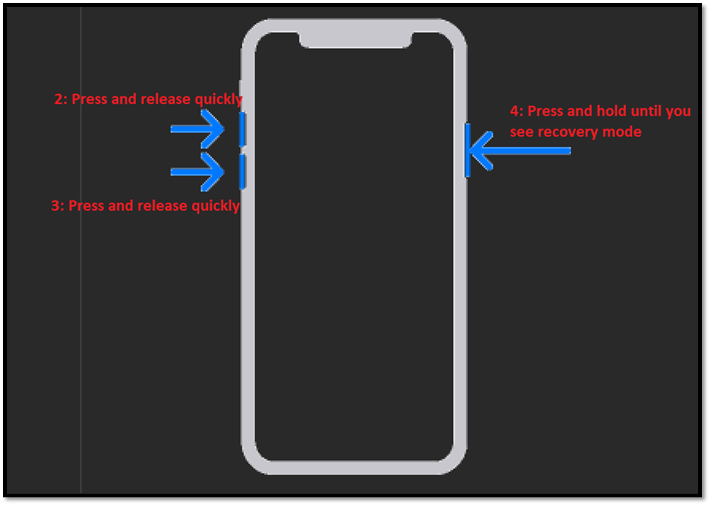
Follow these steps to see your phone in recovery mode and have iTunes detect it: 1) enter recovery mode by pressing and holding the power button and the volume down button at the same time, 2) connect your phone to your computer using a USB cable, and 3) open iTunes on your computer. Once you've completed these steps, your phone will be in recovery mode, and iTunes will detect it.
2. Accessing Recovery Mode in iPhone 7, iPhone 7 Plus
To put an iPhone 7 or 7 Plus in recovery mode, press and hold the Sleep/Wake button and the Volume Down button at the same time for at least 10 seconds, until the Apple logo appears. Release the Sleep/Wake button but continue holding the Volume Down button until the recovery mode screen appears. Release both buttons.
Step 1. Press the power/side button and hold it.
Step 2. Press the volume down button simultaneously.
Step 3. Hold until you see recovery mode pop up.
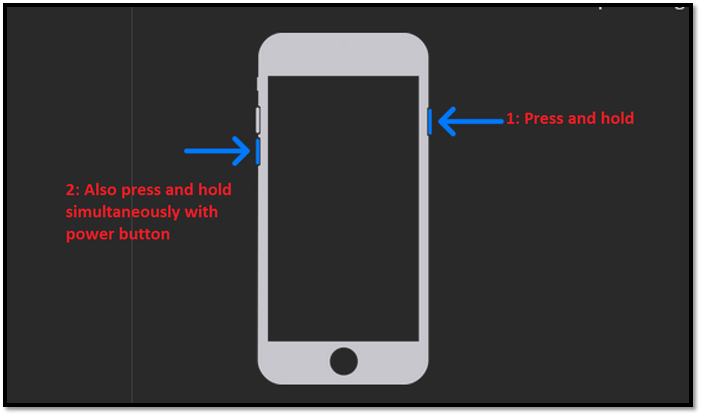
Once again, your iTunes program will detect the phone once you see recovery mode flash on your iPhone.
3. Accessing Recovery Mode in iPhone 6S or Earlier, Including iPhone SE (1st Generation)
In iPhone 6s or earlier versions, to access the recovery mode, you can press and hold the Sleep/Wake button and the Volume Down button at the same time for at least 10 seconds, until the Apple logo appears. The iPhone will then boot in recovery mode. This method is simpler and doesn't require using the volume buttons.
Step 1. Press the home button and hold it.
Step 2. Press the side or power button and hold it.
Step 3. Keep holding until you see the recovery mode.
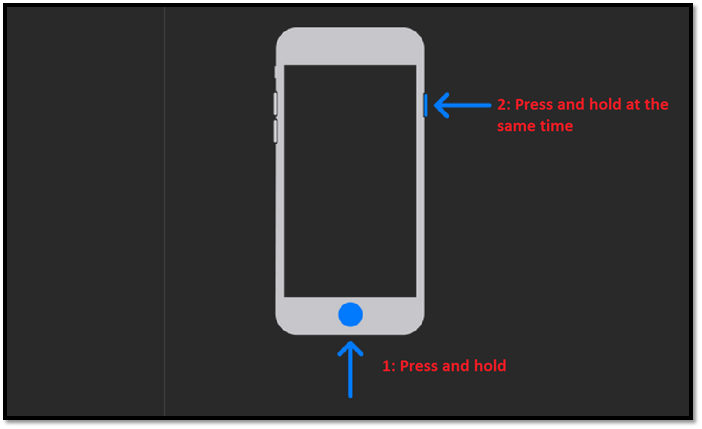
This will also make your iTunes detect your older iPhones.
How to Restore iPhone in Recovery Mode
Recovering an iPhone in recovery mode is usually straightforward, unless it's plagued by hardware issues. In most cases, you'll see a screen with a prompt to connect to iTunes, allowing you to restore or update your device. If your iPhone is in recovery mode, it's likely due to a software glitch rather than a hardware problem, making recovery a more feasible option.
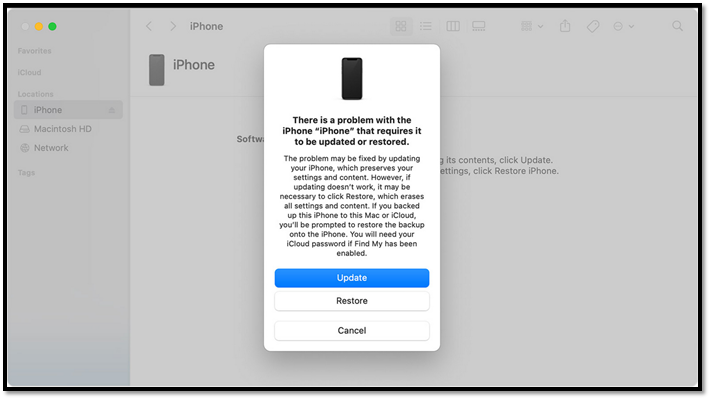
Following the on-You can easily recover, update, or restore your iPhone using the methods provided by iTunes. To do this, follow these steps:
Step 1. Connect your iPhone to your PC or Mac.
Step 2. Run the iTunes App.
Step 3. To access iPhone recovery mode, follow these steps: Press and hold the Sleep/Wake button and the Home button simultaneously for at least 10 seconds, or until the Apple logo appears. If the Apple logo appears, release the buttons and let the iPhone boot up normally.
Step 4. Click on "Restore" to remove any iOS-related errors.
Step 5. If the phone didn't turn on after an update, click on "Update" to try again. This will restart the update process, which may resolve the issue.
To recover your iPhone, you'll first need to put it in recovery mode, a process that's relatively simple once you know how. However, it's essential to ensure your device doesn't have any hardware or physical damage before proceeding with these steps. Once you've confirmed your iPhone is in good condition, you can follow the necessary procedures to recover your device.
Bonus Tip: How to Recover iPhone Data in Recovery Mode
If the common programs don't work to recover iPhone's data, you can try a third-party tool, such as Qiling MobiSaver, which is a reliable and effective iPhone data recovery software that can recover data if iPhone doesn't work.
- Recover commonly unavailable data, including WhatsApp Messages, Kik Messages, photos, videos, documents, and more.
- It supports various Apple devices, including the latest 13 line
- Works on both Mac and PC
- Recover data not only from an iOS device but also from iTunes and iCloud backups.
The data recovery software can work on a phone in recovery mode, and it can also help recover data from other cases such as a phone that has been restored to its factory settings, a phone that has been updated to a new version of the operating system, a phone that has been rooted or jailbroken, and a phone that has been damaged by water or other physical stress.
- Accidental deletion or virus attack
- Locked or disabled phone
- Broken screen or water damage
- Factory reset or stolen phone
- Upgrade failure
A program can help recover data in many cases, but there may be situations where manual intervention or additional steps are necessary. The program can provide a structured approach to data recovery, but it's essential to follow the steps carefully and consider any specific circumstances that may require additional action. By doing so, you can increase the chances of successful data recovery.
Step 1. Connect iPhone to Your PC
To recover data from an iOS device, download and launch Qiling MobiSaver, then select "Recover from iOS device" from the left menu and click "Start".
Step 2. Scan for Lost iPhone/iPad/iPod Data
Qiling MobiSaver will automatically scan your devices, and find all the lost data for you, requiring only that you wait for the scan to complete.
Step 3. Recover Lost iPhone/iPad/iPod Data
You can select the specific data you want to recover, such as photos, videos, contacts, messages, notes, voice mails, and other files, and save them to a new location.
iPhone Recovery Mode FAQs
Here are a few frequently asked questions about recovery mode factors:
1. What happens to my texts when my iPhone is in recovery mode?
If you go into recovery mode, all your messages will be deleted and you won't be able to receive any new messages. However, you can recover them later from iCloud or a backup service.
2. How long does iPhone recovery mode take?
The iPhone recovery mode process can take around 30-60 minutes, depending on the amount of content saved on the device.
3. How do I restore my iPhone with iCloud?
Connect your device to iCloud, sign in, and try different methods to put your iPhone in recovery mode. Once detected, click "Restore" on iCloud to restore your iPhone.
4. How to fix iPhone/iPad stuck in recovery mode?
Once your iTunes detects your iPhone, click on the "Restore" button to fix any OS-related issues and pull it out of recovery mode if it's stuck.
5. Will Recovery Mode delete my photos and files?
Factory resetting your device will delete all data, including photos and files, and restore it to its original settings. This process is irreversible and will not recover any lost data. If you're looking to free up storage space or fix software issues, consider using a storage cleaning app or seeking professional help instead.
Conclusion
To put your iPhone in recovery mode, you can press and hold the Sleep/Wake button and the Home button simultaneously for 10 seconds, or press and hold the Sleep/Wake button and the Volume Down button simultaneously for 10 seconds. Alternatively, you can connect your iPhone to a computer and use iTunes to put it in recovery mode. It's essential to take necessary precautions and only do this when necessary to avoid any potential issues. If you're experiencing data loss, consider using Qiling MobiSaver to save and recover your data.
Related Articles
- iPhone4 Data Recovery Freeware
- [Real Fixes] Photos Disappeared from iPhone After Update
- How to Recover Deleted/Lost Voice Memos with/without Backup
- How to Delete Hidden Apps on iPhone in 4 Ways
- C Drive Data Recovery | Recover Deleted Files from C Drive
How to recover deleted files from C drive? This post gathers several methods to help you recover permanently deleted files from C drive. Check it out! - 9 Effective Ways to Recover Deleted Files from Recycle Bin
How to recover deleted files from Recycle Bin after emptying? Please refer to this post for step-by-step instructions on restoring deleted files from Recycle Bin on Windows 10/11.
Products
Articles & Tutorials
- Data Recovery
- Data Backup
- File Recovery
- File Backup
- System Backup and Restore
- Disk and Partition Clone
- Technical articles
- Mobile articles
- Disk Master Help
- Windows Data Recovery Tutorials
- Windows Secure Delete Tutorials
- Windows Partition Management Tutorials
- Windows File Backup and Restore Tutorials
- Windows System Backup and Restore Tutorials
- Windows Disk Backup and Restore Tutorials
- Windows Clone Tutorials