VSCO Recovery | How to Retrieve VSCO Deleted Photos
Summary
VSCO recovery tutorials are available to help both iPhone and Android users recover deleted photos, pictures, and images from VSCO, VSCOcam, and the VSCO library.
Unfortunately, it's unlikely that you'll be able to recover deleted photos from your VSCO library, as they are stored on VSCO's servers and not on your device. However, you can try contacting VSCO's support team to see if they can assist you in retrieving the deleted photos. It's also a good idea to check your account's settings to see if there's an option to recover deleted photos. If not, you might consider backing up your VSCO library to your device or Google Drive to prevent this from happening in the future.
Unfortunately, VSCO doesn't have a built-in backup feature, so you won't be able to recover your deleted photos from their servers. However, if you have been backing up your iPhone to iTunes or iCloud, you may be able to restore your photos from the backup. To do this, you can try restoring your iPhone from a recent backup in iTunes or iCloud. This might allow you to recover your VSCO photos. You can also try contacting VSCO support to see if they can help you recover your photos, but it's unlikely. If you don't have a backup, unfortunately, your photos are gone. You can try using a third-party app to scan your iPhone's storage for deleted photos, but this is not guaranteed to work.
3 Ways to Recover Deleted VSCO Photos from iPhone
You'll learn three effective ways to restore VSCO photos, whether you have a backup or not. These solutions can help you recover your VSCO photos even without a backup.
| Workable Solutions | Step-by-step Troubleshooting |
|---|---|
| Recover VSCO Photos from iPhone | Choose the recovery mode - "Recover from iOS Device", and click "Scan"...Full steps |
| Recover VSCO Photos from iTunes | Download and run iTunes on your computer. Connect the iPhone to your PC with a USB...Full steps |
| Recover VSCO Photos from iCloud | Go to "Settings > Apps and Data > Restore from iCloud backup"...Full steps |
1. Recover Deleted VSCO Photos from iPhone without Backup
When deleting VSCO Cam, you'll get a warning that all data, including the VSCO Cam library, will be deleted, and any photos you're currently deleting will be permanently gone unless you've backed them up to a camera roll, computer, or cloud service. If you haven't backed up your VSCO photos, you can try using Qiling MobiSaver to recover them.
Qiling MobiSaver allows you to recover deleted VSCO photos using three modes: recovering from an iOS device, iCloud backup, or iTunes backup. If you've backed up your data, these options are perfect. However, if you have no backups, you may still have a chance to recover your VSCO pictures by finding the original, unedited photos in your iPhone's camera roll. You can then re-edit them on VSCO as desired, using a data recovery software like Qiling iOS data recovery.
Best iPhone Data Recovery Software
- Recover deleted photos, videos, notes, messages, and chats without backup.
- Recover WeChat/WhatsApp/KakaoTalk/Line chat history or data.
- Support iPhone 4/5/6/7/8/9/X/XR/12/13 and all the iOS versions.
- Advanced technology is used to preview and search for deleted or lost photos, allowing for their recovery and restoration.
To recover deleted VSCO photos, download Qiling VSCO photo recovery software and follow the guide below to restore your data.
Step 1. Connect iPhone to Your PC
Launch Qiling MobiSaver, choose "Recover from iOS Device" on the left, and click "Start" to begin the recovery process.
Step 2. Scan for Lost iPhone Photos
Qiling MobiSaver will automatically scan your iPhone and find both existing and lost photos for you.
Step 3.Preview and Restore Photos
To recover photos, start by ticking the "Photos" option on the left-hand side. This will allow you to view and select the photos you want to recover. Once you've chosen the desired photos, select either "Recover to PC" or "Recover to Device" to initiate the recovery process.
2. Recover Deleted VSCO Photos from iTunes Backup
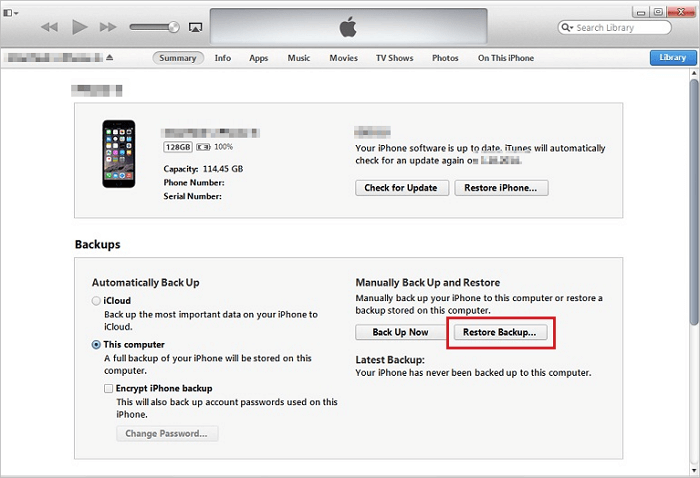
If you have created a backup on iTunes, you can also recover VSCO images from the backup. To do this, follow the steps to restore your iTunes backup, which will recover all data, including your VSCO images, to your device. This method allows you to retrieve your VSCO images even if you can't access them through the VSCO app.
Step 1. Download and run iTunes on your computer, then connect your iPhone to your PC using a USB cable.
Step 2. Select your iPhone from the list, then choose "Restore Backup". Select the most recent backup that is relevant to your device, checking the date and time to ensure it's the latest one.
Step 3. To recover deleted VSCO photos, click "Restore" and the recovery process will begin. This will retrieve all data, including the deleted photos, and restore them.
3. Recover Deleted VSCO Photos from iPhone via iCloud Backup
To recover VSCO photos from an iCloud backup, follow these steps: locate your iCloud backup, restore it to your device, and then access your VSCO app to view your recovered photos. This process allows you to retrieve your VSCO photos even if they were deleted or lost.
Step 1. Go to "Settings" then tap on "Apps and Data" and finally select "Restore from iCloud backup" from the menu.
Step 2. Choose the appropriate backup after checking the date and time.
Step 3. To recover your Apple ID, enter your Apple ID and password and the recovery process will begin.
When the recovery process is finished, your iPhone will have all of its data restored.
Bonus Tips: How to Back Up VSCO Photos to iCloud
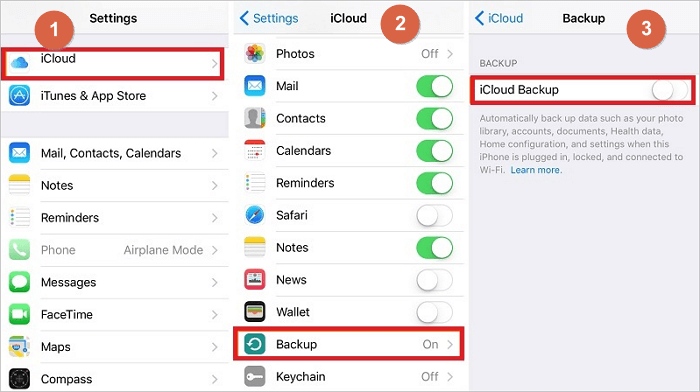
To backup VSCO in iCloud on your iOS device, follow these steps: go to Settings, then tap on your profile picture at the top, select "iCloud", and toggle the switch to enable iCloud Backup. Make sure you have enough iCloud storage to accommodate your VSCO data.
Step 1. To enable iCloud Drive, go to Settings, then tap on iCloud, and finally toggle the iCloud Drive switch to the right. This will allow you to access and sync your files across all your Apple devices.
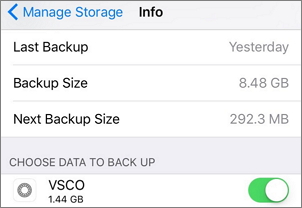
Step 2. In the iCloud Storage menu, tap on "Manage Storage".
Step 3. Under "Backups" tap on your phone name.
Step 4. Under "Choose Data to back up" be sure that the VSCO app slider is enabled.
Conclusion
You can recover deleted photos and images from VSCO using three methods, with the most effective being Qiling iPhone data recovery software, which can recover any data from your iPhone with or without a backup.
Related Articles
- How to Recover iPhone Data After Restore Without Backup
- iPhone Files App | How to Use Files App and How to Recover Files on iPhone and iPad
- How to Have Two Kik Accounts on One Phone
- 4 Ways to Recover Kik Messages After Logging Out [iPhone/Android]
- [SOLVED] Why Won't My iOS 15 Install? Fix the Error
Apple's iOS 15 update was released over 6 months ago, but many iPhone users are still unable to access it or make the most of its features. Despite this, there are steps that can be taken to update the phone to iOS 15 without unnecessary complications. - How to Fix 'Can't View Pictures on SD card in Camera or Computer'
If you can't view pictures on your SD card or photos aren't showing up on your camera or computer, you can try the solutions provided. Additionally, a reliable photo recovery tool called Deep Data Recovery can help you recover any missing photos from the SD card with ease.
Products
Articles & Tutorials
- Data Recovery
- Data Backup
- File Recovery
- File Backup
- System Backup and Restore
- Disk and Partition Clone
- Technical articles
- Mobile articles
- Disk Master Help
- Windows Data Recovery Tutorials
- Windows Secure Delete Tutorials
- Windows Partition Management Tutorials
- Windows File Backup and Restore Tutorials
- Windows System Backup and Restore Tutorials
- Windows Disk Backup and Restore Tutorials
- Windows Clone Tutorials