[SOLVED] Why Won't My iOS 15 Install? Fix the Error
Summary
Apple released iOS 15 updates over 6 months ago, but many iPhone users are still unable to use it. Despite the delay, users can still update their phone to the latest version, and we'll outline the simple steps to do so.
If you're experiencing issues installing iOS 15, there are several potential solutions you can try to resolve the problem. These include restarting your device, checking for software updates, and attempting to install the update through iTunes or a computer. Additionally, you can try deleting the iOS update file, resetting your network settings, or performing a DFU restore.
| Workable Solutions | Step-by-step Troubleshooting |
|---|---|
| Recover iOS 15 Data Without Backup | Connect iPhone to Your PC and Launch Qiling MobiSaver. Scan iPhone and Find...Full steps |
| Fix Can't Install iOS 15 on iPhone | Solution 1. Check if Your iPhone is Compatible...Full steps Solution 2. Put Your Device in Airplane Mode...Full steps Solution 3. Restart or Reboot Your iPhone...Full steps Solution 4. Check Your WiFi and Reset...Full steps More Solutions... |
Why Won't My iOS 15 Install? Fix the Error Now
Apple released iOS 15 in June 2021, with the stable update arriving in September. The operating system introduced features such as Face ID, which allows users to be recognized even when wearing a mask, due to the pandemic.
Some of such problems include.
- WiFi or mobile data not working
- VPN or other virtual network settings
- Device compatibility
- Older mobile phone devices
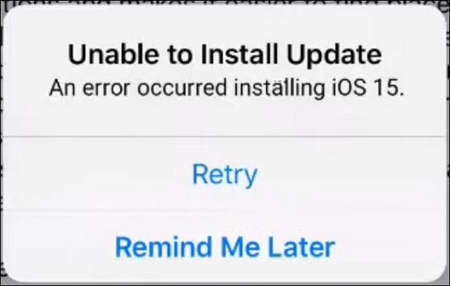
You'll get the same error, "Unable To Install Update", regardless of the problem you're facing. To fix it, you can try various methods such as checking your device compatibility, ensuring sufficient storage space, checking your WiFi connection, and trying the solutions outlined below.
How to Recover iOS 15 Data without Backup
Before upgrading your iPhone to a newer operating system, it's essential to back up all your data. Even if you haven't made a backup before, you can still ensure a proper backup using software like Qiling iOS recovery software. This will help prevent any loss of important information during the upgrade process.
This tool allows you to create a backup of your iPhone data, ensuring it's safe and secure while upgrading to iOS 15. It's recommended to use this tool to prevent data loss during the upgrade process.
- Allows you to directly recover your files.
- Restores selective data from iTunes.
- Recovers data from iCloud backup.
- Extracts only the data you need.
- Creates new backups for the future.
- Supports recovering messages from all apps and creates their backup.
To ensure your device is ready to continue and avoid any potential data loss, use the provided tool to complete this step. Once you've done so, you can proceed with confidence.
Step 1. Select file types and click "Fast Scan" to start
Connect your iPhone to your PC, launch Qiling MobiSaver, and select the desired file types to start the process.

Note: You can choose different search modes based on where and why the data was lost.
Step 2. Choose the Recovery Mode
Choose the recovery mode - "Recover from iOS Device" on the left, and click "Scan".

Step 3. Scan iPhone and Find Lost Data
Qiling MobiSaver automatically scans your iPhone, including iPhone 13/12/11/X/XR/XS/8/7/6/5/4, to find present and even some lost data for you.

Step 4. Preview and Restore iPhone Data
You can recover lost data such as photos, videos, contacts, SMS, notes, voice mails, or other files from your iPhone by choosing the specific type of data you want to retrieve. Once selected, click "Recover" and save the recovered data to a desired location.
How to Fix Can't Download/Install/Upgrade iOS 15 on iPhone
If you've taken the necessary precautions, it's time to stop wondering why your iOS 15 installation is not working and instead explore the 9 ways to download, install, and upgrade iOS 15 on supported iPhones. Let's get started.
If you're experiencing issues with iOS 15 not downloading or installing on your device, don't worry - there are a few troubleshooting steps you can try to resolve the problem. First, let's try restarting your device, which can often resolve connectivity issues that may be preventing the update from downloading. To do this, simply go to Settings > General > Shut Down, wait for your device to fully power down, and then press and hold the sleep/wake button until the Apple logo appears. If this doesn't work, you can also try restarting your device in recovery mode by pressing and holding the sleep/wake button and the volume down button at the same time until the Apple logo appears.
Solution 1. Check if Your iPhone is iOS Compatible
Here are a few devices that are compatible with iOS 15.4: iPhone 6s, iPhone SE (1st generation), iPhone 7, iPhone 7 Plus, iPhone 8, iPhone 8 Plus, iPhone X, iPhone XR, iPhone XS, iPhone XS Max, iPhone 11, iPhone 11 Pro, iPhone 11 Pro Max, iPhone 12, iPhone 12 Pro, iPhone 12 Pro Max, iPhone 13, iPhone 13 Pro, iPhone 13 Pro Max, and iPhone SE (2nd generation).
- iPhone X, XR, XS, XS Max
- iPhone 11, Pro, Pro Max
- iPhone 12, Pro, Pro Max, Mini
- iPhone 13, Pro, Pro Max, Mini
- iPhone 6, 6s Plus
- iPhone 7, 7 Plus
- iPhone 8, 8 Plus
- iPhone SE (All generations)
To find out which phone you have, you can check the back of your phone. The model number is usually printed on the back of the phone, near the bottom. You can also check the phone's settings, usually under "About phone" or "Settings.
Step 1. Go to "Settings".
Step 2. Tap "General > About".
Step 3. Press "Get information about your iPhone".
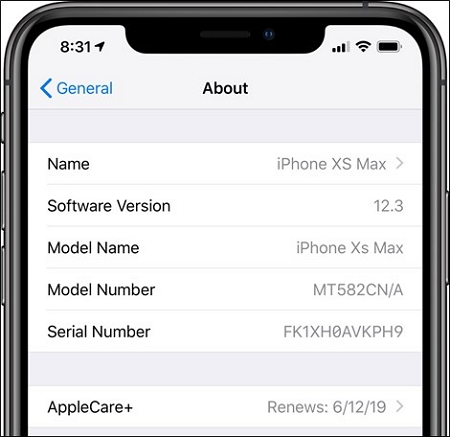
To find the information you need, check the latest update for your phone. You can then determine if your phone can support the latest update.
Solution 2. Put Your Device in Airplane Mode
We'll put your device in Airplane mode to purge all network settings that might be causing issues. This is a simple step to help resolve the problem.
Step 1. Go to "Settings".
Step 2. Navigate and find "Airplane Mode".
Step 3. Toggle it On.
This will ensure your device isn't connected to any WiFi or sim-card networks.
Solution 3. Restart or Reboot Your iPhone
To reboot your iPhone, press and hold the Sleep/Wake button until the "Slide to Power Off" slider appears. Slide it to the right to turn off your iPhone. Wait for 30 seconds, then press and hold the Sleep/Wake button again until the Apple logo appears on the screen. This will reboot your iPhone. If you're still experiencing issues, you may want to try restoring your iPhone from a backup or visiting an Apple Store or Authorized Service Provider for further assistance.
Step 1. Tap "Settings" on your home screen.
Step 2. Go to "General", and Scroll to Shutdown.
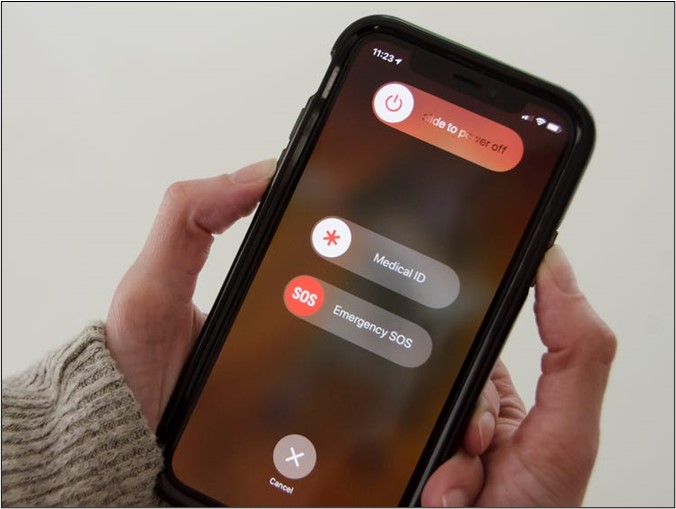
Press and hold the power button for 3-5 seconds to turn it back on after it shuts down.
Solution 4. Check Your WiFi and Reset Network Settings
If your WiFi device or router is interfering with your update, try restarting it or switching to a different network. This can resolve issues like "Unable To Verify Update" and allow your device to complete the update process.
- 1. Unplug your WiFi device for 10 seconds.
- 2. Plug it back in.
- 3. Wait for it and connect to it again.
- 4. Try to update once more.
- 5. Try another WiFi connection.
These problems are most likely to be wiped out by using the said methods.
Solution 5. Turn off Low Power Mode
To turn off Low Power Mode on your phone, follow these steps: go to Settings, then Battery, and toggle the switch next to Low Power Mode to the off position. This will allow your phone to run at full capacity, which is necessary for a successful OS upgrade. By disabling Low Power Mode, you can ensure that your phone has the necessary resources to complete the upgrade process.
Step 1. Head to "Settings".
Step 2. Scroll down to the "Battery" section.
Step 3. Turn off "Low Power Mode".
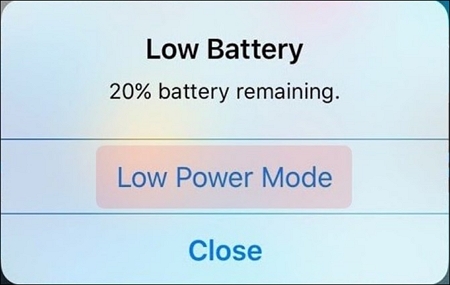
This will ensure your phone is running properly.
Solution 6. Free up iPhone Storage
The upgrade file for iOS 15 and above is at least 2GB, which may be too large for iPhones with less than 8-10GB of storage, making it difficult to download the required files. To resolve this, users may need to free up space by removing unnecessary data and apps.
Step 1. Open "Settings".
Step 2. Tap on "General".
Step 3. Scroll down and tap on "iPhone Storage".
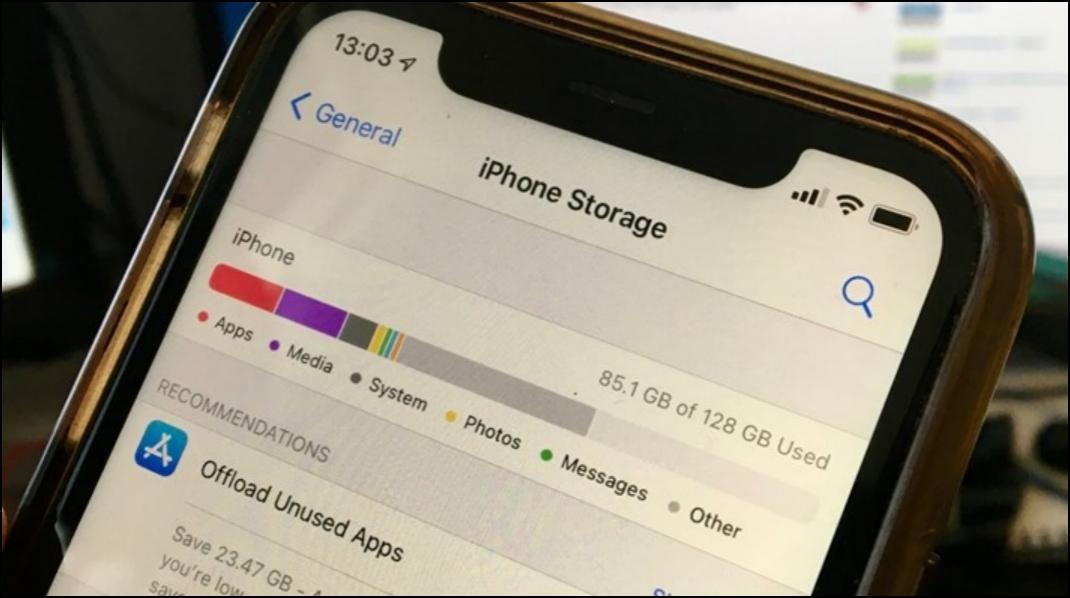
Here, you should see everything that's taking up your storage. Remove the apps and data that you don't need to free up at least 8-10GBs of storage.
Solution 7. Delete Beta Version and Redownload the Update
To remove the existing iOS 15 beta version, go to Settings > General > Software Update, then tap on "Beta Update" to download and install the latest public version of iOS 14. Once the installation is complete, restart your device. Then, go to Settings > General > Software Update again, and you should see the latest public version of iOS 14. Tap on it to download and install it.
Step 1. Head to "Settings" once more.
Step 2. Tap on "General".
Step 3. Press "Profile".
Step 4. Find and delete iOS Beta Software Profile.
This will free up space and remove the beta version from your Apple device.
Solution 8. Update iOS 15 via iTunes
To upgrade your iPhone with iTunes, download the software on your computer, then open it and select your iPhone from the top left dropdown menu. Click on "Check for Update" and follow the on-screen instructions to complete the upgrade. This will ensure your iPhone is running the latest version of iOS.
Step 1. Download & install iTunes.
Step 2. Connect your iPhone to your computer.
Step 3. Run iTunes and click on "Summary" from the sidebar.
Step 4. Click on "Check for updates".
Step 5. Once it shows, click on Download and update.
Solution 9. Wait for Some Time or Try Again Later
If you've been trying for a day or two, the servers on Apple's end might be down, so try again later.
Final Words
To ensure your iPhone's upgrades to the latest OS, use Qiling MobiSaver to keep your data secure, and then follow the steps in this article to recover your important data.
Related Articles
- iPhone 8 Data Recovery: Recover Data from iPhone 8/X/8 Plus
- Recover Permanently Deleted Photos from iCloud
- How to Unlock A Disabled iPhone Without iTunes
- How to Fix: WhatsApp Restore from iCloud Stuck
- How to Recover Ransomware Encrypted Files
Ransomware is an advanced malware that attacks both individuals & enterprises by encrypting the files on your computers, and then you can't access them unless you pay the ransom. - Recover Data from Dead External Hard Drive
You can recover data and files from a dead external hard drive, USB drive, or SD card, and even repair a dead external hard drive, by downloading and using the best hard drive recovery software for free.
Products
Articles & Tutorials
- Data Recovery
- Data Backup
- File Recovery
- File Backup
- System Backup and Restore
- Disk and Partition Clone
- Technical articles
- Mobile articles
- Disk Master Help
- Windows Data Recovery Tutorials
- Windows Secure Delete Tutorials
- Windows Partition Management Tutorials
- Windows File Backup and Restore Tutorials
- Windows System Backup and Restore Tutorials
- Windows Disk Backup and Restore Tutorials
- Windows Clone Tutorials