How to Recover Ransomware Encrypted Files
Quick Navigation: Recover Ransomware Encrypted and Deleted Files
There are several solutions to restore encrypted files after a ransomware attack, and some of them are relatively easy to implement. These approaches can help individuals and organizations recover their encrypted data without paying the ransom. By exploring these options, users can regain access to their files and avoid supporting the malicious activities of cybercriminals.
| Workable Solutions | Step-by-step Troubleshooting |
|---|---|
| 1. Use Data Recovery Software | Run Qiling virus file recovery software on your Windows PC. Select the correct drive according...Full steps |
| 2. Restore from a System Backup | Go to Control Panel, click "System and Security" > "Backup and Restore" > "Restore files from backup"...Full steps |
| 3. Restore from Previous Versions | Locate the directory where the data is stored. Right-click the file, then select "Properties"...Full steps |
| 4. Run Ransomware Decryption Tools | Click the downloaded file at the bottom left corner of your screen...Full steps |
Ransomware Overview
The ransomware virus is a highly advanced and destructive type of computer virus that primarily spreads through emails, program Trojans, and web pages. It uses strong encryption algorithms to infect, delete, and lock files, causing significant harm to infected systems.
Ransomware can spread through vulnerabilities, email, and advertising, and once infected, the virus locks files and demands payment to restore access, with notorious examples including Locky, Zcrypt, CryptoLocker, and others.
We advise against paying the ransom, as even if you do, your data may not be restored to its original state, and you may face increased data risks. Instead, after the infection, you can try some practical methods to recover your ransomware-encrypted files quickly. We will outline a few of these methods in the following parts.
Method 1. Use Professional Virus Attack Data Recovery Software
Before attempting data recovery, it's a good idea to understand the typical workflow of most ransomware attacks.
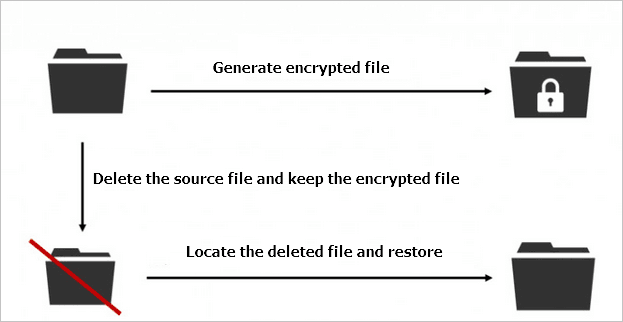
The ransomware doesn't directly encrypt the original files, but rather creates copies of them and encrypts those. The original files are then deleted by the virus. This means that you can potentially recover the original files using a data recovery tool, as long as the software can find the deleted source files.
The first step to recover files infected by the Locky virus is to try Deep Data Recovery software, a reputable file recovery tool that can also recover files affected by other ransomware viruses like CryptoLocker.
Try Qiling Data Recovery Software
- Recover lost or deleted files, documents, photos, audio, music, emails effectively
- Recover files from formatted hard drive, emptied recycle bin, memory card, flash drive, digital camera, and camcorders
- Data recovery support is available for various situations, including sudden deletion, formatting, hard drive corruption, virus attacks, and system crashes. This assistance aims to help users recover lost data under different circumstances.
Step 1. Choose file types and click "Fast Scan" to start
To recover a virus-infected file, run Qiling virus file recovery software on your Windows PC, select the desired file types, and click "Fast Scan" to initiate the recovery process.

Note: You can choose different search modes based on where and why the data was lost.
Step 2. Select the virus infected drive to scan
To scan the disk attacked by the virus for lost or hidden files, select the disk. Note that this process may take some time depending on the size of the disk and the number of files to be scanned. It's also important to be patient and not interrupt the scanning process as it may cause data loss or corruption.
- If files were hidden or deleted by a virus on an HDD, it's best to install software on a different volume or an external USB drive to prevent overwriting of data.
- If the infected device is an external hard drive, flash drive, or memory card, it's okay to install the software on the local drive of the computer.

Step 3. Check all scanned results
Deep Data Recovery will immediately start a scan process to find deleted or hidden files on a virus-infected hard drive. To quickly locate desired files, you can use the Filter or type grouping feature to display only specific types of files, such as pictures, videos, documents, or emails.

Step 4. Preview and recover deleted/hidden files
After the scanning process is complete, you can preview the recovered files. Select the ones you want to recover and click the "Recover" button. Save the restored files to a different, secure location on your computer or storage device, rather than the original location where they were lost.
The ransomware is constantly evolving, and new, more advanced viruses may work differently. However, despite this, we still recommend using a file recovery tool to retrieve data as soon as possible, even if the virus type is unknown, to ensure timely data recovery.
Method 2. Restore from a System Backup
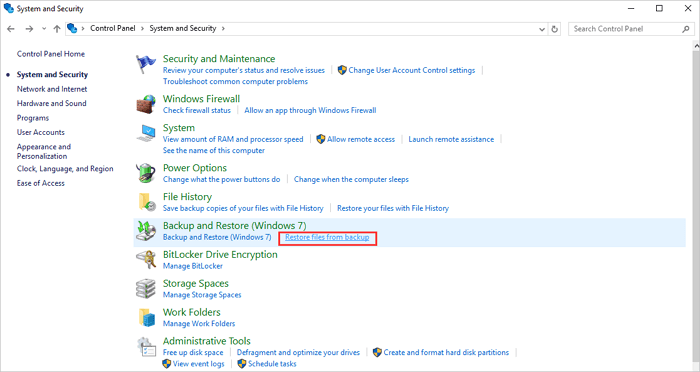
If the data recovery program doesn't work, you can try to recover virus-infected files using Windows backup if you have a system backup. This can help recover data in worse scenarios, making setting up Automatic Windows Backup a useful way to prevent data loss.
To restore files from a backup, go to the Control Panel, click on "System and Security", then "Backup and Restore", and select "Restore files from backup". From there, click on "Restore my files" and follow the on-screen instructions to complete the restore process.
Method 3. Restore from Previous Versions
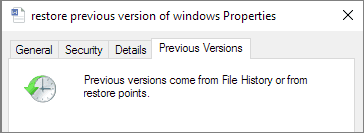
The previous version of the file can help recover encrypted files by ransomware.
1. To access the properties of a file and locate the directory where the data is stored, right-click the file and select "Properties" from the context menu. This will display the file's properties, including the path to the directory where the file is stored.
2. Click the "Previous Versions" tab when the Properties window opens.
Note: If you don't see the Previous Versions tab, you need to install the client. You can contact your support team to get the correct client installed.
3. Select the snapshot that represents the last known good version of the file from the list of available snapshots.
4. Click "View" and verify if it is the correct version of the file. Once you find the right file, do any of the following: If it is the correct file, click "Save" to download it. If it is the wrong file, click "Delete" to remove it and start over.
- After recovering the file, view it directly and then save it by navigating to "File" > "Save As" in the menu.
- A copy of the recovered file will be created in the same directory as the original file, making both copies available.
- To restore the recovered file, you will need to select the "Restore" option, which will replace the current file with the recovered one. This action will overwrite any changes made to the current file since the recovery.
Important: Restoring the file will overwrite the current copy, and any data saved in the present copy will be lost, as the older file will be copied over it.
Method 4. Run Free Ransomware Decryption Tools
You can download the free ransomware decrypt tool called Avast, which can help decrypt files encrypted by ransomware, to unlock your computer.
Step 1. Click the downloaded file at the bottom left corner of your screen.
Step 2. Click "Yes" on the system dialog window to approve the start of your Avast installation.
Step 3. To start the installation, click the button in the installer window. Next, resolve the ransomware error using Avast.

Wrap Up
Ransomware can target both individuals and businesses, causing significant losses. To minimize these losses, prompt action and effective methods to recover encrypted files are crucial. Since many users don't have file or system backups enabled, a data recovery program like Deep Data Recovery can be used to restore files. This product, known for its capabilities in recovering deleted files, virus attacks, formatted data, and more, also offers a free version for trial purposes.
How to Prevent Virus Attack Effectively
Prevention is indeed easier than rescue, and taking a few simple steps can protect your computer from viral infections. By being cautious and taking proactive measures, you can safeguard your device and prevent the hassle of dealing with a virus. To do this, you can try following some basic tips, such as being careful when opening emails and attachments, avoiding suspicious downloads, keeping your operating system and software up to date, and using reputable antivirus software.
- Be cautious with emails from unknown senders and avoid opening attachments or clicking links that seem suspicious or unfamiliar, as they may contain malware or phishing scams.
- Install and enable the anti-Install anti-virus software on your computer. Regularly update it.
- Be cautious when downloading files from the internet, and avoid opening files with suspicious or unknown extensions like .js, .vbs, etc. Instead, use the required software to download these files, and then open them through the software.
- Regularly back up important data and files on your computer, either manually or by using professional schedule backup software for automatic backup.
- Report the ransomware attack as it is an illegal cybercrime.
Related Articles
- Recover Deleted Chrome Downloads and Resume Canceled Chrome Downloads
- How to Restore Missing Desktop Icons and Files in Windows 10/11
- My Documents Folder Missing from Windows 10/11 [Fixed Here]
- How to Recover Unsaved Word Document 2019/2018/2016/2013/2010/2007
- How to Format NTFS to FAT32 without Losing Data
Many devices only support the FAT32 file system, which means that if you have a drive that has an NTFS partition, you will need to format it to FAT32 to use it. - How to Format SD Card for Canon Camera
Don't know how to format SD card for Canon camera? this article helps you step-by-step guide for how to format Canon camera SD card and without data loss.
Products
Articles & Tutorials
- Data Recovery
- Data Backup
- File Recovery
- File Backup
- System Backup and Restore
- Disk and Partition Clone
- Technical articles
- Mobile articles
- Disk Master Help
- Windows Data Recovery Tutorials
- Windows Secure Delete Tutorials
- Windows Partition Management Tutorials
- Windows File Backup and Restore Tutorials
- Windows System Backup and Restore Tutorials
- Windows Disk Backup and Restore Tutorials
- Windows Clone Tutorials