How to Recover Deleted Files from Pen Drive in 3 Ways
If you've lost or deleted files from your pen drive, don't worry - you can recover them using one of the three efficient methods outlined on this page, which provides a complete guide to retrieving data from a pen drive.
| 3 Ways | Pen Drive Recovery Software | CMD Command | Data Recovery Service |
|---|---|---|---|
| Pros |
|
|
|
| Cons |
|
|
|
Your Reliable Tips:If your pen drive data is lost due to deletion or a virus attack, using professional data recovery software is a good option. Alternatively, if you need to recover hidden files, you can use the CMD method. However, if your drive is damaged, it's best to seek the help of experts.
Causes of File Corruption/Loss on USB/Pen Drives
Pen drives, being small, portable, and lightweight, are widely used for storing files and transferring data between devices. However, they are also prone to data loss, and to recover deleted files from a pen drive, it's essential to identify the causes of file loss, which can include accidental deletion, formatting, virus attacks, or physical damage to the device.
- Accidental deletion
- Formatting
- Virus attack
- File system becoming RAW
- Files are hidden.
- Important
- To recover lost data from a pen drive, stop using it immediately after data loss and perform a recovery process as soon as possible to prevent new data from overwriting the lost files.
Fortunately, with the aid of advanced pen drive data recovery software and the command prompt (CMD), you can recover data from a pen drive on your own.
Method 1. How to Recover Files from Pen Drive with Software for Free
You can easily recover lost pen drive data due to deletion, formatting, or virus attacks using third-party recovery software. Qiling, a free data recovery software, is a reliable option for pen drive data recovery, offering efficient and simple solutions to retrieve your lost data.
Qiling USB Data Recovery Tool
- Recover deleted files from a pen drive by using data recovery software. This can help retrieve lost documents, photos, audio, music, emails, and other files.
- You can recover deleted files from various devices and storage media using data recovery software. This includes files deleted from the recycle bin, as well as those lost due to formatting, corruption, or physical damage to devices like pen drives, memory cards, and digital cameras.
- Recover deleted or lost data from pen drives using data recovery software, such as Deep Data Recovery, which can restore files and folders from corrupted or formatted drives, even after a virus attack, OS crash, or other data loss scenarios. The software scans the drive, identifies recoverable files, and allows users to preview and recover specific files or restore the entire drive. This can help retrieve important data, such as documents, photos, and videos, that were lost due to accidental deletion, formatting, or drive corruption.
Download a file recovery software, and follow the steps below to recover deleted files from your pen drive in minutes. The software will scan the drive and find deleted files, allowing you to preview and recover them.
Step 1. Select file types and click "USB/SD Scan" to start
Launch Deep Data Recovery software, select the desired file types, and click "USB/SD Scan" to initiate the recovery process.

Note: You can choose different search modes based on where and why the data was lost.
Step 2. Run USB Data Recovery Software
Connect the USB drive or pen drive to your computer and launch Qiling USB data recovery software. Select the drive labeled as an External drive and click "Scan" to start searching for lost files.

Step 3. Scan and Search Lost Files on a USB Drive
Deep Data Recovery will thoroughly scan your USB flash drive/pen drive and find all your lost data on it. The scan process completes, then use the Filter feature to find wanted files.

Step 4. Restore All Lost Files from USB
A double-Click will allow you to preview the files. Select the target files to restore and click "Recover" to save them to a secure location on your PC or other external storage devices.
Method 2. How to Recover Data from Pen Drive Using CMD
When a pen drive is corrupted or empty, files may disappear, but they're not actually lost. The files are often hidden, not deleted. Using the Command Prompt (CMD) can help recover data from a pen drive when files are hidden from the device.
Here are the detailed steps of using CMD to recover hidden data from your pen drive:
Step 1. Connect the pen drive to your computer.
Step 2. Click "Start", select "Search" and enter cmd.
Step 3. Right-click "Command Prompt" and choose "Run as administrator".
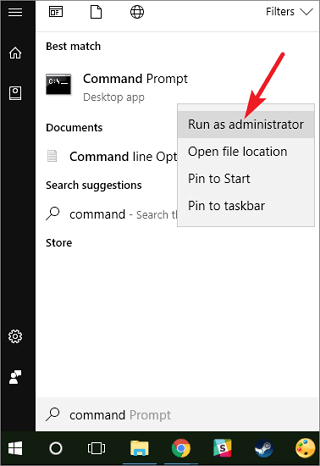
Step 4. In the Command Prompt, type `attrib –h –r –s /s /d e:*.*` and press "Enter".

Syntax Explanation:
- The "-h" option is used to clear the hidden attribute.
- The "-r" option to clear the read-only attribute.
- The "-s" option to clear the system attribute.
- The "/d" attrib option includes directories, not only files, in whatever you're executing, and can only be used with the "/s" option.
- To open a file from your pen drive, insert it into your computer, open File Explorer (Windows) or Finder (Mac), and look for the drive letter of your pen drive (usually "e:"). Open the folder on your pen drive, double-click on the file you want to open, and use a compatible program to view it - for example, Microsoft Word or Google Docs for documents, Windows Media Player or VLC for videos and audio files, Windows Photo Viewer or Google Photos for photos, or WinZip or 7-Zip for compressed files. If you're still having trouble, you can search online for help or contact the file's creator.
Step 5. Wait patiently, when the process completes, type exit and hit "Enter".
Once you've successfully booted your computer from the USB drive, you can simply remove the pen drive and your computer will automatically recognize the data on it, allowing you to access and use it as you normally would. This process typically takes only a few seconds, and your data will be restored to its original location on your drive.
Method 3. Use a Data Recovery Service to Repair a USB Flash Drive
If your USB flash drive or pen drive is physically damaged, data recovery software won't work, but you can still recover data with the help of data recovery experts. Qiling has partnered with a reliable data recovery lab in the US, offering DIY data recovery solutions that can even recover data from devices previously thought to be unrecoverable.
Consult with Qiling data recovery experts for a one-on-one manual recovery service. After a free diagnosis, we can offer the following services, including manual recovery.
- To fix errors and restore data from various storage devices, including hard disk drives (HDD), solid state drives (SSD), external hard drives, and USB flash drives, as well as recover data from all RAID levels, you can use specialized software and tools. These tools can help diagnose and repair issues, recover deleted or corrupted files, and even restore data from failed or damaged storage devices.
- To recover lost partitions that cannot be restored by data recovery software, you can try using a partition recovery tool. These tools scan the hard drive for any remaining partition information and attempt to rebuild the partition table.
- To fix disks that cannot be read or accessed due to bad sectors, you can use a combination of built-in Windows tools and third-party software. First, use the built-in Check Disk (chkdsk) utility to scan the disk for errors and bad sectors.
- Fix disks that become GPT protected partitions
- Wipe data, unformat hard drive, Install/uninstall software or driver, etc.
Here Is What to Do after Recover Deleted Files from Pen Drive
After restoring deleted files, we suggest you save your files to another drive instead of the original pen drive. And here are some pen drive protection tips that we would like to share with you.
Tips on What to Do after Pen Drive Data Recovery:
- Format the pen drive to a suitable format, such as FAT32 or NTFS, using a USB formatter.
- #2. Create a backup of important pen drive files regularly.
To prevent data loss, back up your pen drive data using free backup software, syncing to cloud storage, or copying and pasting it, and consider a third-party backup software like Qiling Backup for a secure option.
Step 1. When using Qiling Backup for the first time to back up files, click on "File backup" on the "Backup and recovery" page.

Step 2. To back up files, folders, or directories, follow the paths to locate them, and then select them all at once.

Step 3.The backup location is where you'll save and retain the backup. You can select a location on your computer or an external drive.

Step 4.Qiling Backup allows users to save backups to various devices, including local hard drives, external USB drives, SD cards, network drives, NAS drives, and Qiling's cloud drive. We recommend choosing the cloud drive for its greater accessibility, flexibility, and safety compared to physical drives.
Step 5. If you want to set up an automatic and intelligent backup schedule for your next file backup task, go to the "Options" setting. There, you can choose to encrypt confidential files, compress the backup image size, or customize a backup schedule to specify when the next backup should start.

Customize an advanced and automatic backup task here:

Step 6. Click on the "Proceed" button to initiate the file backup process, and the backed up files will be displayed in a card style on the left side of the screen.
- #3. Run antivirus regularly to keep your PC and pen drive safe.
Conclusion - Your Deleted Pen Drive Files Are Important
The causes of your pen drive loss issue were explained on this page, and two reliable ways for pen drive data recovery were provided - using third-party software or CMD.
- Deep Data Recovery software allows for the recovery of deleted or formatted data in just 3 steps, making it a great tool for beginners.
- Method 2: CMD - you can retrieve hidden files from your device.
- You can recover lost USB files by using a data recovery service, which allows experts to help you retrieve your files.
Take immediate action to recover deleted files from your pen drive, as the longer you wait, the lower the chances of successful recovery.
Related Articles
- Best Hard Drive Recovery Solutions | Recover Data from Hard Drive
- How to Repair and Fix USB Flash Drive Not Recognized/Detected
- Fix Unspecified Error When Copying File or Folder on Windows 10
- Fix Windows Update Error 0x80240034
- 10 Word Repair Fixes to Open and Repair Corrupt Word 2016/2019
If you're experiencing issues with a Word.doc or.docx file not opening or being unreadable, there are several potential causes and solutions to consider. The problem may be due to a corrupted file, and using a repair tool like Qiling Word repair tool can provide an instant solution. - How to Open ASD File and Recover Lost Word Document Easily
You can open ASD files in various ways, including using Word's Recover Unsaved Documents and Manage Documents features, as well as File Explorer. Additionally, you can recover lost ASD or Word files with Qiling data recovery software, which offers an easy-to-use solution for retrieving lost files.
Products
Articles & Tutorials
- Data Recovery
- Data Backup
- File Recovery
- File Backup
- System Backup and Restore
- Disk and Partition Clone
- Technical articles
- Mobile articles
- Disk Master Help
- Windows Data Recovery Tutorials
- Windows Secure Delete Tutorials
- Windows Partition Management Tutorials
- Windows File Backup and Restore Tutorials
- Windows System Backup and Restore Tutorials
- Windows Disk Backup and Restore Tutorials
- Windows Clone Tutorials