10 Word Repair Fixes to Open and Repair Corrupt Word 2016/2019
Quick Steps to Open and Repair a Corrupted Word 2016 File:
Step 1. Run Qiling Word repair tool.
Step 2. Scan and repair corrupt, unreadable, won't open Word 2016 file.
Step 3. Preview and save the repaired Word 2016 document.
Microsoft Word 2016 is unable to open a .doc or .docx Word file. The error message says "Word experienced an error trying to open the file" or "Word was unable to read this document. It may be corrupt".
If you're having trouble with Microsoft Word 2016 not opening or being unreadable on your Windows PC, there are steps you can take to resolve the issue. First, try restarting your computer to see if that resolves the problem.
Related: Fix Word Not Opening on Mac
How Do I Open and Repair a Corrupt Word 2016 Document
To determine whether it's the Microsoft Word application crash or the Word file won't open issue, you can try opening a new Word document to see if it opens successfully. If it doesn't, it's likely an application crash.
If you encounter an error while trying to open a Word document file in Word 2016/2019 or 2013, it's likely due to a problematic Word document file on your Windows computer. The error may be caused by a corrupted or damaged file, which can be caused by a variety of factors such as a power outage, a virus, or a software issue.
Error 1 - "Word experienced an error trying to open the file"
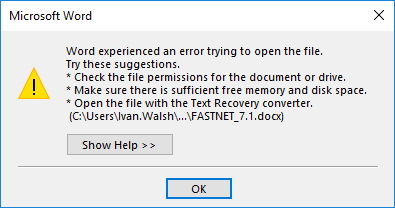
When you encounter the error "Word experienced an error trying to open the file. Try opening the file again," you can try the following steps to resolve the issue on your own.
|
* Check the file permissions for the document or drive. Ensure that there is sufficient free memory and disk space. * Open the file with the Text Recovery converter. |
This page covers various methods in Part 1, with detailed tutorial steps provided for each.
Error 2 It looks like the document you're trying to read is corrupted. This can happen when a file is damaged or incomplete. You might want to try opening it in a different program or checking for any errors in the file itself. If the issue persists, you could also try re-downloading the document or seeking help from the person who created it.
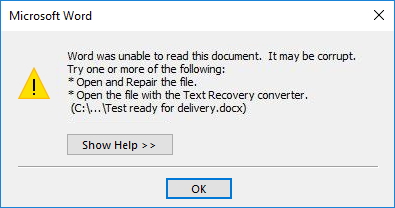
The other typical Word document corrupt symptom is that Word document becomes unreadable. The error also comes up with the following suggested fixes:
|
* Open and repair the file. * Open the file with the Text Recovery converter. |
Error 3 - "Word cannot open the document"

This error usually comes when a user doesn't access privileges.
If you're having trouble opening a Word file in Microsoft Word 2016/2019/2013 or older versions, check out and follow one of the fixes listed, which should help you successfully repair and open the file.
Part 1. 10 Fixes to Open and Repair Word 2016/2019
To fix Microsoft Word won't open, open an unreadable Word document, access and fix corrupt Word 2016 document, try the following: 1) Close and restart Word, 2) Check for any corrupted files and delete them, 3) Run the built-in Word repair tool, 4) Try opening the document in a different version of Word, 5) If the issue persists, try reinstalling Word or running a System File Checker (SFC) scan. 6) If all else fails, try using a third-party repair tool such as Word Repair or Deep Data Recovery.
To fix a corrupted Word document file, you can try opening it in Word's built-in recovery mode, which can recover some or all of the document's contents. If that doesn't work, you can also try using the "Open and Repair" feature in Word. If the file is still corrupted, you can try using a third-party repair tool like Microsoft's own "Repair" tool or a dedicated file repair software.
- #1. Use Qiling Word Repair Tool
- #2. Unlock Word File
- #3. Use Text Recovery Converter
- #4. Insert the File in a New Document
- #5. Open Corrupt Word in Draft Mode
- #6. Make Sufficient Free Memory and Disk Space
- #7. Use Open and Repair
- #8. Change the Word Document Format
- #9. Open the Document with Notepad
- #10. Find and Recover from Temporary Autosave File
These fixes can also be used to repair corrupted documents in Microsoft Office Word 2013/2010/2007, etc. By applying the former fixes, it will be more efficient to repair the corrupt Word file.
2016 Word document not opening? Don't worry, I've got a solution for you.
Method 1. Use Qiling Word Repair Tool
Works to: Open and repair Word 2016/2019 in only 3 steps.
Best for: All levels of Microsoft users, especially friendly for beginners.
If your Word 2016 or 2019 file won't open, the first priority is to repair the file and recover its content. To make this process easier, the Qiling data recovery team has developed a new algorithm that can be added to the latest version of Deep Data Recovery, making it a powerful tool for repairing Word files.
Unlike other Word file repair tools, Deep Data Recovery automatically repairs corrupted, damaged, or unreadable Word files during the scanning and previewing process.
Download this software and follow to learn how to repair your corrupt Word document files on your own:
Step 1. Launch Deep Data Recovery, select the document type, and click "Fast Scan" to initiate the recovery process.

Note: You can choose different search modes based on where and why the data was lost.
Step 2. This software allows you to repair damaged Word, Excel, PPT, and PDF files in a single process. Click "Scan" to initiate the repair process.

Step 3. Qiling data recovery and repair tool will scan for all lost and corrupted files, allowing you to find them by file type or search by typing the file name in a search box.

Step 4. Deep Data Recovery can automatically repair damaged documents, allowing you to recover and save Word, Excel, and PDF files to a safe location after previewing them.
Besides opening and repairing corrupt Word 2016/2019 files, this software can also repair other file types, such as damaged Excel files, videos, and images.
Method 2. Unlock Word File
Works to: Unfortunately, it's not possible to directly open a Word document that was altered by a third-party software during the transmission process in its original state. However, you can try to recover the original document by using the built-in "Recover Unsaved" feature in Word or by using a third-party recovery tool.
Best for: Beginners
When trying to open a Word 2016/2019 file, an error message appears stating "Word experienced an error trying to open the file...", which is often caused by third-party software interfering with the file's transfer or access permissions.
You can try to unlock the file with the following steps:
Step 1. Right-click the problematic Word file and select "Properties".
Step 2. On the General tab, uncheck "Read-Only" > "OK".
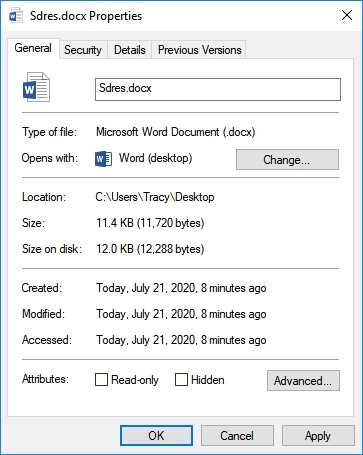
The Word file should now be accessible on your computer without any problems.
Note that if you met this error on many Word documents, try the following steps:
Step 1. Move all Word documents that are causing issues to a single folder for easier access and management.
Step 2. Open Word 2016 and click "File" > "Options".
Step 3. Click "Trust Center" and then click "Trust Center Settings".
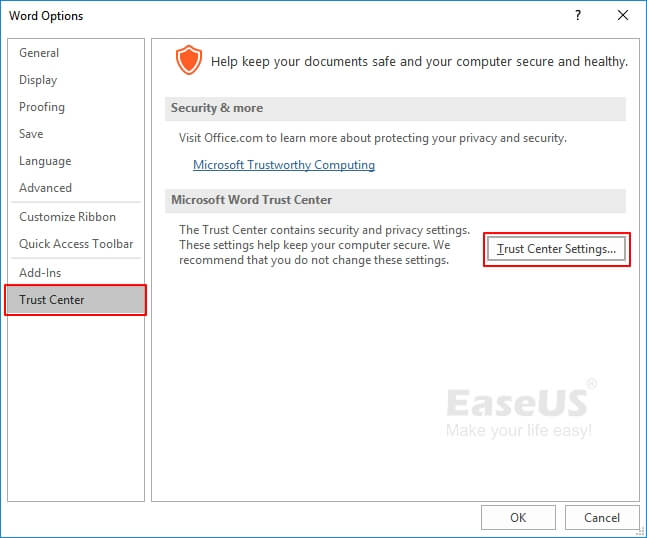
Step 4. Click "Trusted Locations" > "Add new location".
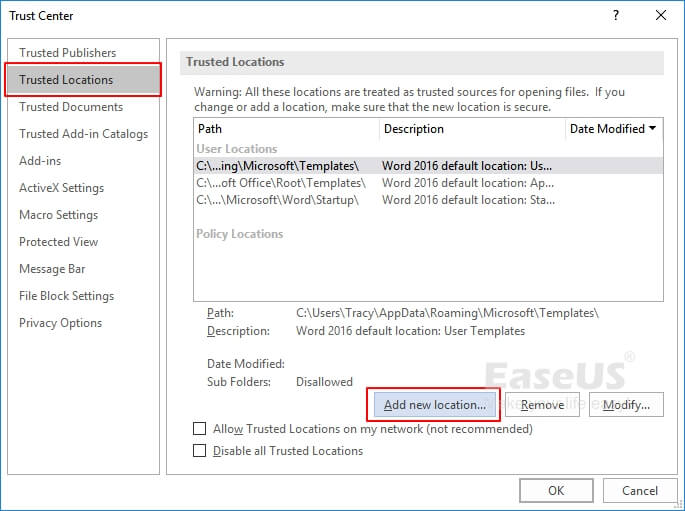
Step 5. To save files, browse to a new location, click "OK" twice to confirm the action.
Method 3. Use Text Recovery Converter
Works to: Fix Word document unreadable or won't open issue.
Best for: Experienced Word 2016/2019 users.
Step 1. Open the Word 2016 application, go to File > Open.
Step 2. Click "Browse".
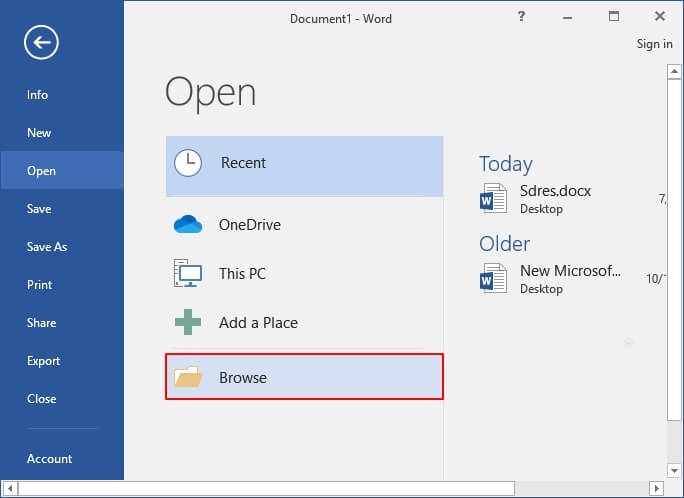
Step 3. To fix a not opening Word 2016 file, navigate to the file and select "Recover Text from Any File" from the dropdown menu. This will attempt to recover any text from the file, even if it's not in a recognizable Word format. This can sometimes salvage a file that's been corrupted or damaged.
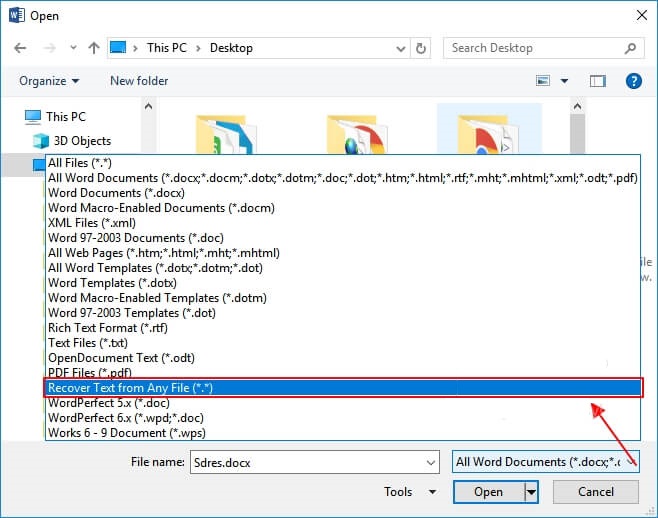
Step 4. Wait for the Word application to open and display the document content after clicking "Open".
Step 5. Once you see the file content, we suggest you copy and paste the content and save it as a new file in case of further issues.
Method 4. Insert the File in a New Document
Works to: Open a not opening Word document.
Best for: Beginners and experienced Word users.
Step 1. To create a blank new Word document in Word 2016, simply open the application and click on the "Blank Document" option from the available templates. This will create a new, empty Word document with a default font and margins, allowing you to start writing or typing from scratch.
Step 2. To insert text from a file, go to the Insert tab on the menu bar, click on "Insert Object", and select "Text from File" from the dropdown options.
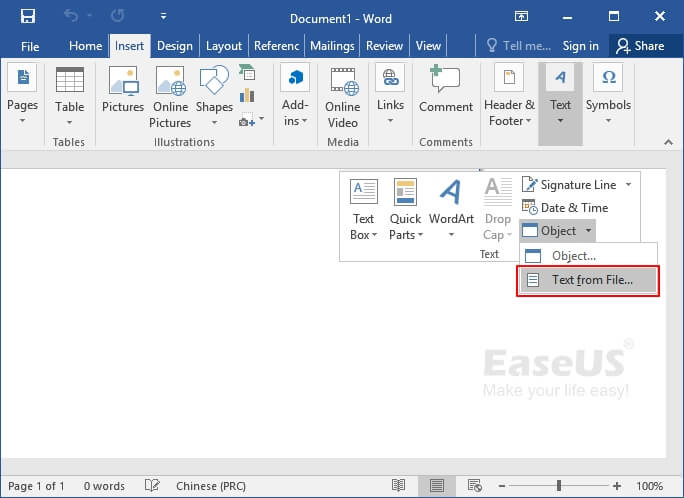
Step 3. In the Insert File box, select the Word file you want to insert and click Insert.
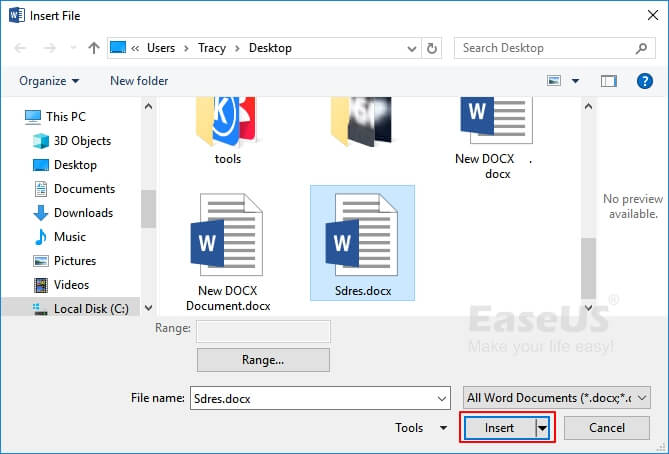
Step 4. Wait for the application to open and read the corrupt Word 2016 document content.
The purpose of this document is to provide a clear and concise overview of the key points discussed during the meeting. The main points include the main points discussed
Method 5. Use Open and Repair
Works to: Open and repair corrupt Word file in 2016/2019/2013, etc.
Best for: Beginners and experienced Word users.
Step 1. To open Word 2016, go to "File" > "Open" > "Browse" in the application.
Step 2. Select the corrupted Word file, then right-click on it and choose the 'Open with' option.
Step 3. To repair the file, click the dropdown arrow next to "Open" and select "Open and Repair".
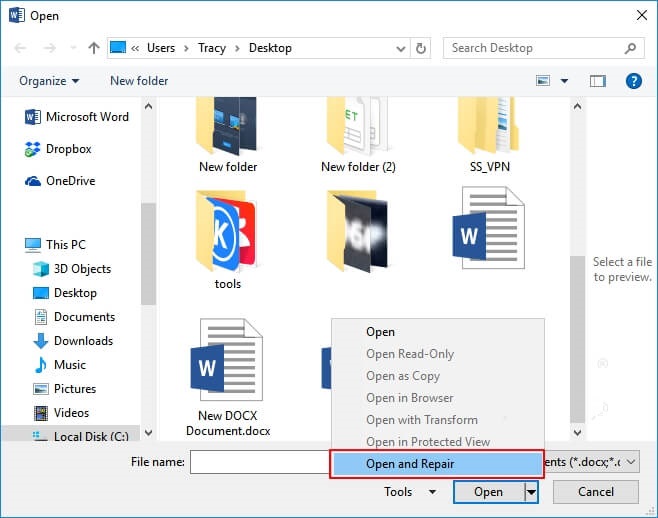
Wait for the process to complete, then copy and save the content to a new file.
Method 6. Open Corrupt Word in Draft Mode
Works to: Open a not opening Word file in 2016/2019/2013, etc.
Best for: Experienced and professional users.
Step 1. To view the Word document in draft mode, open the Word application, navigate to the View tab, and within the Views group, select "Draft".
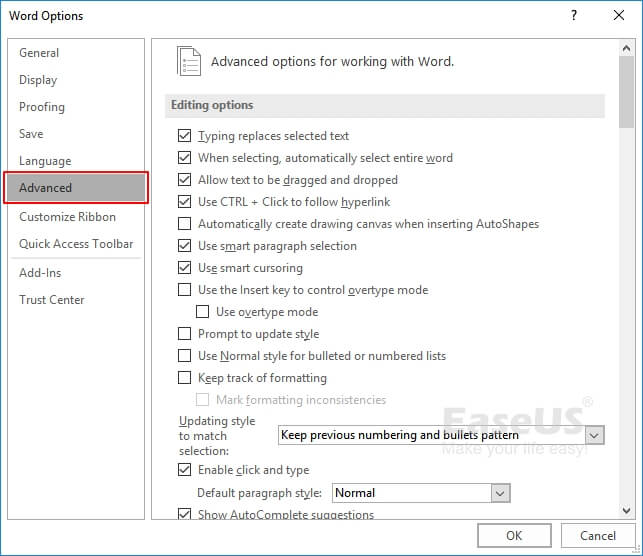
Step 2. Select "File" > "Options" > "Advanced".
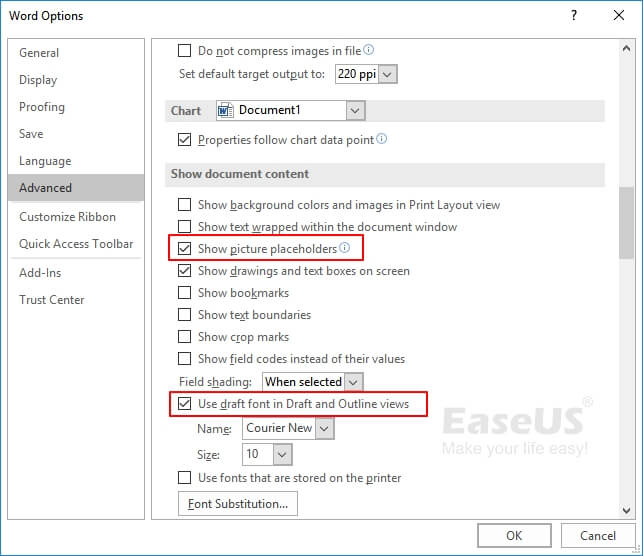
Step 3. In the Show document content section, select "Use draft font in Draft and Outline views" and "Show picture placeholders" to customize the appearance of your documents.
Step 4. To disable the automatic update of links in Word, go to the Display section, uncheck the box next to "Update automatic links at open", and then select "OK" to apply the changes and close the program.
Step 5. Restart the Word application, go to "File" > "Open".
Step 6. To open a damaged or not opening Word 2016 file, select the file, then click on "Open".
Method 7. Change the Word Document Format
Works to: If you're having trouble opening a Word document that's saved in a format that's not readable by your version of Word, you can try saving it in another format that's more compatible.
Best for: All levels of Word users.
Step 1. Start Word 2016 application and go to "File" > "Open".
Step 2. Select the unreadable or corrupt Word document and select "Open".
Step 3. Go to "File" > "Save as" > Select "Browse".

Step 4. To save a document as a Rich Text Format file, select the "Rich Text Format (*.rtf)" option from the Save as file type list.
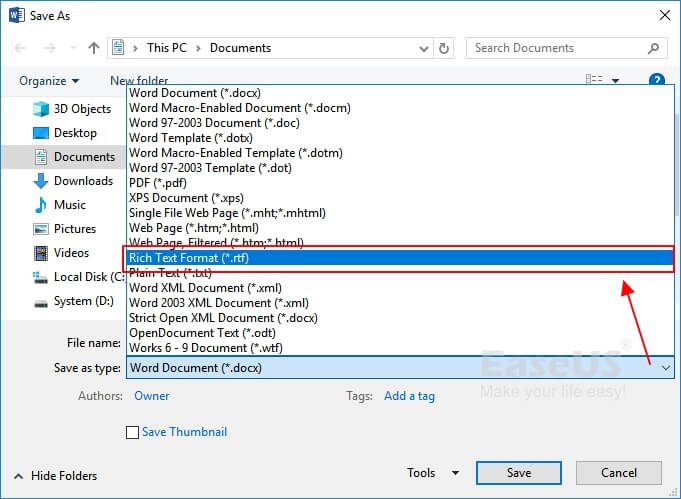
Step 5. Select "Save". Then close Word.
Step 6. To view the content of your Word 2016 document, double-click on the RTF file to open it. This will display the text, images, and other elements that were saved in the RTF format.
If the file opens and your file content is safely saved in the file, you can repeat the process to save it as a Word document in .doc or .docx format.
Method 8. Open the Document with Notepad
Works to: Open a not opening or damaged Word file in Notepad.
Best for: All levels of Word users.
Step 1. To access the damaged Word document, open File Explorer on your computer and navigate to the folder where you saved the document. This will allow you to view the file's contents and potentially recover any lost data.
Step 2. Right-click the damaged Word 2016 file and select "Open with".
Step 3. Select "Notepad" as the tool to open Word.
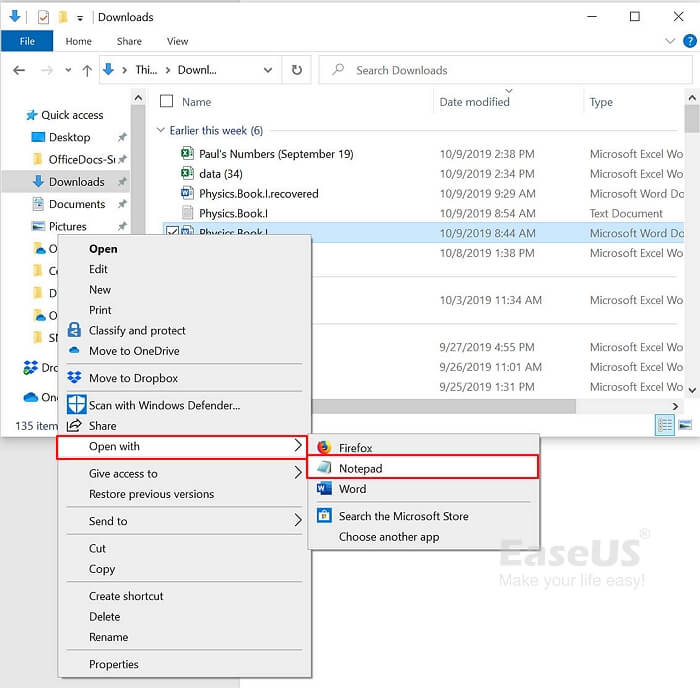
Step 4. Wait for the Notepad to open the Word document.
Method 9. Make Sufficient Free Memory and Disk Space
Works to: Open a not opening Word file caused by insufficient memory and disk space.
Best for: Experienced and professional users.
When Windows is low on memory and disk space, it may prevent Word from opening files or creating new documents. To resolve this, increasing memory and disk space is the recommended solution.
Fortunately, there are many ways to increase memory and disk space on your computer, ranging from easy to more complex solutions.
For a more detailed guide, please refer to: Five Fixes for "There is not enough memory or disk space to run Word" Error.
Method 10. Find and Recover from Temporary Autosave File
To repair or open a Word file that won't open due to being damaged or not opening properly, an alternative method is to utilize the Temporary Autosave File. This file is automatically generated by Word when it encounters issues saving the document, and it can be used to recover the content of the original file.
Best for: All levels of Word 2016/2019, etc., users.
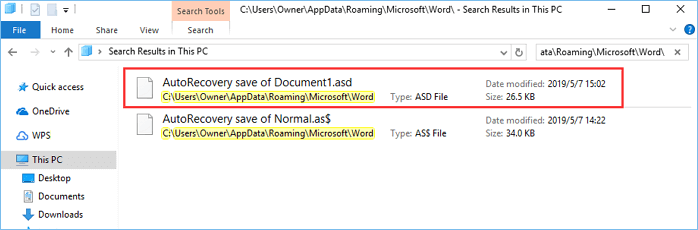
If the Word file is not opening or is damaged, you can try to recover it by looking for the temporary autosave file. Open the Temporary Autosave File folder and find the temp file of the not opening or damaged Word file.
Here are the steps:
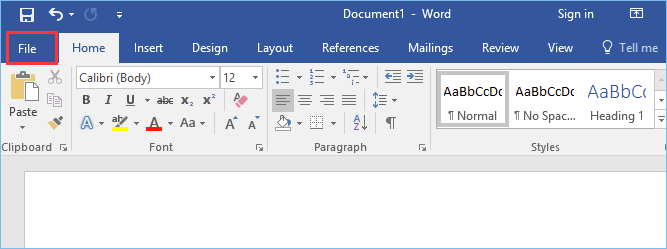
Step 1. Open Word 2016 application and go to "File".
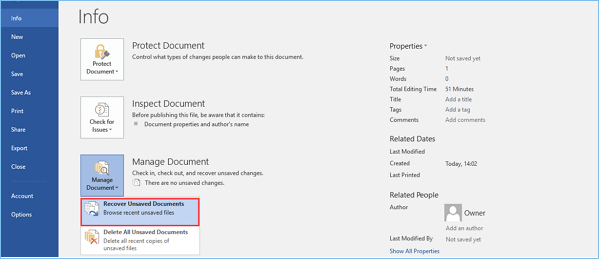
Step 2. To recover unsaved documents, click "Manage Document" and select "Recover Unsaved Documents" from the dropdown list.
Step 3. To resolve the issue with your Word document saved with a .asd extension, you need to check and select the temporary files associated with it. These temporary files are usually saved in the same location as the original document and have a similar name but with a .txt file.
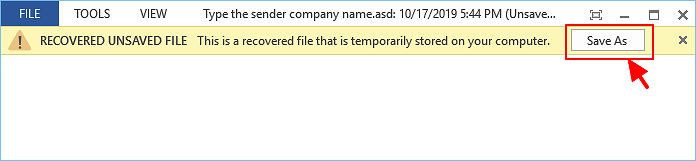
Step 4. Wait for the Word application to open the recovered Word document, then click "Save As" to save it as a new document.
Part 2. How to Open and Repair a Corrupt Word File on Mac
Applies to: To fix and repair a corrupt Word 2016/2019/2013 and even older versions of Word file on Mac, follow these steps: Open the Word application, go to the "File" menu, and select "Open". Navigate to the location of the corrupted file, select it, and click "Open".
Best for: All levels of Word and Mac users.
If you're experiencing difficulties opening a Word document on your Mac, you can try using the Mac version of Qiling repair tool, specifically Data Recovery Wizard for Mac, to help resolve the issue.
This software allows you to repair corrupted Word documents on Mac in just 3 steps, and also supports fixing corrupted Excel files and repairing corrupted MOV files on Mac.
To open and repair Word 2016 on your Mac, make sure you download the correct version and follow the tutorial steps below. Ensure you download the correct version of Word 2016 for your Mac computer, and then follow the tutorial steps to open and repair the application.
Step 1. Select the file types and click Fast Scan button.
Note: You can choose different search modes based on where and why the data was lost.
Step 2. To recover your lost Word documents, select the location where they were originally saved, click the "Scan" button, and follow the on-screen instructions to locate and recover your files.
Step 3. Deep Data Recovery for Mac starts a quick scan and a deep scan on the selected disk volume, displaying the scanning results in the left pane.
Step 4. To recover lost Word files, select them by path and type, and then click the "Recover" button to quickly retrieve them.
In The End
On this page, we covered the symptoms that can help you identify if a Word file is corrupted or not opening, and collected 10 practical fixes to help you effectively open and repair Word document files in Microsoft Office 2016/2019, etc.
For a quick and secure way to fix corrupted Word files, consider using the Data Recovery Wizard tool, which is also capable of repairing Excel, videos, and images with ease.
Further FAQs about Corrupted Word File Repair
1. How to define if it's the Word application or the Word document corrupted?
Symptoms and error messages that may appear when a Word document is not opening or corrupted include specific error messages.
Here are some symptoms that can be applied to determine whether it is your Word application that crashed:
Error 1 - "Microsoft Word has stopped working"
If you encounter the error message "A problem caused the program to stop working correctly. Please close the program", you'll need to troubleshoot the crashed Word program and find methods to resolve the issue.
8 Fixes for Microsoft Word Has Stopped Working.
Error 2 - "WINWORD.EXE - Application Error" or Error Code
If you're experiencing an error code like "The application was unable to start correctly (0x000142)" when trying to start Microsoft Word, it indicates a problem with the Word application itself, not your system. This issue can be caused by a corrupted Word installation or a recent update that's causing conflicts. To resolve this, you can try reinstalling Word, checking for any corrupted system files, or running a System File Checker (SFC) scan.
2. Where is open and repair in Word?
To find the "Open and Repair" option in Microsoft Word, follow this path: File > Open > Browse > [select the corrupted file] > Options > Repair. This will attempt to recover the document and may fix any issues. If the file is still corrupted, you may need to use a third-party tool or contact Microsoft support for further assistance.
To fix a corrupted Word file, open Word, go to File > Open, select the corrupted file, and instead of just clicking Open, click the dropdown arrow to bring up the "Open and Repair" option. This may allow you to recover some or all of the file's content.
3. Why is my word document not opening?
Whether networked or stand-Documents may fail to open due to a corrupted data file or a damaged disk, but the solution is not to panic.
If your Word document is not opening, your next step is to try practical Word recovery and repair methods. Searching through Part 1 of this page, you'll find 10 fixes, including Deep Data Recovery, that are ready to help you recover and repair your Word document, making it openable and usable again.
Related Articles
- How to Remove/Delete Directory in Linux
- How to Recover Deleted/Lost Vimeo Videos
- Microsoft's Windows File Recovery Tool Full Review
- Free Download USB Flash Drive Recovery Software to Undelete Files
- Microsoft Word Has Stopped Working [9 Useful Fixes]
If Microsoft Word has stopped working or won't open a document on your Windows 10/8/7 computer. You can use the methods on this page to resolve the issue, and also use Qiling file repair to easily repair and recover deleted Word files. - Microsoft Partition Recovery Tool Free Download (2022): How to Get It and Apply
To recover a deleted or lost partition in Windows 10/8/7, use a Microsoft partition recovery tool that can easily retrieve data from NTFS, FAT, EXT2/3, and ExFAT hard drive partitions that have been accidentally deleted or removed.
Products
Articles & Tutorials
- Data Recovery
- Data Backup
- File Recovery
- File Backup
- System Backup and Restore
- Disk and Partition Clone
- Technical articles
- Mobile articles
- Disk Master Help
- Windows Data Recovery Tutorials
- Windows Secure Delete Tutorials
- Windows Partition Management Tutorials
- Windows File Backup and Restore Tutorials
- Windows System Backup and Restore Tutorials
- Windows Disk Backup and Restore Tutorials
- Windows Clone Tutorials