Microsoft Word Has Stopped Working [9 Useful Fixes]
These suggestions apply to Microsoft Word for Office 365, Word 2019, Word 2016, Word 2010, Word 2007, and Word for Mac.
Microsoft Office Word has stopped working and Word file recovery and repair can be achieved through eight different methods. These approaches can also be applied to fix similar issues on other Office apps, such as Excel and PowerPoint.
| Workable Solutions | Step-by-step Troubleshooting |
|---|---|
| Fix 1. Repair Corrupted Word | A corrupted file may make the Word stop working. Fix the corrupted Word documents with file repair tool...Full steps |
| Fix 2. Disable Add-ins in Safe Mode | Certain add-ins may cause compatibility issues that cause a "Word stopped working" error with Office apps...Full steps |
| Fix 3. Repair Office 2016 | If Word is damaged or corrupted. Try a quick repair first, and if that doesn't work, try the online repair...Full steps |
| Fix 4. Install Latest Update | Download and install the latest updates for your version of Office and Windows to fix Word not working...Full steps |
| Fix 5. Insert Word into Another File | Microsoft Word has stopped working error can occur while opening your previously saved documents...Full steps |
| More practical solutions | Update old printer drivers; remove or delete word registry keys; uninstall and reinstall MS office...Full steps |
Issue: Microsoft Word Has Stopped Working 2016/2013/2010/2007
With the widespread use of Microsoft Office, its applications like Word have become extremely popular, but with great user base comes great problems. One of the most common issues faced by Word users is the frustrating error message "Microsoft Office Word has stopped working".
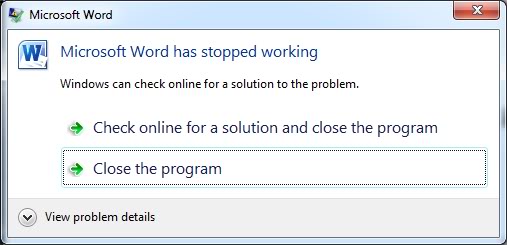
When Microsoft Word stops working, you typically have two options: check online for a solution or close the program. However, closing the application can lead to Microsoft Word not opening, making it difficult to access your work.
Microsoft Word not working issue in Microsoft Office Word 2016, 2013, 2010, or 2007 can be resolved by checking and applying the provided solutions, which may vary depending on the specific situation.
9 Fixes for Microsoft Word Has Stopped Working Error in Windows 10/8/7
If Microsoft Word stops working, wait for the program to process and try to save your document. If it doesn't progress, click "Close the program" and follow the necessary steps to resolve the issue.
Fix 1. Repair Corrupted Word Documents with a File Repair Tool
When trying to open a corrupted Word document, you may encounter the "Microsoft Word stopped working" issue. To resolve this, you can use a robust file repair tool, such as Qiling, to fix the damaged document. This software is capable of repairing corrupted Word, Excel, and PPT files from various Microsoft Office versions, including 2019, 2016, 2013, 2010, and earlier versions.
Qiling file repair software fixes unreadable content in Word and restores it to the original form, also fixing damaged, corrupted, or inaccessible PDF files and recovering all objects.
Step 1. Launch Deep Data Recovery. Select file types and click "Fast Scan" to start.

Note: You can choose different search modes based on where and why the data was lost.
Step 2. This software allows you to fix damaged Word, Excel, PPT, and PDF files by scanning the disk with corrupted documents in one simple step, enabling you to recover them in the same process.

Step 3. Qiling data recovery and repair tool scans for all lost and corrupted files, allowing you to find target files by type or search for them by name in the search box.

Step 4. Deep Data Recovery can automatically repair damaged documents, allowing you to recover and save Word, Excel, and PDF files to a safe location after previewing them.
Fix 2. Disable Add-ins in Safe Mode
Some incompatible add-Starting the Office app in Safe Mode and disabling add-ins can help identify if a Word to stop working error is caused by an add-in, and prevent it from occurring.
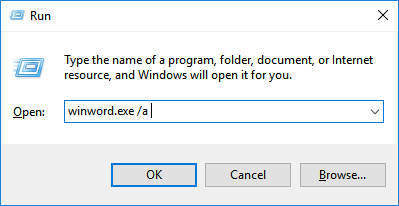
Step 1. To open MS Word in Safe Mode without plugins, press the Windows + R keys and type "winword.exe /a" and hit Enter, or use "winword /safe". If Word can't be launched in Safe Mode, the issue is not with add-ins, and you should try repairing Office or uninstalling and reinstalling it instead.
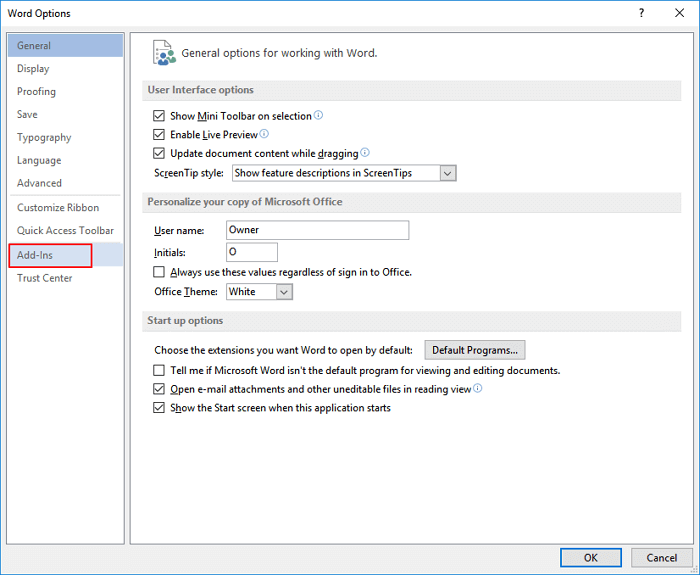
Step 2. If Word starts in Safe Mode, you can resolve the issue by disabling application add-ins and COM add-ins. To do this, click on "File", then select "Options", and finally choose "Add-Ins" from the menu. This will allow you to troubleshoot and potentially resolve the problem that's causing Word to start in Safe Mode.
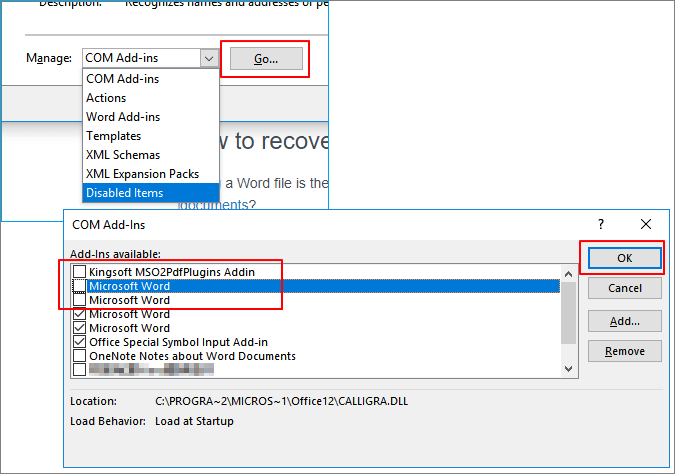
Step 3. To resolve the issue, click "Manage" at the bottom of the Excel window, select COM Add-ins, and then click "Go" to uncheck the problematic add-ins. It's a good idea to start by unchecking outdated add-ins such as Abbyy FineReader, PowerWord, and Dragon Naturally Speaking, as they may be causing the problem. Once you've unchecked these add-ins, click "OK" to confirm and see if the issue is resolved. If not, you can continue to uncheck other add-ins and try again.
If you're experiencing issues with Word, try restarting the application to see if it resolves the problem. To do this, close Word and then reopen it.
Fix 3. Repair Office 2016/2013/2010/2007
Microsoft Office users have reported experiencing errors when using Word, which can prevent them from opening or editing files. This can result in an error message stating that Microsoft Word has stopped working or that Microsoft Word is not opening.
To resolve the issue where Microsoft Office shuts down immediately after launching, try repairing the Office installation. This can be done by following these steps:
Step 1. To uninstall Microsoft Office in Windows 10, 8, or 7, open the Control Panel, click on "Programs and Features", and then click on "Microsoft Office" to initiate the uninstallation process.
Step 2. To change the Microsoft Office version, select the installed Microsoft Office from the list of installed programs, and click "Change" in the top menu bar. This will open the "Change" window where you can select the version you want to install.
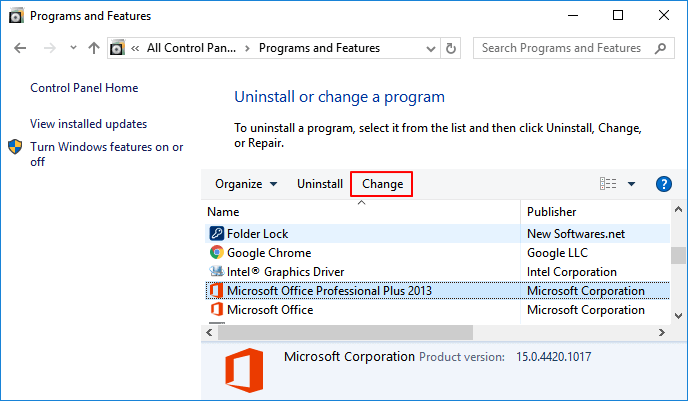
Step 3. On the window, click "Repair" and then "Continue".
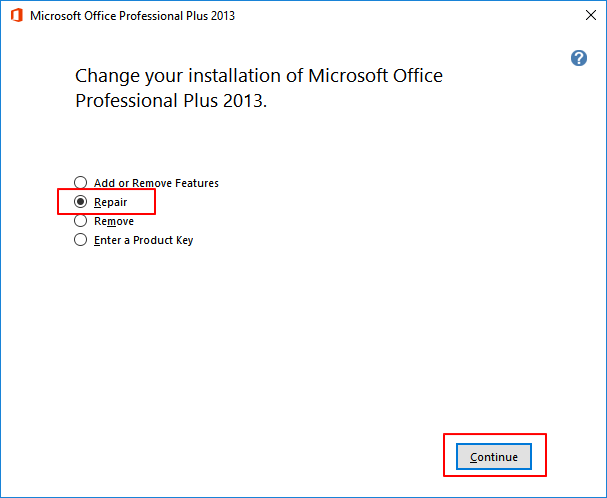
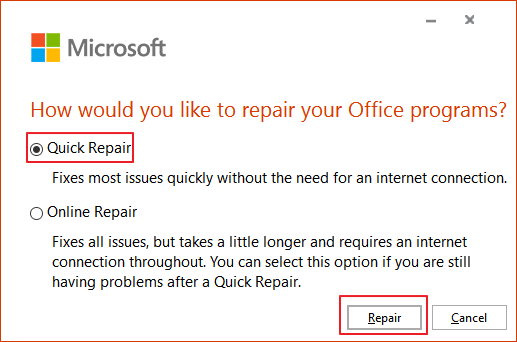
For newer versions of Microsoft Office, you can choose "Online Repair" or "Quick Repair" and click "Repair" to fix the issue.
Step 4. Let the repair finish and restart your computer.
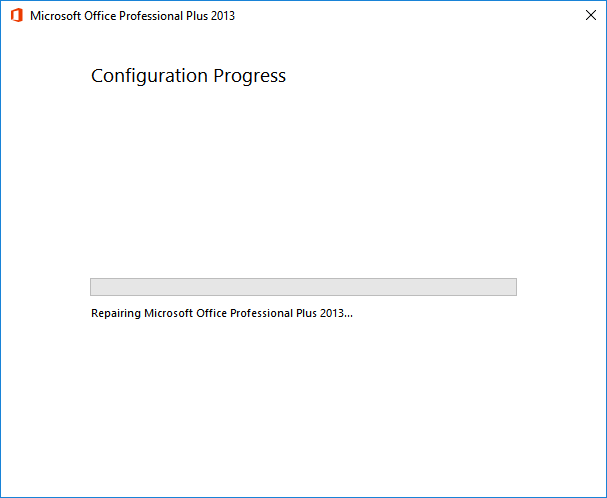
When the repair process completes, open your Word application to see if the error recurs.
Fix 4. Install Latest Windows Update or Office Update
If your Microsoft Office Word is not functioning properly, it may be due to outdated Office or Windows versions. To resolve this issue, you can install the latest updates for Windows or Microsoft Office, which should resolve the problem and prevent crashes.
1. Install Latest Windows Update
Step 1. Press Windows + I to open Windows Settings.
Step 2. Click the "Update & Security" button and select "Check for updates" under the "Windows Update" tab.
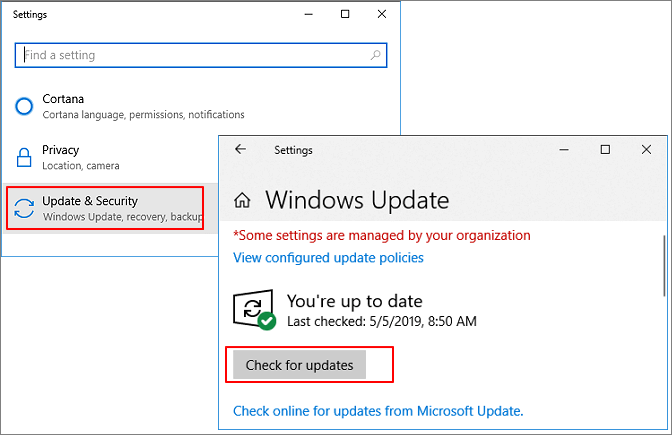
Step 3. If a new Windows update window appears, click "Install Now" and follow the on-screen instructions to install the available update.
2. Install Microsoft Office Update
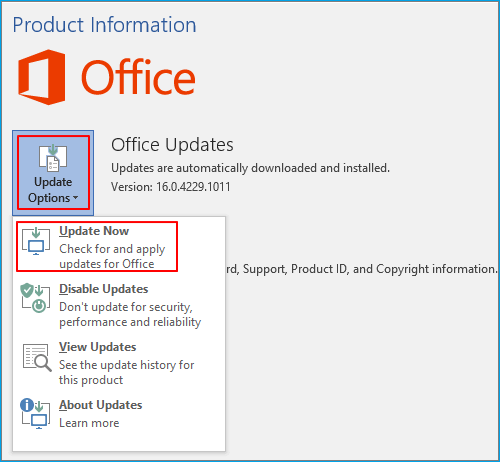
For Office 2013 and newer versions:
Step 1. Open an Office application - Excel or Word, click "File".
Step 2. Click "Account" > "Product Information" > "Update Options".
Step 3. Click "Enable Update" and then select "Update Now".
The Enable Update button is not available if the automatic update feature is already enabled.
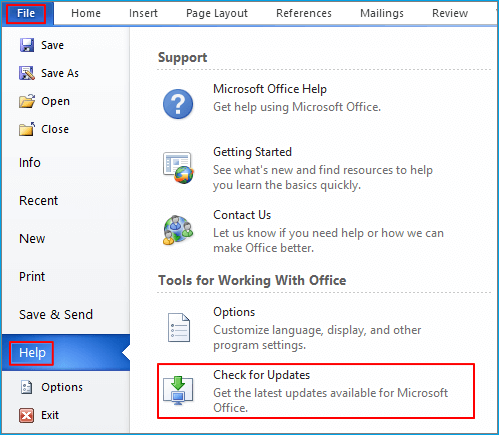
For Office 2010 or older versions:
Step 1. To access help in Office applications like Excel or Word, click on the "File" tab and then select "Help" from the drop-down menu. This will open the help section where you can find tutorials, guides, and other resources to assist you with using the application.
Step 2. Click the "Check for Updates" or "Install Updates" option.
To finish the process, click on the "File" tab in the top left corner of the Word window, then select "Save As" from the drop-down menu. Choose a location on your computer to save the file, give it a name, and select the file type (such as Word Document or Word 97-2003 Document). Then, click "Save" to save the file.
Fix 5. Insert Word Document into Another File
To fix the "Microsoft Word has stopped working" error when trying to open a previously saved document, try inserting the document into another file. To do this, open a new Word document, go to the "File" tab, select "Open", navigate to your document, and click "Open" to insert it into the new document. This can help resolve the issue and allow you to access your saved document.
Step 1. Run Microsoft Office Word, and create a blank new file.
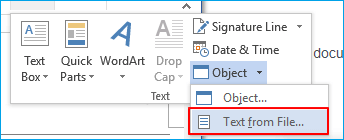
Step 2. Click "Insert" from the top ribbon menu, click "Text".
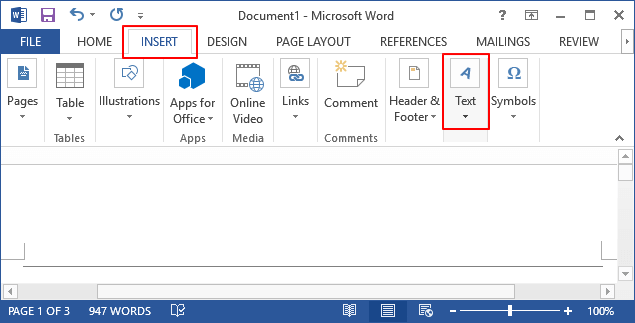
Step 3. Click "Object" and select " Text from File".
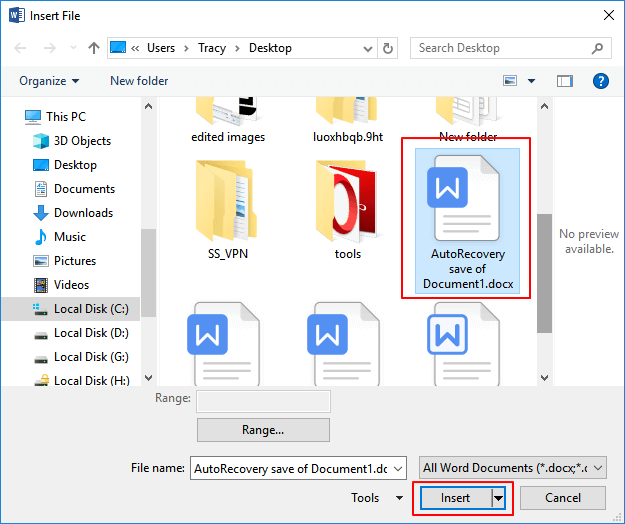
Step 4. Select the target Word document which is inaccessible or not working, and click "Insert" to add it into the new document.
Step 5.To check the document content and save it as a new file on your PC, you can follow these steps: Open the document you want to save, then click on "File" in the top menu bar. From the drop-down menu, select "Save As" and choose the location on your PC where you want to save the file.
Fix 6. Remove or Update Old Printer Drivers
Removing or updating the default printer can sometimes resolve the "Microsoft Word has stopped working" error caused by interfering printer drivers. To try this, follow these steps:
Step 1. Open Device Manager, and locate your printer.
Step 2. Right-click on the printer drivers and select "Uninstall" or "Update drivers" to resolve the issue.
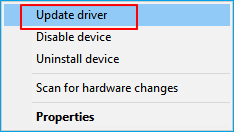
Step 3. Uninstall or update the old printer drivers.
- For uninstalling the driver: click "OK" and restart the PC.
- To update the driver, you can either click "Search automatically for updated driver software" and follow the instructions, or download the driver from your printer's website and manually install it on your PC. This may require restarting your PC.
Fix 7. Remove or Delete Word Registry Keys
Users experiencing the "Microsoft Word has stopped working" error may find that the issue is caused by problems with their registry, specifically a key that stores frequently used options in Word. Deleting this key can resolve the issue, as Word will rebuild it with default settings the next time it's started.
- Tip
- Before deleting the registry, it's essential to create a backup, as this process can be potentially hazardous. This precautionary step ensures that you can restore any lost data in case something goes wrong during the deletion process.
Step 1. To access the Registry Editor, type "regedit" in the search bar and press Enter.
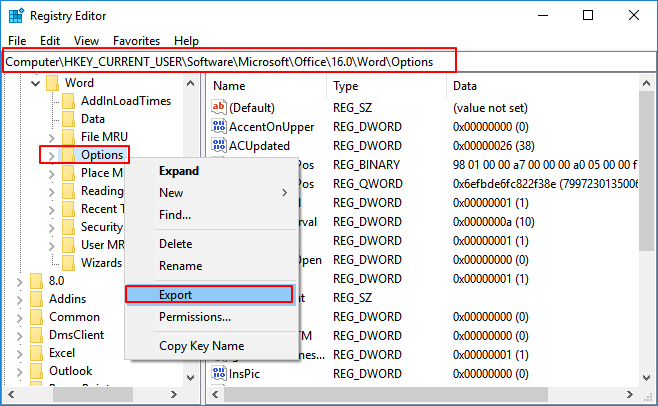
Step 2. To access the Word options key, click "Yes" to open Registry and navigate to the following path: HKEY_CURRENT_USER\Software\Microsoft\Office\16.0\Word\Options.
Step 3. Locate and right-click the key, and select "Export".
Step 4. Save the Options key as "Wddata.reg" and save it on your Desktop.
Step 5. Go back to Registry Editor and delete the Options key from the menu.
Step 6. Exit Registry Editor.
After experiencing issues with Microsoft Word, try restarting the program and checking if the problem persists. If the problem continues, navigate to your Desktop, locate the Wddata.reg file, and run it to restore the deleted key. This should resolve the issue.
Fix 8. Replace the Normal.dot Global Template File
Microsoft Word stores formatting and macros in a global template file, and when this file becomes corrupted, it can cause the "Microsoft Word stopped working" error message. To resolve the issue, you can try renaming the Normal.dot file, which may help resolve the problem.
Note: Modifying the global template file will result in losing customization features like styles and macros. To preserve previous settings, you can transfer customization from one global template to another using the Organizer, which will allow you to replace the Normal.dot file without losing any features.
Step 1. To open Command Prompt with administrator privileges, press the Windows key + X and select "Command Prompt (Admin)". If prompted, sign in with an administrator account.
Step 2. Enter the command below and hit Enter:
ren %userprofile%\AppData\Roaming\Microsoft\Templates\OldNormal.dotm Normal.dotm
Step 3. Wait for the command to finish and exit Command Prompt.
To resolve the issue, close the Word application, navigate to the Task Manager, and click on the "Processes" tab. Locate the Microsoft Word process and click on it, then click on the "End Task" button to close the application.
Fix 9. Uninstall and Reinstall MS Office
Note: This fix may cause your activation key to become invalid after reinstalling MS Office. Ensure that your activation key can be used twice before proceeding with the steps below.
Step 1. Save your Microsoft Office activation key in a secure location, such as an external hard drive or another device, to prevent loss in case the primary device fails or is compromised.
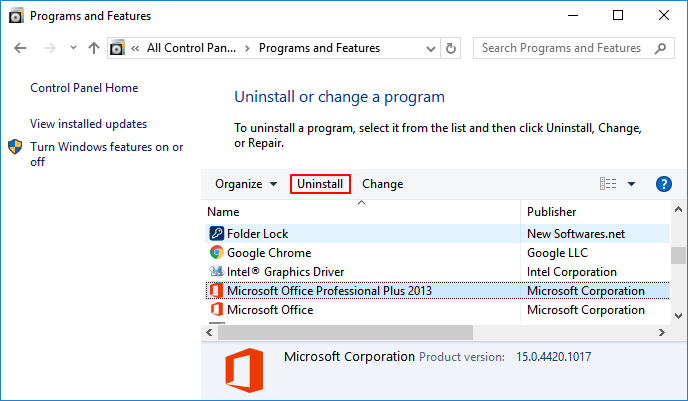
Step 2. To uninstall Microsoft Office, open the Control Panel, click on "Program and Features" (in Windows 10) or "Add/Remove Programs" (in older Windows versions), and then locate and select Microsoft Office. Click "Uninstall" to initiate the removal process.
Step 3. Click "Uninstall" in the top menu.
Step 4. Re-install Microsoft Office on your PC and activate it with your serial key.
If your old key fails to activate the newly installed MS Office, please contact the Microsoft support team for help at https://support.microsoft.com/contactus.
More Guides: How to Recover Lost or Unsaved Word Documents
Users are concerned about losing unsaved Word files when Word stops working, leading to potential document loss. To address this issue, users can learn how to recover unsaved Word documents using provided tips, and a recommended file recovery tool can help repair and recover lost Word documents in a straightforward manner.
How to Restore Unsaved Word Documents
If you've lost unsaved Word documents due to a crash, freeze, or other issues, there are three methods to recover them in Windows 10. You can find more information on how to do this on the linked page.
- Fix 1. Recover from Temporary Files
- Fix 2. Recover from AutoRecover
- Fix 3. Use Document Recovery
For a Mac user, you can recover an unsaved Word document by following the steps outlined in this link: the link below.
How to Restore Deleted Word Document with File Recovery Software
If the Word has stopped working, leading to file corruption or deleted documents, Deep Data Recovery is a good option. It can recover lost files and repair damaged documents during the recovery process.
Qiling data recovery software features:
- Recover lost or deleted Word, Excel, PPT, and PDF documents
- After successfully recovering data from corrupted files, the next step is to repair any remaining corrupted files, such as Excel, Word, PPT, and PDF, to ensure their functionality and usability. This process involves using specialized software or tools to fix any errors or inconsistencies in the files, making them usable again.
- Support for data recovery is available for various situations, including sudden deletion, formatting, hard drive corruption, virus attacks, and system crashes.
- You can recover a Word document from various storage devices such as a computer's internal hard drive (HDD), solid-state drive (SSD), USB flash drive, pen drive, SD card, external hard drive, and more. The process involves using data recovery software or a file recovery tool to scan the storage device for the lost Word document.
Download Qiling file recovery tool to recover lost or corrupted Word documents on various storage devices, including HDD, USB flash drive, external hard drive, and more, in just 3 simple steps.
Step 1. Select file types and click "Fast Scan" to start.
Launch Deep Data Recovery, select the desired file types, and click "Fast Scan" to initiate the recovery process.
Note: You can choose different search modes based on where and why the data was lost.
Step 2. Choose the Word file location
Choose a drive or a specific folder, then click the "Scan" button to initiate the process.
Step 3. Locate your Word files
The software will start scanning the selected drive for lost data, and after the scan, you can click the "Documents" option in the left panel, choose "Word" from the category bar, and then click "Preview" to view the recovered files.
Step 4. Recover Word files
After previewing the lost Word files, select the desired Word files and click "Recover". Then, select a folder to store the Word files.
Causes of Microsoft Word Has Stopped Working Error
Here are the reasons that cause Microsoft Office to stop working on a Windows PC:
- The Office edition you're using may not be compatible with the current operating system on your PC.
- Word is out of date.
- The device driver is out of date.
- Word Add-in issue.
- Word file issue.
Useful Tips to Back Up and Protect Word File
If you're encountering the "Word has stopped working" error, the solutions provided in the previous parts can help you resolve the issue. These methods are designed to troubleshoot and fix the problem, allowing you to continue using Microsoft Word without any interruptions.
Here are two reliable Word backup tips to protect your precious Word documents:
1. Enable Auto-Save Feature in Word
Applies to: Back up and save editing Word document.
Step 1. To start, open the Microsoft Word application and create a new file. Then, click on the "File" tab in the top left corner of the screen, followed by selecting "Options" from the dropdown menu.
Step 2. Click "Save" and check the below two boxes:
- To ensure your work is saved regularly, set a time for AutoRecover to save your document every few minutes, such as every 2 or 5 minutes. This way, if you experience any issues or your computer crashes, you'll be able to recover your work from the last saved point.
- "Keep the last autosaved version if I close without saving"
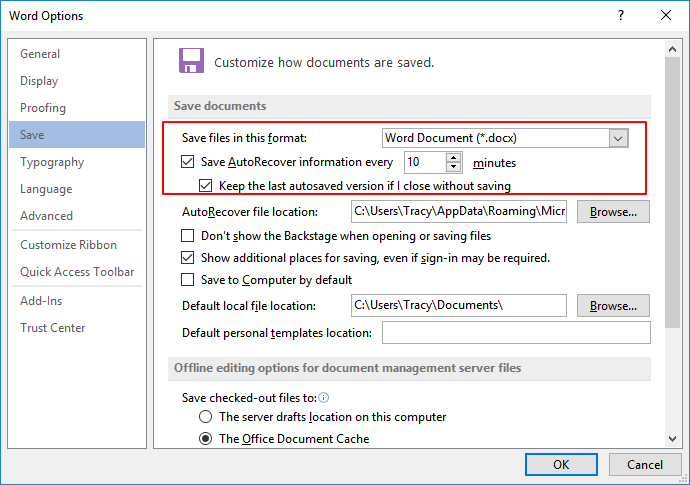
Step 3. Click "OK" to confirm.
2. Back Up Saved Word File with File Backup Software
To back up a saved Word file on your local drive, save the file to a location on your computer's hard drive or an external storage device, such as a USB drive or an external hard drive. This will ensure that the file is safely stored in case of any issues with your computer or the cloud storage service you're using.
Reliable file backup software like Qiling Backup can help you easily back up important files, including Word, Excel, and PowerPoint documents, on a local drive.
A backup will be a lifesaver in case you lose your work due to unknown reasons, allowing you to quickly recover your hard work.
To safely back up your Word file, download and follow these 3 easy steps:
Step 1. When you first use Qiling Backup to back up files, click on "File backup" on the "Backup and recovery" page.

Step 2. To back up files, folders, or directories, start by locating them using the file path. Once you've identified the items you want to back up, select them all.

Step 3.To continue, you need to select a backup location to save and retain the backup. This is an important step in the process to ensure that your data is safely stored and can be recovered if needed.

Step 4.Qiling Backup allows users to save backup files to a variety of devices, including local hard drives, external USB drives, SD cards, network drives, and NAS drives, as well as cloud drives from Qiling. We recommend choosing a cloud drive over a physical drive for greater accessibility, flexibility, and safety.

Step 5.If you want to set up an automatic and intelligent backup schedule for the next file backup task, go to the "Options" setting. There, you can choose to encrypt confidential files, compress the backup image size, or customize a backup schedule to specify when the next backup should start.

Customize an advanced and automatic backup task here:

Step 6. Click "Proceed" to start the file backup process, and your completed backup files will be visible on the left in a card style.

FAQs About Microsoft Word Has Stopped Working
Here are a few questions related to Microsoft Word has stopped working. If you also have any of these problems, you can find the methods here.
1. How do I fix Microsoft Word has stopped working?
To fix MS Word when it has stopped working, you can try repairing the Office installation. This can often resolve the issue and get Word up and running again.
Step 1.To uninstall Microsoft Office, open the Control Panel, click on "Programs and Features", and select "Microsoft Office" from the list of installed programs.
Step 2.To update Microsoft Office, locate and select the application, then click "Change" in the top menu.
Step 3.On the window, click "Repair" and then "Continue". For newer versions of Microsoft Office, choose "Online Repair" or "Quick Repair" and click "Repair".
Step 4. Let the repair finish and restart your computer.
2. Why is my Microsoft Word not opening?
If you're experiencing issues with Microsoft Word not opening, it could be due to a few corrupted documents or a problem with a Word add-on or a 3rd party add-on. In such cases, the application might not launch properly.
3. How do you restart Microsoft Word?
Step 1. Go to the Tools Menu, then Customize, then click options.
Step 2. To reset the menu and toolbar usage data, select the option for the Reset menu and toolbar usage data, which will restore the toolbars to their original settings. If you want to reset your settings further, you can proceed with the additional steps.
4. Why has my office 365 stopped working?
If Microsoft Office 365, 2016 or 2013 is not working or opening on your PC, you can try using the Office repair feature. To do this, right-click on Office 365, Office 2016 or Office 2013, select Change, click Online Repair, and then click Repair.
5. How do I fix Outlook that has stopped working?
When Outlook 2016 freezes or becomes unresponsive in Windows 10, you can try to resolve the issue by using recovery software, starting Outlook in Safe Mode, installing updates, repairing the Office program, or repairing Outlook data files.
Related Articles
- How to Recover Permanently Deleted Files in Linux Redhat/Ubuntu/Mint
- How to Recover Excel Password on Windows/ Mac
- How to Restore Lost WPS Office 2016 Files
- How to Recover Ransomware Encrypted Files
- Free Fix Hard Drive Partition Shows 0 Bytes Error in Windows 11/10/8/7
If your hard drive shows 0 bytes used on your computer, you may be unable to access saved data on a hard drive or partition that displays 0 bytes in Windows. Fortunately, Deep Data Recovery Free offers reliable fixes to solve the hard drive partition showing 0 bytes error and restore HDD data. - Hard Drive Randomly Wiped Data! What's WRONG? I Want Data Back
If a hard drive randomly wipes itself, it's often a sign that the drive is failing and may be on the verge of a complete hardware failure. In this scenario, it's essential to act quickly to recover any data that can be salvaged from the drive.
Products
Articles & Tutorials
- Data Recovery
- Data Backup
- File Recovery
- File Backup
- System Backup and Restore
- Disk and Partition Clone
- Technical articles
- Mobile articles
- Disk Master Help
- Windows Data Recovery Tutorials
- Windows Secure Delete Tutorials
- Windows Partition Management Tutorials
- Windows File Backup and Restore Tutorials
- Windows System Backup and Restore Tutorials
- Windows Disk Backup and Restore Tutorials
- Windows Clone Tutorials