Fix 'Card Cannot Be Accessed' Error in Canon Without Losing Data
To fix a card cannot be accessed error in a Canon camera, recover data from the camera first, then format the SD card in the Canon camera.
| Workable Solutions | Step-by-step Troubleshooting |
|---|---|
| Fix 1. Recover Data from SD Card | Use Deep Data Recovery to recover files from an inaccessible SD card, and then formatting...Full steps |
| Fix 2. Format SD Card in the camera | Fix card cannot be accessed error in Canon camera. Hold the Up/Down button and open the menu...Full steps |
- Error message 1- The card reader is having trouble reading the card. Try reinserting the card or formatting it with the camera to resolve the issue.
- Error message 2 - The card you're trying to access is either not inserted correctly or is damaged. Try reinserting the card or using a camera to format it.
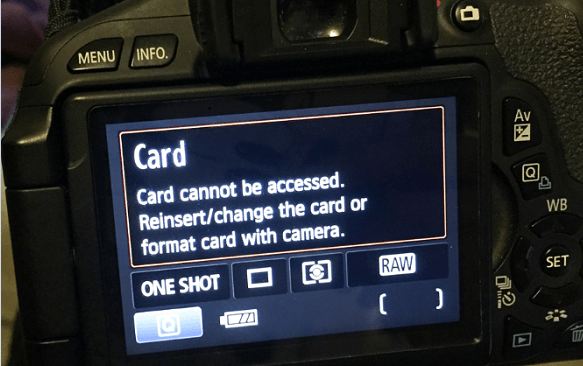
Canon SD Card Error
A common error occurs when inserting a card reader into a Canon digital camera, DSLR, or camcorder, affecting many popular models, including various Canon devices.
- The Canon lineup includes the 7D, T5i, 80D, 6D, T1i, Rebel T5, T3, and 500D, along with the high-end 5D Mark III.
The "memory card cannot be accessed" error may prevent you from taking photos or viewing files. To resolve this, you can try reinserting the card a couple of times, replacing it with a new one, or formatting the SD card in the camera, which can help restore its functionality.
Before taking any action to troubleshoot, it's essential to find a digital camera recovery solution first. Data recovery should take priority over SD card repair, as losing media files in the malfunctioning storage card can be irreparable.
Quick Tip: If you're using a brand new memory card for the first time, format it to the FAT file system, which is compatible with digital cameras.
How to Recover Data from Inaccessible SD Card
If you have a lot of important files on your SD card, don't format it right away. Instead, use a deep data recovery tool to recover your files, and then fix the error with your camera or computer. This way, you can avoid losing your precious memories.
Qiling Data Recovery Software
If you've already formatted the card, there is a solution, Qiling data recovery software can still recover data from it, and it can also repair corrupted videos and photos during the recovery process.
Step 1. To recover data from an SD card, memory card, or CF Card, connect it to your computer, launch Qiling memory card recovery software, select the file types you want to recover, and click "Fast Scan" to start the recovery process.

Note: You can choose different search modes based on where and why the data was lost.
Step 2. To recover lost data from an SD card, first, connect the SD card to your computer via an SD card reader. Open the Deep Data Recovery software, and it will automatically detect the SD card. The SD card will be listed under the Devices section.

Step 3. The software will automatically start a scan that is powerful enough to find all lost files, including those with lost file names. After the scan, you can view deleted items in the tree-view panel on the left. If you're looking for a specific file type, such as photos, documents, videos, or emails, you can click "Filter" to narrow down your search.

Step 4. You can directly double-click the files to preview the content, then select the wanted files and click "Recover" to restore them to a secure location on your PC or other external storage devices.
How to Format SD Card in Canon Camera & PC
In Canon Camera:
Make sure the camera battery is charged. Insert the SD card in your camera and turn it on.
Step 1. Hold the Up/Down button and open the menu.
Step 2. Select "Setup" or "Utilities".
Step 3. To format a memory card, select "Format" from the options. A warning will appear stating that all data will be lost, but leave the "Low-level format" box unchecked, as it is not necessary.
Step 4. Remove the SD card, reinsert it into the camera, and it should work fine. You'll have a blank card ready for reuse.
In a PC:
You can format an SD card on a Windows computer using the diskpart command line or a third-party disk format utility, both of which are free to use.
Step 1. Connect the SD card with a card reader to your PC.
Step 2. In the Windows File Explorer, right-click the removable disk representing your card and select "Format."
Step 3. On the popup window, select FAT under "File System" and choose Default Allocation Size under "Allocation Size". Leave other options unchanged.
Step 4. Click "Start" to format the disk. Safely eject the SD card and insert it back to the camera. No error messages are there again. You'll get a blank card for reuse.
How to Fix SD Card Not Formatted Error
If you're experiencing the "SD card cannot be accessed" error on your Canon camera, it's likely due to formatting issues, such as not formatting the card on both the camera and PC, or formatting the card on the camera but not on the PC. However, if you've failed to format the SD card on both devices, the causes may be different, including SD card write protection, file system corruption, or a virus infection. To further troubleshoot, you can refer to the article on resolving "Windows was unable to complete the format" issues.
Related Articles
- Repair a Corrupted Pen Drive/SD Card for Free
- Fix USB Access Denied Without Data Loss
- SD Card/USB Drive/Pen Drive Shows 0 Bytes
- Seagate 4TB External Hard Drive PS4/Xbox One [Full Guide]
- How to Recover Deleted Music Files from Computer
Losing music files on your computer can be frustrating, but there are ways to recover them. If you - How to Recover Deleted Partition in Windows 7 without Losing Data
To recover a Windows 7 partition, you can simply recover data from the deleted partition or restore the deleted partition in Windows 7 using a partition recovery software, which can be downloaded for free and will help you recover deleted partition in Windows 7 without losing any data.
Products
Articles & Tutorials
- Data Recovery
- Data Backup
- File Recovery
- File Backup
- System Backup and Restore
- Disk and Partition Clone
- Technical articles
- Mobile articles
- Disk Master Help
- Windows Data Recovery Tutorials
- Windows Secure Delete Tutorials
- Windows Partition Management Tutorials
- Windows File Backup and Restore Tutorials
- Windows System Backup and Restore Tutorials
- Windows Disk Backup and Restore Tutorials
- Windows Clone Tutorials