7 Quick Ways to Reduce Chrome High Memory Usage Windows 10/11
Quickly navigate to effective solutions to solve Google Chrome high memory usage issue:
| Workable Solutions | Step-by-step Troubleshooting |
|---|---|
| Fix 1. Close unwanted tabs |
If you often have more than a dozen tabs open, Chrome will use a lot of memory. Close unused tabs...Full steps |
| Fix 2. Disable unnecessary extensions | One reason for the high memory usage in Google Chrome is the extension. Disable unused extensions...Full steps |
| Fix 3. Enable hardware acceleration | If you have a dedicated graphics card installed in your computer, you can use hardware acceleration...Full steps |
| Fix 4. Clear cache and cookies | Too much cache and cookies in Chrome make it not perform well and use much memory overall...Full steps |
| More Useful Methods | Update Chrome browser to the latest version, stop background apps, end unnecessary processes...Full steps |
User Query: Chrome Using Too Much Memory Windows 10
"After I upgraded Windows 10 to the latest version yesterday, my computer became very laggy when using the Google Chrome browser. Glancing at the Task Manager, I found that the computer's memory usage is above 95%, and Chrome is using too much memory. Why does Chrome take so much memory? How can I effectively reduce the memory usage of Chrome?"
Google Chrome, the world's mainstream browser kernel, offers a stable and fast browsing experience, but its popularity comes with a common complaint: it consumes a significant amount of memory, as shown in the screenshot.
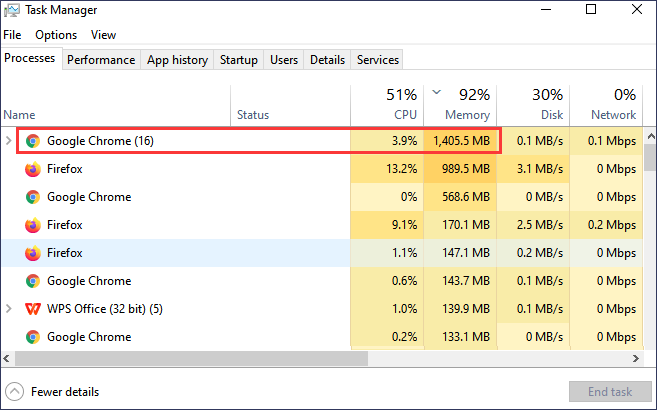
Chrome and other web browsers store each tab and extension in a separate RAM process, providing stability, security, and performance, but also consuming a lot of RAM due to the many processes involved.
Google Chrome's memory usage has decreased in recent years, but it still consumes a lot of RAM compared to other programs, often causing computers to freeze and crash. While a complete fix is challenging, there are effective ways to reduce Chrome's memory usage and speed up your computer.
Why Does Chrome Use so Much RAM
Google Chrome might be using up a lot of memory due to various factors, such as having too many tabs open, extensions installed, or resource-intensive web applications running in the background. This can lead to increased memory consumption, causing the browser to slow down or even crash. To mitigate this, users can try closing unnecessary tabs, disabling extensions, or upgrading their computer's RAM to improve performance.
- Having too many tabs open simultaneously
- You have installed many plugins and extensions
- Too much cache accumulated in the browser
- The page you are visiting contains high-quality animation or excessive advertising.
- Chrome runs in background when it's closed.
- The computer's memory or configuration is not sufficient to run Chrome smoothly.
To reduce Chrome's high memory usage and speed up your browsing experience, there are several strategies you can employ. One approach is to clear browsing data, such as cookies, cache, and history, which can help free up memory. Another is to close unnecessary tabs and background apps to prevent them from consuming memory.
Fix 1. Close Unwanted Tabs
When using Chrome, having multiple tabs open can consume a lot of memory, and the cache of browsed web pages also takes up space, making it even more memory-intensive the more pages are open.
Chrome tries to manage tabs by putting pages that haven't been viewed in a while into a "sleep" mode, reducing their RAM usage. However, the more tabs and pages you have open, the more RAM you'll use, so it's generally best to keep the number of open tabs and pages to a minimum.
If you must have a bunch of tabs open, you should use Tab Groups. So you can group them together and fold them up for better management.
Fix 2. Clean Unused Plugins and Extensions
Extensions are an important part of your Chrome experience, so you probably have at least a few installed. Just like tabs, extensions have their own processes, and disabling or deleting unused ones can free up some RAM.
To do this:
Step 1. Open Google Chrome browser.
Step 2. Type chrome://extension on the address bar.
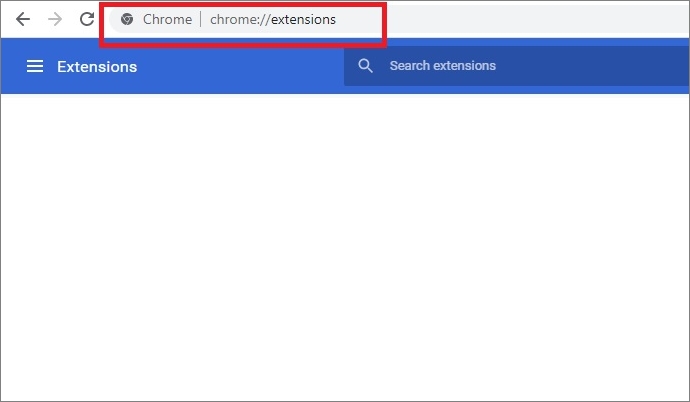
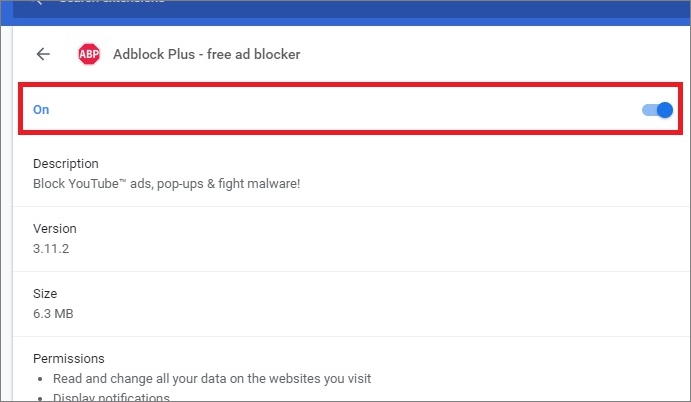
Step 3. Select the unnecessary extensions. Disable the extensions by turning off the toggle button shown below.
Step 4. Close Chrome, then relaunch it and check if it still uses too much memory.
Fix 3. Enable Hardware Acceleration
Enabling hardware acceleration can help reduce the workload on the computer's processor and minimize excessive RAM usage, which can help fix Chrome's high memory issue. However, this option is only available if you have a dedicated graphics card installed, and problems can occur if it's enabled only in integrated graphics.
Step 1. To open Google Chrome, click on the three dots in the upper right corner and select "Settings" from the context menu.
Step 2. Scroll down, find and click on "Advanced" settings.
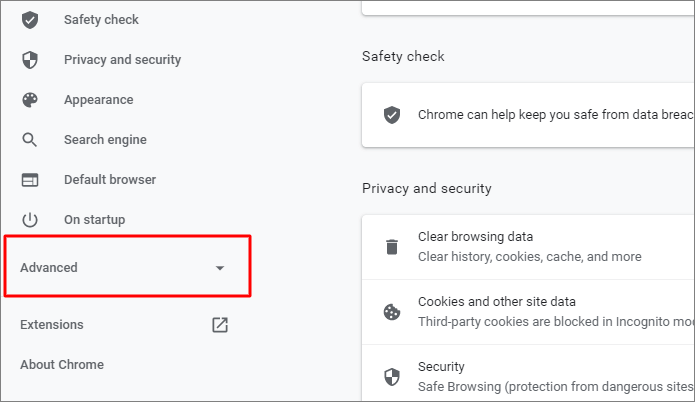
Step 3. Go to find "System". Toggle on "Use hardware acceleration when available".
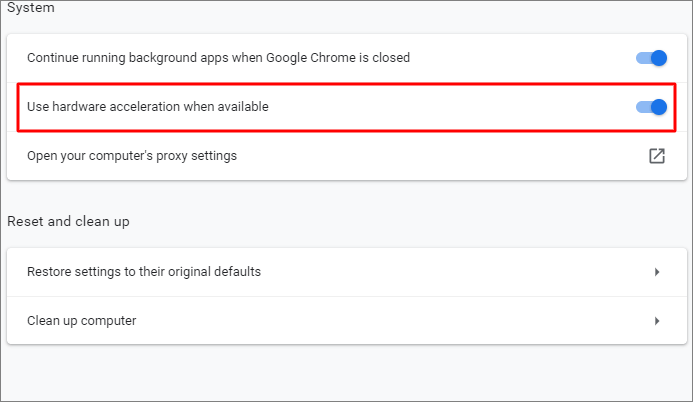
Step 4. If the Chrome high memory usage persists after restarting your browser, try closing all Chrome windows and background processes, then restart your browser. This will help identify if the issue is specific to a particular window or process.
Fix 4. Clear Chrome Cache and Cookies
Clearing Chrome cache and cookies can help prevent high RAM usage and computer freezing. To do so, follow these steps.
Step 1. Launch Chrome. Click the three dots located in the upper right-hand corner.
Step 2. To clear browsing data, click on the three dots at the top right corner of the browser, select "More tools" from the drop-down menu, and then choose "Clear browsing data".
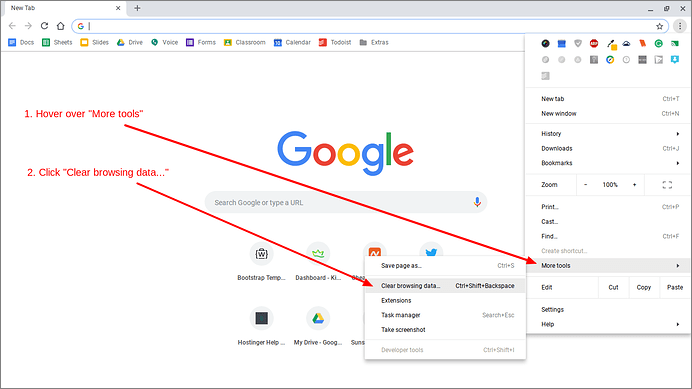
Step 3. Check "Cache" and "Cookies" boxes and click "Clear data".
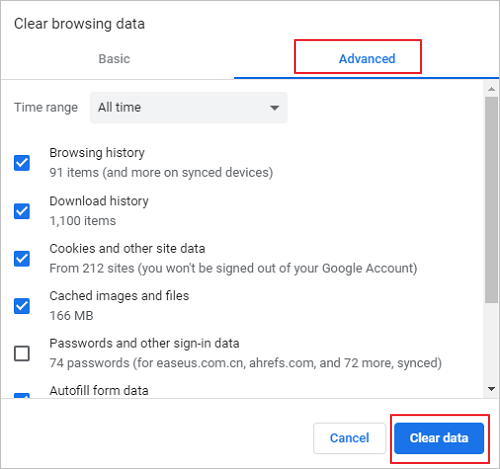
Clearing cache and cookies is a simple troubleshooting step that can resolve many issues. To do this, open Chrome, click on the three dots in the top right corner, go to More tools, and select Clear browsing data. Choose the types of data you want to clear, such as browsing history, cookies, and cached images and files, and select the time range for which you want to clear the data.
Fix 5. Update Google Chrome to the Latest Version
Outdated versions of Google Chrome can cause the browser to perform poorly and consume too much memory, leading to bugs and glitches. To resolve this, ensure that Google Chrome is updated to the latest version. If it's not, update it by following the steps below.
Step 1.Open Chrome, then click on the three dots in the upper right corner and choose Settings.
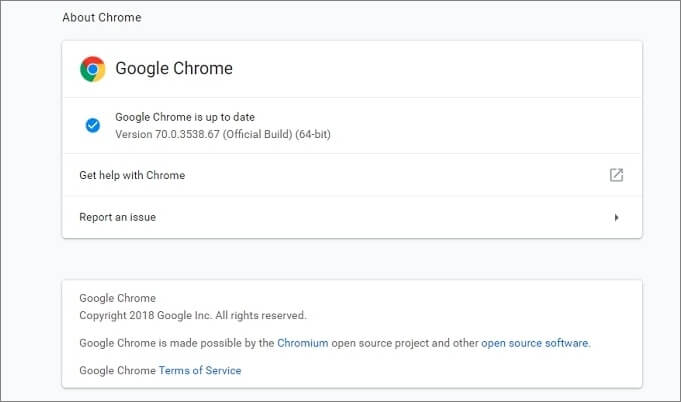
Step 2. Click "About Chrome" on the left panel.
Step 3. Check the version of your Google Chrome browser to see if it's up to date or if any updates are pending to be installed.
Fix 6. Prevent Apps from Running in Background
To resolve the issue of Google Chrome taking up memory even after it's closed, you can try closing all background applications, or use the Chrome task manager to identify and close any unnecessary processes, or disable background apps in Chrome settings.
Step 1. Open Chrome. Click the three dots in the upper right corner.
Step 2. Select "Settings" from the drop-down menu.
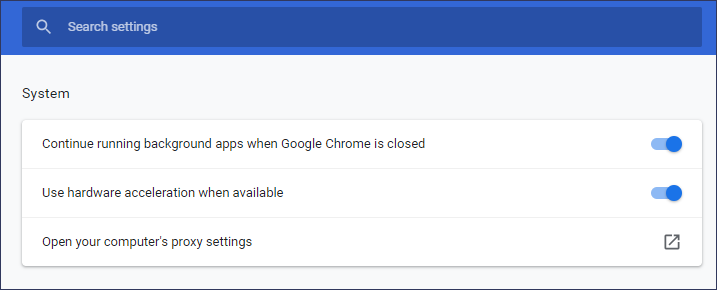
Step 3. At Settings page, scroll down and click "Advanced" > "System".
Step 4. Set the "Continue running background apps when Google Chrome is closed" switch to off.
Fix 7. Monitor Chrome's Task manager
Google Chrome has a built-in Task Manager that provides a detailed view of running processes, allowing users to terminate memory-intensive processes if needed.
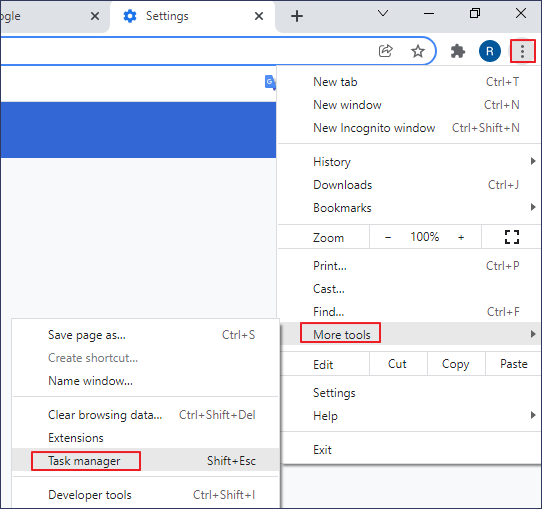
Step 1. Start Chrome. Click the three dots in the upper right corner.
Step 2. To open the Task Manager, click on "More Tools" and then select "Task Manager" from the drop-down menu, or use the keyboard shortcut Shift+Esc.
Step 3. To stop a task from running, select it and click the "End process" button. If tabs or extenders are consuming memory, closing them or rebooting might be necessary.

How to Recover Lost Files from Crashed Computer Windows 10/11
If a Chrome high memory usage issue causes a computer freeze, leading to a restart and potential data loss, professional data recovery software can be used to recover important files immediately.
Deep Data Recovery allows you to recover lost files due to various causes, including accidental deletion, hard drive issues, and viruses, and also enables the repair of corrupted files, such as fixing broken documents, photos, and videos.
Step 1. Select file types and click "Fast Scan" to start
Launch Deep Data Recovery. Select file types and click "Fast Scan" to start the recovery process.

Note: You can choose different search modes based on where and why the data was lost.
Step 2. Select a location and start scanning
Choose the partition where you lost data. Then, click "Scan".

Step 3. Filter and preview files
Use the file format filter on the left or upper right corner to find the files you need, then click the "Preview" button or double-click a file to preview its content.

Step 4. Recover lost data or files
To recover lost data, select the file containing the lost data, check the box next to it, and click the "Recover" button to securely restore the data to a designated location.
Conclusion
Google Chrome has historically struggled with high memory usage, but Google has been working to improve browser performance. Despite efforts, completely solving this issue is challenging. If you're experiencing Chrome's high memory usage, trying one of the suggested solutions can help troubleshoot the problem.
To fix the problem, close unnecessary pages, plugins, and extensions, enable hardware acceleration, clear cache and cookies, and update the browser. If data loss occurs, use data recovery software to restore files promptly.
Related Articles
- How to Fix You Don't Currently Have Permission to Access This Folder Issue
- How to Restore Previous Versions of File or Folder Windows 10/8/7
- Folder Shows Empty but Files Are There Windows 10/8/7
- How to Recover Deleted Screenshots on Windows 10/8/7
- How to Recover Photos from Corrupted SD Card in 2022 (5+ Fixes)
If your SD card becomes corrupted, you can still recover your pictures with Deep Data Recovery and other 5+ corrupted SD card recovery fixes. Follow the steps to learn how to recover photos from a corrupted SD card and effectively fix the corrupted SD card with ease. - How to Retrieve Deleted Skype Messages and Chat History
Skype conversations are stored in various places depending on the device, and deleted messages and chat history can be recovered on both Android and iPhone devices, as well as on computers, by following a step-by-step guide outlined in this article.
Products
Articles & Tutorials
- Data Recovery
- Data Backup
- File Recovery
- File Backup
- System Backup and Restore
- Disk and Partition Clone
- Technical articles
- Mobile articles
- Disk Master Help
- Windows Data Recovery Tutorials
- Windows Secure Delete Tutorials
- Windows Partition Management Tutorials
- Windows File Backup and Restore Tutorials
- Windows System Backup and Restore Tutorials
- Windows Disk Backup and Restore Tutorials
- Windows Clone Tutorials