How to Recover Photos from Corrupted SD Card (5+ Fixes)
Why the SD Card Get Corrupted
Corrupted SD cards can be a nightmare, especially when you've lost precious files like photos. This issue often occurs when the card becomes damaged, and a reliable solution to recover the corrupted SD card is essential to retrieve your data. The SD card may become corrupted due to various reasons, including physical damage, software glitches, or improper handling.
- The memory card is physically or electrically damaged
- The file system of your SD card is corrupted
- MBR corruption
- I/O device error
The causes of a corrupted SD card can be numerous and varied, and the specific situation of the card will determine the possible causes and fixes. While the listed reasons provide a starting point, other factors may also be at play, and the possibilities for recovering pictures from the card will depend on the specific circumstances.
Can You Recover Photos from a Corrupted SD Card
You can recover photos from a corrupted SD card if the SD card is still recognized by your computer in Disk Management, but the file system is corrupted. This can be checked by connecting the SD card to your computer via a card reader and going to "This PC" > "Manage" > "Disk Management". If the SD card is listed as "Healthy" but has a red mark on it, it means the file system is corrupted. In this case, you can try to recover your photos using a photo recovery software.
- The SD card appears in Disk Management but is inaccessible, displaying a RAW file system, indicating a corrupted file system.
- The SD card appears in Disk Management, but its partition is missing, making it inaccessible. This situation can occur due to various reasons such as corruption, formatting, or physical damage.
- The SD card is recognized by the system but its state is reported as "No Media", indicating that the system is unable to read or access the card's contents. This can be due to a variety of reasons such as a corrupted file system, a faulty SD card, or an issue with the card reader.
- The SD card appears in File Explorer, but not in Disk Management, which can be frustrating. This issue often arises due to the SD card being set as a removable drive in the system settings.
- Your SD card is not showing up in both File Explorer and Disk Management, indicating a potential issue with its detection or recognition by your computer. This could be due to a faulty SD card reader, corrupted SD card drivers, or a problem with the SD card itself.
If your SD card is corrupted, there's a good chance you can recover your pictures if you act quickly. If the card is showing up but not readable, or if the device is not turning on, you might be able to retrieve your data after fixing the device. However, if the card is not showing up at all, try changing the card reader or connecting it to another computer. If the problem persists, it's best to seek professional help for manual repair.
If you're not in the last situation, read on to find the solutions that apply to your current situation.
How to Recover Pictures from Corrupted SD Card and Fix It
Recovering photos from a corrupted SD card is a different process than recovering corrupted pictures from an SD card, as it requires the use of data recovery software. If your SD card is not completely dead or failed, you can still recover your photos and fix the corrupted device using the provided fixes.
Situation 1/2. The SD Card Shows in Disk Management but Its Partition is Inaccessible/Lost
If your SD card is inaccessible, it's likely due to a file system error. To resolve this, try running CHKDSK to check and repair any disk errors. If that doesn't work, you can attempt to recover data from the SD card and then format it. If the partition is lost, you can recover photos and other data from the corrupted SD card, and then format the device directly.
Method 1. Perform Corrupted SD Card Recovery for Free and Then Format the Device
To recover data from an inaccessible SD card, you can use hard disk data recovery software like Deep Data Recovery, which can help recover pictures and other files from the corrupted card.
To recover pictures from a corrupted SD card using Qiling SD card recovery software, simply download and install it on your computer, then follow the guide to do the recovery job, which requires no technical skills or professional knowledge, just simple steps.
Step 1. Select file types and click "USB/SD Scan" to start
Launch Deep Data Recovery. Select the file types you want to recover and click "USB/SD Scan" to begin the process.

Note: You can choose different search modes based on where and why the data was lost.
Step 2. Choose the location and start scanning
To recover deleted pictures, hover over the SD card, camera, or hard drive partition where the pictures were deleted/lost, then click "Scan" to initiate the recovery process.

Step 3. Select the pictures you want to recover
After the scanning process is complete, select "Pictures" in the left panel. If you're looking for lost photos, click "Lost" at the top of the list. You can then browse through your photos by device, type, or date to locate the ones you're searching for.

Step 4. Recover lost photos
After previewing, click on "Recover" and select a different location to save the desired pictures.
Now that you've successfully recovered files from the corrupted SD card, you can proceed to format the device without any concerns about losing important data.
The easiest way to format the SD card:
Step 1. To insert your SD card into your computer, simply place it into a card reader, which is a small device that connects to your computer's USB port. The card reader will read the data on the SD card and allow you to transfer it to your computer.
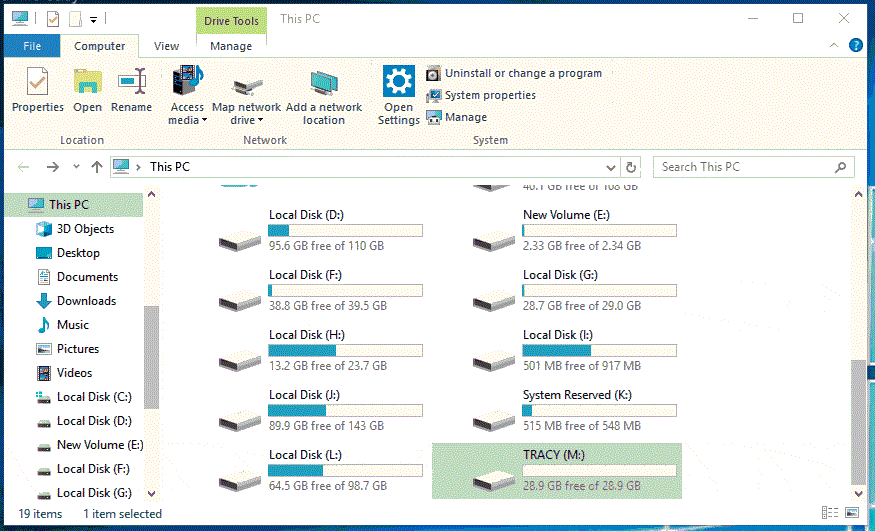
Step 2. Open "This PC". Right-click your SD card and choose "Format".
Step 3. In a new window, set up a file system and click "Start".
Step 4. Click "OK" to start formatting your SD card in the Warning window.
Method 2. Run CHKDSK
Caution: Before running CHKDSK, make sure to recover any important data from the corrupted SD card using a reliable file recovery software, as CHKDSK can cause permanent data loss.
Step 1. Click "Start" and type cmd.
Step 2. Right-click "Command Prompt" and choose "Run as administrator".
Step 3. Enter the following command: chkdsk H: /f /r
Replace "H" with the drive letter of your corrupted SD card.
If you're not a fan of the command line, you can use the Qiling CleanGenius tool instead. This one-click tool allows you to fix file system errors on your hard drive with ease, making it a convenient alternative to the command-line approach.
Step 1. Download Qiling CleanGenius on your computer for free.
Step 2. To proceed, run the software and navigate to the left panel, where you will click on "Optimization". From there, select "File Showing" to continue.
Step 3.To resolve a file system error on a drive, go to the "Choose drive" section, select the drive with the error, and enable the "Check and fix file system error" option. Then, click the "Execute" button to initiate the repair process.
Step 4. After completing the repairing process with Qiling CleanGenius, click the "here" to view the result.
Situation 3. The Corrupted SD Card Shows As No Media
If your SD card is showing "No Media" and you're experiencing issues, refer to the article on how to fix the "there is no media in the device" problem for troubleshooting steps.
Situation 4. The SD card shows in File Explorer but not in Disk Management
If your SD card is corrupted, updating the driver and trying a different card reader may resolve the issue. If these solutions don't work, you may need to seek professional help for manual data recovery services.
To update the driver:
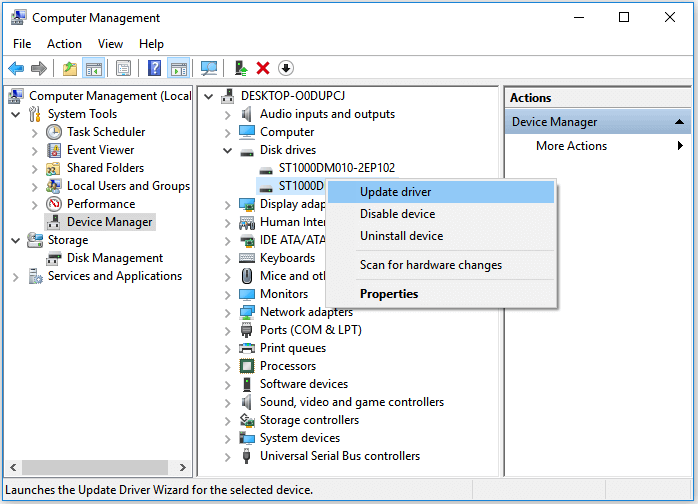
Step 1. Right-click "This PC" and choose "Manage" > "Device Manager".
Step 2. Expand "Disk Drives", then right-click your corrupted SD card and select "Update Driver".
Step 3. In the new window, choose "Search automatically for updated driver software".
The Bottom Line
The possibility of recovering data from a corrupted SD card depends on its condition. If it's physically damaged, it should be sent for repair. However, if it's not physically damaged, there's a high chance of recovering data with data recovery software like Deep Data Recovery, in addition to the provided fixes for a corrupted memory card.
Related Articles
- How to Recover Deleted Photos & Videos from Android Without Root
- Kingston Flash Drive Recovery
- External Hard Drive Not Recognized After Unplugging [Solved]
- 2 Fixes to Resolve Memory SD Card Says Full But No Files On It Error
- How to Recover Unsaved/Lost/Deleted SketchUp Files on Mac/PC
This guide takes you through the process of recovering unsaved SketchUp files and temp files on Mac or PC. To recover, select the appropriate method for your needs. - How to Recover Unsaved/Deleted/Lost Visio Files
If you've lost a Visio file, You can recover unsaved, temporary, or deleted Visio files using various methods. If you've lost an unsaved file, you can try checking the AutoRecover folder, which stores temporary files.
Products
Articles & Tutorials
- Data Recovery
- Data Backup
- File Recovery
- File Backup
- System Backup and Restore
- Disk and Partition Clone
- Technical articles
- Mobile articles
- Disk Master Help
- Windows Data Recovery Tutorials
- Windows Secure Delete Tutorials
- Windows Partition Management Tutorials
- Windows File Backup and Restore Tutorials
- Windows System Backup and Restore Tutorials
- Windows Disk Backup and Restore Tutorials
- Windows Clone Tutorials