How to Retrieve Deleted Skype Messages and Chat History
How to recover Skype messages or how to see old skype messages? Check the table below to see the tutorial outline.
| Workable Solutions | Step-by-step Troubleshooting |
|---|---|
| Fix 1. Retrieve Skype messages | How to recover deleted Skype messages? You can restore the lost Skype messages from the main.db file...Full steps |
| Fix 2. Recover old Skype messages | As long as you have access to the Skype account and haven't deleted chat history, you can view old...Full steps |
| Fix 3. Export Skype chat history | Sign into your Skype account. Select the option to download Skype Conversations, Files, or both, then select...Full steps |
User Query: Lost Skype Chat History in Windows 10
"Hello, I updated Windows 10 last month and have been having a lot of tech issues with Skype. The most serious problem is that I lost all my chat messages and history while Skype stops responding and keeps crashing over and over! I did a hard reset, and reinstalled Skype, but lost all the Skype chat history. I need those conversation messages. Can you tell me how to recover Skype messages and chat history on Windows 10?"
Many users have been experiencing issues with Skype crashing on Windows 10, resulting in lost chat history, video calls, and messages. The problem often occurs suddenly, with the software freezing or not responding, leading to data loss. Some users have been able to resolve the issue in time, but many have not, resulting in lost conversations and data.
Experienced customers in the Skype community recommend updating Windows 10 to the latest version to resolve issues, and installing the latest drivers may also be necessary. However, the focus here is on recovering missing or lost Skype messages due to various problems.

How to Recover Deleted Skype Messages and Chat History
You can recover deleted or lost Skype conversations by retrieving them from the Skype database or from previous versions of the conversation.
1. Recover Skype Messages from main.db File
To access lost or deleted Skype messages on a Windows computer, navigate to the AppData folder, where you'll find the main .db database file containing Skype logs, calls, messages, documents, videos, voicemails, file transfers, and more. When you delete messages in Skype, they're hidden from view but not deleted from the database, allowing you to recover them using tools like Skyperious, SkypeLogView, or Skype Log Viewer.
To recover the removed or deleted Skype data, you can try using the "Recover" feature in Skype, checking your account history, looking for cached files, using a third-party recovery software, or contacting Skype support for assistance.
Step 1. To view the contents of Skype's database file, you can download and install software such as Skyperious, SkypeLogView, or Skype Log Viewer. These programs allow you to open and read the contents of the database file, providing access to information such as chat logs, contact lists, and other data stored by Skype.
Step 2. Launch the application you just installed and open the main.db file located in the directory where Skype chat history is stored.
C:\Users\YourWindowsUsername\AppData\Roaming\Skype\YourSkypeUsername
Step 3. To recover deleted messages, open the application's browser and navigate to the conversation that contains the messages you deleted. If the conversation is not visible, search for it using the search bar.

2. Retrieve Deleted Skype Messages from Previous Version
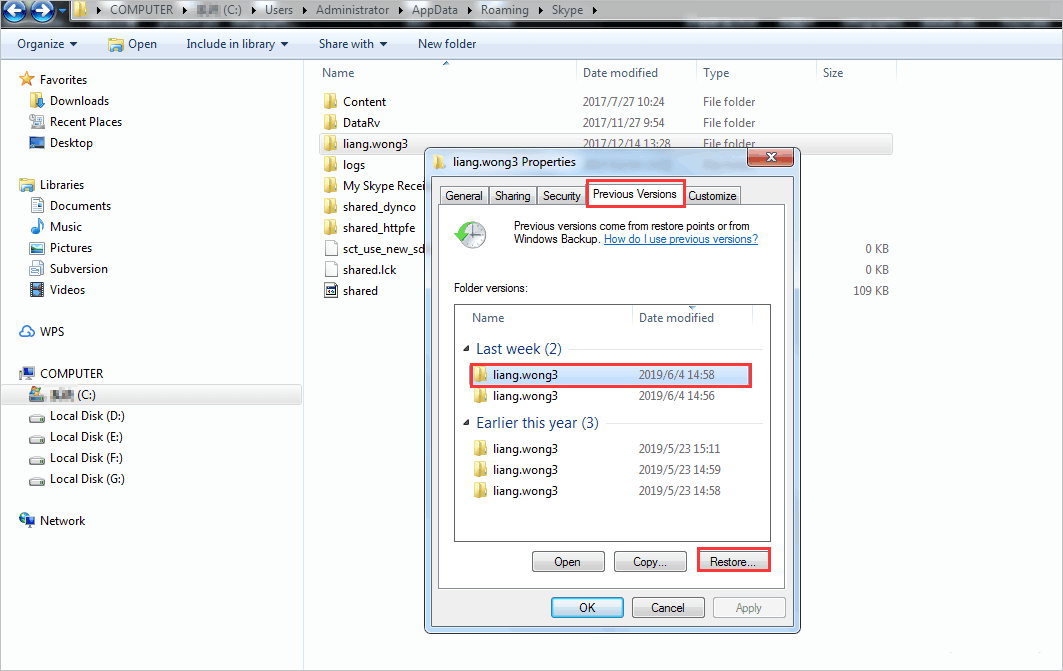
If you have Windows Backup enabled, you may be able to recover Skype messages, chat history, and other sent or received items from previous versions. However, this method is only effective if you had the backup feature turned on. If you didn't have backups enabled, this approach is not viable.
Step 1. Go to C:\Users\YourWindowsUsername\AppData\Roaming\Skype\YourSkypeUsername.
Step 2. To restore a previous version of a file, right-click on the file, select "Properties", then click on the "Previous versions" tab. Highlight the older version you want to restore, and click on "Restore".
Bonus Tip: How to Recover Deleted Files on Windows 10
If you've lost data on Skype, you can try to restore it by following the provided guide, which has worked for most users. However, if the AppData folder on your Windows computer is also missing, you can recover it using hard drive recovery software like Qiling.
This data recovery software allows you to:
Deep Data Recovery
- Recover deleted files or formatted, inaccessible data in various data loss situations, such as accidental deletion, formatting, or system crashes.
- Recover photos, audio, music, and emails from any storage with ease, safety, and completeness.
- You can recover data from various storage devices and media, including the recycle bin, hard drive, memory card, flash drive, digital camera, and camcorder.
To recover deleted Skype chat history, download the Qiling hard drive recovery tool, which can help you retrieve lost data. Don't miss any chance to recover your lost data.
Step 1. Launch Deep Data Recovery. Select file types and click "Fast Scan" to start the recovery process.

Note: You can choose different search modes based on where and why the data was lost.
Step 2. To proceed, select the precise file location and then click the "Scan" button.

Step 3. After the process, select the "Deleted Files" and "Other Lost Files" folders in the left panel, then apply the "Filter" feature or click the "Search files or folders" button to find the deleted files.

Step 4. After clicking the "Recover" button, save the restored files in a location different from the original one to ensure they are safe and not overwritten.
How to Recover Old Skype Messages and History
Some of your old Skype conversations may no longer appear in the chat window, but Skype doesn't actually delete these messages. As long as you still have access to the Skype account on which you had the conversation and haven't manually deleted your chat history, you can view and access your old messages.
Step 1. Sign in to your Skype account that has the chat history you want to view.
Step 2.To view all your Skype contacts, click the "Contacts" tab in the left section of Skype, and all of your contacts will be displayed.
Step 3. Open the contact you wish to view the Skype messages from, then click on the "Details" tab on the contact's profile page. On the "Details" tab, click on the "View history" button. This will open the Skype message history for the selected contact.
Step 4. To change the time period from which messages are displayed from a contact in Skype, look to the right side of the Skype screen. Above any current messages displayed from this contact, you see a list of options that says "Show messages from:" followed by a list of time periods. Select the desired time period from this list.
Step 5.To view your chat history, choose a time period from the options provided, such as "Yesterday," "Last 7 Days," "Last 30 Days," "Last 90 Days," "Last Year," or "Since Beginning." This will allow you to see the conversations and interactions you've had with me over a specific time frame. Simply select the time period that suits your needs, and you'll be able to view the relevant chat history.
How to Export Skype Chat History Windows 10
To export and download your Skype chat history, follow these steps:
Step 1. Sign into your Skype account.
Step 2. You can choose to download your Skype conversations only or export both conversations and file. Then select Submit a request.
Step 3. Once your export request is complete, you'll receive a notification on Skype with a link to view or download your chat history. If you don't get a notification on Skype, check the export page, where you'll find a link to download your files once they're available.
Step 4. Click the Download button to download your files.
The downloaded Skype messages and files are saved in.tar format, which may require an additional application to open and extract the contents. To access the exported .tar file on Windows 10, follow these detailed tutorials to extract and view the Skype chat history.
How to Recover Deleted Skype Messages on iPhone
You can try using Qiling MobiSaver, a tool that allows you to recover deleted data from your iPhone or iPad, including photos, contacts, videos, and messages, even without a backup.
To retrieve deleted Skype messages on your iPhone, you can use a data recovery software that offers three ways to recover your lost chat history: scanning your iPhone for deleted messages, restoring from iCloud backup files, or recovering from iTunes backup. The software allows you to follow specific steps to recover your deleted Skype messages from your iPhone.
Step 1. Connect iPhone to Your PC
Download and launch Qiling MobiSaver, then click "Recover from iOS device" on the left and click "Start".
Step 2. Scan for Lost iPhone/iPad/iPod Data
Qiling MobiSaver will automatically scan your devices and find all the lost data for you, just wait for the scan to complete.
Step 3. Recover Lost iPhone/iPad/iPod Data
You can select the lost data you want to recover, such as photos, videos, contacts, SMS, notes, voice mails, and other files, and save them to a new location.
How to Retrieve Deleted Skype Messages on Android
Unfortunately, there is no way to recover deleted messages in Skype on an Android phone. When you delete a conversation, all associated messages are permanently removed from the device you're using, and they will not be recoverable unless you have synced them to the cloud or have them saved on another device. If you want to keep a record of your conversations, it's recommended to save or forward the messages to another device or a cloud storage service before deleting them. This way, you can still access the messages even if they're deleted from the original device.
If you've lost Skype messages on your Android phone, you can try logging into your cloud storage account to retrieve the deleted messages. Your Skype messages from the past 30 days are stored in the cloud, so you can view and restore them when signed in to Skype on any device. This allows you to access your messages even if they've been deleted from your phone.
Conclusion
If you've accidentally lost or deleted your Skype history, there's no need to worry. You can recover Skype messages from the main.db file or restore deleted Skype chat history from previous versions. Additionally, if you're using Skype on Android or iPhone, you can find guidance on how to retrieve deleted chat history on this page.
Deep Data Recovery can help recover deleted Skype messages by restoring the main.db file, which may have been lost due to hard drive formatting, human deletion, or other reasons. This tool is also known for its ability to repair corrupted files on Windows 10, including fixing damaged videos, photos, Word, Excel, and other documents.
Related Articles
- How to Solve We're Sorry but Word Has Run Into an Error and How to Repair Corrupted Word/Excel/PPT Files
- How to Recover Deleted Worksheet in Excel
- Troubleshoot Windows 11 Not Showing Up in Windows Update
- Dashcam Video Recovery: How to Recover Video Files from Dashcam
- How to Reset Canon Rebel DSLR to factory settings
To reset your Canon Rebel to factory settings, follow these steps: First, turn off the camera. Next, press and hold the "Menu" button, then press the "OK" button. Hold both buttons for about 3 seconds. - How to Reset GoPro Hero 3/4 to Factory Settings Without Data Loss
To reset your GoPro Hero 3/4 to factory settings without losing any data, follow this detailed guide. It will also help you recover files from your GoPro's SD card.
Products
Articles & Tutorials
- Data Recovery
- Data Backup
- File Recovery
- File Backup
- System Backup and Restore
- Disk and Partition Clone
- Technical articles
- Mobile articles
- Disk Master Help
- Windows Data Recovery Tutorials
- Windows Secure Delete Tutorials
- Windows Partition Management Tutorials
- Windows File Backup and Restore Tutorials
- Windows System Backup and Restore Tutorials
- Windows Disk Backup and Restore Tutorials
- Windows Clone Tutorials