Troubleshoot Windows 11 Not Showing Up in Windows Update
If Windows 11 is not showing up in Windows Update, To fix this issue, we'll walk you through the solutions, which we'll outline in a concise and easy-to-follow manner.
| Workable Solutions | Step-by-step Troubleshooting |
|---|---|
| 1. Check Your PC | Download Qiling Windows 11 Upgrade Checker. Click the Check Now button to...Full steps |
| 2. Check Windows Update | Press Windows + S to open Settings and choose "Update & Security"...Full steps |
| 3. Restart Your PC | Click the "Start" icon. Go to "Shut down or sign out > Restart."...Full steps |
| 4. Run Update Troubleshooter | Go to "Start > Settings > Update & security > Troubleshoot". Click on...Full steps |
| 5. Upgrade to Windows 11 | If you still fail to receive the notification after you have tried these solutions...Full steps |
Windows 11 Not Showing Up in Windows Update - Reddit
Windows 11 was released on October 5, and users with compatible devices can upgrade for free from Windows 10. However, many users have reported that Windows 11 is not showing up in the Windows Update, despite being eligible for the upgrade.
You've confirmed that your Windows 10 is up-to-date and the Health Check app has passed, but Windows 11 isn't prompting to upgrade. Can you try checking for any pending updates in Settings > Update & Security > Windows Update, and also check the Windows Insider Program settings to see if there's an option to upgrade to Windows 11? If you're still having trouble, you may want to try restarting your computer or checking for any system file corruption. Follow the steps below to resolve the issue.
If your computer meets the requirements, you should receive a Windows 11 update notification. If not, check to see if the update is available by going to Settings > Update & Security > Windows Update, and if not, ensure your PC is set to receive updates. You can also try restarting your PC, checking for any pending updates, and running the Windows Update Troubleshooter.
Method 1. Check If Your PC Meets the Requirements
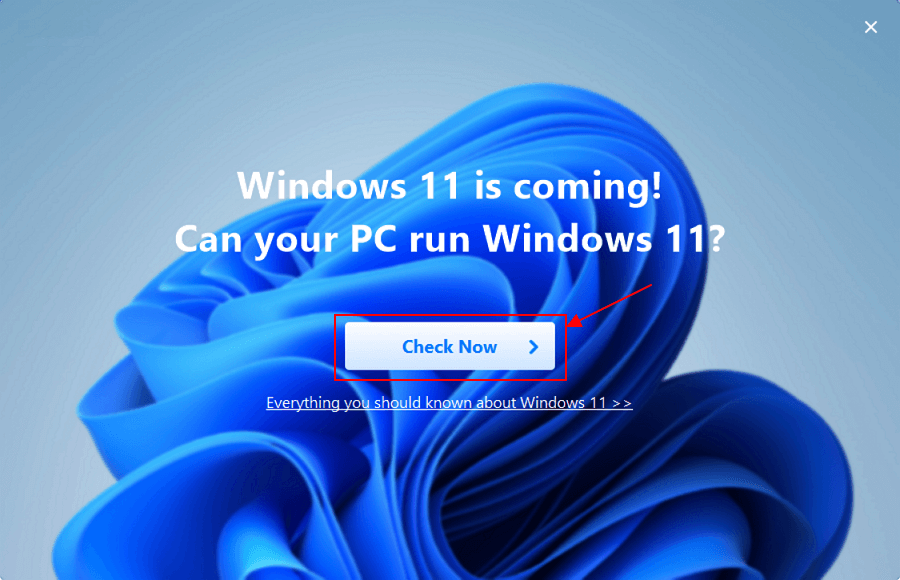
If the Windows 11 update doesn't show up on your Windows 10, check your PC's compatibility by downloading and running a free Windows 11 checker, such as Qiling, which can quickly determine if your computer meets the requirements.
Step 1. Download Qiling Windows 11 Upgrade Checker.
Step 2. Click the Check Now button to start.
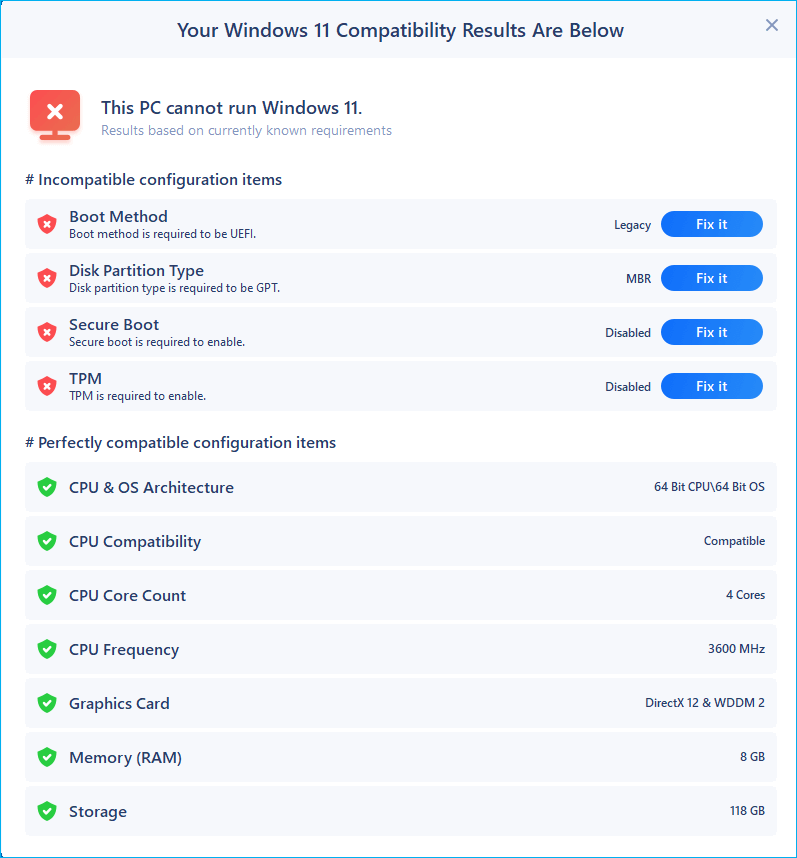
Step 3.The Windows 11 compatibility result window will soon appear, displaying a list of both incompatible and compatible configuration items.
Method 2. Ensure that Windows Update Is Working
If you have paused Windows updates in the past and forgot about it, or that the feature was disabled by an app or a bug. To check if your Windows update option is working well, follow the steps below.
Step 1. To update Windows, press the Windows key + S on your keyboard, which will open the Settings app. From there, navigate to the "Update & Security" section.
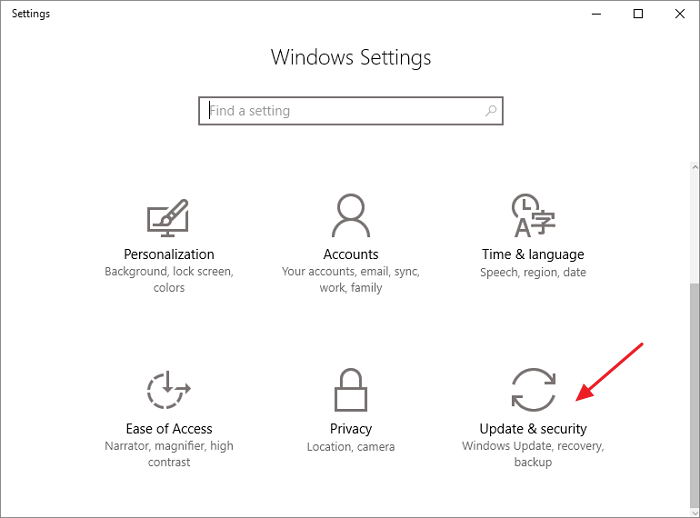
If your Updates are paused, click on Resume updates.
Step 2. If your Updates are paused, click on "Resume updates".

Method 3. Restart Your PC to Fix Windows 11 Not Showing Up
To troubleshoot Windows 11 updates not working, try the simplest method: reboot your PC and check for any available updates. This can help remove damaged or corrupt temporary files that may be causing the issue. A soft reboot can often resolve the problem and allow you to install any pending updates.
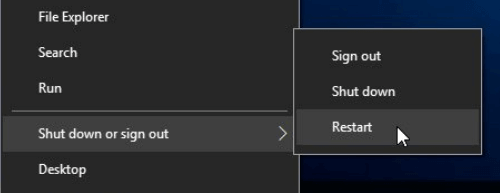
- Click the "Start" icon.
- Go to "Shut down or sign out > Restart."
Method 4. Run Windows Update Troubleshooter to Fix It
Windows has a To run the Windows Update Troubleshooter, go to the Microsoft Update Catalog website, click on "Troubleshooters," and select the "Windows Update Troubleshooter." Follow the prompts to run the troubleshooter, which may ask you to restart your computer or run additional troubleshooting steps. The troubleshooter will then diagnose the problem and offer solutions to fix it.
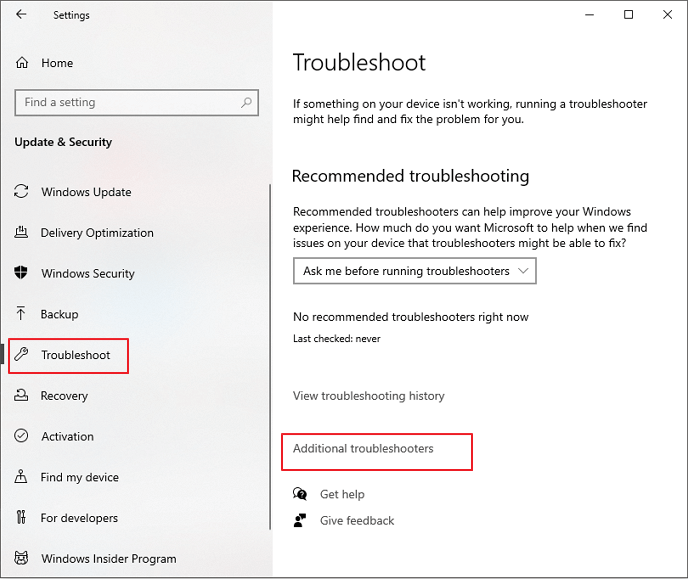
Step 1. To troubleshoot issues on your Windows device, go to the "Start" menu and select "Settings". From there, navigate to "Update & security" and click on "Troubleshoot".
Step 2. Click on "Additional troubleshooters".
Step 3. Click on "Windows Update > Run the troubleshooter".
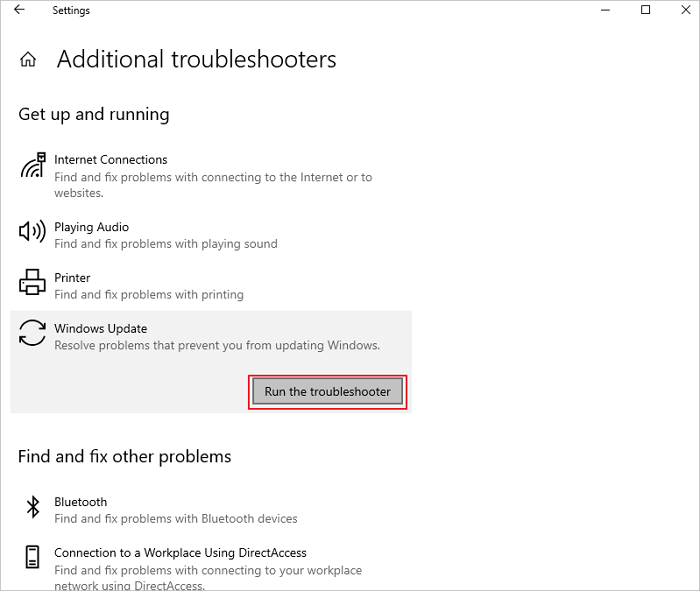
The troubleshooter will begin examining the system for potential problems and provide suggested solutions if any issues are identified.
Method 5. Upgrade to Windows 11 with Windows 11 Media Creation Tool
If you're still not receiving notifications after trying the above solutions, you can consider upgrading to Windows 11 using the Windows 11 media creation tool. This will require an empty USB flash drive with at least 8GB of space.
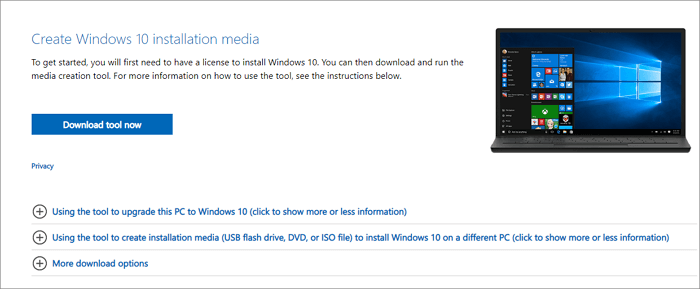
To download the Windows 11/10 Media Creation Tool, go to Microsoft's official website, click on "Download tool now" under the "Create Windows 11/10 installation media" section, and select the correct version of Windows. The tool will be downloaded as an executable file. Run the tool, select the language, edition, and architecture of Windows, and choose whether to create a bootable USB drive or an ISO file.
Microsoft offers a Windows 10 Media Creation Tool that allows users to upgrade a PC, perform a clean install, or create a bootable installation USB drive.
Additional Tips - How to Recover Data After Windows Update
Don't worry if you've lost data after upgrading to Windows 11, as Qiling hard drive data recovery software can help restore data from an SD card, SSD, USB flash drive, memory card, or camcorder after updating, deleting, or formatting. Follow the steps to get back your data.
Step 1. Select file types and click "Fast Scan" to start
Launch Deep Data Recovery, select file types and click "Fast Scan" to begin the recovery process.

Note: You can choose different search modes based on where and why the data was lost.
Step 2. Select a location and start scanning
Choose the partition where you lost data. Then, click "Scan".

Step 3. Filter and preview files
Use the file format filter to find the files you need, then click the "Preview" button or double-click a file to view its content.

Step 4. Recover lost data or files
Click the checkbox next to the file you want to recover and click "Recover" to restore the lost data to a secure location.
Conclusion
If Windows 11 is not showing up in Windows Update, you can try any of the suggested solutions. If you still encounter problems with updating to Windows 11, feel free to let us know and we'll do our best to assist you.
Related Articles
- Microsoft Word Has Stopped Working [9 Useful Fixes]
- Recover 0 Byte Files in Windows 10/8/7
- How to Convert a Shortcut File into Original File
- How to Restore Missing Desktop Icons and Files in Windows 10/11
- How to Fix Overheated Hard Drive and Recover Data [Symptoms, Causes & Fixes]
If a hard drive has overheated, it's essential to address the issue promptly. Symptoms include unusual noises, decreased performance, and system crashes. The causes can be attributed to dust buildup, inadequate airflow, or faulty cooling systems. - How to Fix Pen Drive Shows Empty Although It Has Data - 4 Solutions
Many reasons could result in Pen drive showing empty although it has data, and this page will analyze the reasons and show you corresponding solutions. The solutions are also applicable to similar issues like USB shows empty but it is full, USB files not showing but space used, etc.
Products
Articles & Tutorials
- Data Recovery
- Data Backup
- File Recovery
- File Backup
- System Backup and Restore
- Disk and Partition Clone
- Technical articles
- Mobile articles
- Disk Master Help
- Windows Data Recovery Tutorials
- Windows Secure Delete Tutorials
- Windows Partition Management Tutorials
- Windows File Backup and Restore Tutorials
- Windows System Backup and Restore Tutorials
- Windows Disk Backup and Restore Tutorials
- Windows Clone Tutorials