Where Do Permanently Deleted Photos Go on PC/iPhone/Android
Where do deleted photos goTo recover permanently deleted photos on your iPhone or Android phone, follow this simple guide. Learn how to retrieve deleted pictures on your device by reading this helpful how-to, which provides step-by-step instructions for recovering lost photos on both iOS and Android devices.
| Workable Solutions | Step-by-step Troubleshooting |
|---|---|
| Where do deleted photos go on Windows 10 | Simply deleted files go to the Recycle Bin. You can easily restore deleted photos from Recycle Bin. To recover permanently deleted photos...Full steps |
| How to recover permanently deleted photos on Windows 10/11 | When you lost photos on your computer, stop using your hard disk immediately and apply a data recovery tool to scan and recover deleted photos...Full steps |
| Where do permanently deleted photos go on iPhone and how to recover | When you deleted photos on iPhone, you can find them in the Recently Deleted Folder. Or you can use an iPhone data recovery tool to recover permanently deleted...Full steps |
| On Android, deleted pictures are stored in a temporary location called the "recycle bin" or "trash" until they are permanently deleted. This temporary storage is usually located on the device's internal storage, and the pictures can be recovered from there using various methods, such as using a file manager app or a dedicated photo recovery app. | Where do permanently deleted photos go on Android? The deleted photos on Android are not gone forever. You can take Android photo recovery software...Full steps |
Where Do Deleted Photos Go on Windows 10
When you delete a picture on a Windows computer, it initially goes to the Recycle Bin, where you can restore it if needed. This allows you to recover recently deleted photos.

Where Do Permanently Deleted Photos Go on Computer
When a file is deleted, it's not gone for good - it can still be recovered if it hasn't been overwritten by new data. The file's reference on the hard drive is removed, making it invisible to the computer, but the actual file remains until it's overwritten. This means that deleted files, like photos, can still be recovered as long as they haven't been written over.
How to Recover Permanently Deleted Photos on Windows 10/11
When deleting pictures or permanently deleting photos, stop using the hard drive and immediately apply a professional data recovery software like Deep Data Recovery to scan and recover the deleted files. This software has stunning features that make it effective in recovering deleted files.
Qiling data recovery software
- Recover lost, deleted, or inaccessible files, including photos, videos, audio files, documents, and more than 1000 other file types, with a reliable data recovery solution.
- To recover lost photos from an SD card, USB flash drive, external hard drive, pen drive, HDD, SSD, or any other storage device, start by stopping any data transfer or use of the device. Next, download and install a reliable photo recovery software, such as Deep Data Recovery, Disk Drill, or Photo Recovery.
- After recovering data, the software can repair corrupted photos, specifically fixing damaged JPEG/JPG, PNG, and BMP images.
To recover permanently deleted photos, follow the tutorials below using Qiling data recovery software, which will guide you through the process of retrieving your lost images.
Step 1. Select file types and click "Fast Scan" to start
Launch Deep Data Recovery. Select file types and click "Fast Scan" to start the recovery process.

Note: You can choose different search modes based on where and why the data was lost.
Step 2. Choose the location and start scanning
To recover deleted or lost pictures, hover over the SD card, camera, or hard drive partition where the pictures were deleted/lost, then click "Scan" to initiate the recovery process.

Step 3. Select the pictures you want to recover
After the scanning process is complete, navigate to the "Pictures" section in the left panel. If you're looking to find lost photos, select "Lost" from the top list. You can then browse through the recovered photos by device, type, or date.

Step 4. Recover lost photos
After previewing the recovered pictures, click "Recover" and choose another location to save the desired pictures.
If you've accidentally deleted photos on your Mac, don't worry - there are ways to recover them. To start, stop using your Mac immediately to prevent any new data from being written to the disk. Next, check the Trash folder, as deleted files often end up there.
Mac Photo Recovery: How to Recover Deleted Photos on Mac
When you delete pictures on your Mac, there are several ways to recover them. You can use a Mac photos recovery tool to retrieve permanently deleted photos, restore deleted pictures using the Photos app, or even recover lost pictures from the Mac Trash.
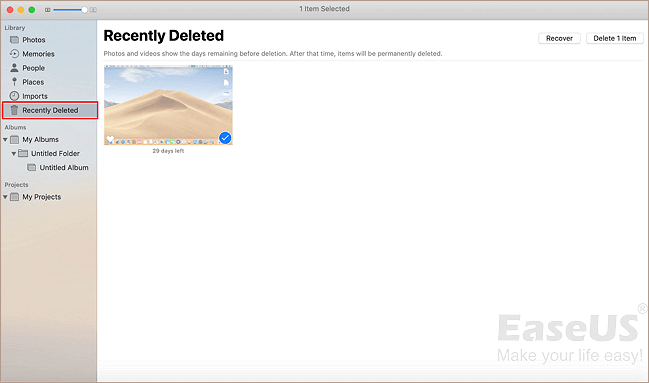
Where Do Deleted Pictures Go on iPhone
When you delete a photo on your iPhone, it goes into your Recently Deleted album, where it stays for 30 days before being permanently removed. Within that timeframe, you can easily restore the deleted pictures. If it's been over 30 days, you can use a reliable iPhone data recovery app to recover the deleted photos.
How to Recover Recently Deleted Photos on iPhone
Step 1. Open the Photos App on your iPhone.
Step 2. Scroll down and tap on "Recently Deleted."
Step 3. Select the photos you want to recover and tap "Recover". Alternatively, you can tap "Delete" to permanently remove the photos.

How to Recover Permanently Deleted Photos on iPhone
If you're looking to recover a photo that's over 30 days old, it won't be possible through the recently deleted folder. However, you can still try to recover deleted photos by using an iPhone photo recovery tool or restoring from an iTunes backup, if one exists.
Qiling MobiSaver is a simple and effective iOS data recovery software that allows you to recover deleted photos, videos, contacts, and other files from iPhone, iPad, and iPod Touch devices.
Step 1. Connect iPhone to Your PC
Launch Qiling MobiSaver, choose “Recover from iOS Device” on the left, and click “Start”.
Step 2. Scan for Lost iPhone Photos
Qiling MobiSaver automatically scans iPhone 13/12/11/X/XR/XS/8/7/6/5/4, finding existing and even lost photos.
Step 3. Preview and Restore Photos
To recover photos, select the "Photos" option on the left, view and choose the desired photos, and then select either "Recover to PC" or "Recover to Device" to initiate the recovery process.
Where Do Deleted Photos Go on Android
When you delete photos on your Android phone, they go into the "Recently Deleted" album in your Photos app, where you can access them for 30 days before they are permanently deleted.
You can find all your deleted photos within the last 30 days in a specific folder, where you can recover them by choosing the photos and tapping the Restore button. If the deleted pictures are older than 30 days, they will be permanently deleted.
Where Do Photos Go When Permanently Deleted on Android
Deleting pictures on an Android phone is similar to removing files on a computer's hard drive. When you delete photos, the File Access Table on the disk is rewritten to mark the area where the data was stored as free space. This pattern remains on the disk until other files overwrite it, which is why deleted files can sometimes be recovered using file recovery software.
How to Recover Permanently Deleted Photos on Android
To recover permanently deleted photos on Android, you can use a data recovery tool like Qiling MobiSaver for Android. However, this process requires the device to be rooted beforehand, allowing the software to access and recover lost data, including photos, contacts, messages, and videos.
Note: Before using Android data recovery software, ensure that your phone has been rooted as these tools can only access rooted Android devices. This is a necessary step to initiate the recovery process.
Step 1.To recover data from an Android device, install and run Qiling MobiSaver for Android on your computer, connect your Android phone to the computer with a USB cable, and click the "Start" button to let the software recognize and connect your device.
Step 2.After connecting your Android phone, the software quickly scans the device to find all existing and lost data, allowing you to easily locate the photos you're looking for by selecting the correct file types.
Step 3.To restore deleted photos from your Android phone, first preview all found photos and select which ones you want to recover. Then, click the "Recover" button to restore the selected data to your computer. Once recovered, you can keep a copy of the photos as a backup on your computer and then transfer them back to your Android phone to continue using them again.
Are Deleted Photos Really Deleted? How to Recover
When you accidentally delete photos, it's natural to wonder where they go. Fortunately, this post provides a comprehensive guide to understanding where permanently deleted photos end up on iPhone, Android, and Windows computers. Additionally, it offers specific steps to recover deleted photos on these devices using Qiling data recovery software.
You can use Deep Data Recovery to restore lost files from a Windows PC or Mac computer, even in complex situations. Alternatively, Qiling MobiSave is a great option for recovering permanently deleted photos on an iPhone or Android device.
Related Articles
- Recover Hidden Files From External Hard Disk
- ISO Recovery: Recover Deleted ISO Files with ISO Recovery Software
- 3 Ways to Fix Google Chrome Bookmarks Disappeared
- GIMP Recover Last Session: Recover Unsaved/Deleted/Lost GIMP Photos or Files
- What Are Effective Ways to Solve Excel 2016 Not Saving Changes
Excel not saving changes can be frustrating, but several solutions exist to resolve the issue. You can try repairing corrupted Excel files, starting Excel in safe mode, changing ownership, or repairing your Office installation to resolve the problem. - How to Export Data from SQL Server to Excel Automatically
You can export SQL Server data to an Excel file in various ways, with two methods being particularly useful. Two ways to export data from SQL Server to Excel are provided, allowing you to do so automatically with step-by-step guides.
Products
Articles & Tutorials
- Data Recovery
- Data Backup
- File Recovery
- File Backup
- System Backup and Restore
- Disk and Partition Clone
- Technical articles
- Mobile articles
- Disk Master Help
- Windows Data Recovery Tutorials
- Windows Secure Delete Tutorials
- Windows Partition Management Tutorials
- Windows File Backup and Restore Tutorials
- Windows System Backup and Restore Tutorials
- Windows Disk Backup and Restore Tutorials
- Windows Clone Tutorials