What Are Effective Ways to Solve Excel 2016 Not Saving Changes
You're experiencing frustration because you've made changes to a spreadsheet, saved them as a new file, but the changes are not being retained when you reopen the file. This issue can be caused by various factors, such as incorrect file format, corrupted files, or issues with the spreadsheet software itself. To resolve this, you can try saving the file in a different format, checking for any errors or corruption, or reinstalling the spreadsheet software. If the problem persists, it may be helpful to consult the software's documentation or contact their support team for further assistance.
If you're experiencing issues with Microsoft Excel not saving changes or formatting changes on existing files, it's likely due to the AutoSave function not working as intended. Although Excel has an AutoSave feature that automatically stores your workbook as you edit it, it may not function properly when you've saved files manually.
Excel's failure to save changes can be attributed to a variety of reasons. The issue of Excel not saving formatting changes is a common problem that can be caused by a range of factors, and troubleshooting is often necessary to resolve the issue.
Why Is Excel Not Saving Changes (Formatting, Data, and Formula)
Excel 2016 not saving changes may be due to several reasons, including file corruption, compatibility issues with older Excel versions, or problems with the Excel add-ins. It's also possible that the file is being saved in a read-only mode, or the Excel program itself is experiencing issues. To resolve this, users can try saving the file in a different location, disabling add-ins, or running the Excel program as an administrator.
- The error "Lack of permission to the folder where the file is saved" typically occurs when the application or script attempting to access the file does not have the necessary permissions or access rights to the folder where the file is located. This can be due to various reasons such as the folder being owned by a different user, having restrictive permissions, or being located on a network drive with limited access.
- Third-party Add-ins are interfering with Excel saving.
- An Excel XLS or XLSX file is corrupted due to various factors, resulting in an unreadable or unusable file.
- Insufficient disk space for saving Excel changes.
- Antivirus software conflicts with Excel and prevents saving changes.
The issue of Excel not saving changes can be attributed to various reasons. To address this problem, you can start by checking if the file is being saved in a read-only location, such as a network drive or a cloud storage service that doesn't allow file modifications.
Fix 1. Repair Corrupted Excel XLS or XLSX File
Before attempting to save changes to an Excel document, it's essential to check if the workbook is intact. A damaged workbook will prevent any changes from being saved, making it crucial to verify the document's integrity before proceeding.
To repair corrupted Excel documents, you have two ways. Firstly, you can open the corrupted Excel file in Excel itself, and Excel will attempt to repair the file and recover as much data as possible.
Use a File Repair Tool
To repair damaged Excel, Word, or PPT Office documents, you can apply Deep Data Recovery for help. It supports repairing corrupted PDFs, PowerPoint files, and Word documents efficiently. Follow the steps below to repair Excel files within three steps.
Step 1. Select the Excel Files
Download, install and launch Deep Data Recovery for File Repair. Click "Fast Scan" on the software's home screen.

Note: You can choose different search modes based on where and why the data was lost.
Step 2. Select the Excel Files
To recover lost Excel files, start by selecting the exact location where the files were lost, such as a specific drive, folder, or disk. Once the location is chosen, click the "Scan" button to initiate the recovery process.

Step 3. Repair the Excel Files
Select the corrupt Excel files (XLS/XLSX), click "Recovery" after selecting the file, and the software will initiate the scanning and repairing process.

Step 4. Preview and Save
After the scan and repair process is complete, the items will be displayed in a tree-view on the software's left-hand panel, where you can preview them by double-clicking on them.
Use Office Open or Repair Option
Microsoft Office has an inbuilt "Open or Repair" tool that helps fix corrupted documents, allowing users to recover their work without needing additional software.
Step 1. Start Excel 2016, 2013, 2010, or other versions.
Step 2. Click "File" at the top left corner, then, click "Open".
Step 3. In the Open dialog box, select the Excel file that is unable to be saved.
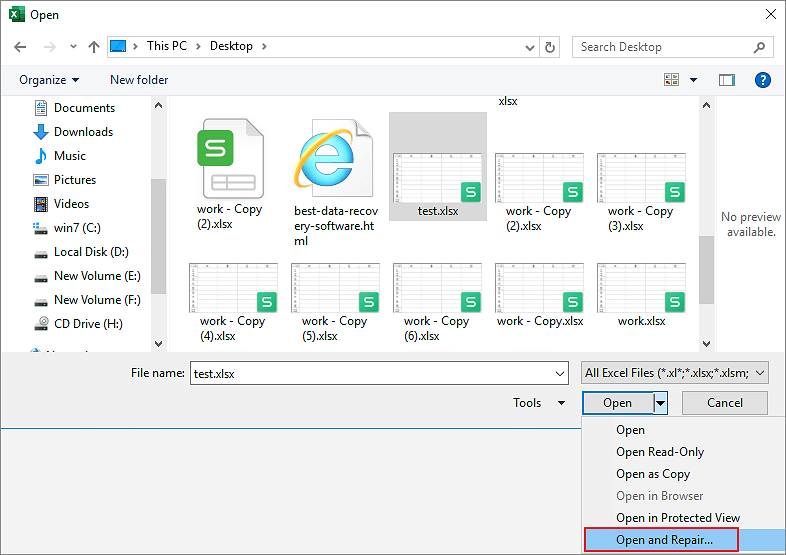
Step 4. Click the down arrow on the "Open" button, then click "Open and Repair".
Fix 2. Check the Folder Permission
To save an Excel file, you need to have read, write, and modify permissions to the folder where you're saving the workbook.
To check the permissions for a folder, right-click on the folder itself, then select "Properties" from the context menu. Next, click on the "Security" tab and verify the permissions listed for the folder.
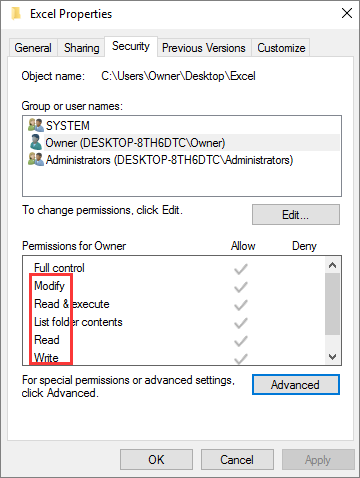
If you're denied read and write permissions, you won't be able to save Excel files. To resolve this, you need to take ownership of the file to edit and save it.
Fix 3. Start Excel in Safe Mode
Sometimes, add-ins can cause problems with Excel. If you're experiencing issues with Excel, it's possible that add-ins are the source of the problem. If you can save Excel formatting when running it in safe mode, the issue may be caused by a third-party add-in.
To troubleshoot the issue of Excel not saving changes, start your application in safe mode. This means running Excel with only the most basic features enabled, without any add-ins or other programs interfering.
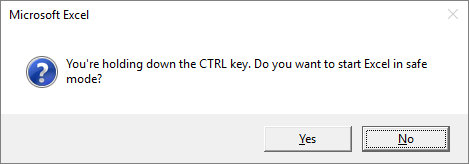
To open Excel in safe mode, hold the Ctrl key and click on the Excel icon, then click "Yes" to confirm safe mode. Do not release the Ctrl key until prompted.
If you can save Excel formatting changes, try opening Excel normally and disabling add-ins one by one, running the program each time you disable an add-in, to identify the problematic add-in.
Fix 4. Disable Add-ins in Excel
Step 1. Open Excel. Click "File" > "Options" > "Add-ins".
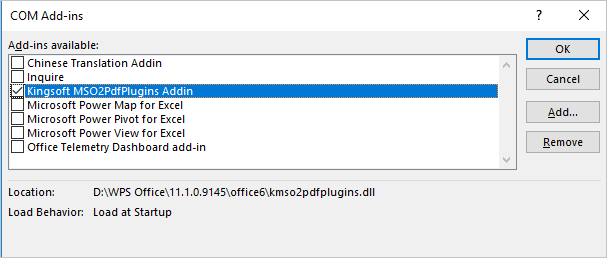
Step 2. Select "COM Add-ins", and click "Go".
Step 3. To resolve an issue in Excel, uncheck all add-ins in the list, click "OK", and restart the application.
Fix 5. Make Sure Enough Space on Disk
When saving Excel to a hard disk or external drive, ensure the disk has enough free space to save the file. If the disk is full, Excel can't save the file, resulting in the "Excel not saving changes" error message.
You can use a Windows 10 partition management tool to resize and extend the partition, such as Qiling Partition Master, which allows you to extend the partition on HDD, SSD, and external hard drive without data loss.
To increase space on a hard drive partition using Qiling partitioning software, follow these simple steps: First, download and install Qiling on your computer. Next, launch Qiling and select the partition you want to resize.
Step 1. Locate the Target Partition.
To extend a partition, you need to locate the target partition and select "Resize/Move".

Step 2. Extend the Target Partition.
To add unallocated space to your current partition, drag the partition panel to the right or left, depending on the desired direction, and click "Proceed" to confirm the action.

Extra Option: Get Space from Another Drive
If there's not enough unallocated space, click on a big partition with enough free space, then select "Resize/Move".
To extend a partition in a database, select the target partition that you want to extend by clicking on the "Allocate Space to" column. This will allow you to add additional space to the selected partition.
Step 3. Execute Operations to Extend Partition.
Drag the partition dots into the unallocated space to merge them, then click "Proceed" to apply the changes.
Fix 6. Repairing Office Installation
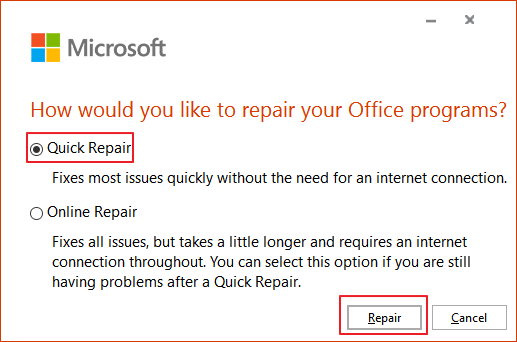
Microsoft has a repair utility to fix corrupted Office applications, which may solve the issue of Excel not saving changes.
First, try Quick Repair, which usually takes a few minutes. If that doesn't work, try Online Repair, which may take dozens of minutes to fix any corrupted installation.
Step 1. Right-click the Windows start button, and click "Control Panel".
Step 2. Click "Programs and Features" and click on "Microsoft Office".
Step 3. Click "Repair" and then "Continue". Choose either "Quick Repair" or "Online Repair". Wait for the process to finish, then start Excel and see if you can save it.
Fix 7. Deactivate the Antivirus Software Temporarily
When running antivirus software, it may interfere with the Excel saving process, potentially preventing you from keeping formatting or data changes.
Temporarily close your antivirus software and try to save the Excel file to check for conflicts, but it's not recommended to turn off anti-virus software as it leaves your computer vulnerable to viruses or malware.
Other Useful Workarounds to Save Excel Workbooks
If none of the solutions listed in the article help solve the Excel not saving changes or formatting changes issue, try the following options to save your Excel files: 1) Try saving the file in a different location, 2) Check if the file is set to read-only, 3) Close and reopen Excel, 4) Check for any Excel add-ins that might be causing the issue, and 5) Save the file with a different file extension. If these options do not work, consider reinstalling Excel or seeking further assistance.
- To save an Excel file by using a new file name, go to the "File" tab and click on "Save As". In the "Save As" window, select the desired location and file type, then enter the new file name in the "File name" field.
- Move the original worksheets to a new workbook.
- To change the file type of an Excel file, you can simply change the file extension from .xls to .xlsx or vice versa. For example, if you have a file named "example.xls", you can save it as "example.xlsx" by changing the file extension.
- Save the workbook to a different location.
- Try to save the Excel files in safe mode.
To Sum Up
The issue of Excel not saving changes can be caused by several factors, including restricted file permissions, third-party add-ins, insufficient storage space, file damage, or conflicting antivirus software, and can be resolved by addressing these underlying causes.
If Excel is unable to save changes, there are several measures you can take to resolve the issue. Check the folder permissions, disable any add-ins that may be causing the problem, and ensure that the disk space is not full. You can also try turning off your antivirus software temporarily to see if it's interfering with Excel's ability to save.
If the methods don't work, and your Excel still isn't saving formatting changes, you can try saving your Excel file in other ways.
Hope this user guide can help you.
Related Articles
- Pen Drive Recovery: Pen Drive Data Recovery Software Full Version Free Download
- Fixed: Samsung 860 EVO Not Detected in Windows 10/11
- M3 RAW Drive Recovery Crack Alternative with License Code/Key
- Best Online Data Recovery Tool for File Recovery [in 2022]
- How to Fix Windows 10 Update Error Code 0x80070002
Error code 0x80070002 can be frustrating, but it's not impossible to resolve. Here are four methods to help you fix this issue, presented in a step-by-step manner. - How to Fix Xbox One Only Shows Green Screen
Are you experiencing issues with your Xbox One, only showing a green screen? This article is here to help you troubleshoot the problem and get your console up and running again.
Products
Articles & Tutorials
- Data Recovery
- Data Backup
- File Recovery
- File Backup
- System Backup and Restore
- Disk and Partition Clone
- Technical articles
- Mobile articles
- Disk Master Help
- Windows Data Recovery Tutorials
- Windows Secure Delete Tutorials
- Windows Partition Management Tutorials
- Windows File Backup and Restore Tutorials
- Windows System Backup and Restore Tutorials
- Windows Disk Backup and Restore Tutorials
- Windows Clone Tutorials