GIMP Recover Last Session: Recover Unsaved/Deleted/Lost GIMP Photos or Files
To recover the last session in GIMP, go to File > Recover Last Session. If you want to recover unsaved GIMP files from backup, you can check your operating system's backup folder for the file. For Windows, it's usually located in C:\Users\YourUsername\AppData\Roaming\.gimp-2.
| Workable Solutions | Step-by-step Troubleshooting |
|---|---|
| Method 1. Recover deleted GIMP last session | Download a file recovery tool > scan for lost GIMP files > recover the deleted files...Full steps |
| Method 2. Restore unsaved GIMP from Backups | Open GIMP and click file > click Recent and go to Document History...Full steps |
GIMP, a free photo editing software, offers users a wide range of photo editing effects and features. Many users find it helpful in editing their personal photos, business images, and social media posts. However, users may lose their edited files and photos due to careless operation, virus attacks, or system crashes.
To recover deleted, unsaved, or lost GIMP photos and files, use a data recovery software like Deep Data Recovery. This software can scan your computer's storage devices, identify deleted files, and recover them.
Note: Don't do anything to the hard drive where you lost GIMP files before you find a way to restore them.
Method 1. Recover Deleted GIMP Files with GIMP Recovery Software
If you've lost your GIMP files or photos without a backup, you can use professional file recovery software to restore them. This software can recover deleted, lost, or formatted GIMP files and photos with ease.
If you're looking to recover lost GIMP files, the professional software "Deep Data Recovery" is a good option. If the files are less than 2GB, you can try the free version, "Deep Data Recovery Free Edition". For files over 2GB, you can download the full version and purchase a serial key to activate it with unlimited recovery capacity.
Recover lost, deleted, formatted, or unsaved GIMP files with Deep Data Recovery. This software can help you retrieve your lost GIMP files, even if they've been deleted, formatted, or never saved.
Step 1. Select file types and click "Fast Scan" to start
Launch Deep Data Recovery. Select file types and click "Fast Scan" to start the recovery process.

Note: You can choose different search modes based on where and why the data was lost.
Step 2. Select a location and start scanning
Hover over the partition/drive where the deleted files were stored. Click "Scan" to initiate the scanning process to find the lost files.

Step 3. Select the files you want to recover
Once the scanning process is complete, select the deleted files you wish to recover. You can use the filter to display only the file types you're interested in, or search for a specific file by name in the search box. This is a quick way to find the desired file.

Step 4. Preview and recover deleted files
Preview the recoverable files, select the ones you want to restore, and click "Recover" to save them to a new storage location, bypassing the original disk where the data was lost.
Method 2. Restore Unsaved GIMP Files from Backups
There is no easy way to recover unsaved GIMP files as GIMP does not have an AutoSave feature. If GIMP crashes, data is lost. To avoid this, save your work frequently and make backups of your files. If you have backups, you can try to recover your lost GIMP files by following a specific path.
/home/.gimp-2.8/tmp
If you're unable to find your lost GIMP files in their usual location, you can try restoring them from a backup. To do this, follow these steps:
- Open GIMP and click "File"
- Click "Recent" and go to "Document History"
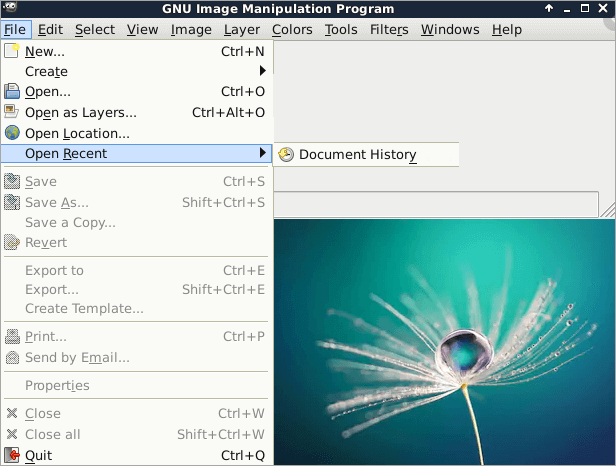
You can find your recent GIMP photos and files in the Document History, and then copy and save them into a secure spot on your PC for reuse.
GIMP Recover Last Session FAQs
The following four questions are most relevant to GIMP recover last session. Check the answers and find what you need.
1. Where are Gimp files stored?
To change the location of the GIMP program settings folder from the user folder to the AppData, Roaming folder in Windows 7, 8, and 10, you can modify the GIMP configuration file. You'll need to edit the "gimp-2.xrc" file, which is usually located in the GIMP installation directory, and change the path to the "gimp-2.xrc" file to point to the desired location in the AppData, Roaming folder. This will cause GIMP to store its settings in the specified folder instead of the default user folder.
2. How do I retrieve an unsaved photo?
GIMP does not have an autosave feature, so if you forget to save your work, you can try to recover it by opening the "Document History" from the "File" menu, but there's no guarantee it will be there.
3. How do I recover a file I accidentally replaced?
To recover an accidentally overwritten file, you can try the following solution:
- To access the file, open Windows Explorer and navigate to the folder where the file was previously located. This will allow you to view and interact with the file as needed.
- Right-click inside this folder and select "Properties" from the drop-down menu
- To recover an overwritten file, select the "Previous Versions" tab and look for an earlier version of the file that was not overwritten, allowing you to restore it to its previous state.
If you have a backup of your files on your computer, you can restore them from the backup. If you don't have a backup, you can try using a data recovery software to scan your computer for deleted files and try to recover them. However, the success of this method depends on various factors, such as the type of file system used, the amount of time since the files were deleted, and the presence of any malware or viruses.
For another deleted editable artwork file, use the format-specific steps for a GIMP XCF project or Krita KRA file. Check that layers and embedded assets open after recovery.
Related Articles
- How to Restore Missing AppData Folder in Windows 10/11
- How to Recover Data from Specific Folder
- Top 11 Best Photo Repair Software for PC/Mac
- Fix Cannot Open JPG Files on Windows 10
- Help! All Data in Mybook Live gone – Rescue Deleted Data from WD My Book Soon!!!
WD My Book Live users wake up to find their data deleted. What a tragedy. The only way to rescue the data is using data recovery software to find recoverable files. - How to Restore WhatsApp Backup from SD Card
If you're having trouble restoring a WhatsApp backup from an SD card, you can follow a detailed guide to help you through the process.
Products
Articles & Tutorials
- Data Recovery
- Data Backup
- File Recovery
- File Backup
- System Backup and Restore
- Disk and Partition Clone
- Technical articles
- Mobile articles
- Disk Master Help
- Windows Data Recovery Tutorials
- Windows Secure Delete Tutorials
- Windows Partition Management Tutorials
- Windows File Backup and Restore Tutorials
- Windows System Backup and Restore Tutorials
- Windows Disk Backup and Restore Tutorials
- Windows Clone Tutorials