Recover Deleted WhatsApp Messages on iPhone/Android with 4 Easy Ways
Summary
If you've accidentally deleted some essential WhatsApp messages, don't worry, you can recover them on your iPhone or Android device. There are quick fixes and professional software available to help you recover deleted WhatsApp messages, so you can get them back in no time.
WhatsApp has been a popular networking app, allowing users to connect with friends and family. One of its advantages is that it allows users to send and receive an unlimited number of messages without them auto-deleting, unlike some social media sites.
If you've accidentally deleted a WhatsApp conversation on your iPhone, don't worry - you can recover lost messages. The first step is to back up your data, which is often the best way to retrieve deleted WhatsApp messages. If you've already deleted them, there are still ways to recover them on both iPhone and Android devices. In this article, we'll show you the best methods to recover deleted WhatsApp messages, so you can get them back as quickly as possible.
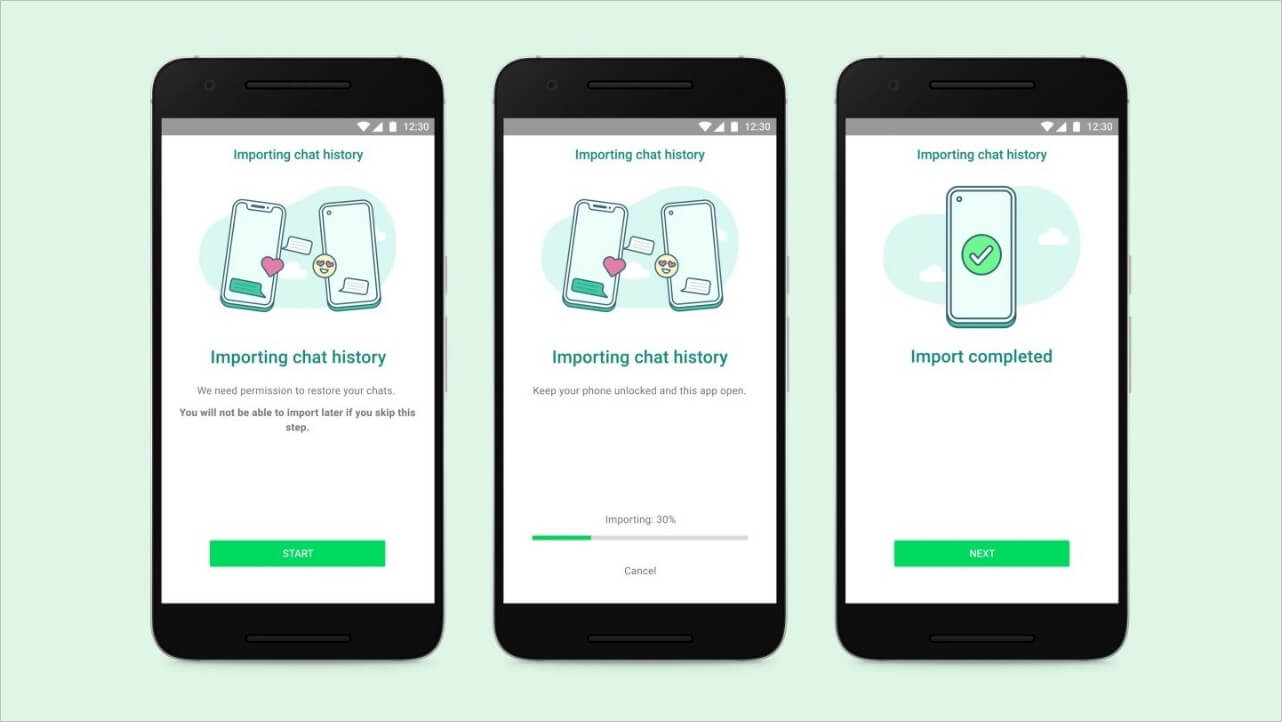
| Workable Solutions | Step-by-step Troubleshooting |
|---|---|
| Recover Deleted WhatsApp Messages with Backup on Android | Uninstall WhatsApp from your Android smartphone and then reinstall it and enter your phone number into WhatsApp. After that, click "Ok" to confirm it...Full steps |
| Recover Deleted WhatsApp Messages Without Backup on Android | Navigate to the WhatsApp directory on your Android device's file explorer and choose the "Database" option, which stores all locally created backups....Full steps |
| Recover Deleted WhatsApp Messages with Backup on iPhone | Go to the "Settings" menu to verify that you have activated the automatic backup feature. Choose "Chat", then go to "Chat backup" to verify it....Full steps |
| Recover Deleted WhatsApp Messages Without Backup on iPhone | You can swiftly recover a variety of data from your iPhone with Qiling MobiSaver, including photographs,notes, voice memos, and WhatsApp conversation history...Full steps |
Recover Deleted WhatsApp Messages on Android
If you're wondering how to recover WhatsApp messages on Android, don't worry - WhatsApp allows you to restore accidentally deleted texts using the following methods.
Method 1. Recover Deleted WhatsApp Messages with Backup on Android
Google Drive is a reliable cloud storage service with good usability, making it fantastic for backing up data. Since many people use this messaging network, most media assets and conversation history are saved on Google Drive. To ensure a successful backup, it's essential to use the same Google account and phone account that you used to create the target backup. This ensures that all your data is synced and saved correctly.
To recover WhatsApp messages from Google Drive, you can follow these steps: first, go to Google Drive, sign in with your Google account, and navigate to the WhatsApp backup folder; look for the WhatsApp backup file with the most recent date and time; download the file to your device, then open WhatsApp and go to Settings > Chats > Restore chat; select the backup file you downloaded and follow the prompts to restore your WhatsApp messages.
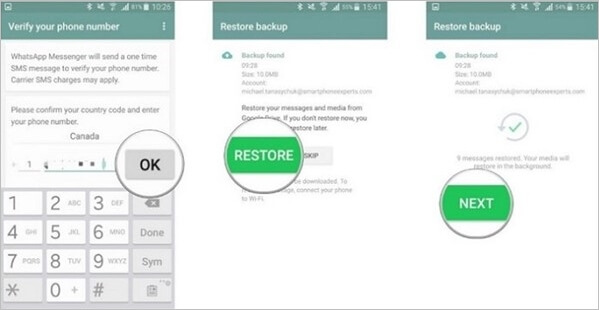
Step 1. Uninstall WhatsApp from your Android smartphone and then reinstall it.
Step 2. To confirm your phone number with WhatsApp, enter your phone number into WhatsApp and click "Ok" to confirm it.
Step 3. The app will then guide you through the process of recovering WhatsApp media files and conversations from your Google Drive backup, prompting you to select the "Restore" option to start the WhatsApp restoration process on your Android device.
Step 4. When completing the Google Drive backup recovery procedure, click the "Next" button and wait for a list of WhatsApp backed-up media, including conversations and other files, to appear.
Method 2. Recover Deleted WhatsApp Messages Without Backup on Android
If you don't have a copy of your WhatsApp conversation, you can recover lost WhatsApp messages on Android by using the local backup history on your device, but this method is only compatible with Android-based smartphones and not with iPhones.
To restore deleted WhatsApp conversations on Android without a backup, you can try the following steps. First, open the Google Drive app and sign in with your Google account.
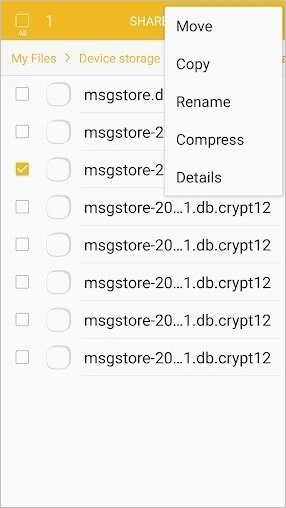
Step 1. To access your WhatsApp backups on an Android device, navigate to the device's file explorer and select the "Database" folder within the WhatsApp directory. This folder contains all locally created backups.
Step 2. To recover a WhatsApp backup, select the backup file, then choose the Rename option to rename it for easier access, changing the file name from "msgstore-YYYY-MM-DD.1.db.crypt12" to "msgstore.db.crypt12".
Step 3. Uninstall and reinstall WhatsApp on your phone, then enter your phone number and click "OK" to validate it.
Step 4. WhatsApp will then check for any existing backups before allowing you to restore the lost messages by clicking the "Restore" button.
Recover Deleted WhatsApp Messages on iPhone
If you've accidentally deleted your essential WhatsApp messages on your iPhone and wish to recover them, you can try using the "Recall" feature, which allows you to recall a message for up to 68 minutes after it's been sent. If the message has already been deleted, you can try using a third-party recovery app, such as PhoneRescue or FoneDog, to scan your iPhone's storage for deleted data. Alternatively, you can also try restoring your iPhone from a backup created before the messages were deleted. If none of these methods work, you may want to contact WhatsApp support for further assistance.
Method 1. Recover Deleted WhatsApp Messages with Backup on iPhone
With the advancement of cloud technology, restoring deleted data has become much easier. You can link your WhatsApp to your iCloud account, allowing you to recover messages from a backup that were previously deleted from the app. This makes it simpler to retrieve lost information.
To recover deleted WhatsApp conversations on an iPhone with backup, follow these steps: If you have enabled iCloud backup or iTunes backup on your iPhone, you can restore the backup to recover deleted WhatsApp conversations. First, go to Settings > [your name] > iCloud > iCloud Backup and turn on iCloud Backup.
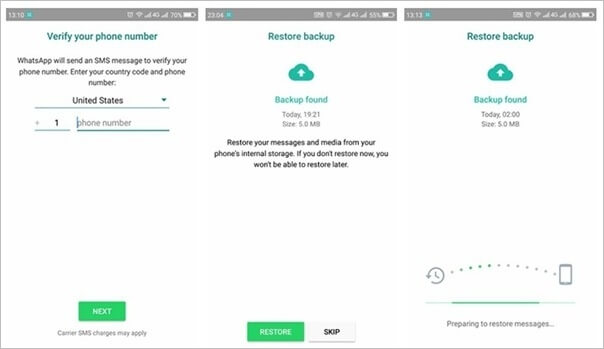
Step 1. To verify that automatic backup is activated, go to the "Settings" menu, select "Chat", and then choose "Chat backup".
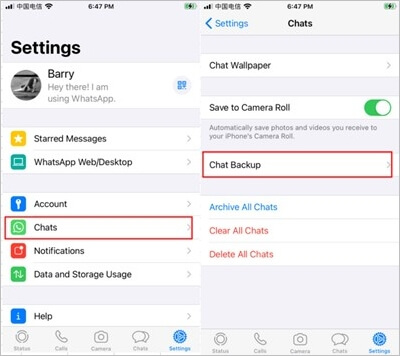
Step 2. If your WhatsApp account is suspended, delete the WhatsApp application from your device and immediately download and install it again. This will likely resolve the issue.
Step 3. To start using WhatsApp, first download and install the app on your device. Then, launch WhatsApp, input your phone number, and click the "OK" button.
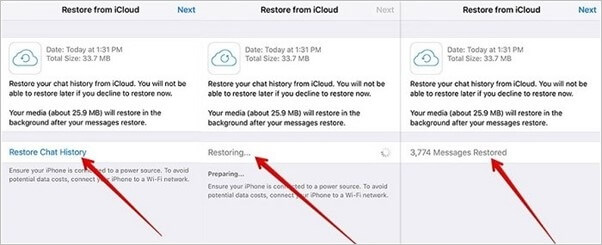
Step 4. To recover deleted WhatsApp messages, tap the "Restore Chat History" button after the restoration process is complete, allowing you to retrieve any previously deleted conversations.
Method 2. Recover Deleted WhatsApp Messages Without Backup on iPhone
If you're wondering how to recover deleted WhatsApp messages without a backup on your iPhone, the answer is that there's no built-in way to do so. However, you can use a professional third-party recovery tool, such as Qiling MobiSaver, to recover the deleted WhatsApp messages.
Qiling MobiSaver is a professional data recovery tool that allows you to recover various data from your iPhone, including WhatsApp messages and media, with 100% data security.
Key Features:
- A professional data recovery software for iPhone that is compatible with both Windows and Mac operating systems, allowing users to recover deleted or lost data from their device.
- Recover data directly from iOS devices and backups stored in iTunes and iCloud.
- Recover deleted data from your iOS devices, including messages, contacts, photos, and videos, directly from the device or from iTunes or iCloud backups.
- If you're looking to retrieve lost chats and attachments from messaging apps like Kik, LINE, and WhatsApp, there are a few steps you can take. For Kik, you can try checking your device's storage for any saved chat logs or attachments, and also reach out to their customer support for assistance.
If you've deleted WhatsApp messages on your iPhone without backing them up, there's still hope to recover them. To do this, you'll need to use a third-party app, such as PhoneRescue, Tenorshare UltData, or FoneDog Toolkit, that specializes in recovering deleted data from iOS devices.
Step 1. Connect iPhone to PC
Launch Qiling MobiSaver, choose the "WhatsApp" button, and select "Device Storage".
Step 2. Make Sure Your Device Is Connected
If WhatsApp is not installed on iPhone, Qiling MobiSaver cannot find your data.
Step 3. Scan iPhone and Find Important Data
Qiling Mobisaver will automatically scan your iPhone (13/12/11/X/XR/XS/8/7/6/5/4) to find lost WhatsApp chats, history, photos, videos, and other files, a process that may take a few minutes. Just wait patiently.
Step 4. Preview and Restore WhatsApp Data
To recover missing WhatsApp data, tap the "WhatsApp" button on the left, preview and select the desired data, and then click "Recover to PC" or "Recover to Device" to restore it.
Summary
WhatsApp is a widely used social media platform where people share messages, information, and connect with friends and family. Due to its importance in personal and professional life, it's essential to back up WhatsApp messages to prevent losing valuable information.
If you accidentally deleted your WhatsApp messages on your iPhone, you can try to recover them using a third-party app like Qiling MobiSaver, which can help restore deleted messages without a backup.
Recover Deleted WhatsApp Message FAQs
If you want to recover deleted WhatsApp messages, you'll likely have questions like how to do it, what are the chances of success, and what are the necessary steps to take.
Does WhatsApp keep your messages?
WhatsApp conversations are daily backed up and stored in phone memory. Additionally, users can choose to regularly back up their conversations to Google Drive on Android or iCloud Drive on iPhone, depending on their settings.
I reinstalled the app, but none of my messages appeared. What's happening?
It seems that your WhatsApp messages are not being restored from the backup file, which might be the reason for the issue.
How to restore WhatsApp backup from Google Drive?
On Android, you can restore a WhatsApp backup from Google Drive. To do this, follow these steps:
Step 1. Uninstall your WhatsApp application from your phone and reinstall it.
Step 2. Launch WhatsApp, enter your phone number, and verify it by clicking "OK".
Step 3. Once the number is verified, the interface will ask whether you wish to restore; click on "Restore" to restore WhatsApp backup from Google Drive.
Related Articles
- How to Recover Deleted Texts on iPhone
- iOS 12/13 Supported | How to Backup iPhone in Recovery Mode
- The Best WhatsApp Recovery Software for iPhone & Android
- Where Do Deleted Text Messages Go on iPhone [Text Message Recovery Tips]
- How to Recover Files from Seagate External Hard Drive
To recover files from a Seagate external hard drive, you can follow a step-by-step guide that involves using Seagate hard drive data recovery software to get back lost or deleted files. This software allows you to free try and recover your files on both Mac and Windows PC. - How to Recover Files from Formatted HDD in Windows 10/11
Want to restore data from a formatted HDD? You can use the Qiling tool to quickly recover files from a formatted HDD in Windows 11/10. The Qiling tool can help you recover your data, even after formatting your hard drive.
Products
Articles & Tutorials
- Data Recovery
- Data Backup
- File Recovery
- File Backup
- System Backup and Restore
- Disk and Partition Clone
- Technical articles
- Mobile articles
- Disk Master Help
- Windows Data Recovery Tutorials
- Windows Secure Delete Tutorials
- Windows Partition Management Tutorials
- Windows File Backup and Restore Tutorials
- Windows System Backup and Restore Tutorials
- Windows Disk Backup and Restore Tutorials
- Windows Clone Tutorials