Where Do Deleted Text Messages Go on iPhone [Text Message Recovery Tips]
Summary
If you're constantly deleting messages on your iPhone or struggling to find enough storage space, you're likely wondering what happens to those deleted messages. If you're curious about where they go, our article can provide the answer, revealing the surprising destination of your deleted data.
| Workable Solutions | Step-by-step Troubleshooting |
|---|---|
| Retrieve Deleted Text Messages on iPhone Without Backup | Restore text messages on your iPhone with iOS data recovery software. Connect iPhone to your PC and run Qiling MobiSaver > scan iPhone for message...Full steps |
| Restore Text Messages with iCloud Backup | Open iCloud settings > open your iCloud profile > click on iCloud backup and see if your data...Full steps |
| RestoreText Messages with Your Mac | Disable the Find My iPhone option on your device > connect your phone to your Mac computer through a compatible USB. Click on the Hard disc icon...Full steps |
Where Do Deleted Text Messages Go on iPhone
If you're an iPhone user, you might've experienced frustration with the numerous messages on your phone. However, you may have also noticed that deleted messages don't disappear immediately and can still be found for a short time.
All of the messages you've ever sent or received through your iPhone were first sent to the network provider, who then stores them.
When you delete a message on an iPhone, it's not immediately removed from the device's database. Instead, the message is marked as "deleted" and a flag is set to indicate that it should be removed.
Even though a message with this sign is temporarily moved to the memory of your device, it doesn't mean it will stay there forever, and once the network provider starts deleting messages with this sign, yours will also be removed.
The provider may take anywhere from 24 hours to 24 months to delete messages, making it impossible to predict when they will be deleted.
How to Retrieve Deleted Text Messages on iPhone Without Backup
If you need to retrieve deleted messages on your iPhone, don't worry - not everything is lost. You can still recover some of your deleted messages using certain methods.
Qiling MobiSaver can restore all deleted files and messages from an iPhone, even without a backup, and recover data types like text messages, contacts, photos, videos, and social media chat histories, such as Line, WhatsApp, and WeChat.
The software is very fast and provides the best results quickly, allowing you to recover lost data in just three steps.
Step 1. Choose the Recovery Mode
Connect your iPhone to your PC, launch Qiling MobiSaver, click "Recover from iOS Device" and then "Start".
Step 2. Scan iPhone for Lost Messages
Qiling MobiSaver will automatically scan your iPhone and find lost messages and message attachments for you.
Step 3. Preview and Restore Lost Messages
Select the desired messages and attachments, then choose to recover them to either your PC or device.
How to Restore Deleted Text Messages on iPhone with iCloud Backup
If you have an iPhone, you can try using the "Recently Deleted" album in the Photos app to recover deleted messages. This feature allows you to recover deleted messages for up to 30 days.
If you've been using iCloud backup before and it's worked well for you, this is also a good option that won't cost you anything and will give you access to all your lost and deleted files.
Creating a backup of your iPhone will erase all data on your device, taking it back to the state it was in when the backup was made. This means that any data you've accumulated since then, including photos, messages, and more, will be lost.
To retrieve your data from iCloud, you should first sign in to your iCloud account with your Apple ID and password. Then, go to the "Find My" section and select the device you want to retrieve data from.
Step 1. Open iCloud settings and access your iCloud profile.
Step 2. Click on "iCloud backup" to check if your data has been backed up recently.
Step 3. Open "General" settings.
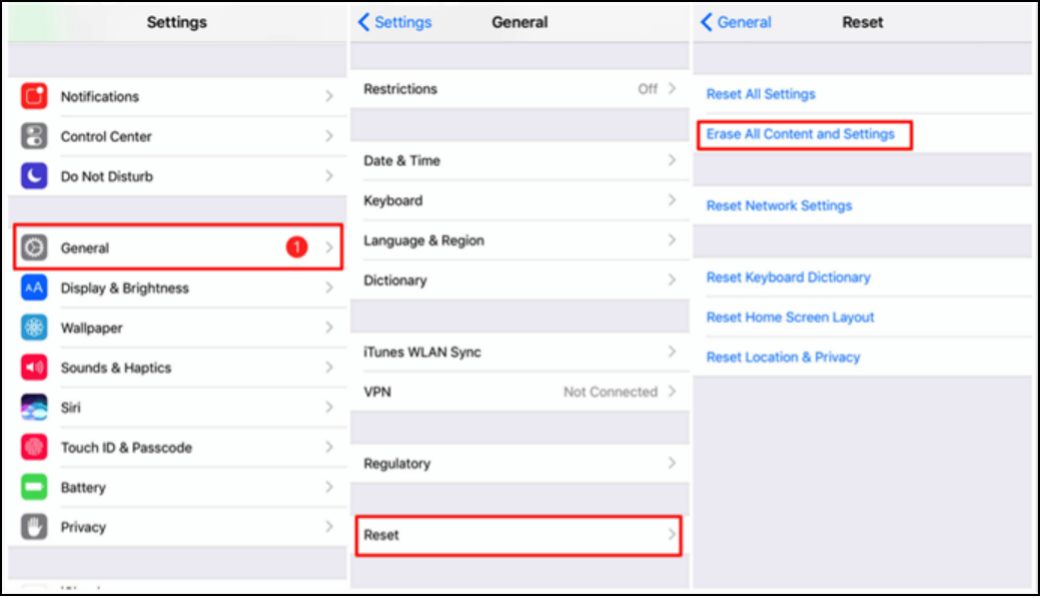
Step 4.Choose "Reset or Transfer or Reset iPhone" settings -the name of the button depends on the version of the iPhone you have.
Step 5. Choose "Erase All Content and Settings" and confirm the action.
Step 6. Enter your iCloud password and wait a few minutes for your device to reset to its previous settings.
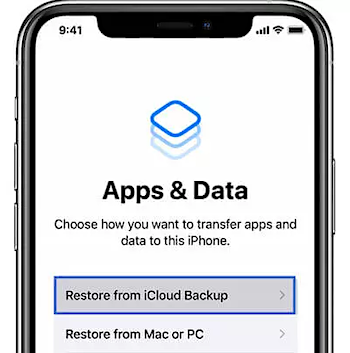
Step 7. Choose "Restore Data from iCloud backup".
Step 8. To access your account, sign in with your credentials. Once you're logged in, you can select the data you want to retrieve. This may include your profile information, transaction history, or other relevant details.
How to Recover iPhone Deleted Text Messages on Mac
If you find it easier to store data through your laptop or computer, you can easily do it through your Mac computer.
If you've backed up your data before, the process of restoring it should be relatively straightforward, as you'll likely have multiple backups to choose from.
You can easily recover deleted messages on your Mac computer by using the Messages app's built-in feature to retrieve deleted conversations. To do this, open the Messages app, click on "Messages" in the top left corner, and select "Preferences" from the dropdown menu.
Step 1. Disable the Find My iPhone option on your device.
Step 2. Connect your phone to your Mac computer through a compatible USB cable.
Step 3. Click on the hard disc icon.
Step 4. Open the "Finder" and then open the Locations sidebar.
Step 5. To locate and manage iPhone backups, find your device and select the option to manage backups. This will display a list of all saved backups since you started using the device, allowing you to view and manage your backup history.
Step 6.Choose the backup you want to restore.
Step 7. Click "Restore iPhone" and confirm the action.
Conclusion
You can easily restore deleted text messages on an iPhone by using one of the several methods available, which are all quick and simple to execute, and will likely yield the desired result within just a few minutes.
If you're looking for a fast software to help you recover lost or deleted data, I recommend using the Qiling iPhone data recovery program, which can make the file recovery process instant and save you from many troubles.
Related Articles
- How to Restore Disabled iPhone from iCloud Backup
- Recover Locked/Disabled iPhone 8/iPhone X Data without Password
- Free Download: iPhone Data Recovery Software Full Version
- 3 Ways to Recover Deleted Instagram Photos on iPhone
- SanDisk Repair Tool to Fix SanDisk Memory SD Card/Pen Drive/USB/SSD
If you're looking for SanDisk SD card repair tool, SanDisk USB repair tool, or SanDisk format tool, I suggest you try the right SanDisk repair tool to fix the memory card, USB drive, Pen drive, HDD, or SSD problems according to the symptoms. - Fixed: Flash Drive Shows Up as CD Drive
This post aims to help people who saw their USB flash drive showing up as CD, DVD ROM drive on the computer. If your flash drive shows up as a CD drive and you are unable to open the USB drive in Windows 11/10/8/7, as usual, the troubleshooting here is exactly what you need.
Products
Articles & Tutorials
- Data Recovery
- Data Backup
- File Recovery
- File Backup
- System Backup and Restore
- Disk and Partition Clone
- Technical articles
- Mobile articles
- Disk Master Help
- Windows Data Recovery Tutorials
- Windows Secure Delete Tutorials
- Windows Partition Management Tutorials
- Windows File Backup and Restore Tutorials
- Windows System Backup and Restore Tutorials
- Windows Disk Backup and Restore Tutorials
- Windows Clone Tutorials