SanDisk Repair Tool to Fix SanDisk Memory SD Card/USB Flash Drive/USB/SSD
SanDisk is a well-known brand for memory storage devices like SD cards, USB flash drives, pen drives, and SSD drives. However, even with great products, issues can arise. To resolve any problems, start by recovering data lost or trapped in the malfunctioning SanDisk device using Deep Data Recovery. Next, address specific issues with the SanDisk Repair tool, and finally, retrieve files using data recovery software before attempting to fix the drive error.
Part 1. Recover Files before Repair SanDisk Device, Avoid Data Loss
Before attempting to repair a SanDisk SD card, try to recover any lost data using a professional tool like Deep Data Recovery. This software can recover deleted, lost, or formatted data from SanDisk devices, as well as other external drives and computer storage devices, including hard drives, SSDs, pen drives, and USB drives. If you don't try to recover data first, you may lose the files permanently.
Your Safe & Effective SanDisk Data Repair Tool
- The software supports over 800 different file types, including documents like Word, Excel, and PowerPoint, as well as PDFs, photos, music, videos, archives, and even emails.
- The software can recover data from SanDisk memory cards, USB drives, HDDs, and SSDs that have been accidentally deleted, formatted, crashed, or display as RAW due to a virus attack.
- The SanDisk repair tool or SanDisk format tool can recover files from SanDisk drives under Windows 10/7/8/XP/Vista or Mac OS X 10.6 and later.
Simple steps to recover data from SanDisk with SanDisk repair tool
Step 1. Install the SanDisk repair tool
To recover data from a SanDisk, you need to download and install the Deep Data Recovery software on your computer, which is available in separate versions for Windows PC and Mac. Click the download button to get the installation package.
Step 2. Connect SanDisk memory SD card/USB/HDD/SSD with Computer
Use a card-To connect SanDisk to your computer, firmly attach the SanDisk device (such as an SD card, USB, HDD, or SSD) to your computer using a reader or USB. If the connection is successful, the SanDisk device will appear as an external hard drive on your computer.
Step 3. Select File to Recover
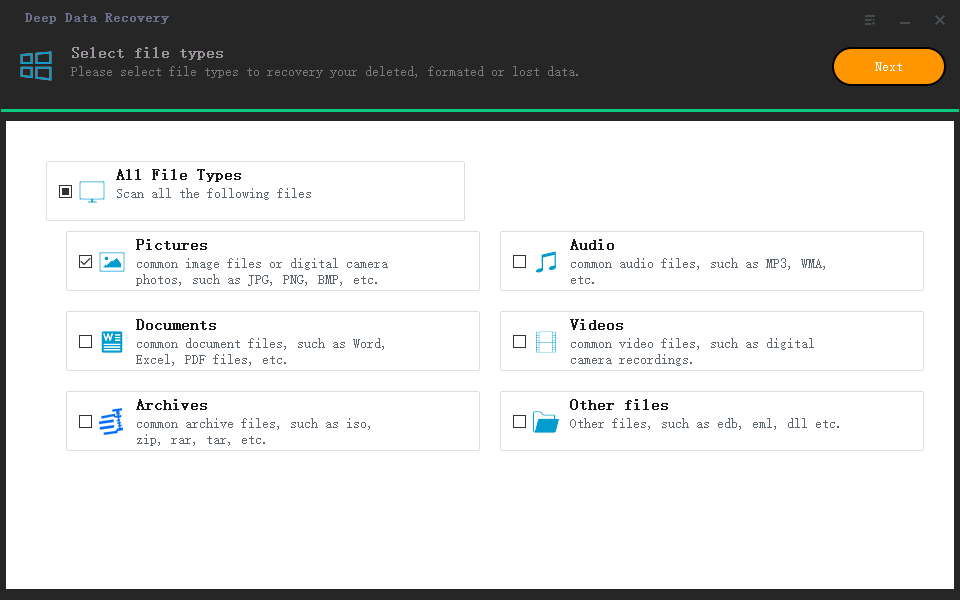
After launching the SanDisk repair tool, you can view a list of all supported files in the main window. To proceed with the data repair process, uncheck any unwanted file types and click "Next" to initiate the repair of your SD card, USB, HDD, or SSD.
Step 4. Select the SanDisk to scan
Select the SanDisk memory SD card/USB/HDD/SSD to scan, and click "Scan" to recover files after it's detected and displayed in the window, if it's successfully connected to your computer.

Step 5. Preview and recover your SanDisk data
The SanDisk repair tool quickly scans for lost or formatted data from SanDisk memory SD card/USB/HDD/SSD, listing all found files in the result window. You can then select and preview the files, and recover them selectively by clicking "Recover".

Part 2. Repair SanDisk SD Card with SanDisk Repair Tool
Having a SanDisk Extreme Pro memory card is essential for professional camera use, as it allows you to save captured photos and videos. However, issues may arise, and instead of seeking a SanDisk repair tool, SD card repair tool, or SanDisk USB repair tool, it's better to analyze the symptoms and find the right solution. Common symptoms and their corresponding fixes include various problems that can be resolved without the need for a dedicated repair tool.
#1. SanDisk Memory Card Locked or Write Protected
Solution 1: a simple way to repair the SanDisk SD card locked
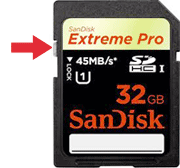
The left side of the SD card slot should be checked to see if it is locked. If it is locked, data cannot be saved to the SD card, and neither can files be modified or deleted on the SD card.
Solution 2: CMD to undo write protected with SanDisk SD card repair
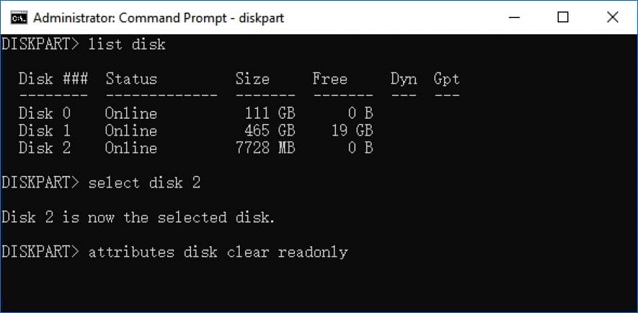
If you get a message saying your camera's SD card is locked, you won't be able to delete photos, take new pictures, or transfer data. To resolve this, you'll need to remove the write protection on the SanDisk memory card using a CMD.
- 1. To access the Command Prompt on Windows PC, click the Windows startup button on the bottom left, type in "CMD" in the pop-up box, and press the Enter button.
- 2. In the new window, type 'diskpart' and press the 'Enter' button.
- 3. Type list disk and press Enter button.
- 4. Type select disk * (* represents the number of your write protected SanDisk memory card) and press Enter.
- 5. To remove the write protection on a SanDisk memory card, type "attributes disk clear readonly" and press Enter. This command will clear the readonly attribute and allow you to write to the card again.
#2. SanDisk USB Drive or SD Card Not Recognized by the Computer
If your SanDisk USB drive or memory card isn't being recognized by your computer, there are a few troubleshooting steps you can try. You can attempt to repair or fix the issue by trying the following methods.
- To resolve the issue, try disconnecting and reconnecting the USB cable to a computer, ensuring that the digital cable is functioning properly.
- Disconnect and restart the computer, resetting the connection.
- To install available drivers, visit the SanDisk official website to check if any drivers are available for your model. If so, download and install them on your computer according to the manufacturer's instructions.
#3. SanDisk SD Card or USB Keeps Asking to Format
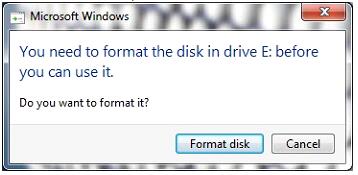
To solve the problem of the SanDisk SD card being stuck in a formatting loop, format the card as requested, which will result in data loss. However, you can use professional SD card repair software or unformat SD card software to recover the lost data. If the formatting process fails with an "operation failure" message, cancel the formatting and access the card through My Computer, then try formatting again. If the issue persists, try using a different USB port or card reader to connect the SanDisk memory card.
#4. SanDisk Files Become Thumbnails
Files on the SanDisk memory card become thumbnails and can't be viewed or accessed, indicating a virus infection. To resolve this, format the memory card and then use the SanDisk format tool to recover files from the formatted drive.
Related Articles
- How to Recover Files from Fdisked Hard Drives in Windows 10/11
Deep Data Recovery is a powerful data recovery software that can recover data from fdisked drives. It can automatically run partition recovery and quickly recover files! - How to Recover Deleted Files from Recycle Bin After Empty Windows 11/10
Is it possible to recover deleted files from Recycle Bin after empty? We provide you with three ways to recover deleted files from Recycle Bin after empty. You can restore permanently deleted files from Recycle Bin with ultimate data recovery software. - How to Recover Lost Save Data in the Star Wars Jedi: Survivor
if you lose your Star Wars Jedi: Survivor game save. Four efficient methods are provided on this page to recover deleted saved data in the Star Wars Jedi: Survivor. Qiling Data Recovery Wizard is the best program for recovering lost saved data. - Recover Lost Save Data in the Legend of Zelda: Tears of the Kingdom [4 Methods]
If your Legend of Zelda: Tears of the Kingdom game save and is lost. In the Legend of Zelda: Tears of the Kingdom, this page offers four effective strategies to restore deleted Save data. - C Drive Data Recovery | Recover Deleted Files from C Drive
How to recover deleted files from C drive? This post gathers several methods to help you recover permanently deleted files from C drive. Check it out! - 9 Effective Ways to Recover Deleted Files from Recycle Bin
How to recover deleted files from Recycle Bin after emptying? Please refer to this post for step-by-step instructions on restoring deleted files from Recycle Bin on Windows 10/11.
Products
Articles & Tutorials
- Data Recovery
- Data Backup
- File Recovery
- File Backup
- System Backup and Restore
- Disk and Partition Clone
- Technical articles
- Mobile articles
- Disk Master Help
- Windows Data Recovery Tutorials
- Windows Secure Delete Tutorials
- Windows Partition Management Tutorials
- Windows File Backup and Restore Tutorials
- Windows System Backup and Restore Tutorials
- Windows Disk Backup and Restore Tutorials
- Windows Clone Tutorials