How to Recover Deleted Files from Recycle Bin After Empty Windows 11/10
When trying to manage storage space, you may accidentally delete important files. First, check the Recycle Bin to see if the files are there and can be restored. However, if the Recycle Bin is empty or the files are not visible, you face a bigger issue.
If you've emptied the Recycle Bin and deleted files are now gone, don't worry! This guide provides effective and easy solutions to help you recover your essential data.
Is It Possible to Recover Deleted Files from Recycle Bin After Empty
You can still recover deleted files from a computer, even after emptying the Recycle Bin, meaning your deleted files aren't completely gone.
Recovering data from the Recycle Bin after emptying it is possible if the deleted files haven't been overwritten or erased. It's recommended to avoid using the system until the recovery process is complete to ensure the best possible outcome. The recovery rate and time depend on the available storage space and system usage - for example, with only 2GB of free space, the likelihood of overwriting files is higher compared to having 100GB of available storage.
If you act promptly, you can solve the issue. We will introduce you to three easy methods to recover deleted files from Recycle Bin after empty with or without backup.
How to Recover Permanently Deleted Files from Recycle Bin After Empty Without Backup
If you empty the Recycle Bin and don't have a backup, you can still recover your files using a professional tool like Qiling Data Recovery Wizard, which is designed to quickly restore permanently deleted files on Windows computers.
Qiling's data recovery software is a lifesaver that can recover files with a high success rate, providing a one-stop solution for various data loss scenarios such as permanent file deletion, disk corruption, and virus attacks.
To recover deleted files from the emptied Recycle Bin, download and install the Qiling Data Recovery Wizard application on your Windows computer. This will allow you to quickly retrieve the deleted files if you act fast.
Step 1. Launch the application and place the mouse pointer on the "Recycle Bin" icon.
Step 2. Click the "Scan" button to recover permanently deleted files from the Recycle Bin.
Step 3. A quick scan will be initiated, followed by an automatic deep scan. Once the process ends, use the Filter feature to view specific results, such as files by type, size, or name. You can also search for a single file by typing its name in the Search box.
Step 4. To recover a file, double-click on it to preview it, select all the desired files, and then click the "Recover" option. It's a good idea to choose a different storage drive to avoid overwriting the files.

How to Recover Files from Recycle Bin After Empty Using Backup
To recover your data using backup, follow these methods. We'll introduce three different methods, so follow each step carefully to recover lost files or folders from the Recycle Bin in Windows 10/11.
Method 1. Recover Deleted Recycle Bin Files from Cloud Backup
Windows 10/11 comes with a OneDrive cloud backup feature, providing a reliable alternative to local storage devices. This feature allows you to recover deleted or lost files if your local drive is synced with the OneDrive Cloud Storage System. Among various cloud storage services like Dropbox and Google Drive, OneDrive stands out as the most widely used and supported by Microsoft.
To access your securely backed up files on Microsoft's servers, follow these steps: Microsoft's servers securely back up your files, and you can access them anytime by using the following steps: simply sign in to your Microsoft account, navigate to the "OneDrive" or "Files" section, and you'll be able to view and manage your backed-up files from anywhere.
Step 1. To access OneDrive, open the OneDrive app from File Explorer, or visit the OneDrive website and log in with your Microsoft email account.
Step 2. Check the backed-up folders and files from the local drive of your computer.
Step 3. Navigate the files/folders you want to recover.
Step 4. Select your desired files, right-click, and select "download".
To save specific files, press the Ctrl key while clicking on individual files, then select the checkbox from the top right corner.
Step 5. To recover deleted files, click the "Download" button and save the recovered files to your local drive.
Method 2. Recover Files from Emptied Recycle Bin with File History on Windows 10/11
Windows 10/11 offers an in-A build system protection feature creates restore points on a computer, which make copies of files and allow for recovery of permanently erased data from the Recycle Bin. To recover files from an emptied Recycle Bin with File History on Windows 10/11, follow these steps.
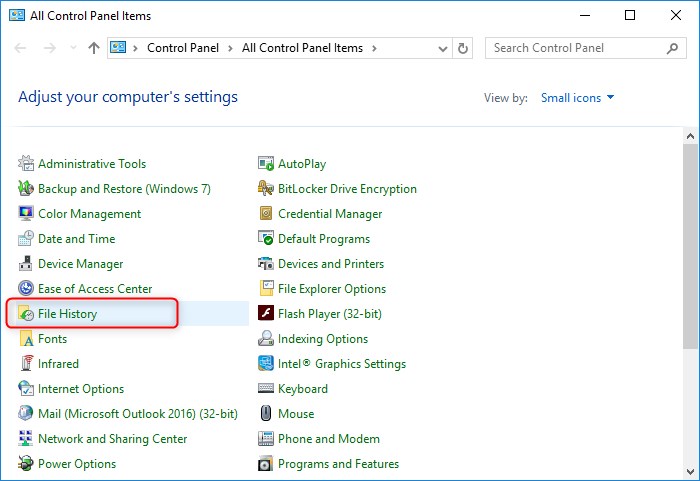
Step 1. To access the File History feature, go to the "Control Panel" on your computer, and find "File History".
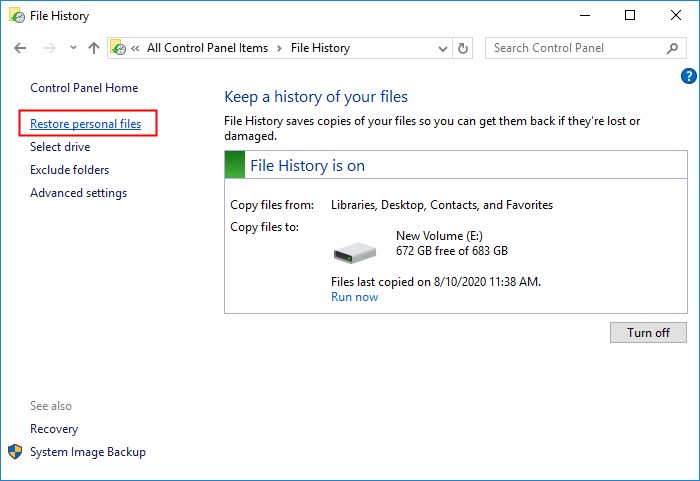
Step 2. On the pop-up window, click "Restore personal files" on the left panel.
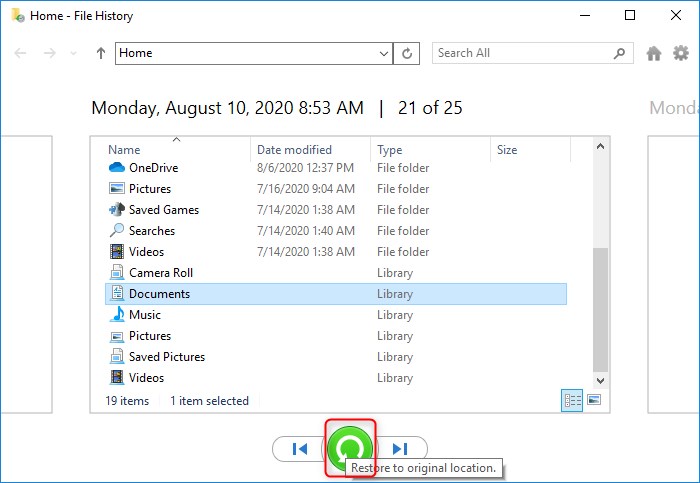
Step 3. Select the files you want to recover, then click the "Restore" button to recover the deleted files.
Method 3. Restore Deleted Recycle Bin Files from Previous Versions on Windows 10/11
Windows 10/11 offers a valuable feature called "Restore previous version", which is a helpful and effortless in-built file recovery tool that allows you to restore previous versions of files and folders on your Windows PC.
Step 1. To create a new folder or file on the desktop, you can follow these steps: Right-click on an empty area of the desktop, then select "New" from the context menu. From the sub-menu that appears, you can choose to create a new folder or file.
Step 2. Rename the file/folder with the exact name of the file/folder you want to recover.
If the lost data was stored in the C-drive, right-click the drive, and select "Restore the previous version". Head down to the following steps if you haven't remembered the location of the lost file.
Step 3. Right-click the newly created folder, and select the "Restore previous versions" option from the menu.
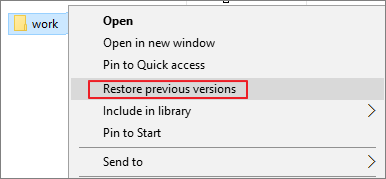
Step 4. Windows will search and provide you with the previous versions of the file or folder, allowing you to restore it to a previous state if needed.
Step 5. In recent versions, select the most recent version with the correct date and time, click Restore, and choose the "Restore To" option.
Step 6. Choose your desired location to get the file version you want.
Now, you can access the Restore previous versions feature to use the earlier states of a file or folder. For full tutorials on how to restore previous versions of files or folders, go to the topic page.
To Conclude
All the solutions mentioned in this article can help recover files from the Recycle Bin, but you'll need a backup to use the methods in part four, which may also be confusing for non-technical users.
You can easily install and use the Qiling data recovery tool to rescue permanently deleted data without any backup, especially from your Recycle Bin. This user-friendly tool has several quick and advanced features for protected data recovery.
Recover Deleted Files from Recycle Bin After Empty FAQs
For more questions, follow this FAQs section:
Can I recover deleted items after Recycle Bin has been emptied?
When Windows deletes data, it's not actually erased from the storage device. The files and folders are still present, but become invisible and inaccessible. This means that they can be recovered even after emptying the Recycle Bin.
How can I recover permanently deleted files from Recycle Bin after empty Windows 10?
To recover files on Windows, type "Windows File Recovery" in the search box, select it, and give the app permission to modify your device. You can then use the app in either Regular or Extensive mode to recover your files.
How to recover deleted photos from Recycle Bin after empty?
To restore your files with File History, type "File History" in the search box, click to open it, select "Restore your files with File History", click the "History" button, choose your desired files, and then click the "Restore" button.
How to recover deleted files from recycle bin after empty in Windows 7?
To recover deleted files, open Windows Explorer, right-click on the folder where the files were stored, select "Restore previous versions," and choose the desired earlier version with a date, then click "Restore".
Related Articles
- What to Do When Computer Says Invalid System Disk Replace the Disk Windows 10/8/7
- 2 Best Ways to Recover Deleted Minecraft Worlds in Windows 10
- How to Convert Raw to NTFS in Windows 10 Without Data Loss
- Here is How to Fix DllRegisterServer Was Not Found
- Deleted File Recovery Software Free Download Full Version with Key
Deleted file recovery software can help you recover unlimited deleted or lost files from various storage devices, including hard drives, external hard drives, USB flash drives, SD cards, and more, on Windows and macOS. - Genshin Impact Game Folder Empty, Get the Answers Here!
If you're experiencing an empty Genshin Impact game folder, you can find the solution here. The post provides answers on why your Genshin Impact game folder might be empty and how to fix it.
Products
Articles & Tutorials
- Data Recovery
- Data Backup
- File Recovery
- File Backup
- System Backup and Restore
- Disk and Partition Clone
- Technical articles
- Mobile articles
- Disk Master Help
- Windows Data Recovery Tutorials
- Windows Secure Delete Tutorials
- Windows Partition Management Tutorials
- Windows File Backup and Restore Tutorials
- Windows System Backup and Restore Tutorials
- Windows Disk Backup and Restore Tutorials
- Windows Clone Tutorials