What to Do When Computer Says Invalid System Disk Replace the Disk Windows 10/8/7
Your computer won't boot and shows an "Invalid system disk. Replace the disk, and then press any key" error message, a problem that has affected many Windows users across various versions, including Windows 10, 8, 7, and XP.
Here, we analyze all possible causes that might result in an invalid system disk issue and offer the corresponding solutions.
| Workable Solutions | Step-by-step Troubleshooting |
|---|---|
| First. Recover your data | Create a bootable disk > boot from the bootable USB > recover files from the computer that can't boot...Full steps |
| Fix 1. Set first boot disk | Check the boot sequence in BIOS. Go to BIOS, in the Boot tab, list the CD, removable device, or hard drive...Full steps |
| Fix 2. Repair MBR in WinPE | You can rebuild MBR to fix invalid system disk issue. Use Qiling Partition Master and create a WinPE...Full steps |
| Fix 3. Run automatic repair | Try using Automatic Repair to solve invalid system disk replace the disk and press any key error...Full steps |
| Fix 4. Run Windows Repair Services | Use Windows Repair Services to fix your computer that can't boot efficiently...Full steps |
| Fix 5. Replace the hard drive | If the invalid system disk error is caused by a hard drive failure, you need to replace the damaged HDD...Full steps |
Important: Recover Data from Your Computer That Can't Boot in Advance
If you're experiencing an "invalid system disk" error on your PC, we recommend recovering any important files from the hard drive first, in case data loss occurs during troubleshooting.
To restore files from a hard drive when the computer can't boot, use Deep Data Recovery WinPE Edition, a data recovery software with a user-friendly interface that allows you to recover data with simple steps. This tool enables you to retrieve data from a dead or non-booting computer.
Step 1. Create a bootable disk
Prepare an empty USB drive, back up any important data on it, and then use Deep Data Recovery WinPE Edition to create a bootable disk on the empty USB drive.
Connect the USB drive to your PC, then launch Deep Data Recovery WinPE Edition. Select the USB drive and click "Create" to create a bootable disk.
Step 2. Boot from the bootable USB
Connect a bootable disk to a PC that won't boot, and change the boot sequence in the BIOS settings, usually by pressing F2 at startup to access the BIOS. This may resolve the issue and allow the computer to boot normally.
To boot the PC from a device other than the hard drive, press F10 to save and exit the settings, allowing you to select "Removable Devices" (such as a bootable USB drive) or "CD-ROM Drive" (such as a bootable CD or DVD) as the boot priority.

Note: You can choose different search modes based on where and why the data was lost.
Step 3. Recover data from a hard drive that won't boot
When you boot from the USB, you can run Deep Data Recovery from the WinPE bootable disk, and then select the drive you want to scan to find all your lost files.
Click "Scan" to start the scanning process.

After scanning, you can preview all recoverable files, select the targeted files, and click the "Recover" button to restore your files. It's recommended to save all recovered data to another place to avoid data overwriting. This allows you to recover data from a computer or laptop.

More stunning features of Deep Data Recovery.
Deep Data Recovery
- You can recover data from various storage devices, including the recycle bin, hard drive, memory card, SD card, flash drive, digital camera, and camcorder.
- Repair corrupted Excel files, as well as damaged MP4, MOV, GIF, JPEG, and JPG files, during data recovery.
- Restore lost data on Windows 10/8.1/8/7/Vista/XP and Windows Server 2019 - 2003.
How to Fix Invalid System Disk Replace the Disk Error in Windows 10
After you've restored the files, you can begin to solve the invalid system disk error safely.
Fix 1. Set a Bootable Disk as the First Boot Disk
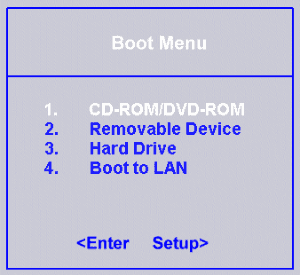
After recovering data, take steps to resolve the invalid system disk error. If you want to boot from the internal hard drive, remove any external devices. If you want to boot from a removable disk, ensure it's bootable and set as the first boot disk.
To change the boot order, go to the BIOS settings, select the Boot tab, and list the CD, removable device, or hard drive as the first option, then save and exit.
Fix 2. Repair Master Boot Record
A corrupted Master Boot Record (MBR) can cause an invalid system disk error. To resolve this, use partition software like Qiling in the WinPE environment to rebuild the MBR.
Step 1. Create a WinPE bootable disk
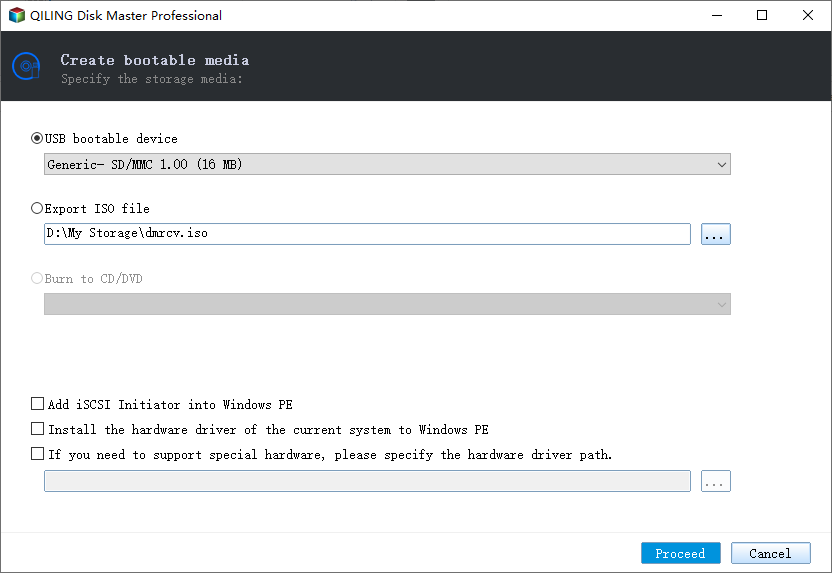
- To create a bootable media with Qiling Partition Master, launch the software and click on "Create bootable media" on the toolbar. You can then select to create the bootable disk on a USB drive or, if your computer has a CD/DVD drive, create it on a CD/DVD instead.
- Click "Proceed" to finish the process.
Step 2. Boot Qiling Partition Master Bootable USB
- Connect the bootable USB or CD/DVD to your PC.
- To enter the BIOS screen, press F2 or Del when restarting the computer. Set your computer to boot from the "Removable Devices" or "CD-ROM Drive", and Qiling Partition Master will run automatically.
Step 3. Rebuild MBR
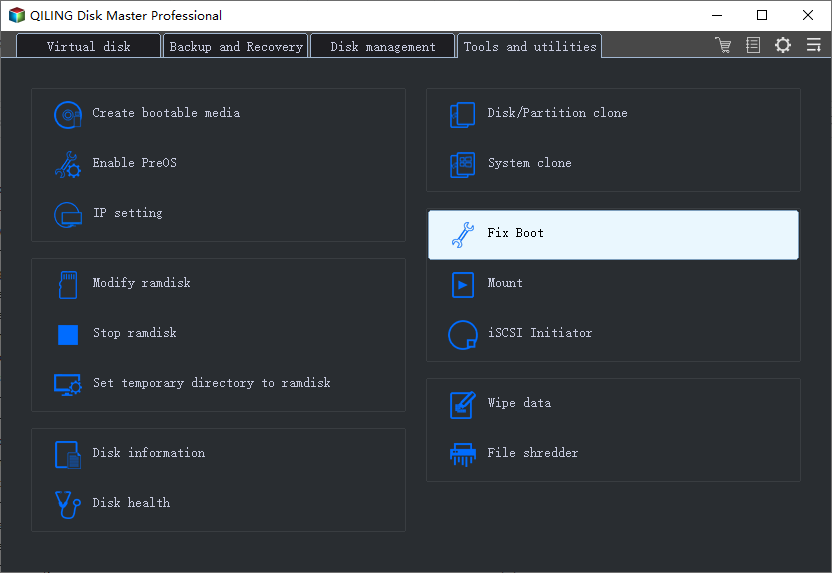
- Click the disk whose MBR is damaged. Choose "Fix boot" to continue.
- The current operating system is Windows 10. The type of MBR that is being used is the BIOS MBR. The BIOS MBR is the most common type of MBR and is used by Windows 10.
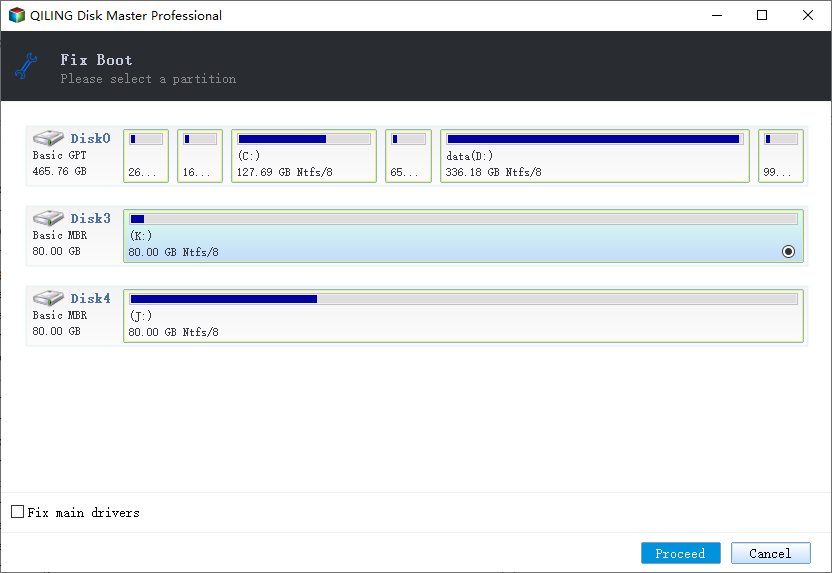
- To fix the issue, click the "Proceed" button to build the Master Boot Record (MBR). This will resolve the problem and allow your computer to boot normally again.
Fix 3. Perform an Automatic Repair
If the above methods don't work, you can try performing the Automatic Repair or Start-up Repair to solve the "invalid system disk replace the disk and press any key" error.
Step 1. Insert the Windows bootable drive and boot from it.
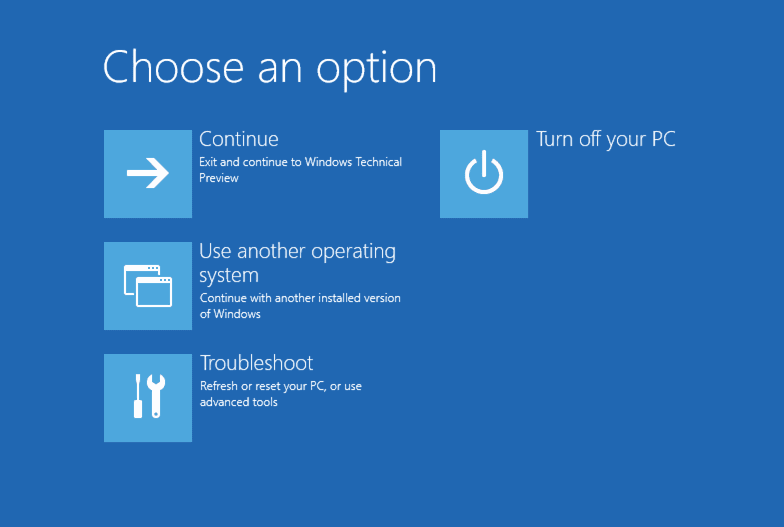
Step 2. To access the Automatic Repair feature, go to the Windows Boot Options menu, select "Troubleshoot", then "Advanced Boot Options", and choose "Automatic Repair" to follow the wizard instructions and complete the process.
Fix 4. Run Windows Repair Services
If the above methods don't work and your computer is still unbootable, you can try Windows repair services from Qiling, where a professional technical team can help solve system startup errors, including system failure, BSOD, unbootable device, and more.
Consult with Qiling data recovery experts for a one-on-one manual recovery service, which includes the following services after a free diagnosis:
- Fix Windows boot issues, including BSOD
- Fix Windows error and configure Windows environment
- Restore the system when it fails to boot
- Optimize Windows computer to make it run quickly
Fix 5. Replace Hard Drive with Invalid System Disk Error
If none of the methods above help, it's likely that you've encountered a hard drive failure issue, in which case you'll need to replace the hard drive and reinstall Windows to resolve the invalid system disk error in Windows 10/8/7.
How to Fix Invalid System Disk Replace the Disk and Then Press Any Key
When an invalid system disk issue arises, it's essential to prioritize data security by using professional data recovery software to export the data before attempting to resolve the problem. This ensures that your important files and information are safely retrieved, allowing you to address the disk replacement issue without risking data loss.
To resolve the "Invalid system disk" error, go to the BIOS interface and check if the system hard drive is detected. If the master boot record is corrupted, use Fix 2 to resolve the issue. Running an automatic repair may also be helpful. If the error is due to a hard drive failure, contact the hard drive manufacturer for replacement.
See More Related Topics About Invalid System Disk Windows 10
If you're experiencing issues with an invalid system disk, you might have some frequently asked questions. Fortunately, solutions are available to address these problems.
What is a common cause of the invalid system disk error?
The causes of a particular issue could be numerous and varied, including factors such as inadequate planning, insufficient resources, and unforeseen circumstances.
- The boot disk is not set correctly.
- Your hard disk might be infected by a virus.
- The master boot record of the system drive is corrupted.
- Your hard drive could be physically damaged.
How do I fix disk boot failure?
To resolve the Windows disk boot failure error, you can try booting your computer in Safe Mode, checking the boot order in the BIOS settings, running a disk check using the built-in Check Disk (chkdsk) tool, or using a bootable USB drive to run a diagnostic test on your hard drive. If none of these solutions work, you may need to reinstall Windows or seek further assistance from a professional.
- Change boot order
- Repair the operating system
- Fix by running CHKDSK to repair the corrupted file system
- Remove installed hardware
Related Articles
- Netgear NAS Recovery: Safe Software to Restore NAS Data
- Restarted My Computer and Everything Is Gone Windows 11/10/8/7
- Files Disappeared and Missing from Hard Drive
- How to Recover Files After Factory Reset Laptop/PC [Solved]
- Discord RTC Connecting Stuck? Troubleshoot This Error Now (7 Ways)
Discord users have been experiencing issues with RTC connections, with the computer getting stuck on connecting. To resolve this issue, effective solutions can be applied. - My Documents and Settings Folder is Not accessible in Windows 10! Fix It Now!
If you're having trouble accessing your Windows 10 Documents and Settings folder, it's an easy fix! Just follow the steps outlined in this article to quickly resolve the issue and gain access to your folder without any hassle.
Products
Articles & Tutorials
- Data Recovery
- Data Backup
- File Recovery
- File Backup
- System Backup and Restore
- Disk and Partition Clone
- Technical articles
- Mobile articles
- Disk Master Help
- Windows Data Recovery Tutorials
- Windows Secure Delete Tutorials
- Windows Partition Management Tutorials
- Windows File Backup and Restore Tutorials
- Windows System Backup and Restore Tutorials
- Windows Disk Backup and Restore Tutorials
- Windows Clone Tutorials