How to Fix Folders Turned into Shortcuts
The folders saved on your computer hard drive, external hard drive, USB, or SD card suddenly turning into shortcuts is a frustrating issue. This problem can occur due to various reasons, such as file system corruption, incorrect file associations, or malware infections.
When you open your USB or hard drive partition in Windows Explorer, folders suddenly turn into shortcuts, and saved files become inaccessible, your device has been infected with the Shortcut virus.

Overview of Shortcut Virus Infection
The shortcuts virus is a type of malware that infects devices and creates duplicate shortcuts of folders, hiding the original files and folders. This virus can spread to PCs, USB drives, memory cards, and other removable storage devices, causing issues and data loss.
Your computer may be infected with a ransomware virus. This type of malware encrypts your files and demands payment in exchange for the decryption key. To remove the virus, you can try booting your computer in safe mode and then using an antivirus program to scan and remove the malware.
If your folders have suddenly turned into shortcuts, don't panic! Many users who've experienced this issue have found a solution. We'll show you how to fix folders turned into shortcuts without losing data.
Phrase 1. Remove Shortcut Virus [3 Ways]
You can restore encrypted folders from shortcuts using one of three methods. Each method allows you to convert the shortcut file into the original file, making it easy to access your encrypted data.
Method 1. Clear Shortcut Virus with Antivirus Software
The most effective and easiest method to remove the shortcut virus is to apply antivirus software for help.
Here is a list of highly ranked antivirus software that can clear this virus from your PC and storage devices: McAfee, Norton, Kaspersky, Avast, and Bitdefender. These software options are highly rated and can effectively remove viruses and malware from your computer and storage devices.
- Shortcut Virus Remover
- Shortcut Virus Fixer
- USBFix
- Hitman Pro
To remove the virus from your device, you can search online for reliable software that can help you eliminate it.
Method 2. Run attrib Command
When seeking help on how to fix folders that have been changed into shortcuts, experienced users often recommend using the CMD command prompt as a solution, which can be effective in removing the shortcut virus and recovering data.
Step 1: Create a Notepad document on the Desktop of your computer.
Step 2: Copy these content into the Notepad and save the file.
- attrib -r -a -s -h /s /d del /f /s /q *.infMKDIR autorun.inf\Kill........\ attrib +r +a +s +h *.inf /s /d
Step 3: Close the notepad document and rename it as "UPAN.cmd". (.cmd is the file extension.)
- Copy the file to the device where your folders became shortcuts.
Step 4: Double-click the .cmd file and run it. Wait for the process to complete.
The shortcuts will be removed, and you should be able to access the folders and saved files again.
Method 3. Show Hidden Files
Changing the File Explorer settings allows you to view files and folders that were previously hidden by a shortcut virus, making it easier to identify and remove the affected shortcuts.
Option 1. Show Hidden Files and Folder in File Explorer
Step 1:Connect the device with the folder turned into shortcuts to your PC, and then you can access the device's files from your PC.
Step 2:Open Windows File Explorer and navigate to the USB or hard drive partition with shortcut folders.
Step 3: Go to the "View" tab and uncheck "Hidden items".
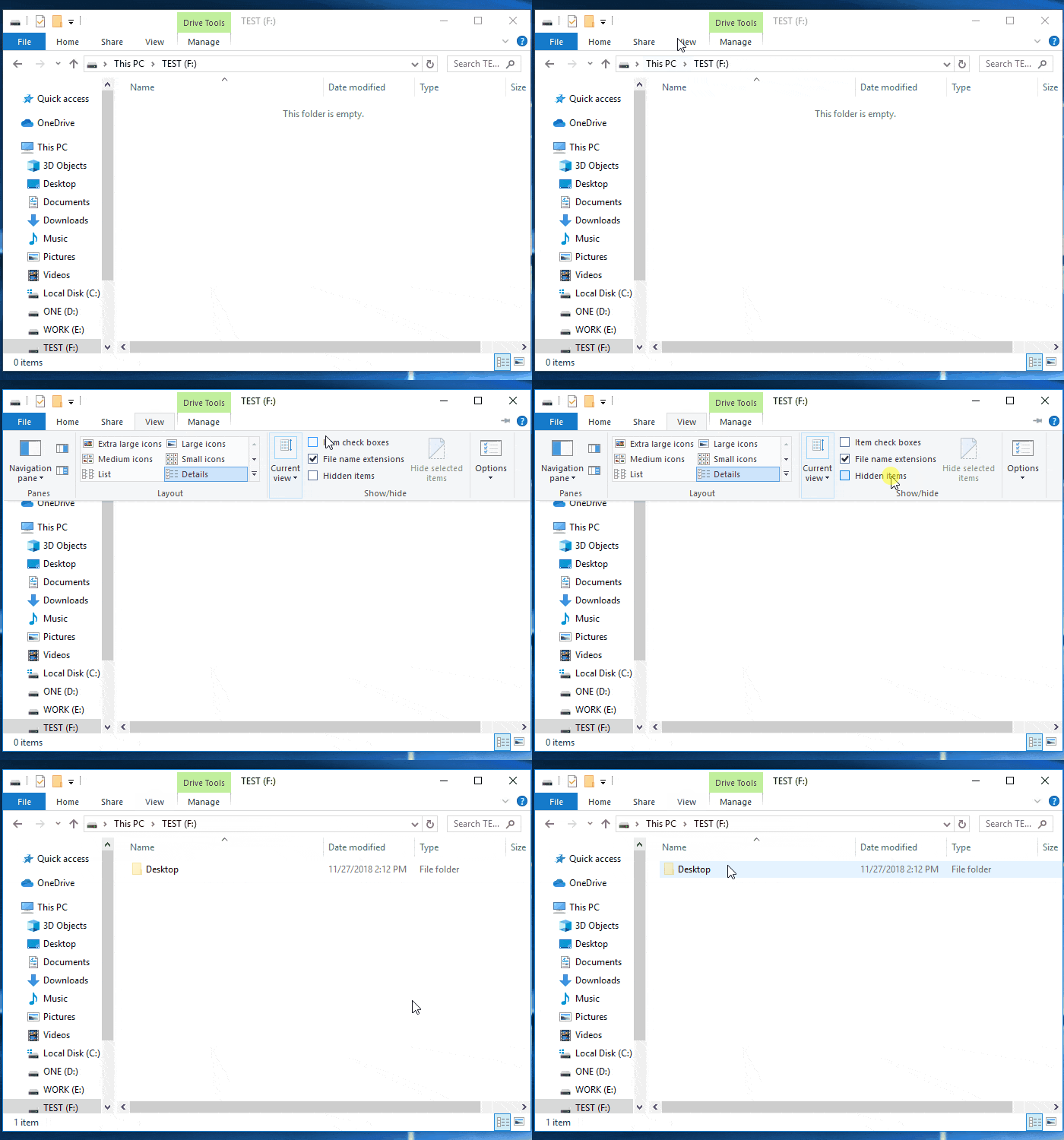
Option 2. Show Hidden Files with Windows Control Panel
Step 1: To access the File Explorer Options in Windows, open the Control Panel, locate the "File Explorer Options" entry, and click on it to open the settings.
Step 2:To view hidden files and folders, go to the View tab, select the Hidden files and folders section, and check the box that says "Show hidden files, folders and drivers".
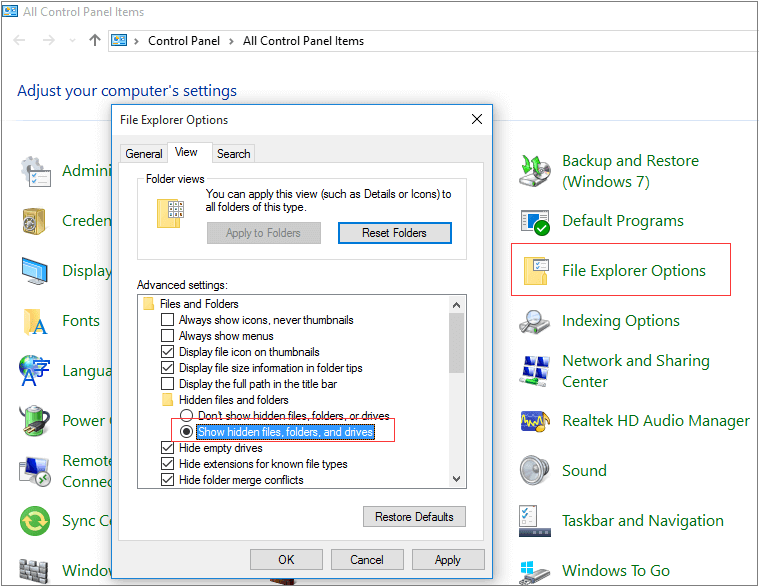
: Click "OK" to confirm.
To view hidden files and folders, you can use the command `ls -a` in the terminal. This will list all files and folders, including hidden ones, in the current directory.
Phrase 2. Restore Data After Removing Shortcuts
After removing the shortcuts from your device, you can open the folders to check if the data are securely saved there. This will confirm that the data was successfully transferred and saved in the intended location.
If the data are still inaccessible, or you can't see any saved data, don't worry, you can recover lost data after removing the shortcut virus by following the steps in the previous answer.
First, download professional data recovery software
Qiling file recovery software is a tool that allows users to scan and restore files lost due to deletion, formatting, or virus attacks.
The software provides a feature to recover files that have been hidden or removed by the shortcuts virus, allowing you to restore them to their original location.
Next, perform full data recovery
To restore data from a device after removing shortcuts folders, you can use Deep Data Recovery. It only takes 3 steps:
Step 1. Select file types and click "Fast Scan" to start
Launch Deep Data Recovery, select file types, and click "Fast Scan" to initiate the process.

Note: You can choose different search modes based on where and why the data was lost.
Step 2. Select a drive and start scanning
To recover lost data, hover over the partition where the data was lost, and click "Scan" to initiate the recovery process.

Step 3. Check and preview scanned files
To narrow down the scan results, use the file format filter on the left or upper right corner. This will allow you to find the specific files you need. Once you have filtered the results, you can preview the content of a file by clicking the "Preview" button or double-clicking on the file. This provides you a quick look at the file's content without having to open it.

Step 4. Recover lost data to a secure location
To recover lost data, select the file, check the box next to it, and click "Recover". It's best to save the recovered data to a different disk than the one where it was lost.
Related Articles
- How to Recover Files Lost While Moving
- Windows Photo Viewer Can't Display This Picture Windows 11/10/8/7
- Recover Files Deleted Long Time Ago
- How to Repair Corrupted Files After Recovery in Windows 10, 8, 7
- [Fixed] Windows File Recovery There Was an Error Parsing Your Command
How to fix the "Windows File Recovery there was an error parsing your command" error? The troubleshooting tutorial is ready for you. - How to Recover Deleted Audio Files from Memory Card
You can easily recover deleted audio files from a memory card on Windows or Mac using audio recovery software, which helps solve the problem of lost audio files.
Products
Articles & Tutorials
- Data Recovery
- Data Backup
- File Recovery
- File Backup
- System Backup and Restore
- Disk and Partition Clone
- Technical articles
- Mobile articles
- Disk Master Help
- Windows Data Recovery Tutorials
- Windows Secure Delete Tutorials
- Windows Partition Management Tutorials
- Windows File Backup and Restore Tutorials
- Windows System Backup and Restore Tutorials
- Windows Disk Backup and Restore Tutorials
- Windows Clone Tutorials