Fix Word Document Is Blank When Opened
Quick navigation to the methods for Word document is blank when opened problem:
| Workable Solutions | Step-by-step Troubleshooting |
|---|---|
| Fix 1. Use Open and Repair feature | First, try Microsoft Word built-in Open and Repair future to fix the blank Word. Start Word > "File" > "Open" > Select blank word > "Open and Repair"...Full steps |
| Fix 2. Use Qiling File Repair Software | Qiling Word document repair software can fix corrupted Word easily. Free download this file recovery tool...Full steps |
| Fix 3. Use /a Switch utility | The /a switch tool can help check where a problem may exist in Word. It prevents add-ins, templates...Full steps |
| Fix 4. Delete Word Data in Registry | If the saved Word blank issue is caused by unspecific options and settings, delete Word Data...Full steps |
| Fix 5. Restore from Previous Version | If you've enabled Windows file backup, you can restore Word from previous versions to fix the issue...Full steps |
Issue - Saved Word Document Now Blank
You spent a significant amount of time working on a Word document, saved it multiple times, but now it's empty with no text when you try to open it. This is a frustrating situation, especially since you have a report due. Can you tell me more about what happened? Did you experience any errors or warnings while saving the document, or was it just a normal save? Also, have you tried opening the document in a different location or on a different device to see if the issue is specific to your current setup?There could be several reasons why your saved Word document appears blank when you open it. One possible reason is that the file has been corrupted, which can happen due to a variety of factors such as a power outage, a faulty hard drive, or a virus.Check your Recycle Bin (Trash) and restore the deleted Word documents. If not found, try searching your computer for the file name or using a file recovery software like Deep Data Recovery. Also, check with your IT department or colleagues if they have a backup of the file. If none of these solutions work, you may need to recreate the document from scratch. However, if you have a cloud storage account like OneDrive or Google Drive, you can check if the document was synced to the cloud and can be recovered from there.
Why Is My Word Document Blank
The causes of Microsoft saved Word document opens but no text are uncertain. There are two reasons for this problem. One reason is that the document may have been saved in a format that is not compatible with the version of Word being used. Another reason is that the document may have been corrupted or damaged in some way, possibly due to a software or hardware issue.
- To recover a corrupted Word document, you can try using the built-in recovery feature in Microsoft Word. This feature can sometimes recover a corrupted document by looking for any remaining data in the file. To do this, open Word and go to the "File" menu, then select "Open" and navigate to the location of the corrupted document.
- Malware, viruses, or other external threats can compromise Word documents, causing them to become empty or corrupted.
If a Word document opens blank, it's likely because you forgot to save it. If that's the case, you'll need to recover the unsaved document by following the steps in the article on how to recover unsaved Word document in Windows 10.
How to Fix Word Document Is Blank When Opened
If your saved Word document has become blank, try these solutions in turn until the problem is resolved. You can start by checking if the document is in read-only mode or if the file has been corrupted. If not, try opening the document in a different version of Word, such as Word Online or Word for Mac, to see if the issue persists. You can also try saving the document in a different format, like PDF or RTF, to see if the problem is specific to the Word format.
Fix 1. Open Blank Word Document Using Open and Repair Tool
1. Start Word.
2. On the File menu or the Microsoft Office button, click "Open".
3. In the Open dialog box, select the blank Word file by clicking on it.
4. Click the down arrow on the Open button, and then click "Open and Repair".
This Microsoft Word built-in feature will then fix the corruption detected within these documents.
Fix 2. Recover Word Document with File Repair Software
If a saved Word document is corrupted, it may not open or display as blank when opened. In such cases, a Word document repair tool is needed. Qiling offers a file repair software that integrates file recovery and repair, allowing users to easily repair corrupted files, including photos, videos, Word, Excel, PowerPoint, and other file types.
Qiling toolkit for file repair key features:
- To repair corrupted Word documents, you can use the built-in recovery tool in Microsoft Word or a third-party repair software. For .doc and .docx files, you can try the following steps: Open Microsoft Word, go to the "File" menu, select "Open", and then click on the "Recover Text from Any File" option.
- To fix severely corrupted XLS and XLSX files, you can use a data recovery software specifically designed for Microsoft Excel files. These tools can scan the damaged file and recover as much data as possible without modifying its original format.
- Repair corrupt PDF documents by extracting their contents, including text, comments, labels, graphics, and other elements, from the original file.
- Repair corrupted files from various storage devices, including your PC, laptop, external hard drive, SD card, and USB flash drive, to retrieve valuable data.
Download and install this file repair program on your PC and follow the steps below to fix blank Word documents.
Step 1.Launch Deep Data Recovery on your PC, select the desired file types, and click "Fast Scan" to initiate the recovery process.

Note: You can choose different search modes based on where and why the data was lost.
Step 2. Click the "Scan" button to scan your disk and identify corrupted documents. This software allows you to repair damaged Word, Excel, PPT, and PDF files using the same straightforward steps.

Step 3. Qiling data recovery and repair tool scans for all lost and corrupted files, allowing you to find the target files by file type or by typing the file name in the search box.

Step 4. Deep Data Recovery can automatically repair damaged documents, allowing you to preview and recover Word, Excel, and PDF files to a safe location after the file preview process.
Fix 3. Start Blank Word by Using the /a Switch
To fix a Word document that appears blank when opened, you can try using the /a switch, a troubleshooting tool that helps identify the source of the issue. This can be a useful alternative to the other methods mentioned.
When you open Word with the /a switch, it loads without add-ins, global templates, or settings, allowing you to troubleshoot if the blank document issue is caused by these factors.
Follow these steps:
1. Type Run in the Search box and then press Enter.
2. Type winword /a in the Run dialog box, and press Enter.
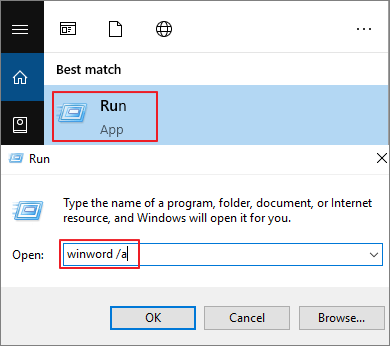
If the Word document opens with text, the problem is found, and you need to disable the add-ins. If the document is still blank, try the next option.
Fix 4. Fix Blank Word Document by Deleting Word Data Registry Subkey
Deleting the Word Data registry subkey is a common solution to fix the Word problem, as it stores most of the options and default settings in Word.
If you're experiencing issues with Word, try restarting the program. When you restart Word, it will rebuild the Word Data registry subkey using the default settings, potentially resolving any problems. This method may help you resolve issues with Word.
1. Exit Word, right-click the Start button, then choose Run.
2. Type regedit, then press Enter to start the Registry Editor.
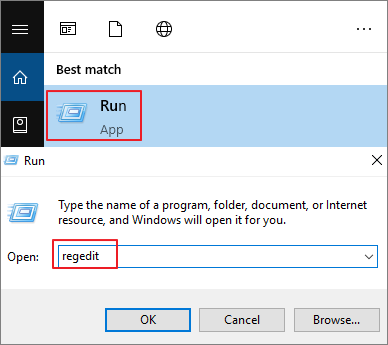
3. Go to HKEY_CURRENT_USER\Software\Microsoft\Office\12.0\Word\Data. Right-click "Data" and delete it.
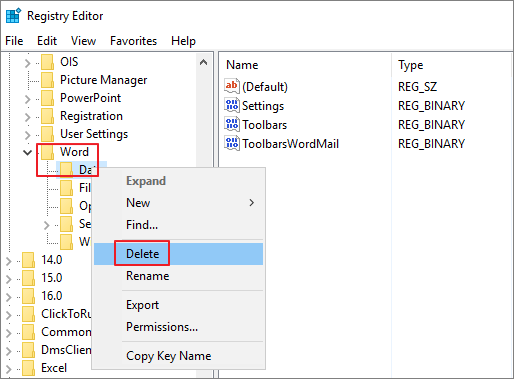
4. Exit the Registry Editor and restart Word.
Fix 5. Restore a Blank Word Document from Previous Versions
Some users have found that saving a blank Word document and then closing and reopening it can resolve the issue of blank files. This workaround may be worth trying, but note that you'll need to have previously enabled File History or restore points for the file to be recoverable if it was previously blank.
1. Right-click the blank Word document, choose to "Restore previous versions".
2. To recover your computer, go to the list of previous recovery points and choose the latest one. This will restore your computer to its state at the time of the last recovery point.
3. Click the "Restore" button to recover it back.

To Sum Up
If you're experiencing the issue of a blank Word document when opened, try the above approaches first. If they don't work, you can use Qiling file repair software to efficiently fix your corrupted Word documents. This software can help repair damaged files and get your Word document back to its original state.
- Word document is blank when opened on Mac? Look here!
- Users have reported that saved Word documents appear blank when opened on Mac, despite restarting Word or the computer not resolving the issue. To fix this, users can try restoring the lost Word file to resolve the problem.
Related Articles
- How to Recover Files After Factory Reset Windows 10/11
- Repair Corrupted PSD Files with Online Free PSD Recovery Tool
- Full Recovery of Files And Folder Structure
- How to Restore Bookmarks in Chrome [Applied to Recovering Chrome Histories and Favorites]
- How to Recover Unsaved & Deleted Word Documents
How to recover unsaved or deleted Word document in Windows 10, 11 or Mac? Please continue to see below and learn 10 easy ways for your Word document. - What Is I/O Device Error and How to Fix It on Windows
On this page, you can find to know what is I/O error and how to fix I/O device error on your Windows computer. Continue reading for further information about it.
Products
Articles & Tutorials
- Data Recovery
- Data Backup
- File Recovery
- File Backup
- System Backup and Restore
- Disk and Partition Clone
- Technical articles
- Mobile articles
- Disk Master Help
- Windows Data Recovery Tutorials
- Windows Secure Delete Tutorials
- Windows Partition Management Tutorials
- Windows File Backup and Restore Tutorials
- Windows System Backup and Restore Tutorials
- Windows Disk Backup and Restore Tutorials
- Windows Clone Tutorials