[Solved] Double Click Won't Open Files Windows 11/10/8/7
Can't Open Folders on Double Click in Windows 11/10/8/7
If you are experiencing an issue where you cannot open folders by double-clicking on them in Windows 10, this problem may affect your desktop, drives, external drives, and File Explorer. This can be caused by incorrect file association settings, system file corruption, or registry issues. Follow the solutions below to resolve this problem.
Users are experiencing issues where they can't open a folder in Windows 10, with error messages such as "this folder is empty" or file explorer won't open, and sometimes double clicking on a folder won't open it.
| Workable Solutions | Step-by-step Troubleshooting |
|---|---|
| Fix 1. Recover Files with Software | Launch Deep Data Recovery, hover on the partition where you lost data...Full steps |
| Fix 2. Change Mouse Settings | To change the folder options, go to the Search bar, type "Folder Options", and click on it. Then, navigate to the "General" tab and select the option "Double-click to open an item (instead of opening a folder in a new window)".Full steps |
| Fix 3. Adjust Double-click Speed | To adjust your computer mouse speed, go to the Control Panel, click on "Mouse", and then drag the slider to adjust the speed to your preference.Full steps |
| Fix 4. Check the Registry Entries | Click on Start, type Run, and input regedit. The registry will open...Full steps |
| Fix 5. Adjust the Display Settings | Right-click on the desktop and select "Display settings". Drag the toolbar leftwards...Full steps |
Before attempting to fix folders not opening in Windows 10/8/7, we recommend trying professional data recovery software to recover files in the inaccessible folder first, prioritizing data security. To fix the issue, solutions include checking for malware and viruses, running a System File Checker (SFC), DISM, and System Restore, as well as checking for corrupted system files, updating Windows, and resetting Windows Explorer. Additionally, users can try running the Command Prompt as an administrator, checking for disk errors, and using the built-in Windows utility to check for and fix corrupted system files. If none of these solutions work, users can try reinstalling Windows or seeking professional help.
Recover Files from Folder Not Opening on Double Click
To recover files from inaccessible folders, prioritize using a tool like Deep Data Recovery. This software can quickly scan and recover deleted, formatted, hidden, and existing files from various storage devices, including HDD, SSD, USB flash drive, external hard drive, SD card, and more.
To recover deleted, hidden, or existing files from a specific folder, run Deep Data Recovery, scan the folder that won't open, recover, and save the files to another location.
Step 1. Choose file types and click "Fast Scan" to start
Launch Deep Data Recovery, select the desired file types, and click "Fast Scan" to initiate the recovery process.

Note: You can choose different search modes based on where and why the data was lost.
Step 2. Select a drive and start scanning
To recover lost data, hover over the partition where the data was lost and click "Scan" to initiate the scanning process.

Step 3. Check and preview scanned files
To narrow down the scan results, use the file format filter to find the specific files you're looking for. Once you've filtered the results, you can either click the "Preview" button or double-click a file to view its content before deciding what to do with it.

Step 4. Recover lost data to a secure location
To recover lost data, select the file, check the box next to it, and click "Recover" to save it to a secure location, avoiding the original disk where the data was lost.
Change Incorrect Mouse Settings to Fix Can't Open Folders Windows 10
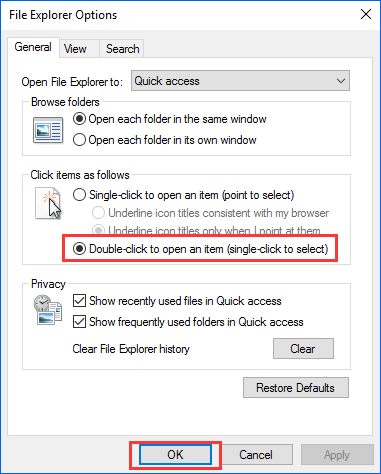
- To access Folder Options, type "Folder Options" in the Search bar and click on the "General" tab.
- To change the settings for how you click on items in File Explorer, go to "Folder Options" by pressing Windows key + E and then clicking on "Organize" > "Folder and search options". In the "Folder Options" window, click on the "File Explorer" tab, then under "Click items as follows", choose "Double click to open an item", and finally click "OK".
Adjust Double-click Speed to Solve Double Click Not Opening Files
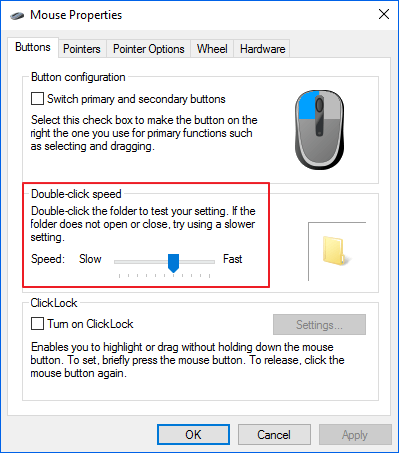
If you have adjusted double-click speed on your mouse to 'fastest,' but you can't click it fast enough to make it work. You need to change the speed.
- Go to "Control Panel", find and click "Mouse".
- Adjust the double-click speed by dragging in the "Double-click Speed" area and then click "OK".
Check the Registry Entries to Fix Folder Not Opening on Double Click
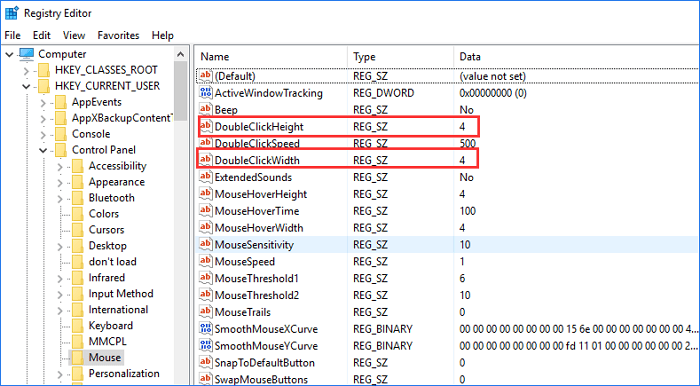
- To access the registry, click on Start, type "Run" and input "regedit". This will open the registry.
- Go to HKEY CURRENT USER > Control Panel > Mouse.
- To make the double click height and width larger, find and open the "Double Click Height key" and "Double Click Width key" in the registry, then change their values to 4.
- Restart the computer now, after restarting your problem must be resolved.
Adjust the Desktop Display Settings for Double Click Won't Open Files
Incremental system updates or patches may cause issues with opening folders, File Explorer, or This PC, particularly when the desktop display DPI scale is set to 100%, 120%, or 150%. To resolve this problem, reverting the display settings to their earlier default may be a viable solution.
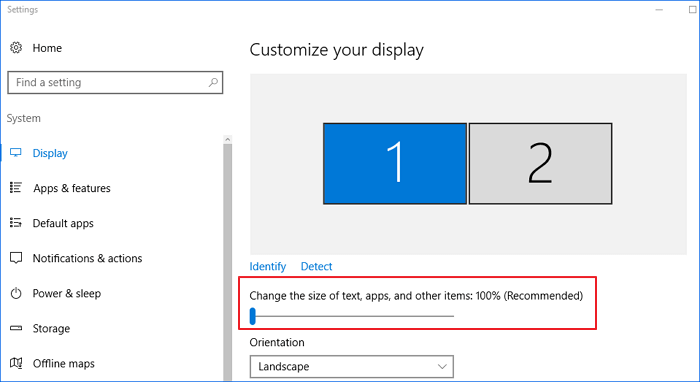
- Right-click on the desktop and select "Display settings".
- To adjust the size of text, apps, and other items on your screen, drag the toolbar leftwards or rightwards to the most suitable scale under 'Change the size of text, apps, and other items: 100% (Recommended)'.
- Go back to the desktop and see if the folders can be properly opened. If not, try adjusting the display settings to a different scale a second time.
Run Antivirus Software for Virus Scan
To remove the virus, install and run powerful antivirus software, such as Bitdefender, Norton, Kaspersky, or Avast, to scan and eliminate the infection. Additionally, ensure the antivirus software is updated regularly to maintain its effectiveness.
Double Click to Open Folder Now
There are five effective methods to resolve the double click won't open files issue on Windows 10 or new Windows 11. You can refer to the specific operation steps above. To avoid losing important data while solving the problem, we recommend restoring your data first using a competent data recovery software like Qiling.
This software has a high data recovery rate and can also help fix damaged files, including photos, videos, and documents, after recovery.
Related Articles
- 4 Ways to Show Hidden Files Using CMD, Control Panel and Software
- How to Recover Permanently Deleted Files from OneDrive on Windows 11/10
- Ctrl+Z Deleted Files Recovery: How To Recover Files Lost by Ctrl+Z
- How to Recover Unsaved, Deleted, and Lost WordPad Documents in Windows 10/8/7
- 12 Best Free Partition Recovery Software in 2023: Recover Deleted/Lost Partition
If you're looking for the best free partition recovery software, you're in luck as there are 12 free tools available for both Windows and Mac that can help you recover lost partitions. - Top 6 iPod Recovery Software for 2023
Looking for the best iPod data recovery software? We've can help! The top 6 iPod recovery software can help you recover lost data on your iPod easily and effectively, making it a reliable solution for your data recovery needs.
Products
Articles & Tutorials
- Data Recovery
- Data Backup
- File Recovery
- File Backup
- System Backup and Restore
- Disk and Partition Clone
- Technical articles
- Mobile articles
- Disk Master Help
- Windows Data Recovery Tutorials
- Windows Secure Delete Tutorials
- Windows Partition Management Tutorials
- Windows File Backup and Restore Tutorials
- Windows System Backup and Restore Tutorials
- Windows Disk Backup and Restore Tutorials
- Windows Clone Tutorials