Which Is Best Hard Drive Format for Mac [Full Comparison]
When storing data on a hard drive, it's essential to choose the right format to ensure compatibility and accessibility. Depending on the type of data you're storing, you'll want to select a format that suits its needs. By considering the nature of your data, you can determine the best format to use, whether it's for storing specific files, programs, or other types of information. This will help you keep your data organized and easily accessible on your Mac.
Choosing the best hard drive format for your Mac can be a daunting task, especially when faced with various options. This article aims to provide an overview of the best hard drive formats to help you make an informed decision for your Mac.
What Formats Are Compatible with Mac?
The Mac is compatible with four primary formats, which can be selected based on individual preferences. These formats have distinct functionalities, and understanding their details can help make a decision. They include various options that cater to different needs, allowing users to choose the one that suits them best.
1. APFS
APFS is the default file system format for macOS 10.13 and later, and is considered a better file system format in many ways due to its features such as impressive encryption, shared space, adequate directory sizing, and snapshots.
APFS is a file system that optimizes for Flash and SSD storage, but also works with older systems that use conventional HDD storage drives. It allows for easy management of drive sizes and comes in four formats for Macs, offering better performance and requirements for the device.
2. HFS
For macOS 10.12 or earlier models, the HFS file system was the default, offering features like volume and data encryption. Although it was replaced by APFS as the default file system, HFS remains compatible with both older and newer Mac models, making it a veteran file system that still has its place in the Mac world.
HFS-formatted drives can be accessed on Windows using third-party apps, a feature not available with other Mac-compatible file systems.
Here is a link to help you learn the detailed comparison between HFS and APFS.

Beginner's Guide: Learning Mac from the Compatible Formats
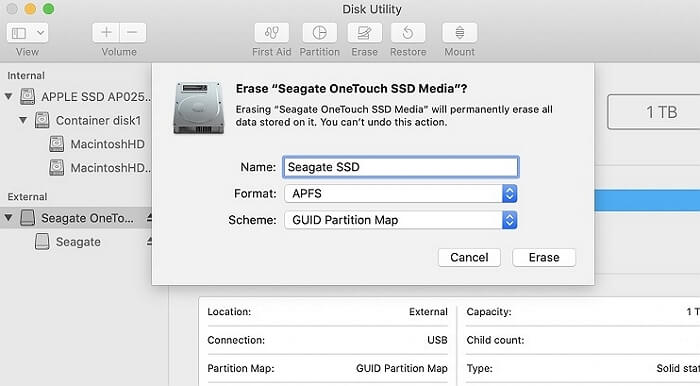
The Disk Utility on a Mac system offers various file system options, which can be confusing. To clarify, the most commonly used file system is APFS (Apple File System), which is the default for modern Macs. However, older Macs may use HFS+ (Hierarchical File System Plus), and some external drives might use exFAT (Extended File Allocation Table).
3. FAT32
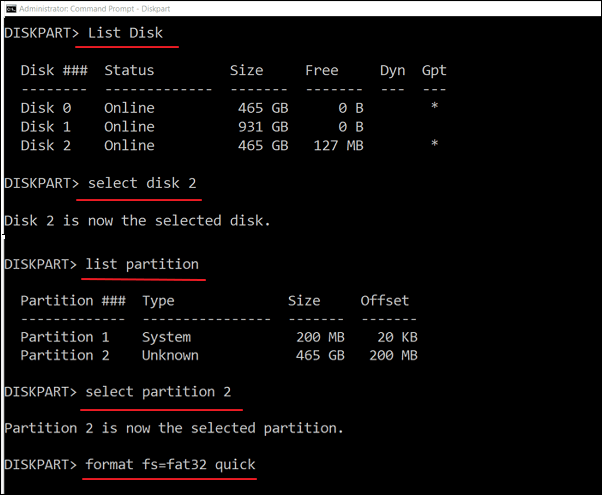
If you prefer a file system that can be shared across different operating systems, FAT32 is a great alternative to the dedicated formats available on Mac. This versatile file system can be read and written on Mac, Windows, and Linux, making it an ideal option for sharing files among different platforms. By converting all data to FAT32, you can ensure seamless file sharing and compatibility across various operating systems.
FAT32, being an older file system, lacks encryption and security features, making it vulnerable to attacks. Additionally, it has a 4GB data storage capacity limit and can be prone to errors if not managed correctly. Despite its diversity, it has its drawbacks when used on a Mac.
4. exFAT
Microsoft introduced exFAT as a better version of FAT32, offering a bigger storage option than 4GB, making it a preferred file system for larger drives, especially when used across Mac systems.
exFAT is a file system that allows drives to be shared between Mac and Windows without the need for complex structures or partitions. This makes it a preferable option for drives that need to be accessed by both operating systems.
If you're trying to decide between FAT32 and exFAT for your file system needs, this link may provide some helpful information for making that comparison.
ExFAT and FAT32 are both file systems, but they have some differences. ExFAT is a more modern and efficient file system, designed to work with larger storage devices and operating systems. It supports larger file sizes and cluster sizes, making it ideal for large files and high-capacity storage.
FAT32 has limitations on file size, but exFat offers larger file support and is more versatile, making it a preferred choice for modern storage needs.
Determining the best hard drive format for your Mac can be a daunting task, but a detailed comparison can help. This comparison will aid in answering questions like "Should I use APFS or HFS for my hard drive?" by outlining the pros and cons of each format, ultimately helping you decide which one is best for your needs.
Which Is the Best Hard Drive Format for Mac?
We will now compare the best hard drive format for Mac, which will be determined using the table shown below.
| File System | Supported Systems | Maximum File Size | Advantages | Disadvantages |
|---|---|---|---|---|
| APFS |
|
|
|
|
| HFS+ |
|
|
|
|
| FAT32 |
|
|
|
|
| exFAT |
|
|
|
|
The best file formats for Mac are APFS and HFS, offering superior features compared to other formats. To set the best hard drive format for Mac, continue reading. (Note: I removed the "shortly" at the end as it seems to be a leftover from the original text)
Before formatting your Mac, it's essential to back up all your important files, photos, and data to an external hard drive or cloud storage. This will ensure that you don't lose any valuable information in the process. You can use Time Machine, an Apple feature, to automatically back up your Mac to an external drive.
How to Set to the Best Hard Drive Format for Mac?
The best hard drive format for Mac is typically APFS (Apple File System). To format a hard drive for Mac, you can use the built-in Disk Utility app. Simply select the hard drive you want to format, choose the APFS format, and follow the on-screen instructions to complete the process.
Guide 1: Set to the Best Hard Drive Format for Mac - Disk Utility
If you want to format your hard drive, you can use Disk Utility to do so in a simple and understandable interface. To format your hard drive with Disk Utility, follow these steps:
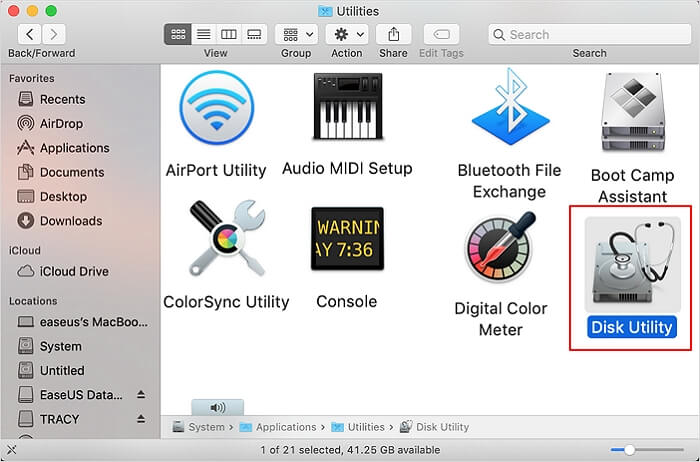
Step 1. To open Disk Utility, you need to search for it within the "Utilities" folder when you open the Applications folder in the Finder on your Mac.
Step 2. To erase a hard drive, select it from the left panel and click the "Erase" button on the top toolbar.
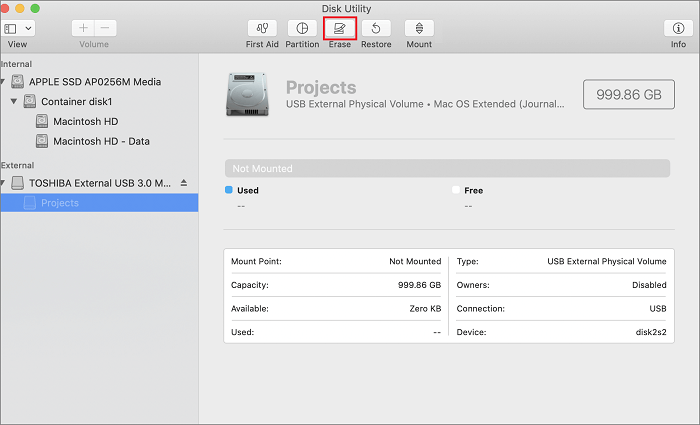
Step 3. To erase a hard drive, you will need to first select the drive you want to erase and then choose a format for the new drive. Once you have selected the format, click "Erase" to begin the process. The drive will be completely wiped of all data and formatted to the selected format.
There are three links to help you if you have problems such as:
You can also use Terminal to set your Mac to the best hard drive format.
Guide 2: Set to the Best Hard Drive Format for Mac - Terminal
To format the best hard drive for your Mac, you can follow these steps. First, open the Terminal app on your Mac, which can be found in the Applications/Utilities folder.
Step 1. Open Finder on your Mac, navigate to the "Applications" section, click on "Utilities", and search for "Terminal".
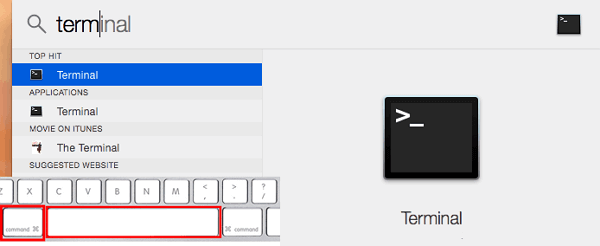
Step 2. To discover the hard drives on your Mac, launch the Terminal app and type in the "diskutil list" command. This will display a list of all the hard drives and storage devices connected to your Mac.
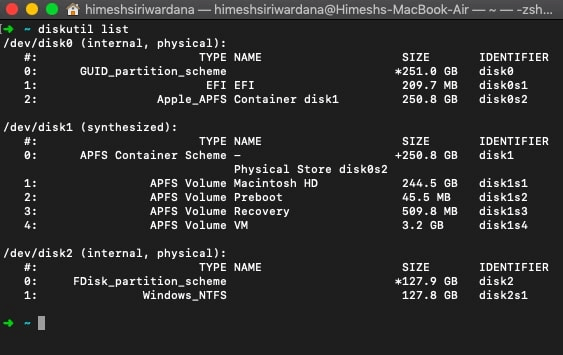
Step 3. On determining the hard drive, use the following command format:
diskutil erasedisk FILE_SYSTEM disk_name disk_identifier
To format a drive into the FILE_SYSTEM format, you would use the command `mkfs -t FILE_SYSTEM /dev/disk_nameX` where X is the disk_identifier number, for example `mkfs -t ext4 /dev/sda1` to format the first partition of the first disk into an ext4 file system.
Tip: If you need help formatting an external hard drive on a Mac, there is a helpful link available to guide you through the process.
How to Use Mac to Format External Hard Drive
To make a Mac format external drive, follow this simple method. First, connect the external drive to your Mac. Next, go to Applications > Utilities > Disk Utility. Select the external drive from the left sidebar and click the "Erase" button.
Conclusion
The best hard drive format for Mac is a matter of debate, with various formats known for their unique features. To format a hard drive on a Mac, users can follow a straightforward process, which includes using the Disk Utility tool, reformatting the drive, and choosing the desired format. However, despite the clarity of these steps, there are still some unanswered questions that need to be addressed.
FAQs About Best Hard Drive Format for Mac
The file system on a Mac is based on the Unix operating system and is divided into several components, including the startup disk, user directories, and system directories. The startup disk is where the operating system is installed, while user directories store personal files and data.
1. Is NTFS or exFAT better for Mac?
exFAT is preferred over NTFS for Mac users because it allows for both reading and writing, whereas NTFS is only readable and not writable. This makes exFAT a better choice for cross-platform compatibility.
2. Is exFAT better for Mac?
The exFAT file system is considered an optimal option for Mac because it allows for seamless sharing of files between Mac and Windows, making it a versatile and convenient choice.
3. Does Mac use exFAT or FAT32?
On a Mac, both exFAT and FAT32 file systems are supported, allowing you to access them when formatting your hard drive.
Related Articles
- User Profile Service Failed the Logon (Causes & Solutions)
- External Hard Drive Lifespan: How to Prolong It [5 Ways]
- How to Open Dmg Files on Mac Ventura/Monterey/Big Sur/Catalina [4 Fixes]
- Why Format SD Card: Full Guide on the Main Reasons
- 10 Ways to Fix Red Screen of Death on Windows 11/10
Can you fix a red screen of death on Windows 11/10/8/7? Yes, you can fix the red screen of death error in Windows 10 with 10 effective solutions. Before the solutions, it's better to run Qiling data recovery software to export data to another location. - 5 Best Registry Cleaner for Windows PC [Updated 2023]
Choosing the best registry cleaner for Windows PC can be overwhelming due to the numerous options available. To make the decision easier, you can refer to a roundup article that reviews and compares the top registry cleaners, allowing you to select the most suitable one for your needs.
Products
Articles & Tutorials
- Data Recovery
- Data Backup
- File Recovery
- File Backup
- System Backup and Restore
- Disk and Partition Clone
- Technical articles
- Mobile articles
- Disk Master Help
- Windows Data Recovery Tutorials
- Windows Secure Delete Tutorials
- Windows Partition Management Tutorials
- Windows File Backup and Restore Tutorials
- Windows System Backup and Restore Tutorials
- Windows Disk Backup and Restore Tutorials
- Windows Clone Tutorials